How do I use Moloni ON data in the next steps of a Zap
To use Moloni ON data in the next steps of a Zap, choose the data from the list of previous steps instead of typing a fixed value. Zapier fills it in with the real value every time the Zap runs. This is called mapping fields.
When you test a trigger, a search or an action, Zapier shows the data it received from Moloni ON, for example the document number, the customer name or the total.
Follow these steps:
1. Open the step where you want to use the data.
2. Click the field you want to fill in. Each field has a + button on the right side to insert data.
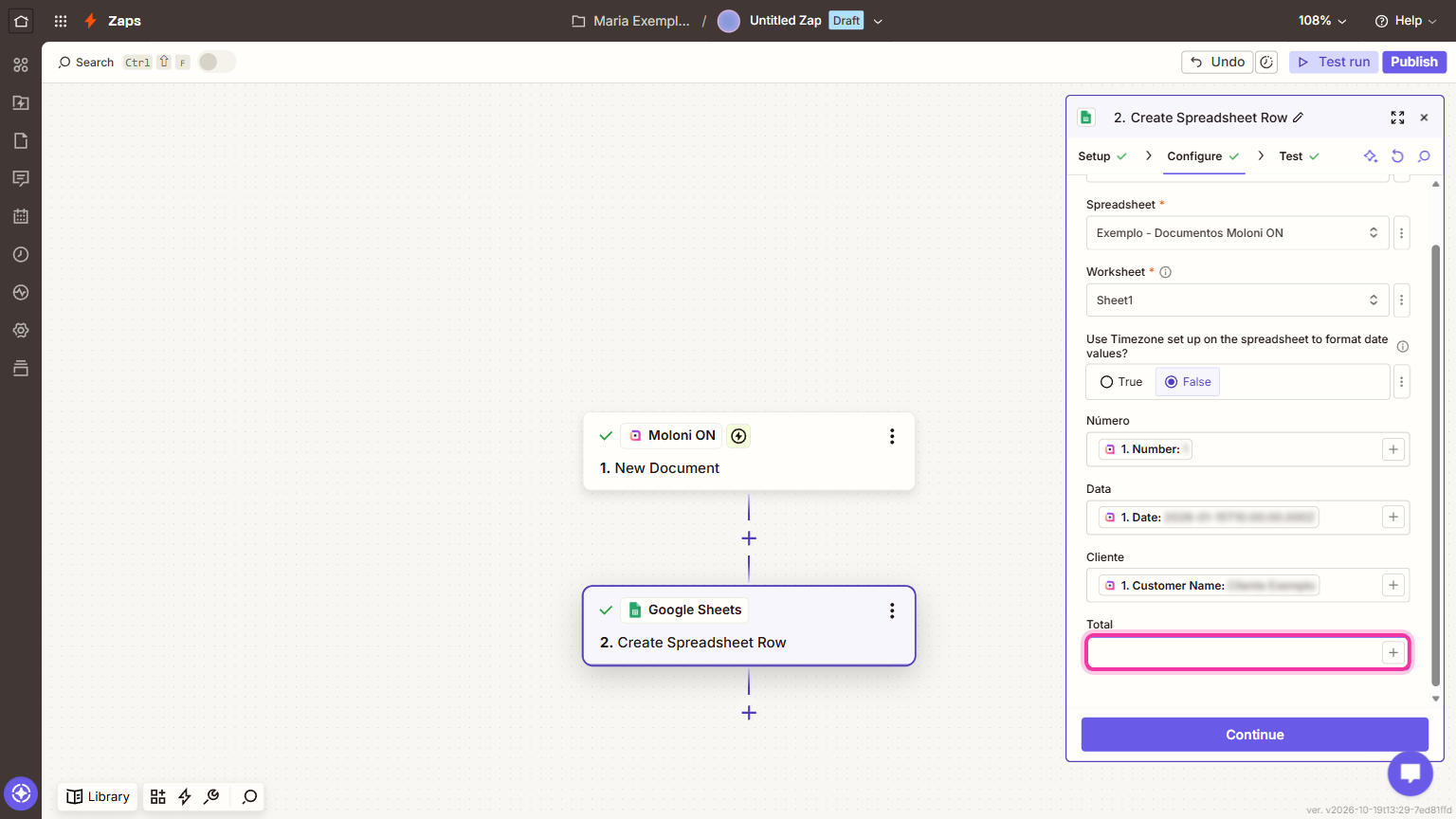
3. In the list of previous steps, choose the Moloni ON data you want to use.
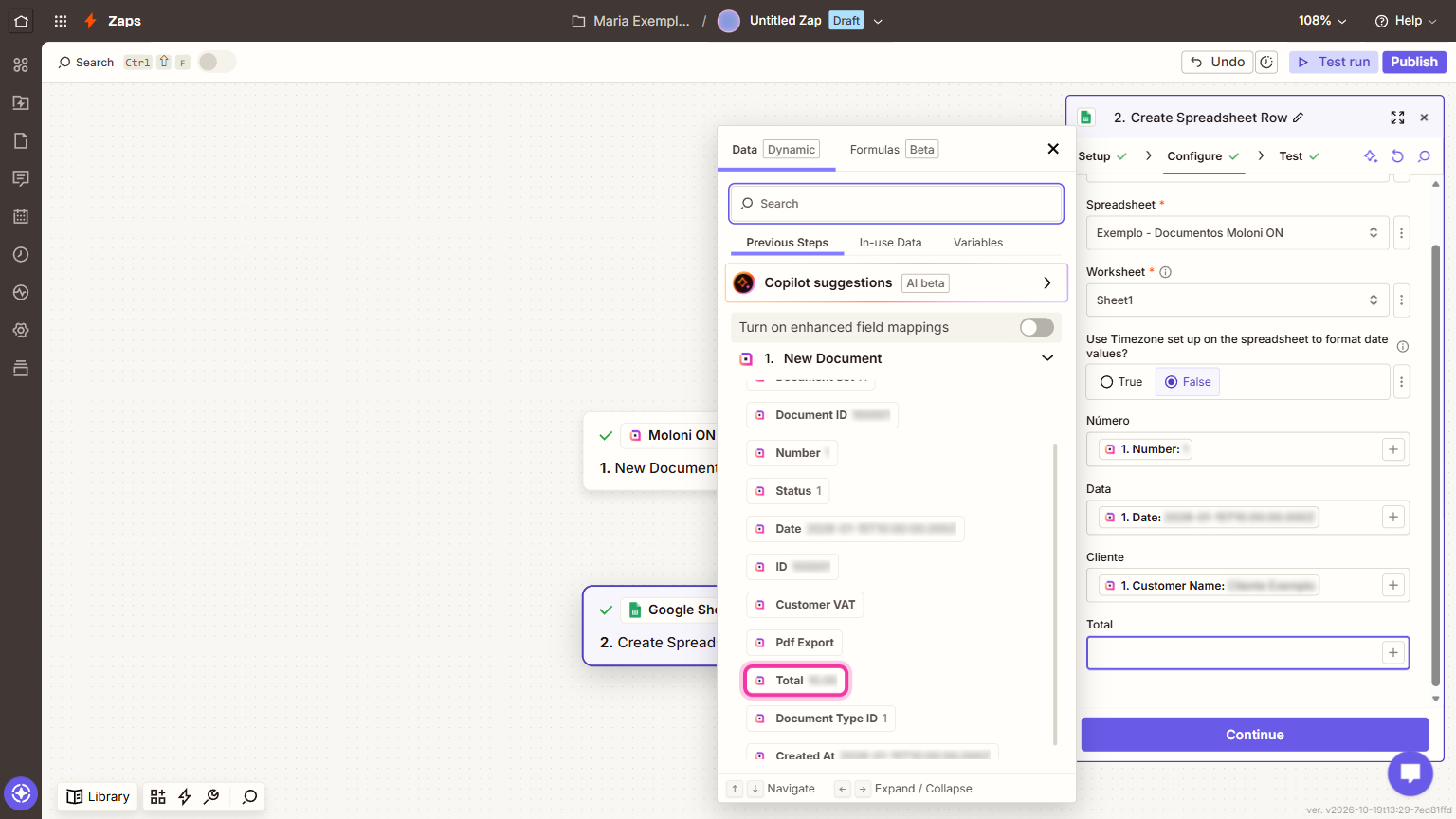
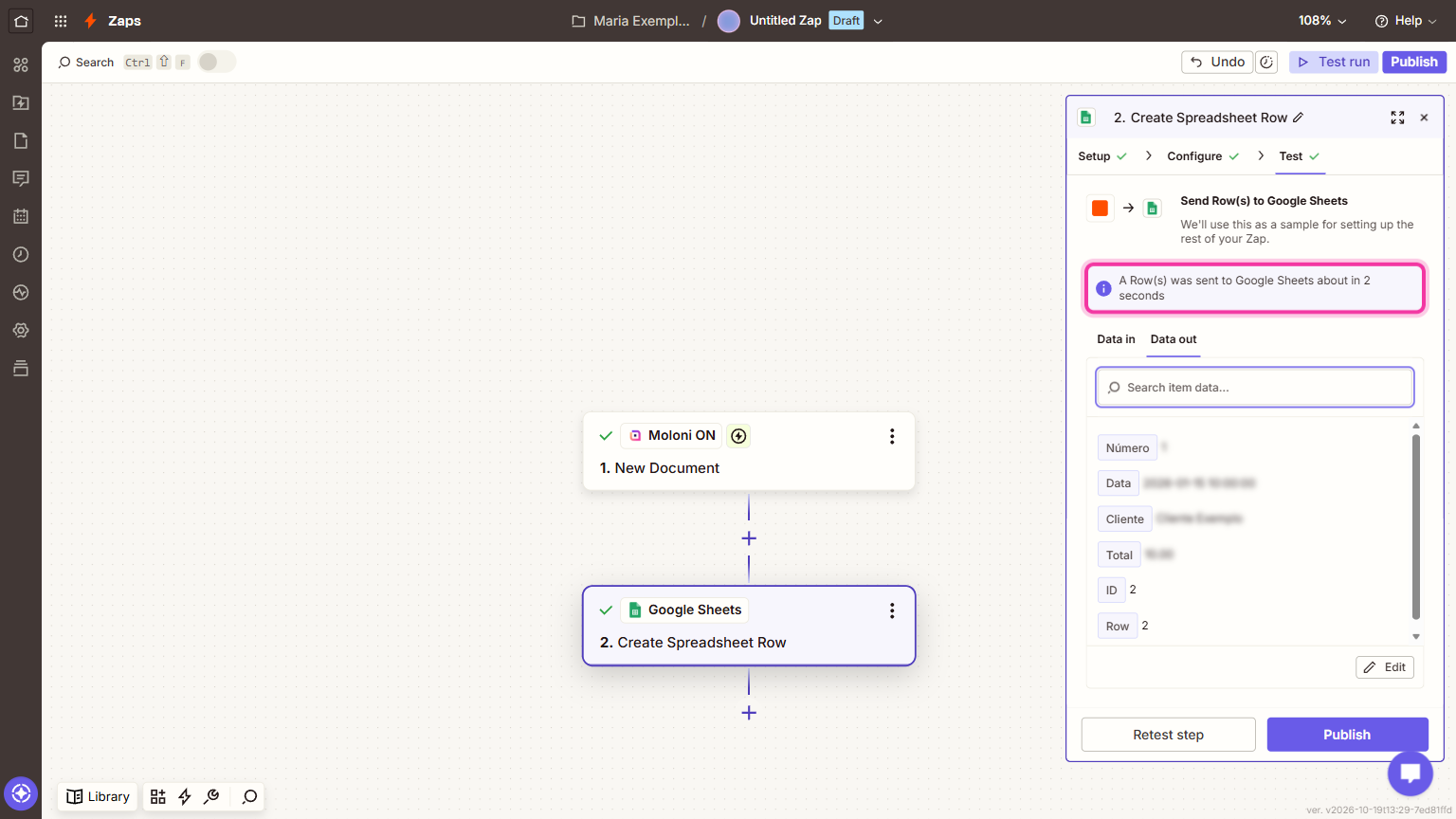
4. Test the step to check that the value arrived as expected.
You can combine fixed text with data. For example, in an email subject: "Invoice " followed by the document number.
Use a document's PDF
There are two ways to get a document's PDF in the Zap:
- The "Document PDF Generated" trigger fires when the PDF is ready and already includes the file.
- The "Get Document PDF" action returns the PDF of a document that already exists, for example one you found with "Find Document".
In both cases, the PDF comes as a file. In the next steps, you choose that file to attach it to a Gmail email or to save it to Google Drive. If you want Moloni ON to send the email, use the "Send Document by Email" action and choose to attach the PDF.
Use a search before an action
To change a customer or a product that already exists, you can first find it with "Find Customer" or "Find Product" and then use the result in the "Update" action. If the record may not exist, turn on the "Create Moloni ON Customer if it doesn't exist yet?" option in the customer search or "Create Moloni ON Product if it doesn't exist yet?" in the product search.