How to access the product list in WooCommerce
Follow these steps:
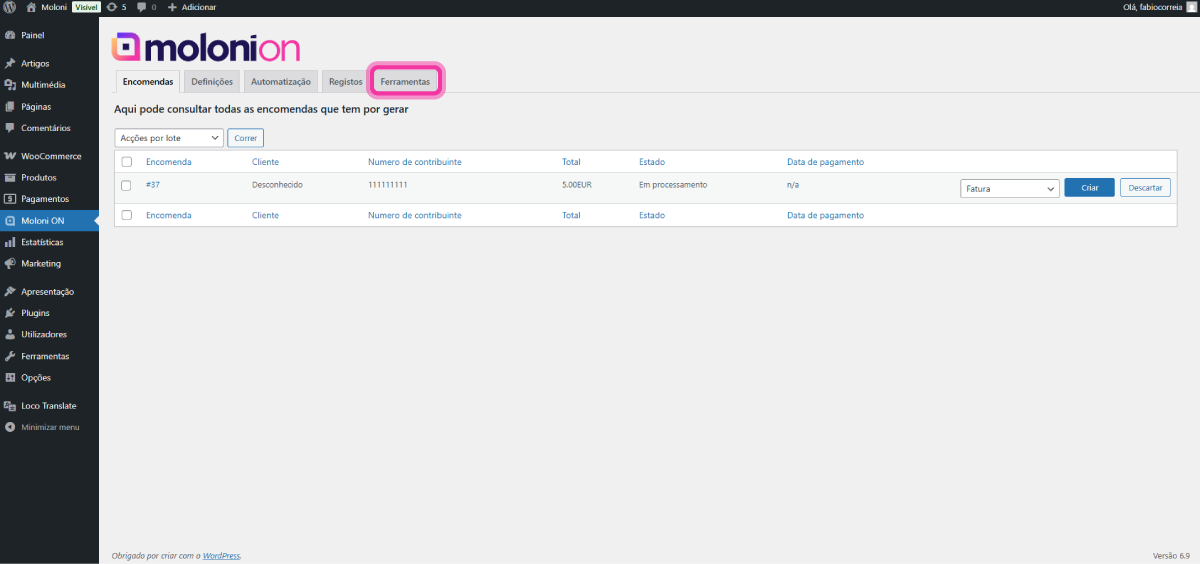
1. In the Moloni ON plugin, access the Tools tab.
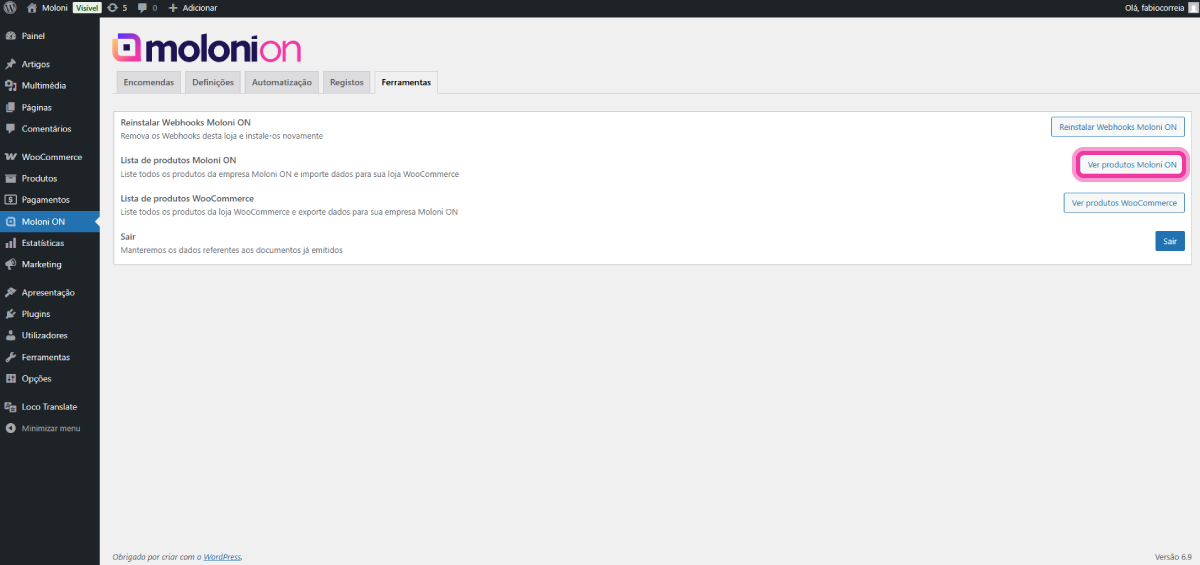
2. If you want to view Moloni ON products, click the View Moloni ON products button.
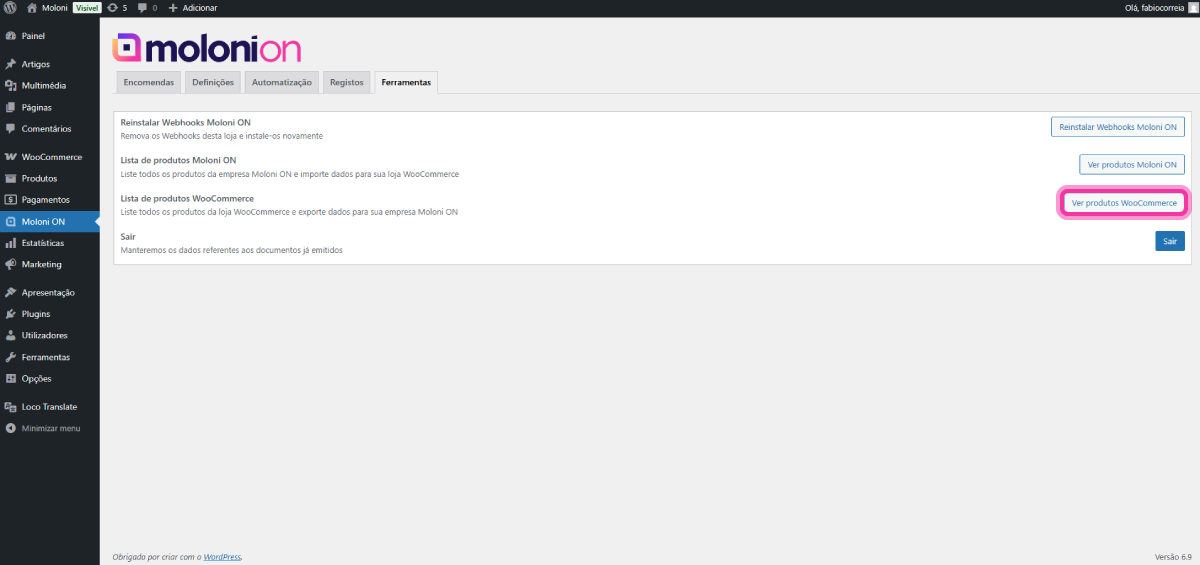
3. If you want to view WooCommerce products, click the View WooCommerce products button.
This list displays existing products, identifies any errors that may exist, and provides ways to fix them.
Possible errors:
- Product does not exist;
- Product types do not match;
- Product stock type does not match;
- Product stock does not match;
- Missing product variants/combinations.
4. If you wish to search for a specific product, simply enter the name or reference in the search field and click the Search button.
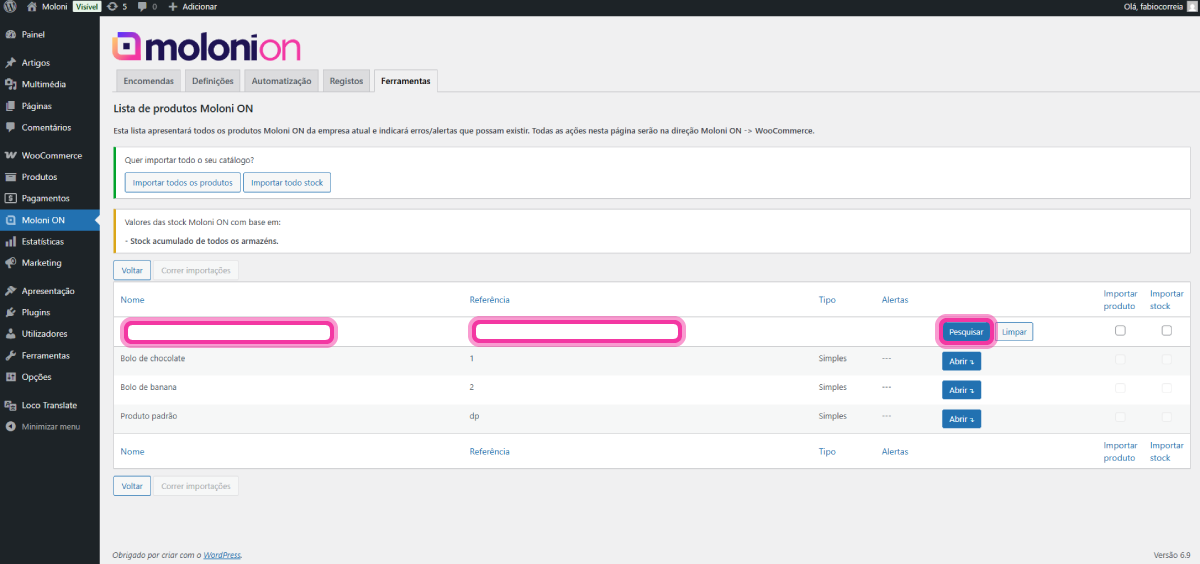
5. Every time you access the list, a check is performed and the most common errors a product might have are displayed in the Alerts column.
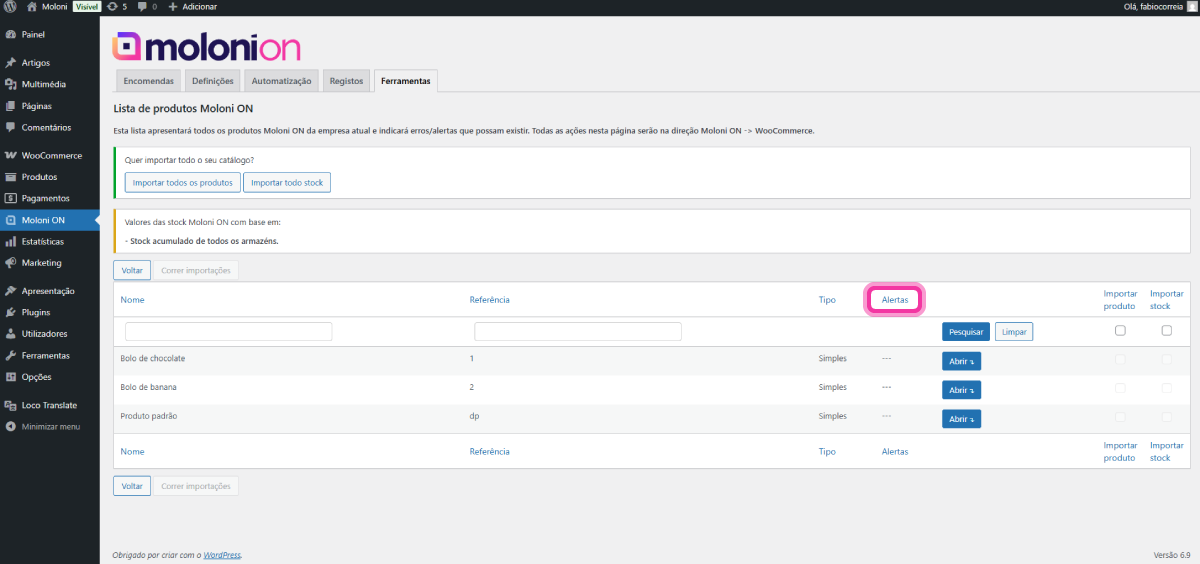
6. If the identified problems are: Product not found or Stock does not match - you can fix the error using the Import product/Import Stock columns.
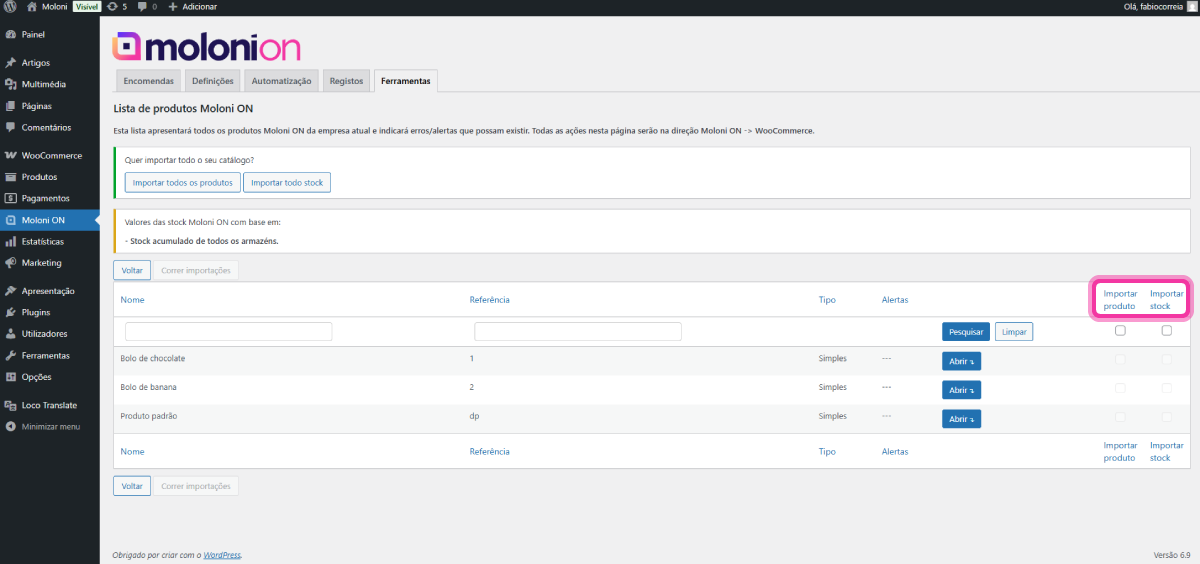
Moloni ON product listing
If the error Product not found in the WooCommerce store appears - simply select the Import product tick box and click the Run imports button. Once this process is completed, the error is resolved.
WooCommerce product listing
If the error Product not found in the Moloni ON account appears - simply select the Export product tick box and click the Run exports button. Once this process is completed, the error is resolved.