How to connect your PrestaShop store with Moloni ON
Follow these steps:
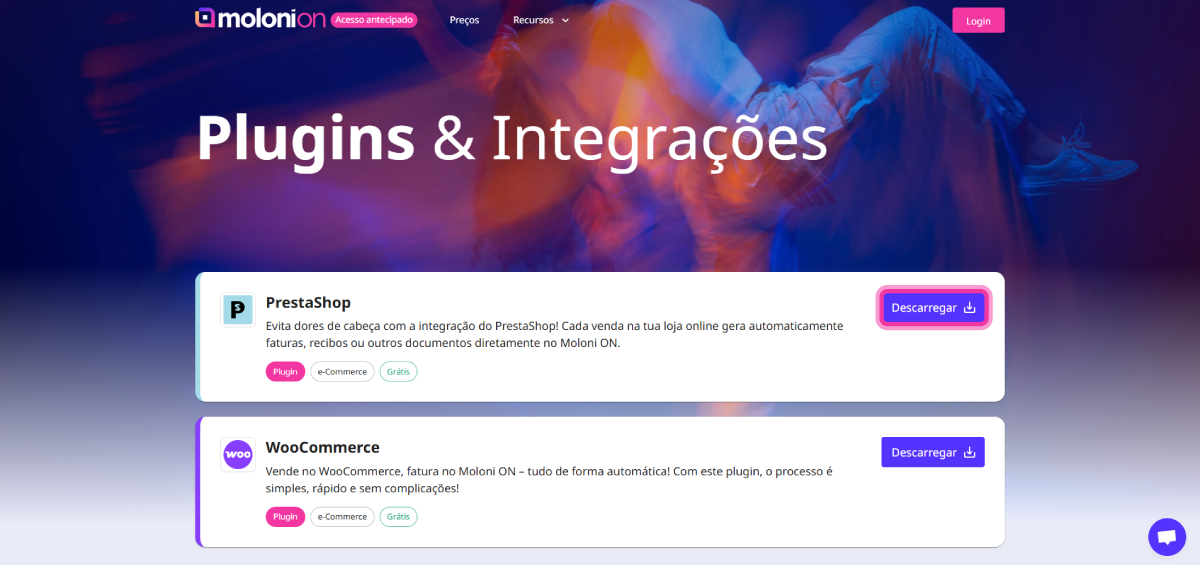
1. Download the module via this link. To do this, in the PrestaShop section, click the Download button.
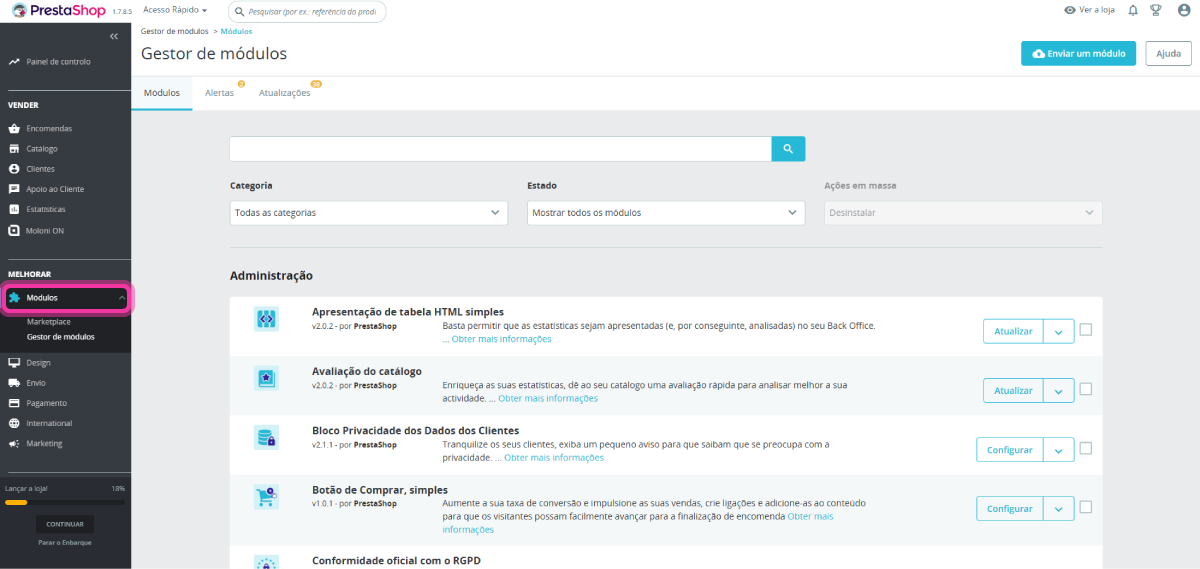
2. Access the PrestaShop platform and click on Modules.
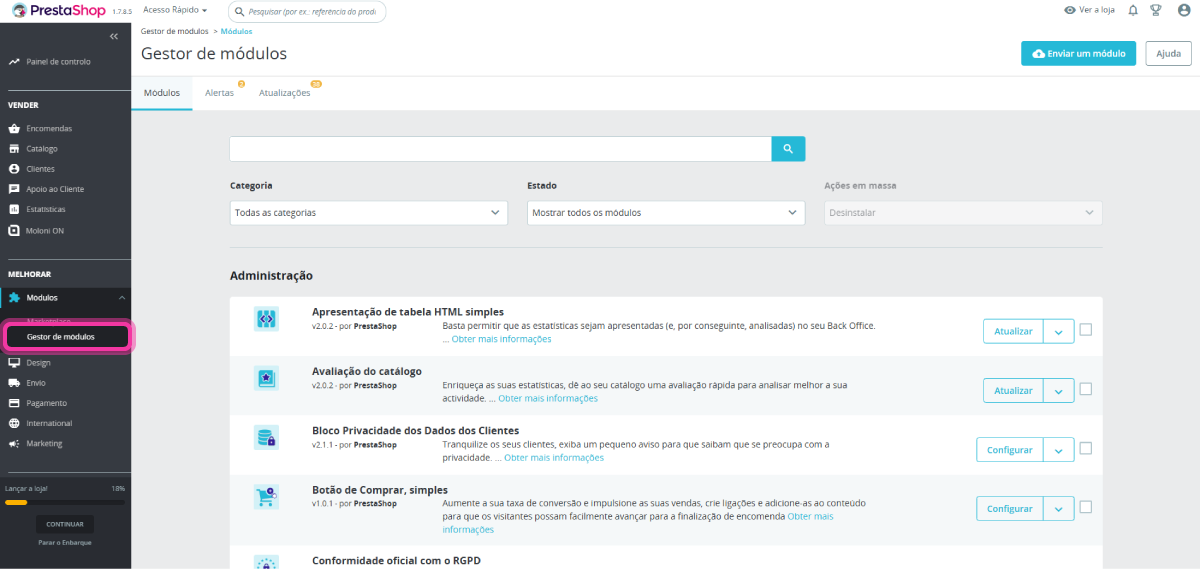
3. Click on Module Manager.
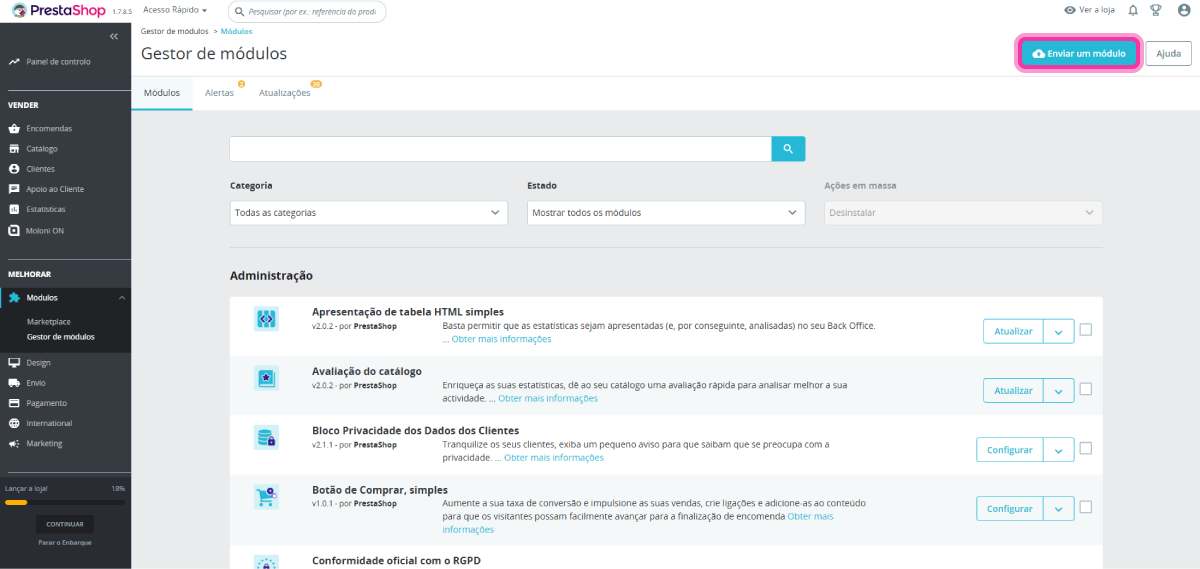
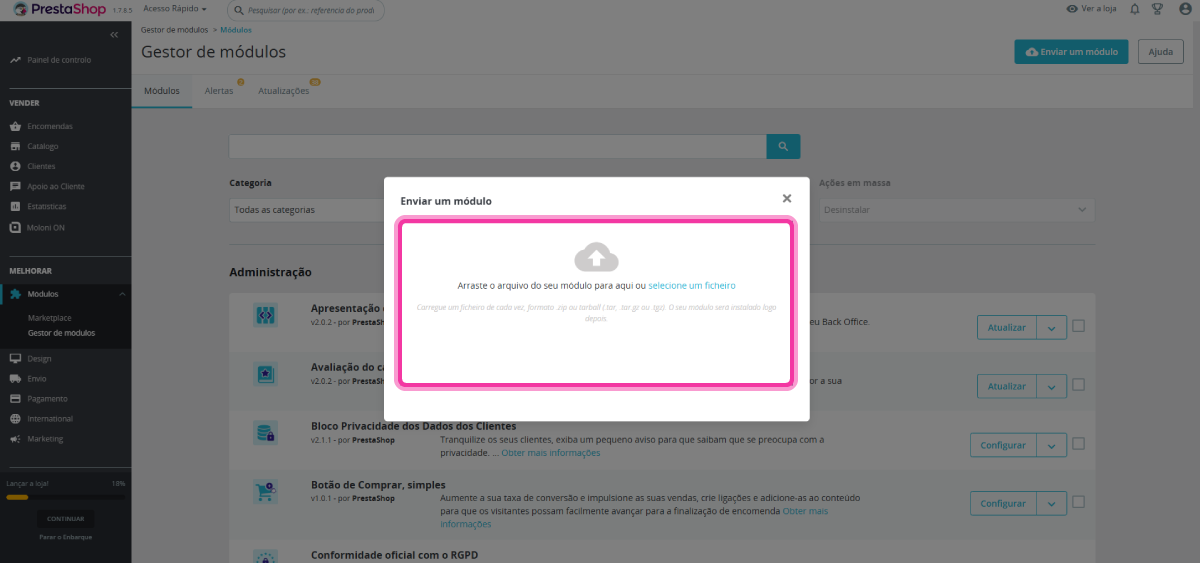
4. Click the Upload a module button, located in the top right corner.
5. Select the downloaded file or drag and drop it into the upload area.
6. The module has been installed. Click the Configure button.

Next step: you must log in to the Moloni ON plugin.
How to log in to the Moloni ON plugin
Logging in to the Moloni ON plugin within the PrestaShop platform is quick and easy.
Follow these steps:
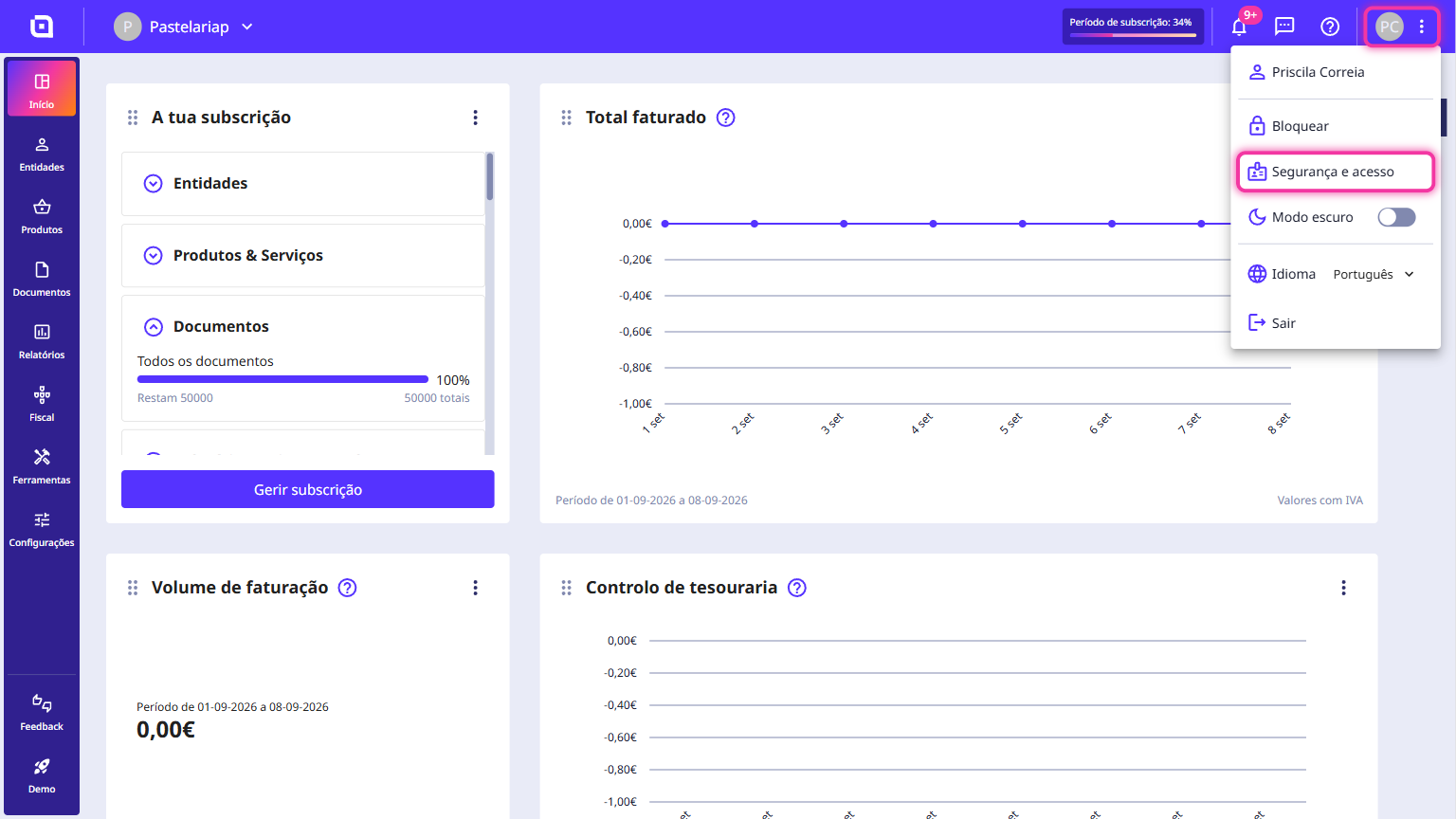
1. In the Moloni ON Client Area, access the user menu and click on Security and access.
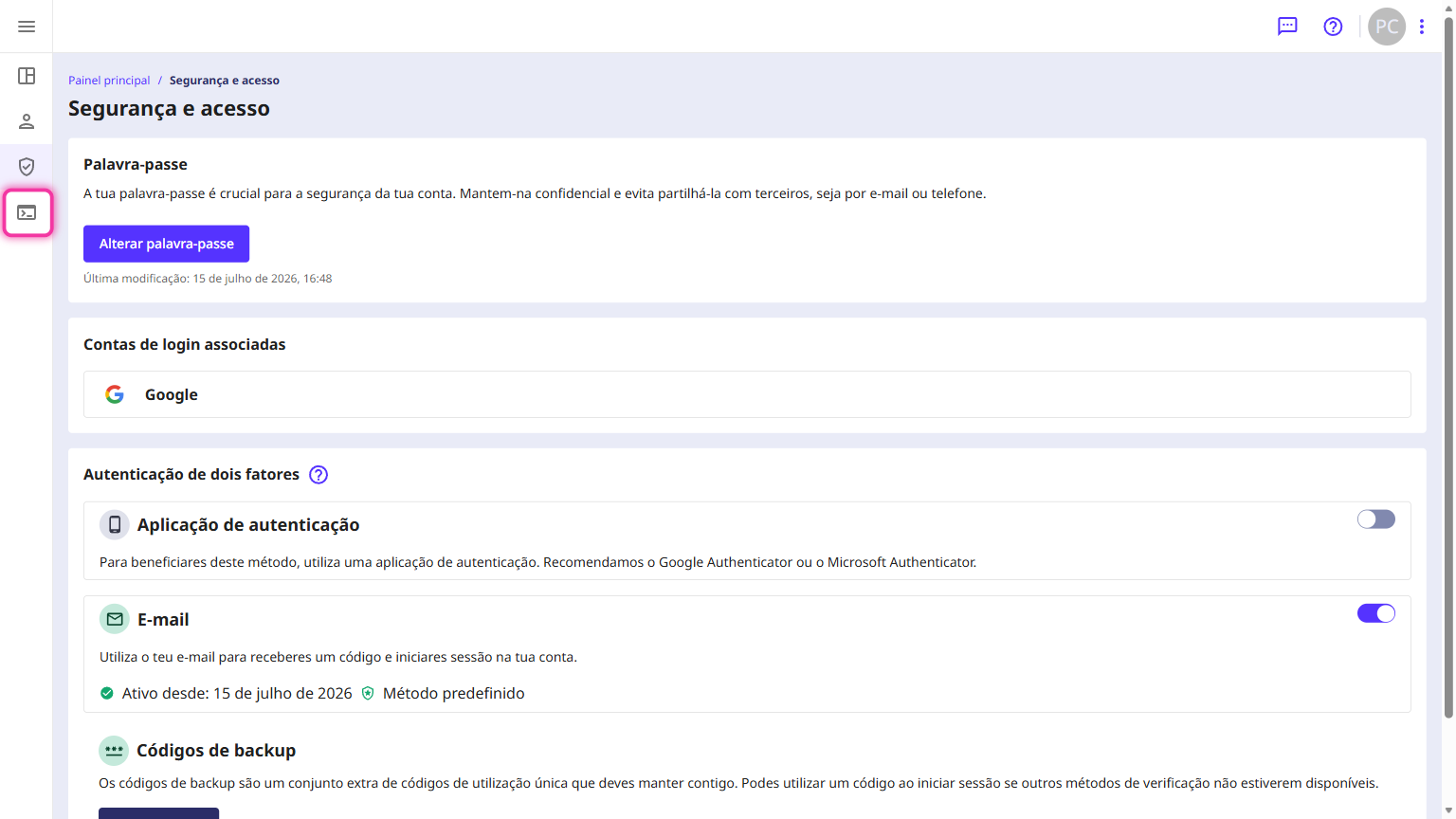
2. Access the API section, the 4th icon on the side menu.
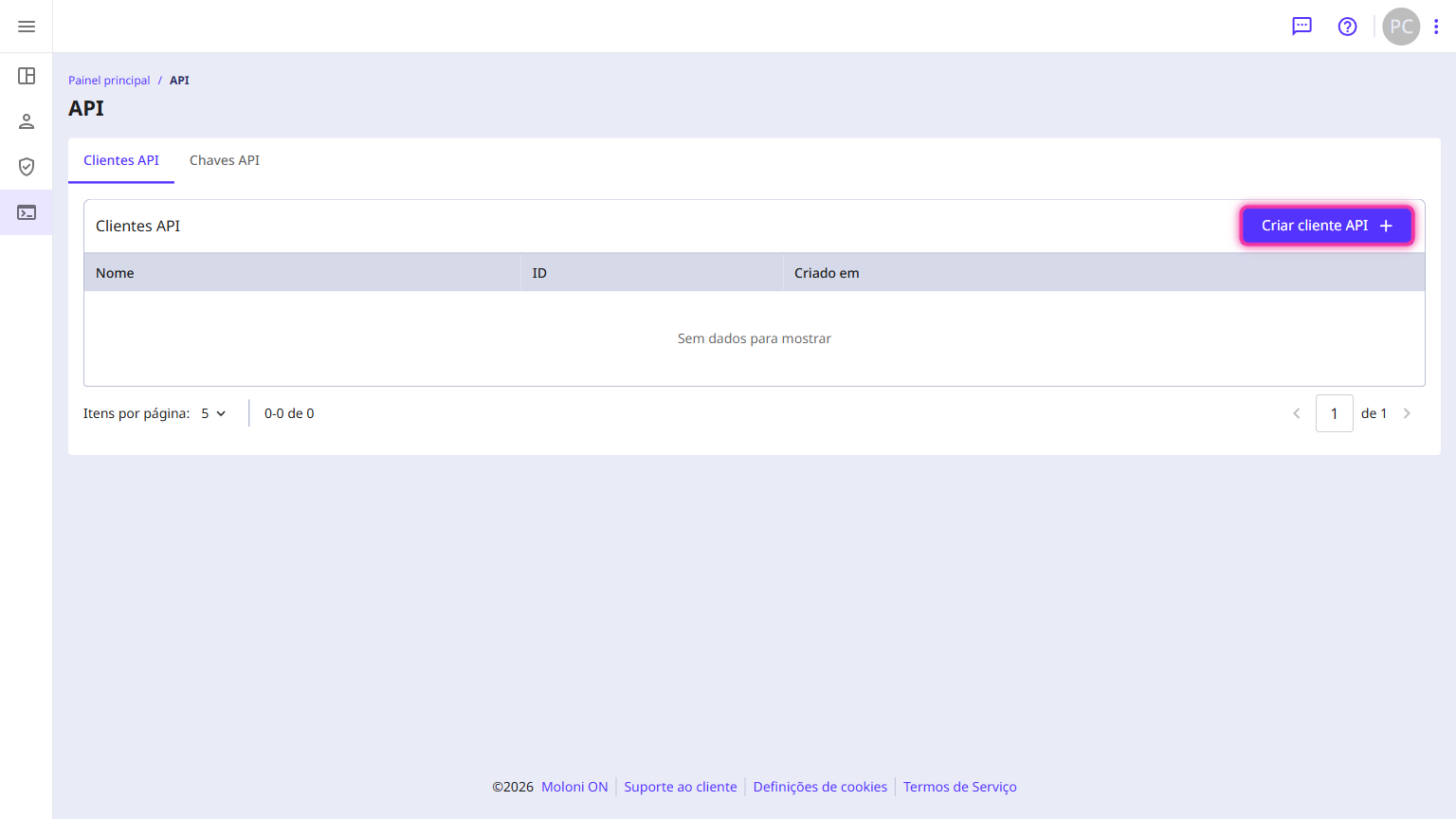
3. Click on the Create API client button.
4. Enter the desired name.
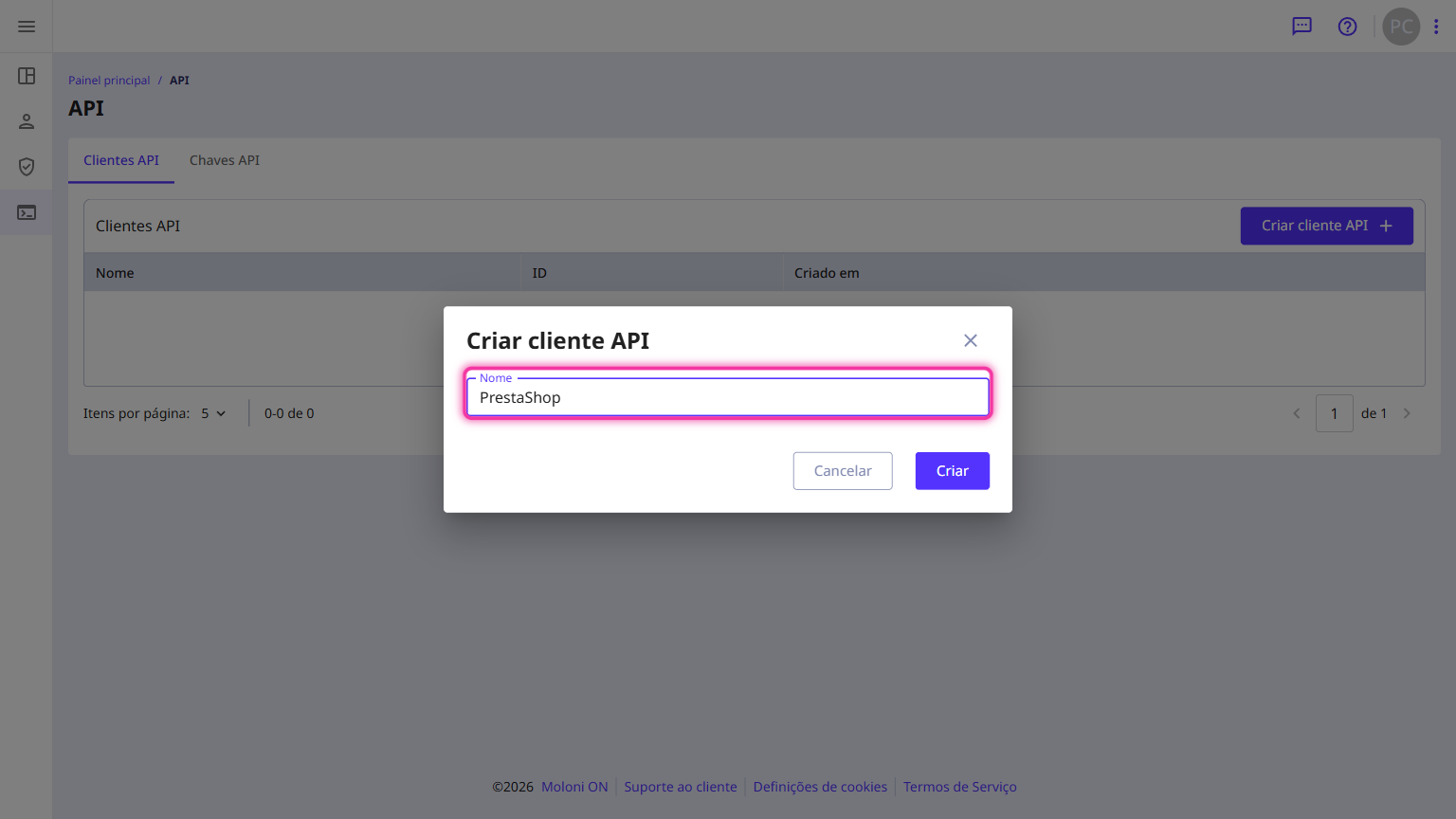
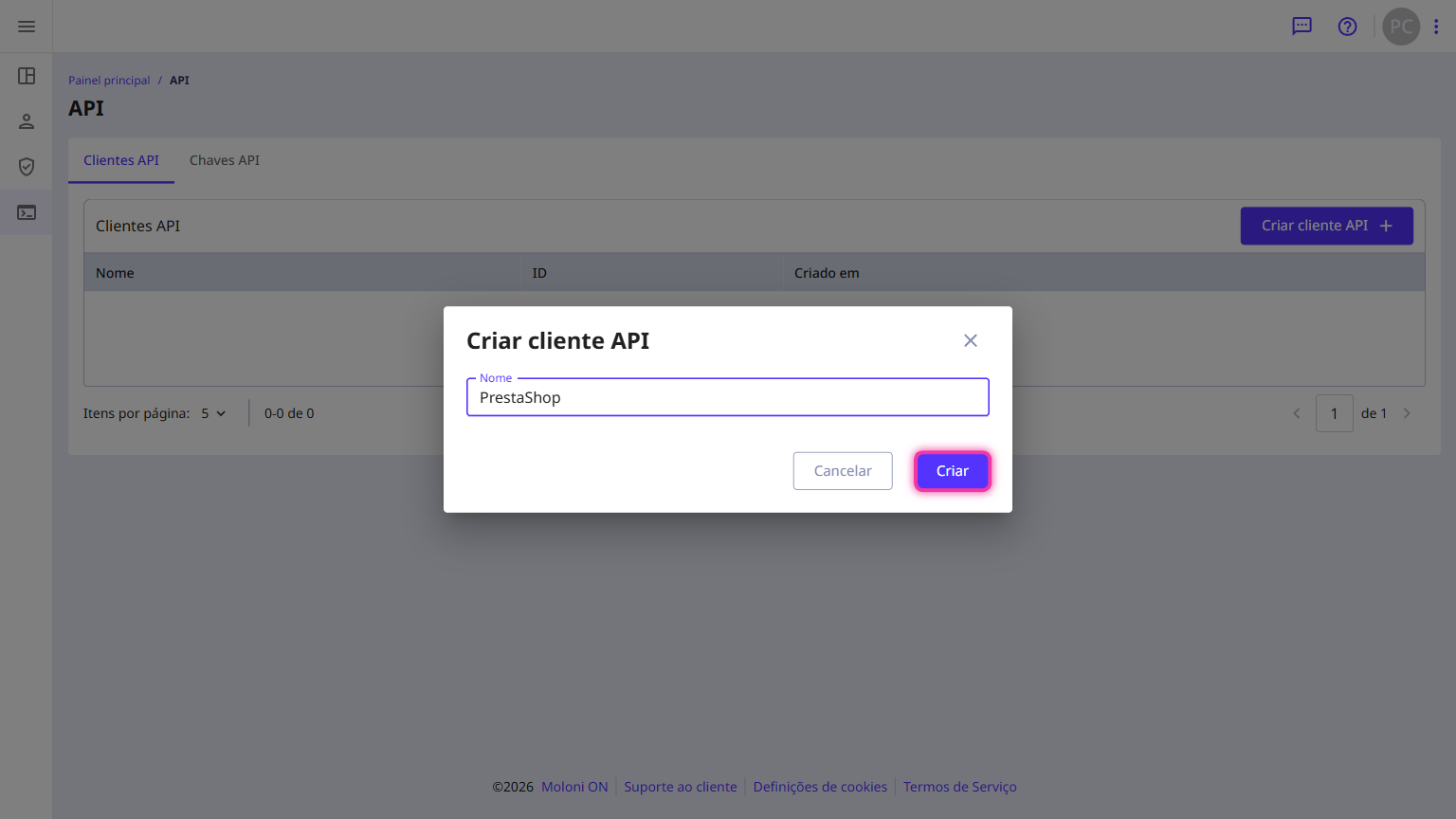
5. Click on the Create button. API access credentials are generated, which must be copied and inserted into the PrestaShop platform.
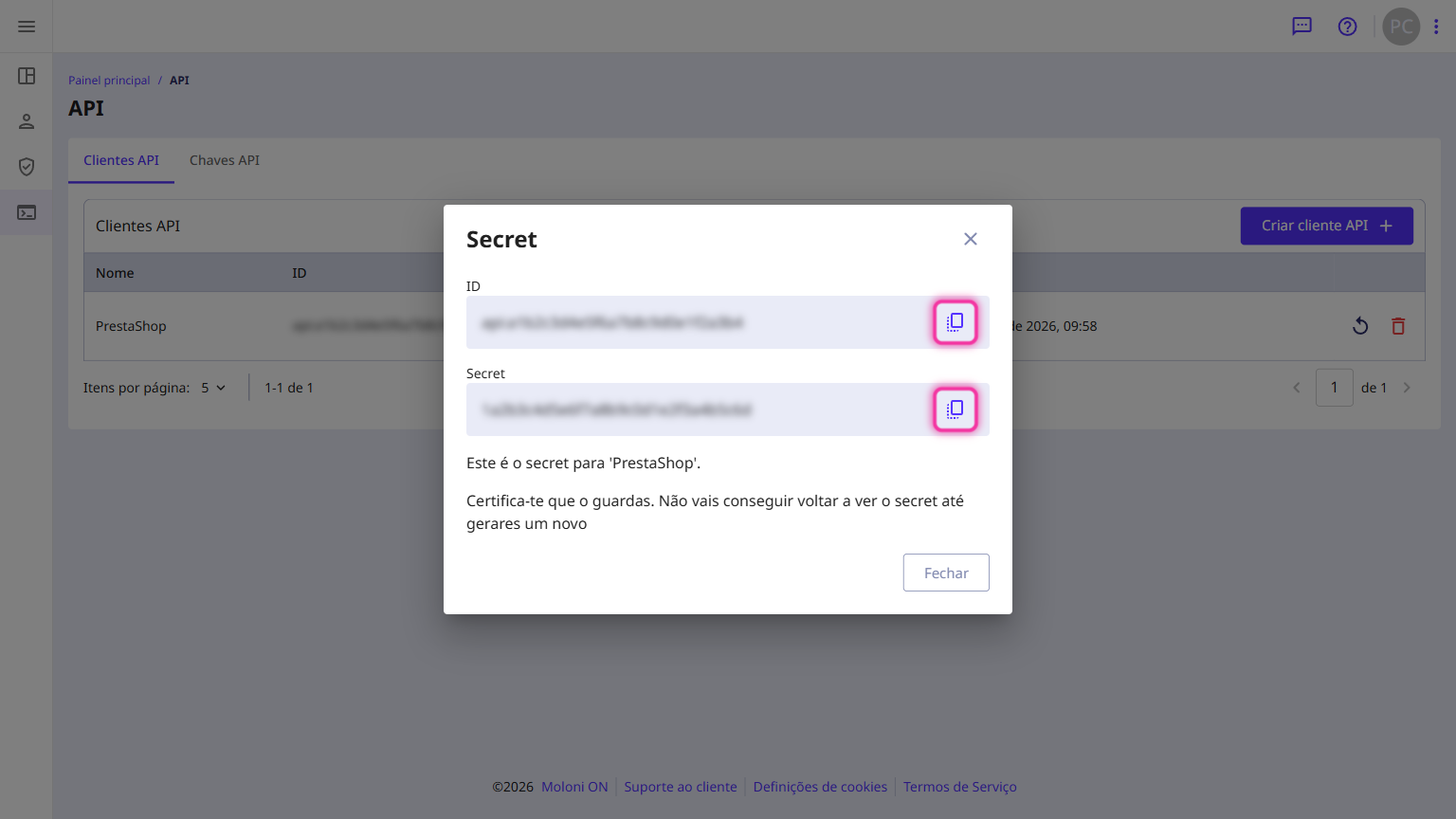
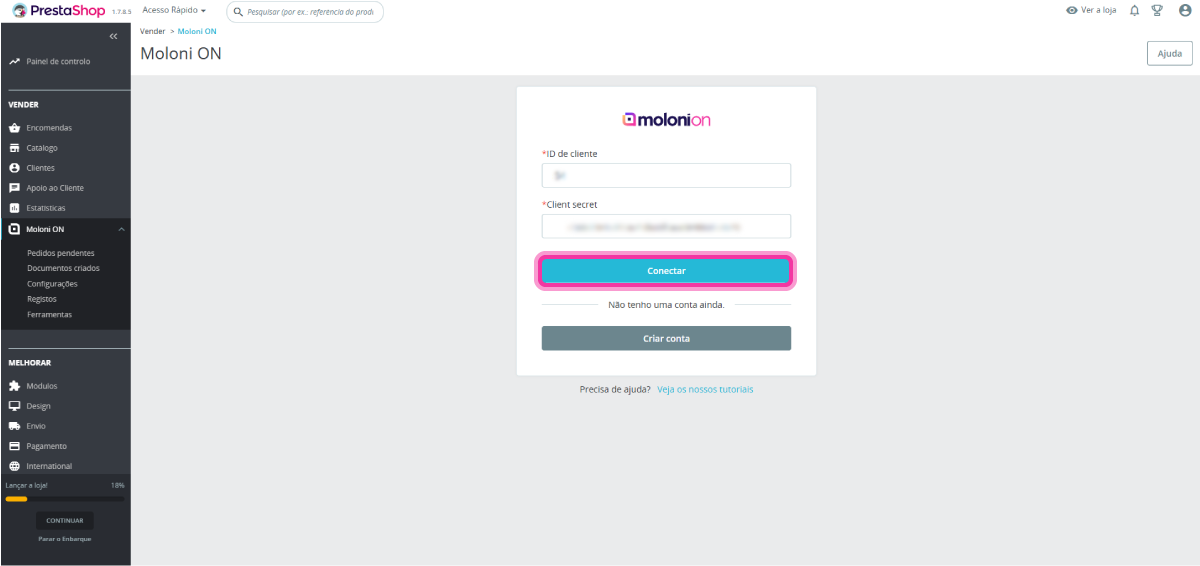
6. Go back to the PrestaShop platform. Enter the API access credentials you created earlier and click Connect.
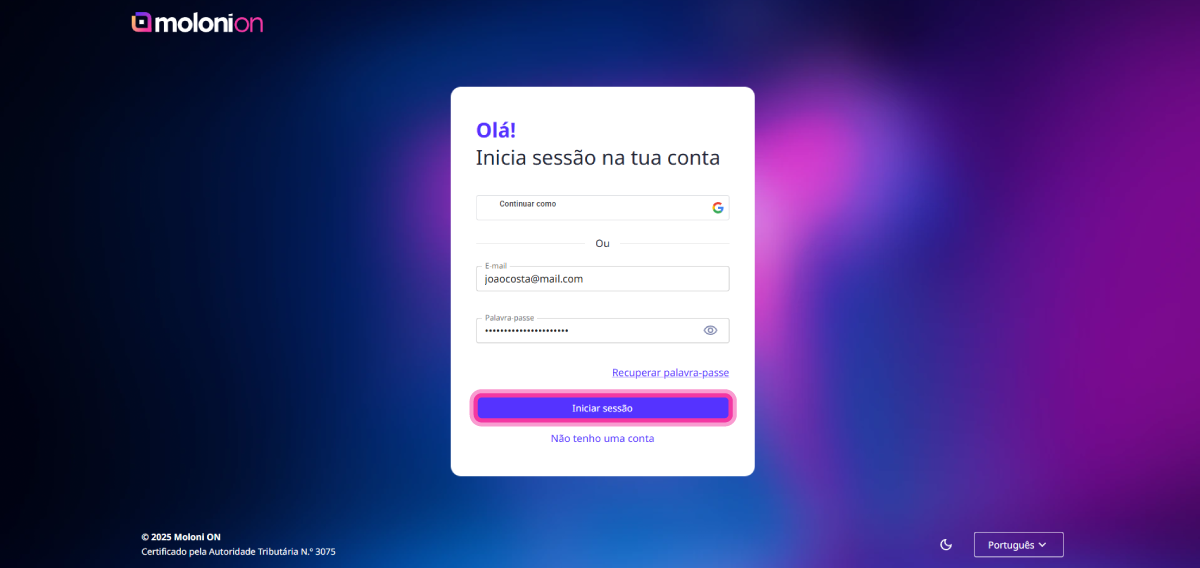
7. Enter your Moloni ON login details and click Log in.
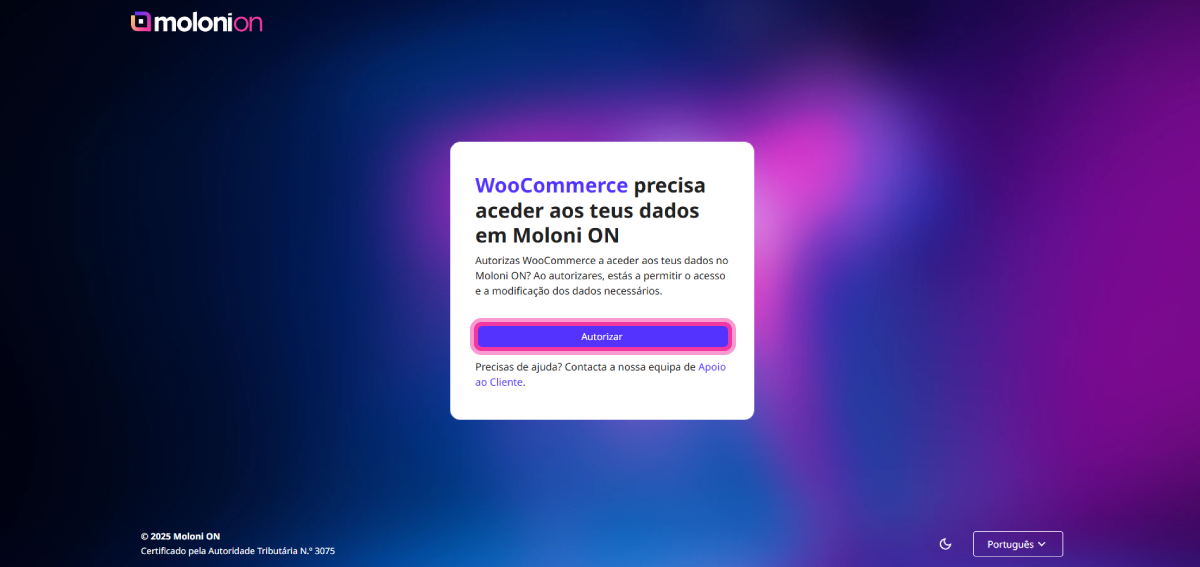
8. Click the Authorise button.
9. Select the company you wish to link with PrestaShop.
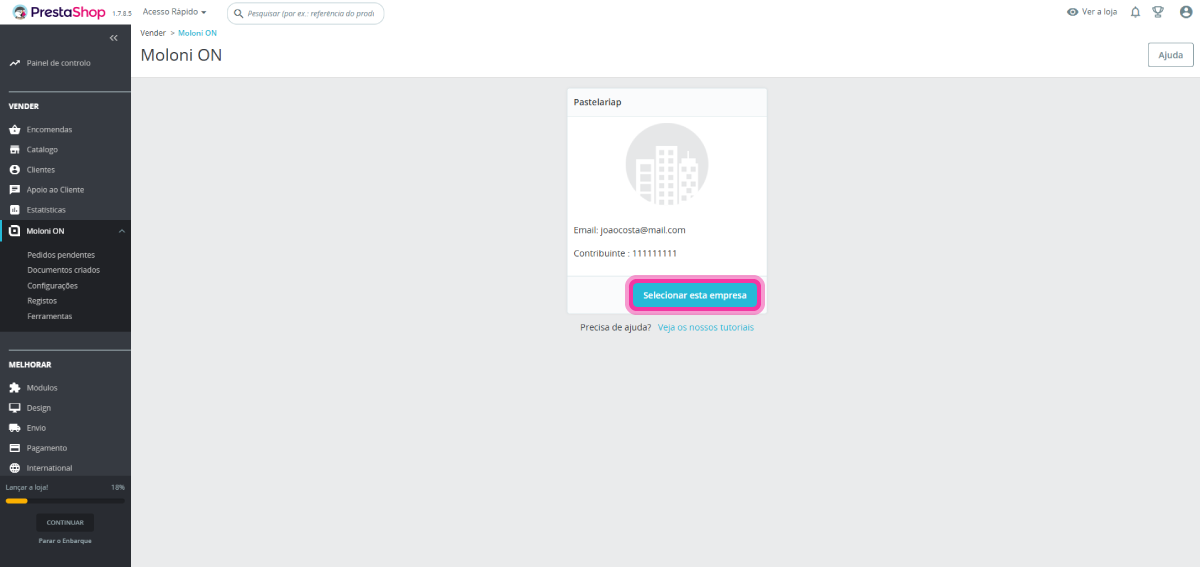
You have successfully logged in.
How to configure the Moloni ON plugin in PrestaShop
In the Settings section, you can select your account options.
Follow these steps:
1. In the Documents tab, in the Document set field, you can select the desired series for the issued documents.
2. In the Document type field, you can select the type of document you want to issue in Moloni ON.
3. In the Document status field, you can select how you want the documents to be issued: either closed or as a draft, so you can edit them before closing. During the trial period, we advise you to select "draft" and handle them manually in Moloni ON until everything is configured. It is important to note that if the total values do not match on both platforms, the document is created in Moloni ON as a draft.
4. In the Send email field, you can select whether documents are automatically sent by email when closed.
5. In the Auto create documents field, you can select whether you want to create documents automatically.
6. In the Product details from field, you can define whether the product data in the documents generated via the plugin should be from the PrestaShop order or the Moloni account (if it already exists).
7. In the Product exemption reason field, you can select the exemption if the product has no associated taxes.
8. In the Shipping exemption reason field, you can select the exemption if the shipping method has no associated taxes.
9. In the Measure unit field, you can select the unit of measurement to be used when creating products. However, the unit of measurement can be changed on the product sheet.
10. In the Document warehouse field, you can select the warehouse to be assigned to the documents.
11. In the Customer code prefix field, you can add a prefix to the customer code. Each customer must have a unique code, and by adding this prefix-for example, 'PS'-the customer code will be displayed as 'PS_1'. This tool allows for easy identification of customers created through the integration.
12. In the Orders tab, you can set the date from which pending orders appear in the main list.
13. In the Automation tab, you can sync products from PrestaShop to Moloni ON. By activating this option, PrestaShop products are synchronised to Moloni ON.
You can also sync products from Moloni ON to PrestaShop. By activating this option, Moloni ON products are synchronised to PrestaShop.
14. In the Advanced tab, you can enter the email address where notifications of possible errors in creating documents within the plugin will be sent.