How to import data from a SAF-T (PT) file
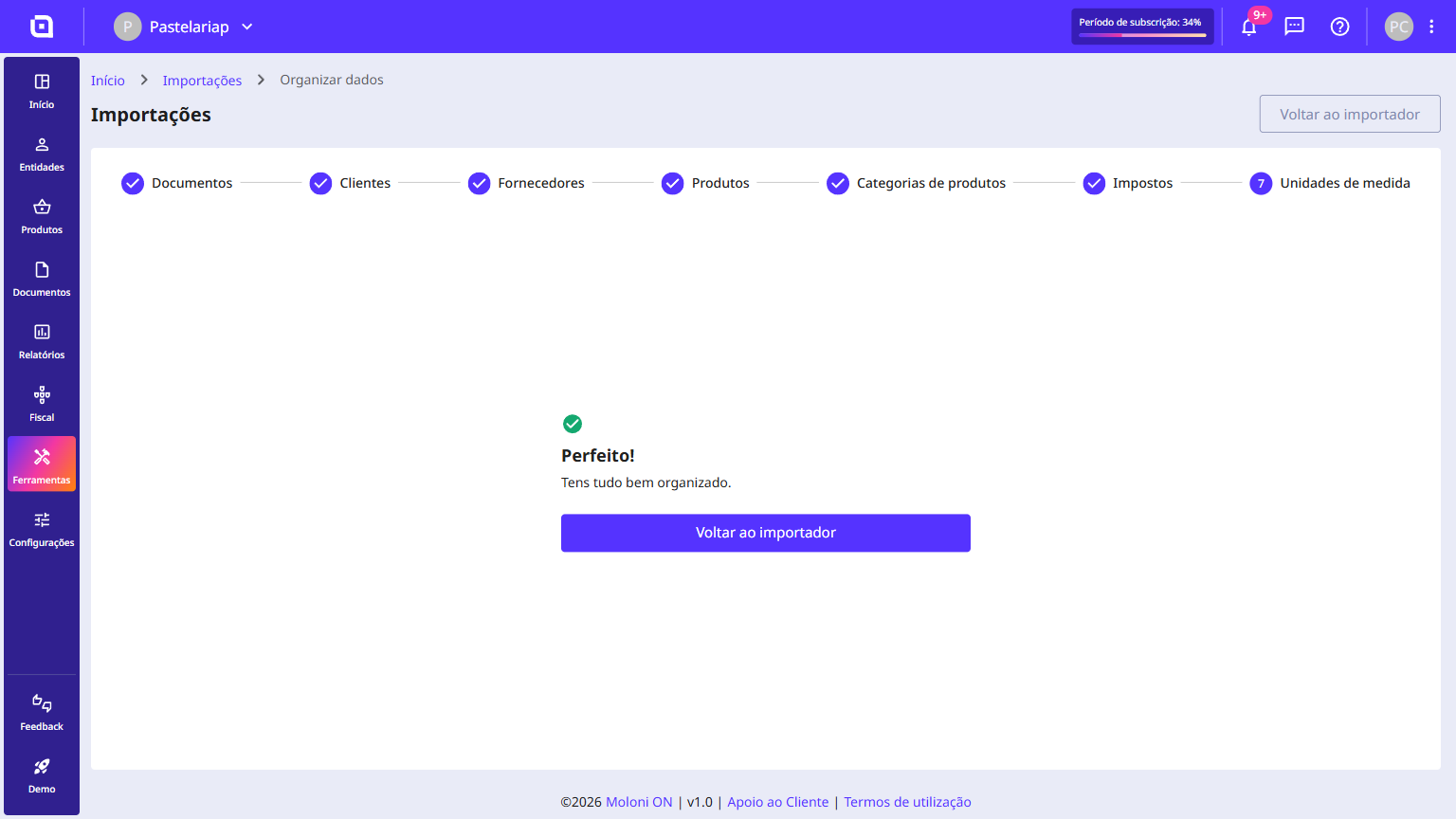
At Moloni ON, you can import your data from a SAF-T (PT) file. You upload the file in the Client Area, choose what you want to bring in - documents, entities, products, categories, taxes and units of measure - and Moloni ON handles the import. At the end, you organise the imported data in a seven-step wizard.
What can you import?
- Customers and Suppliers;
- Products, Categories, and Units of measure;
- Taxes;
- Documents: Invoices, Simplified Invoices, Invoice-Receipts, Credit/Debit Notes, Purchase Orders, Estimates, and Receipts.
The import process has 3 phases:
- Analysis and selection - We validate your SAF-T (PT) file and present the data contained within it;
- Import - We import it to your company;
- Organisation - Organise the imported data.
Data analysis and selection
Follow these steps:
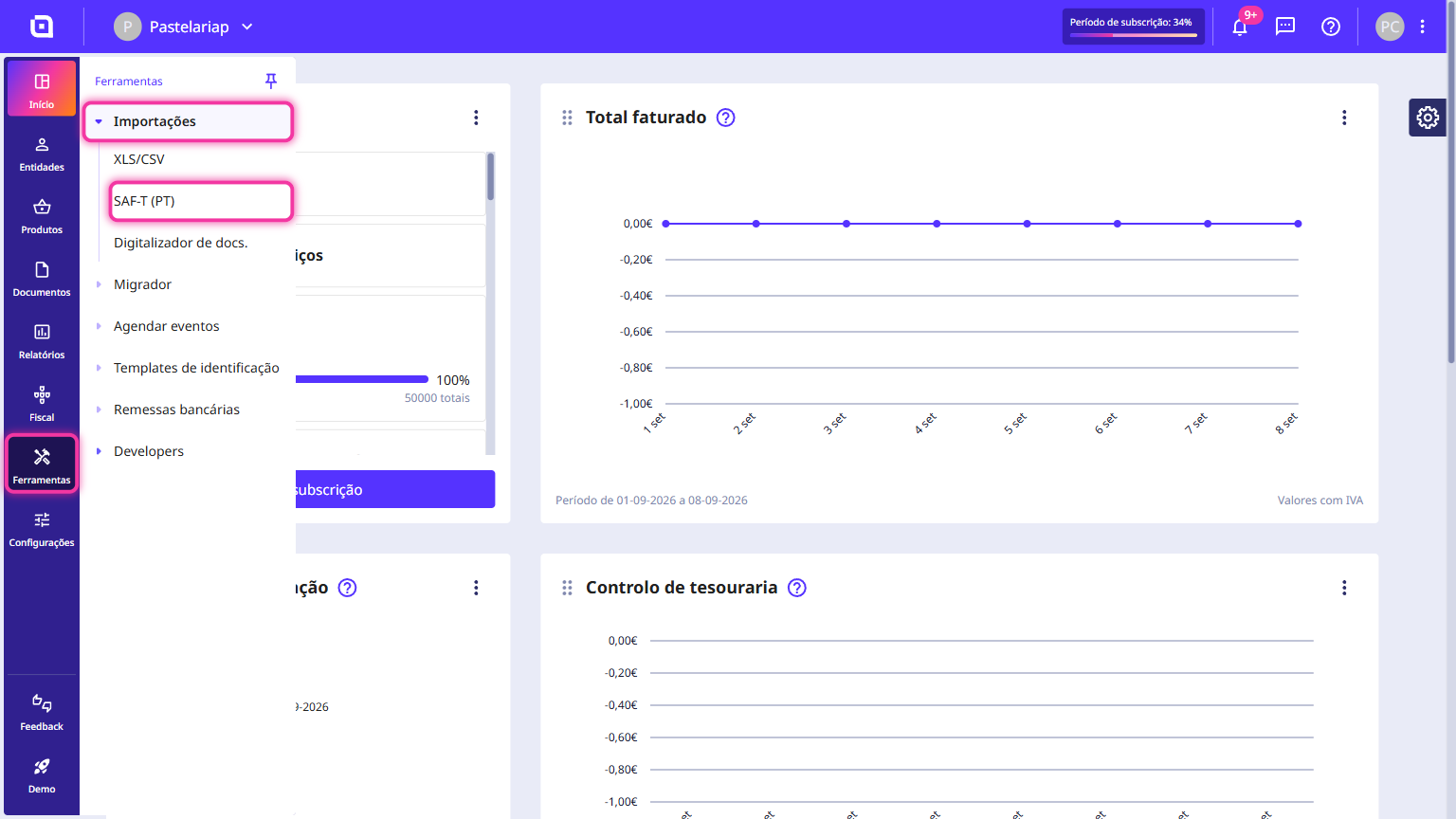
1. In the Client Area, go to the Tools menu, select Imports and click on SAF-T (PT).
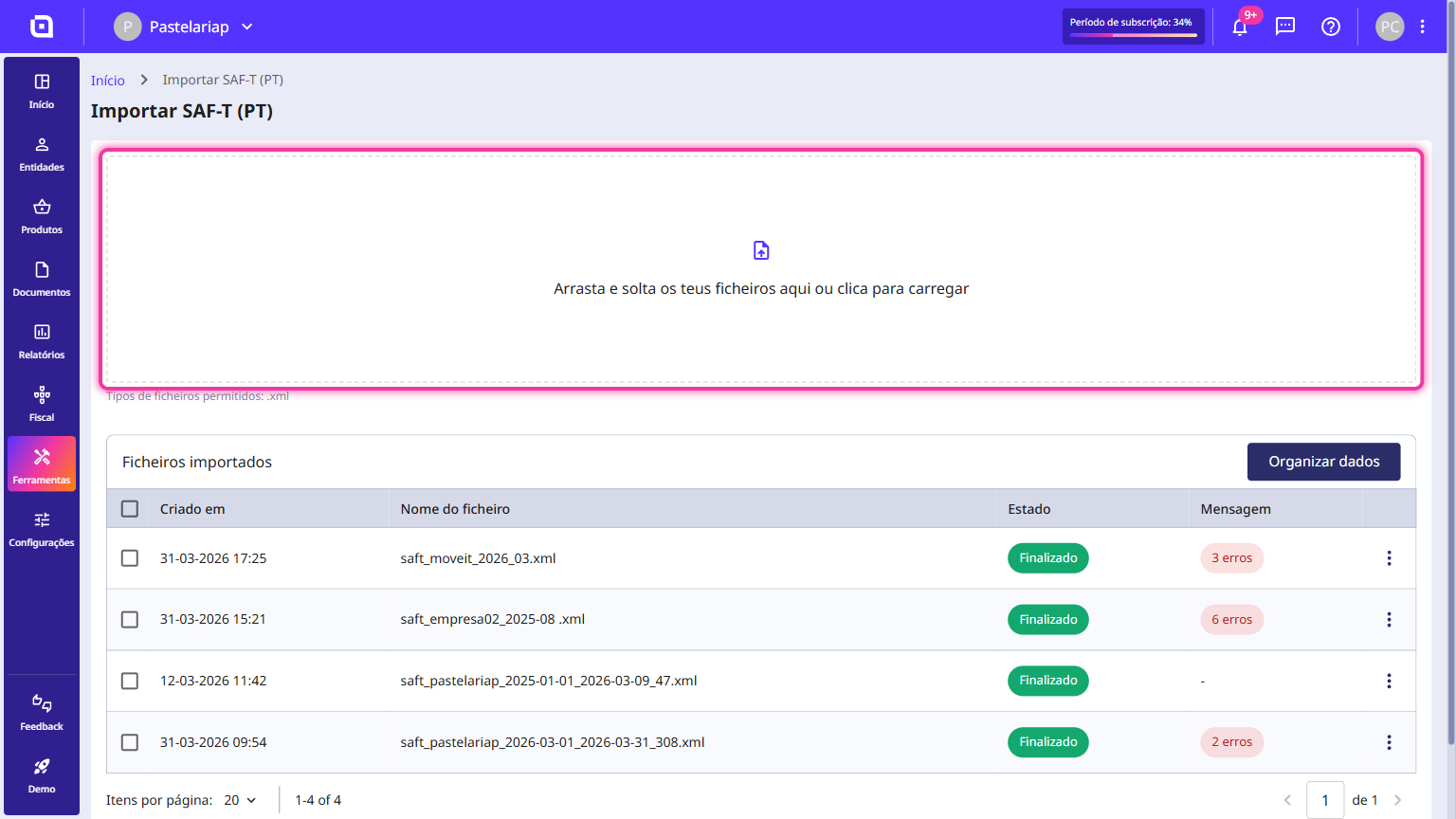
2. Drag the desired file to the imports area, located in the centre of the page. You can also click that area to choose the file on your computer. Only .xml files are accepted.
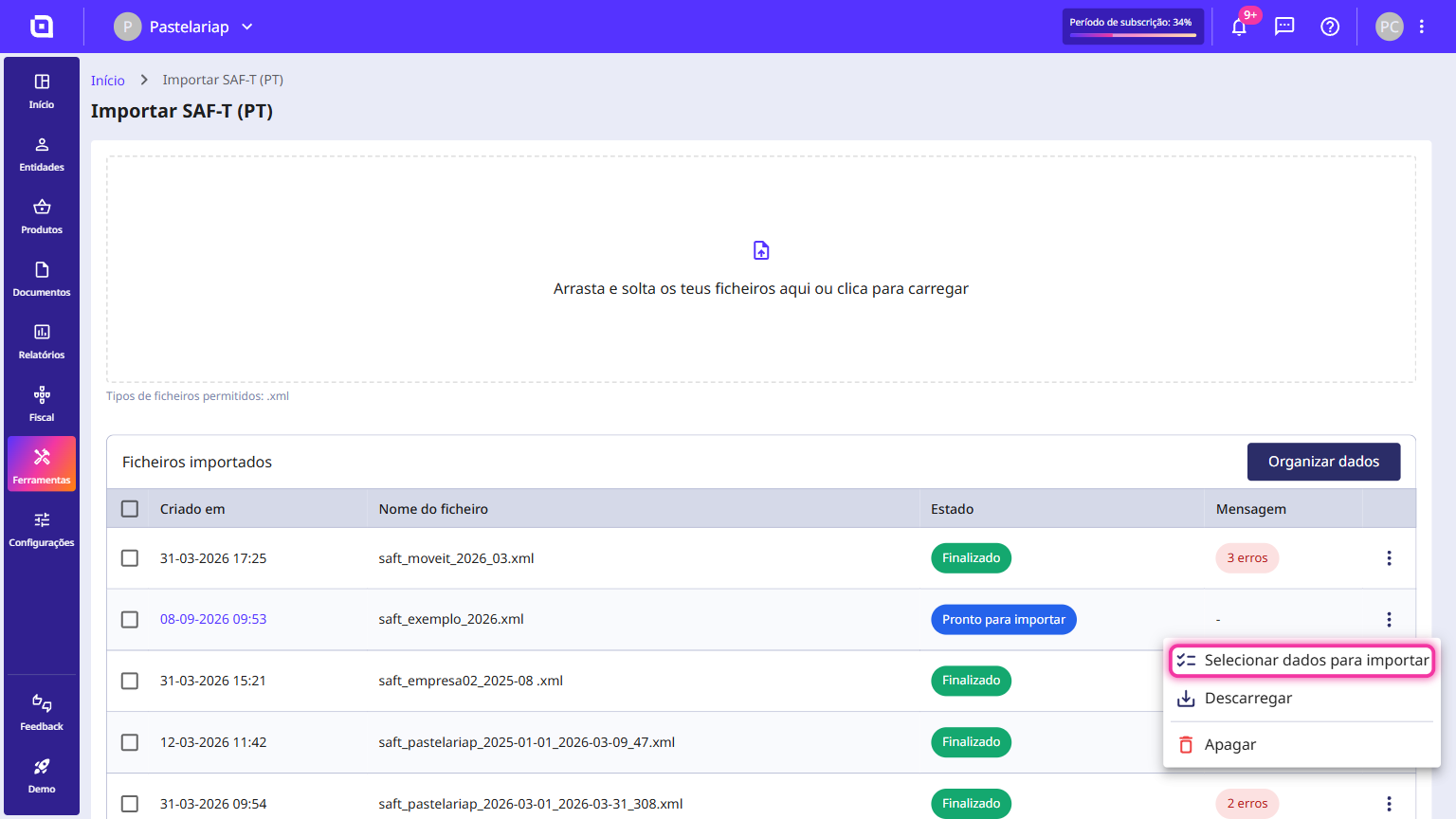
3. Once the file is ready, the status changes to Ready to import and Moloni ON sends you a notification. Click on the 3-dot menu and select the option Select data to import.
4. A list will appear with all the data contained in your SAF-T (PT). In the Documents section, you can see what is new or what already exists, all organised by document type.
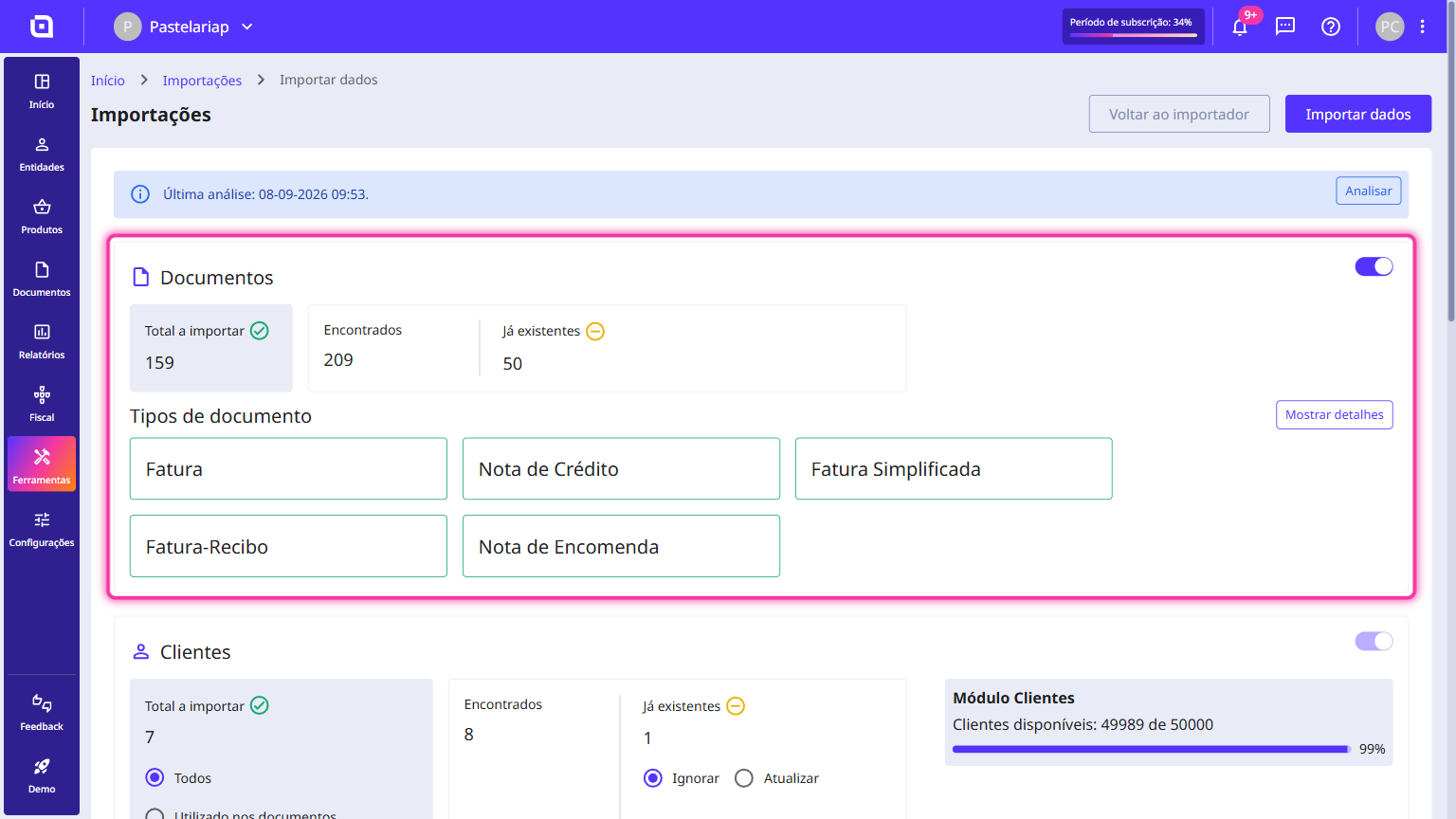
5. In the Customers section, you can see the customers from the file, organised as new or existing. For those that already exist, choose between Ignore and Update.
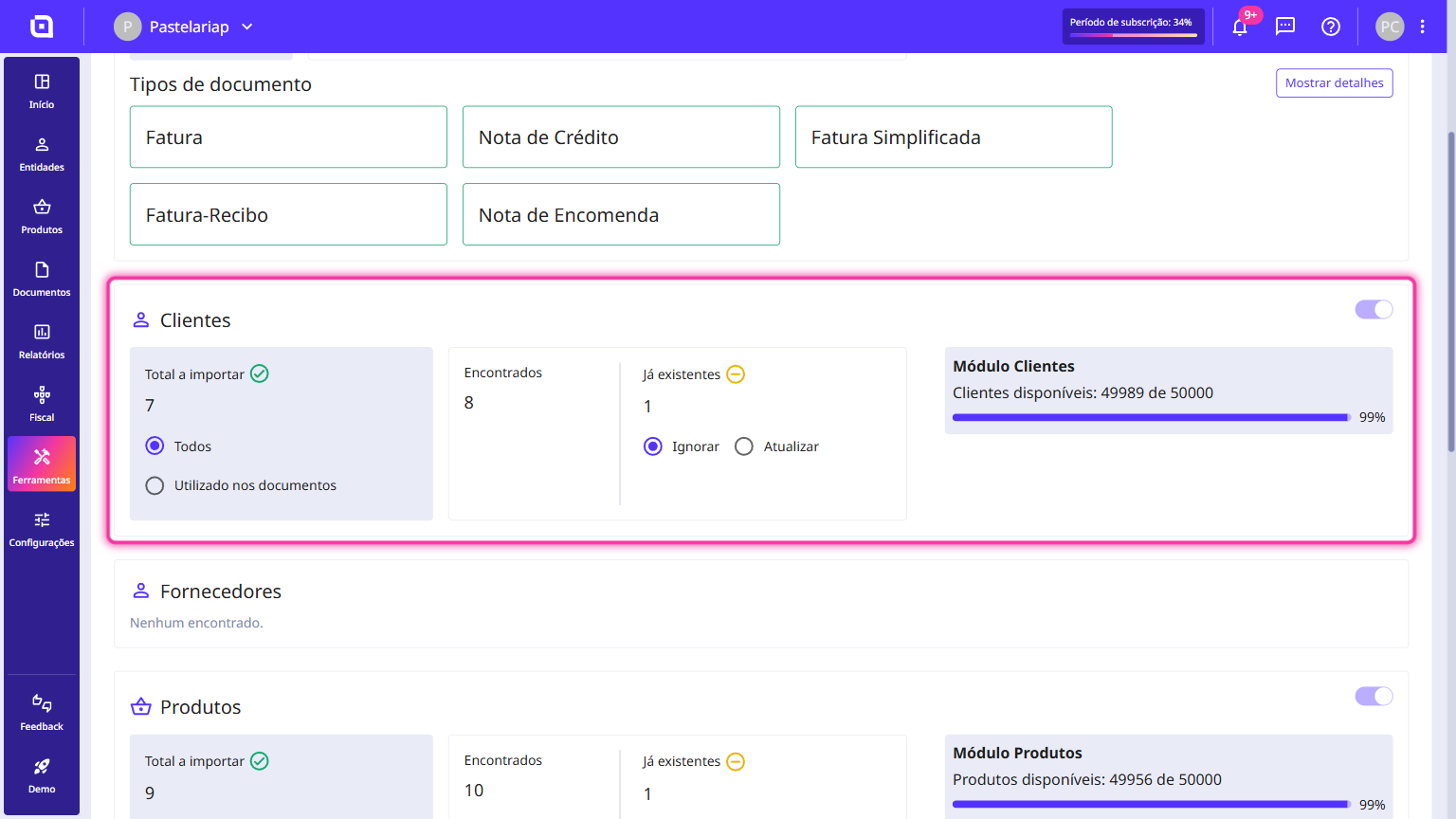
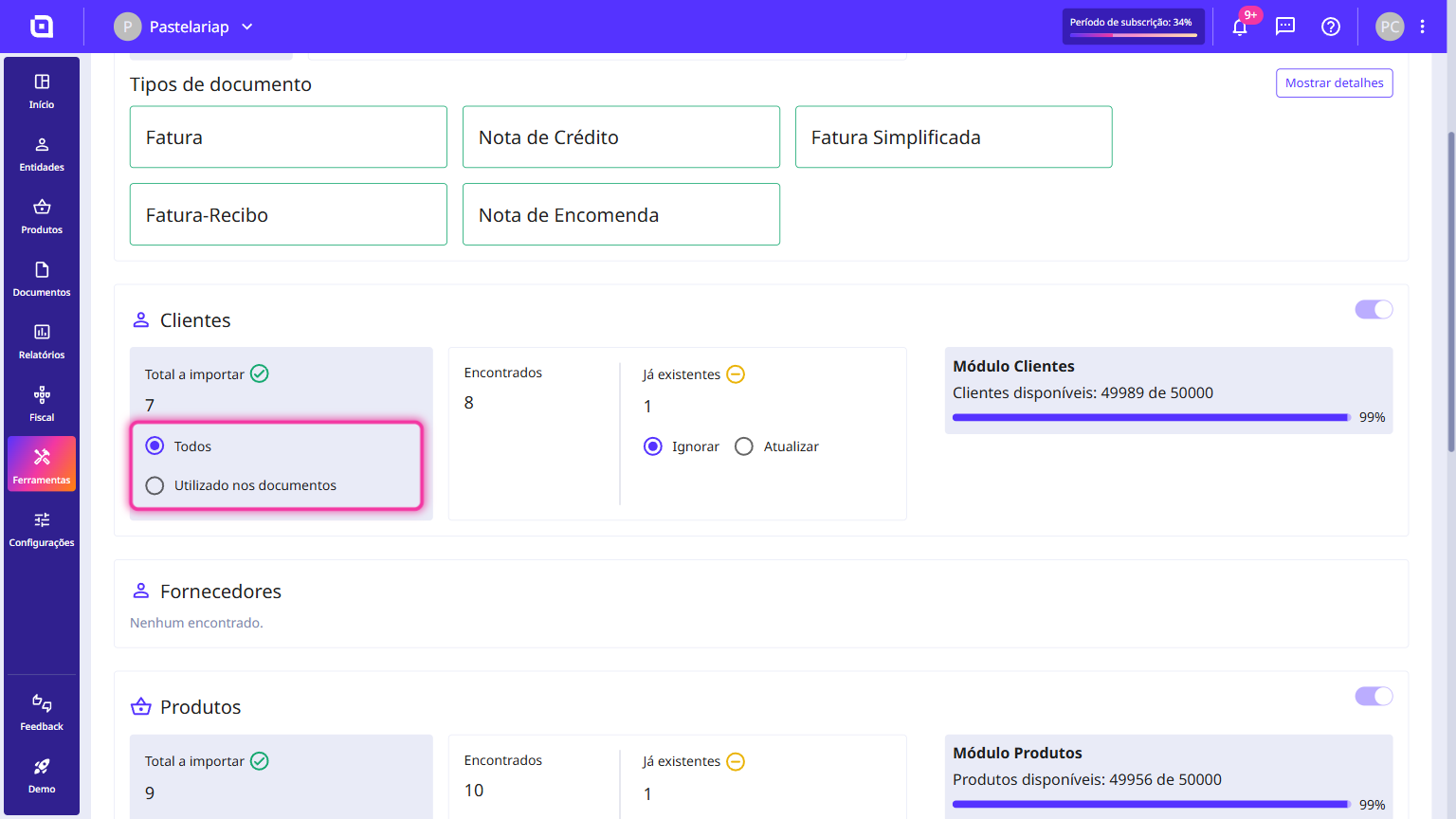
6. Still in the customers, select whether you want to import All customers or only those Used in documents.
7. The remaining sections are organised in the same way. Check each one and select the desired options. If you do not want to import a section, switch off the toggle in the top right corner of that section.
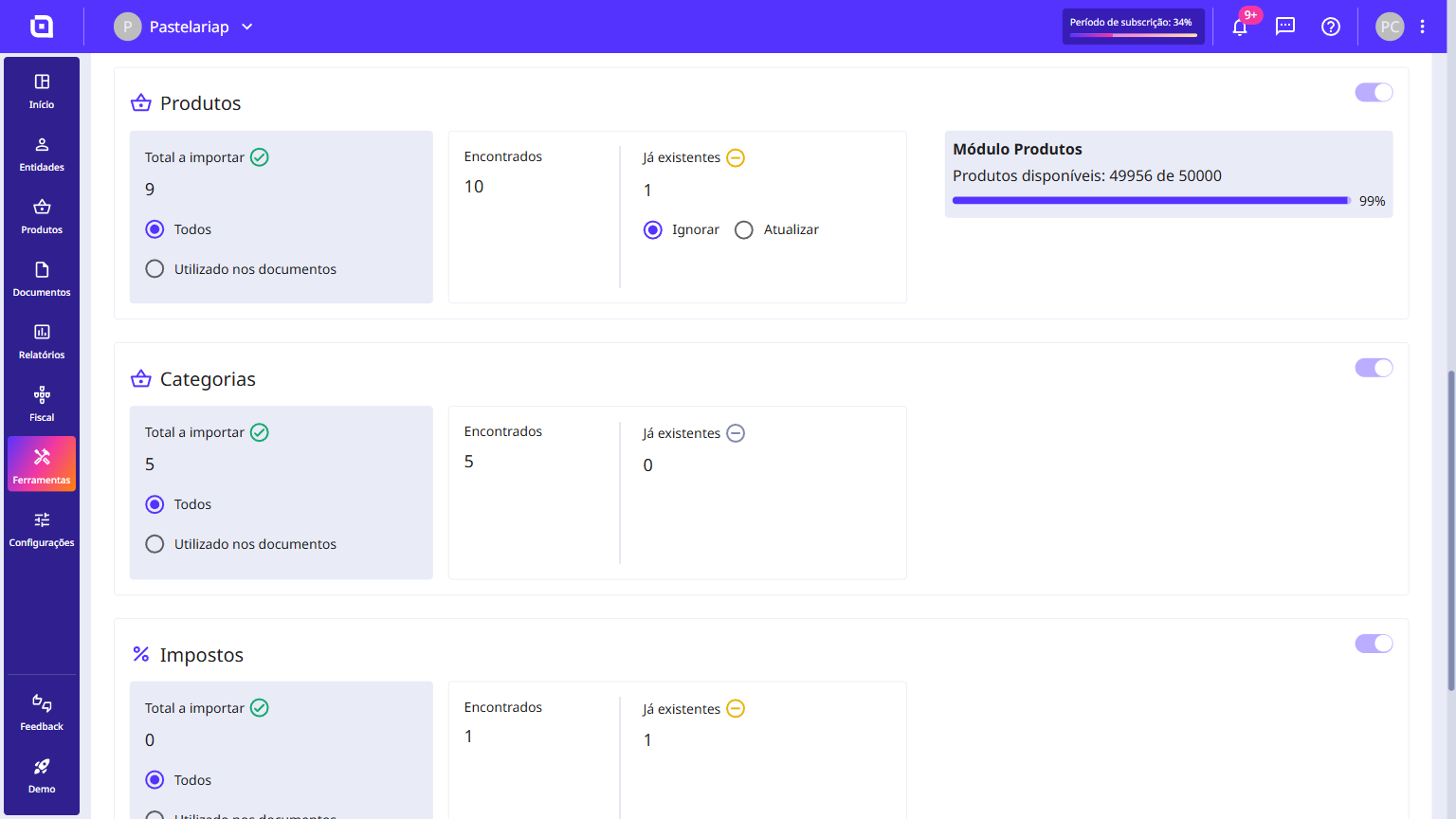
8. After confirming everything, click the Import data button in the top right corner to proceed with the import.
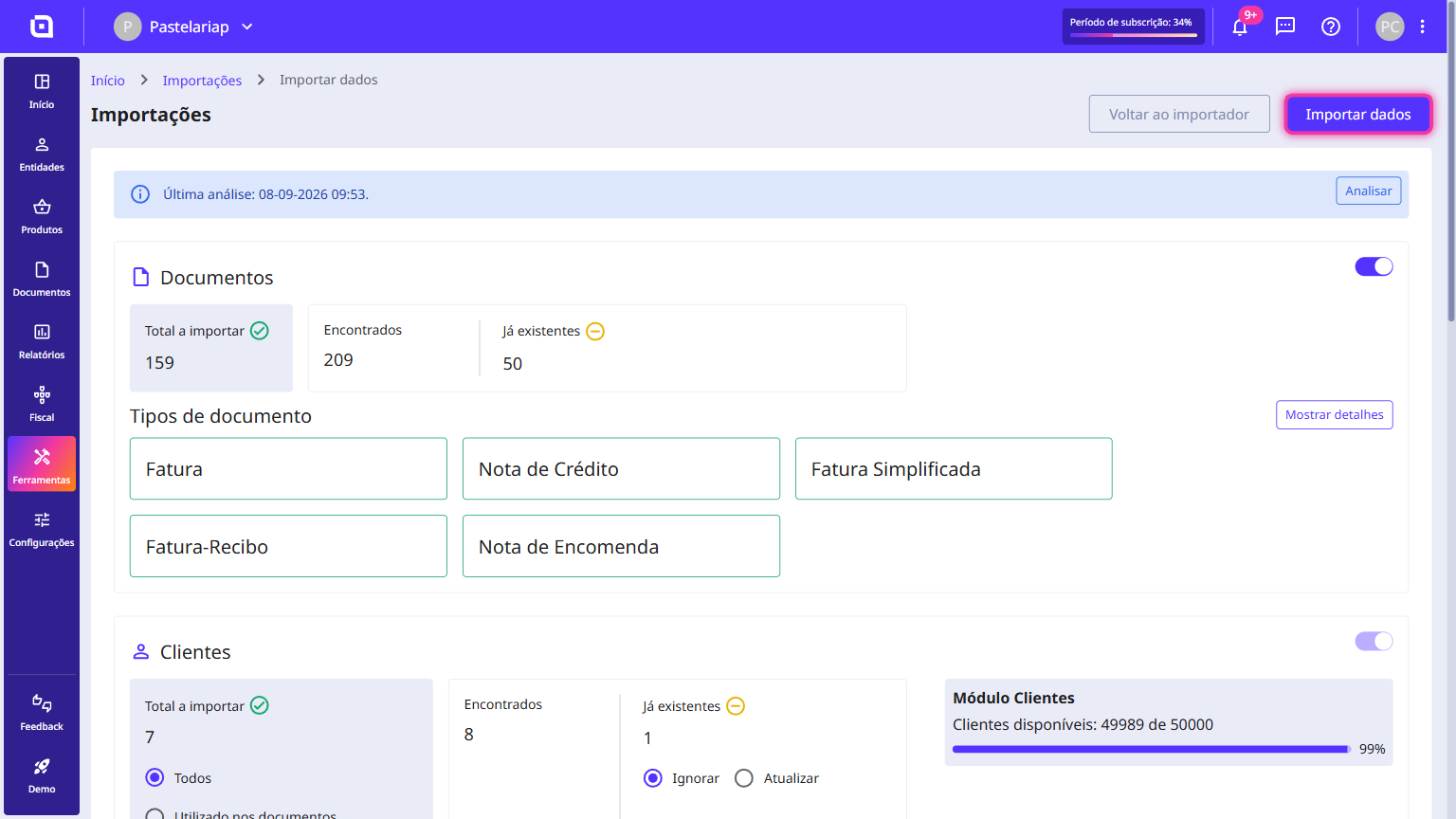
Data Import
Now, simply wait for the data to be imported to your company. Moloni ON will send you a notification as soon as the import is finished.
Data Organisation
Once the import is complete, you should organise your data.
Follow these steps:
1. A message appears with the number of imported items and any errors and/or warnings. To continue, click the Organise data button.
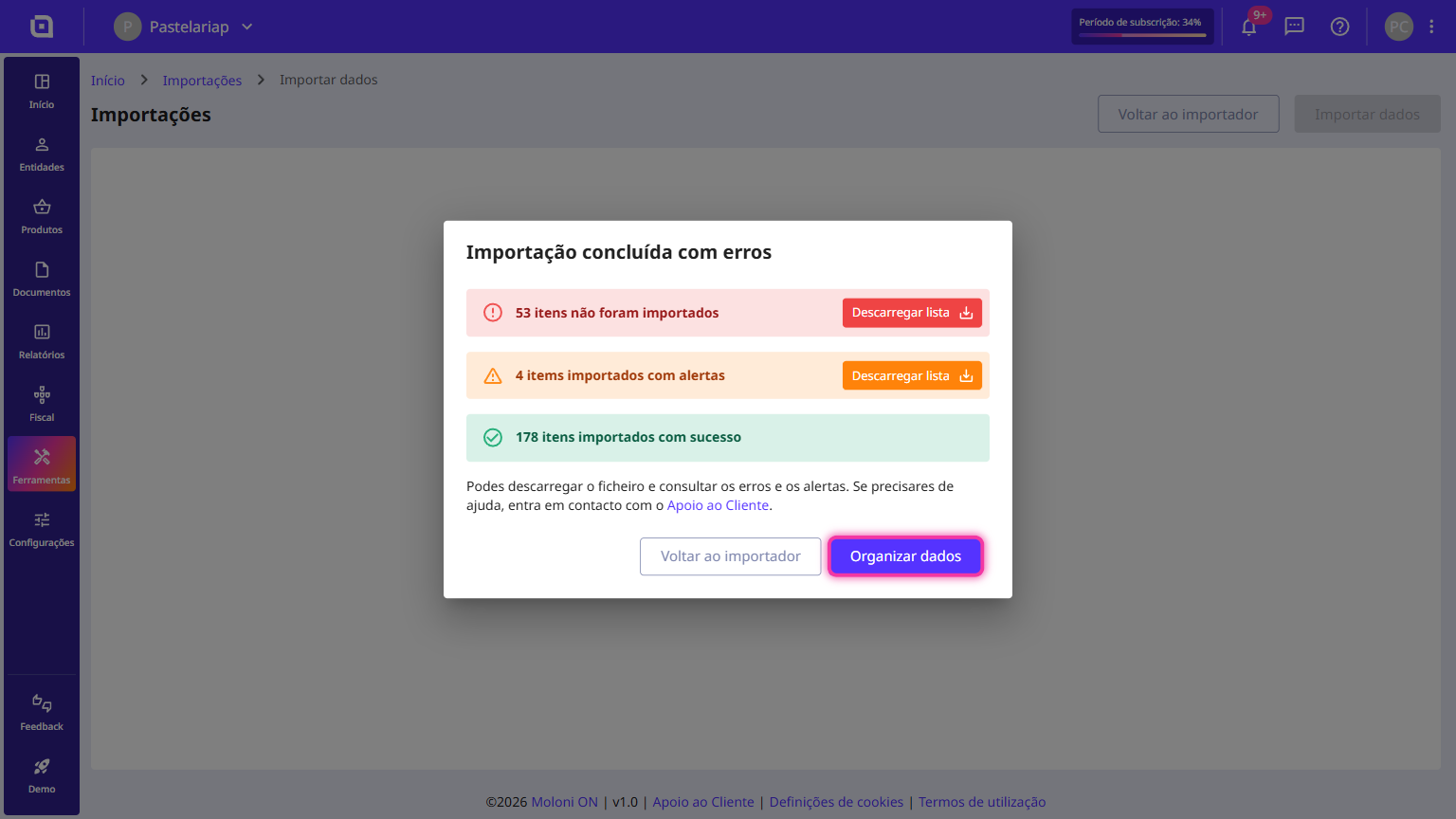
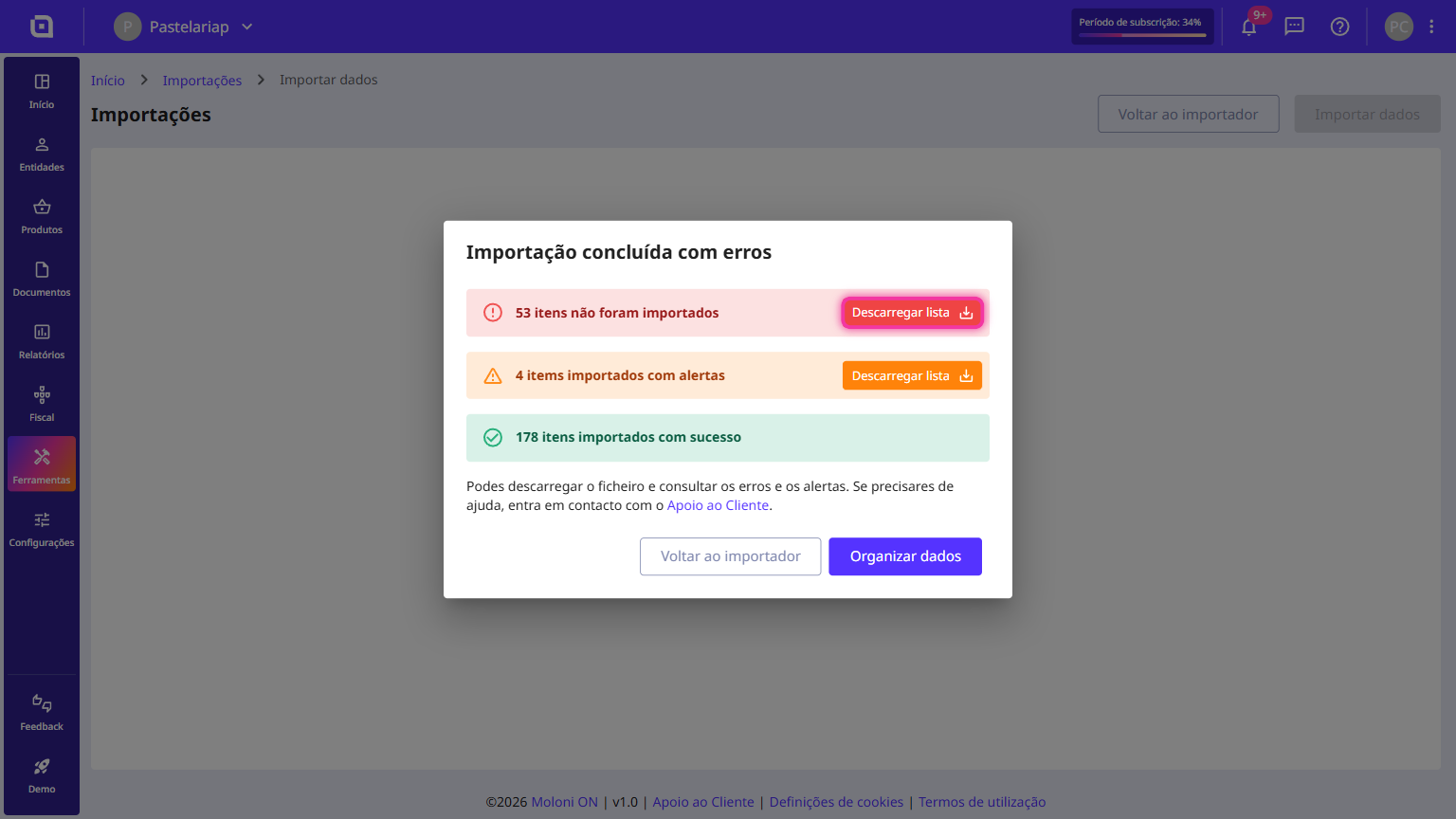
If you wish to view the list of errors/warnings, click on Download errors.
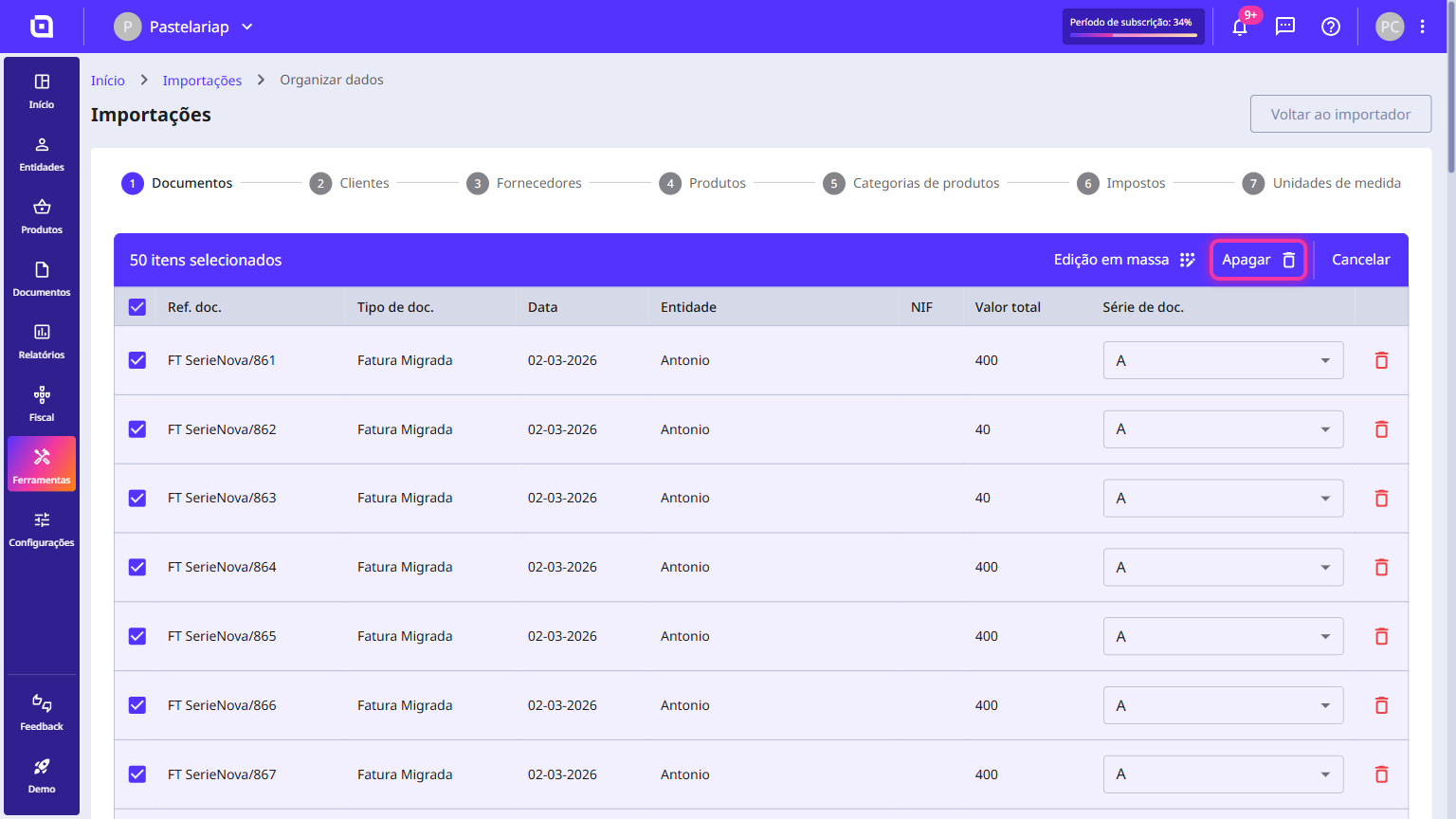
2. Documents: in the Doc. set column, select the document set to associate with each document.
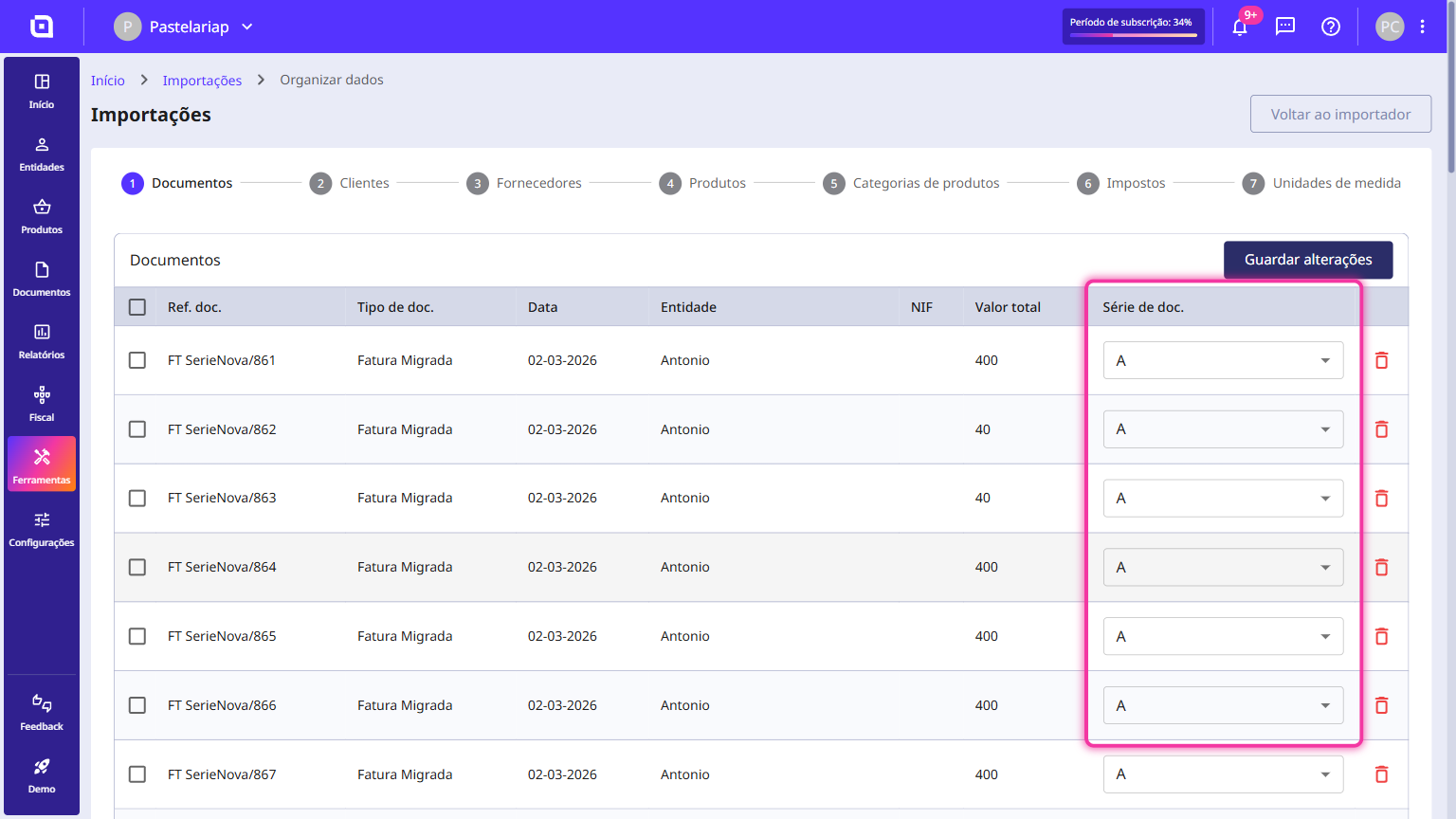
The document set must be created beforehand. You can have a document set solely for use in migrated balances; you do not need to report it to the TA (Tax Authority).
If necessary, select the rows you want to remove and click the Delete button.
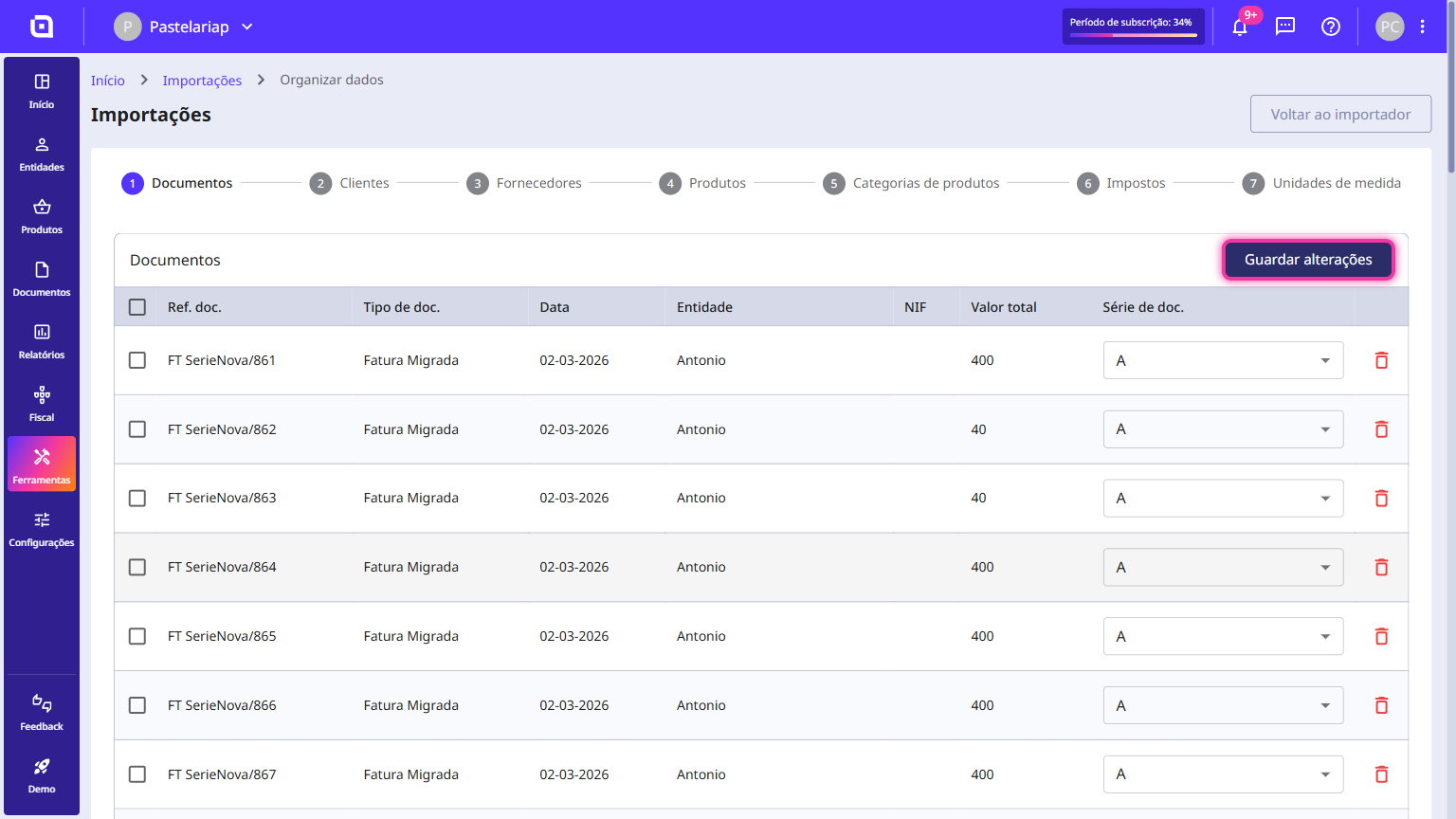
Click the Save changes button.
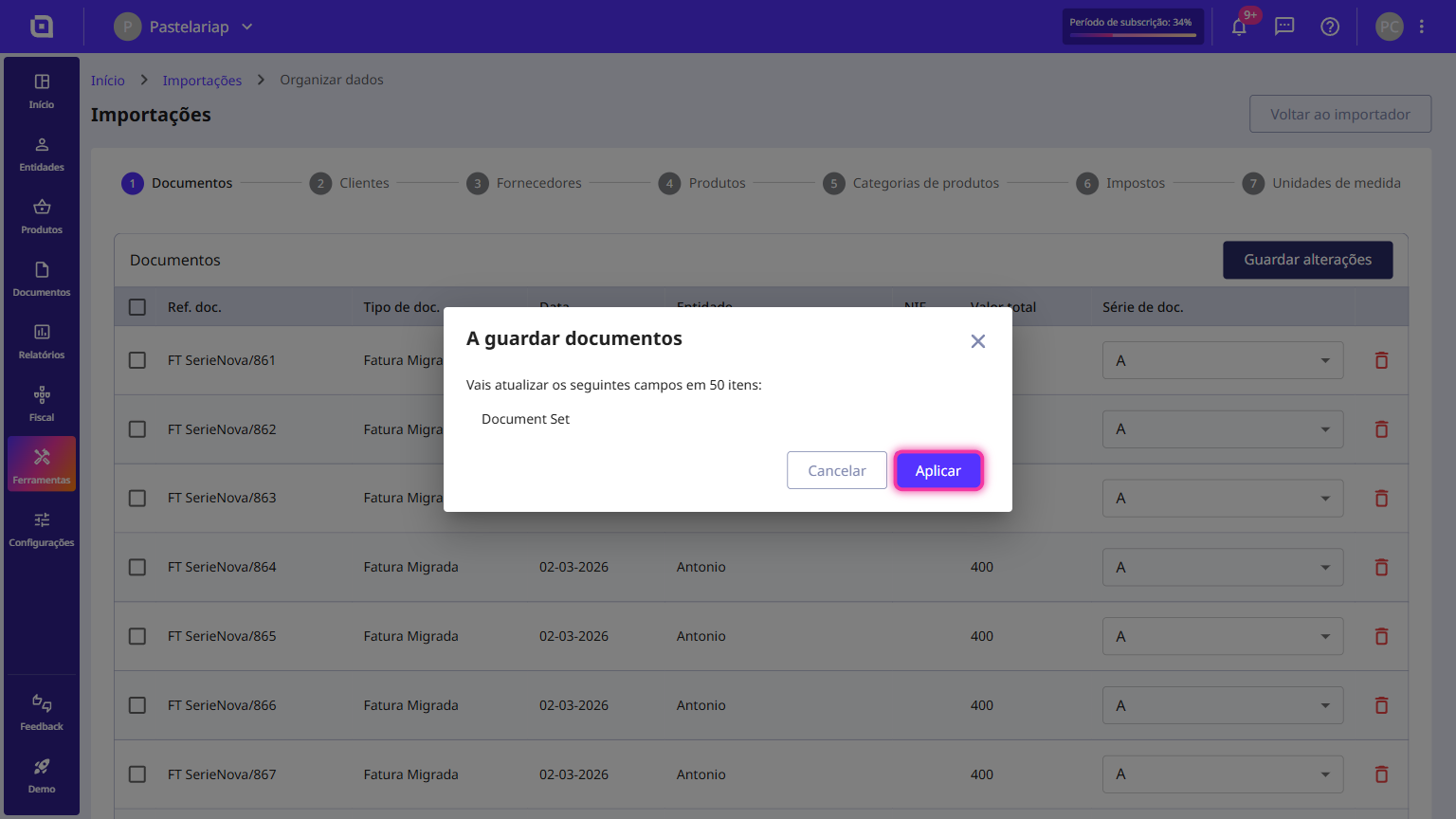
Confirm the fields that will be updated and click Apply.
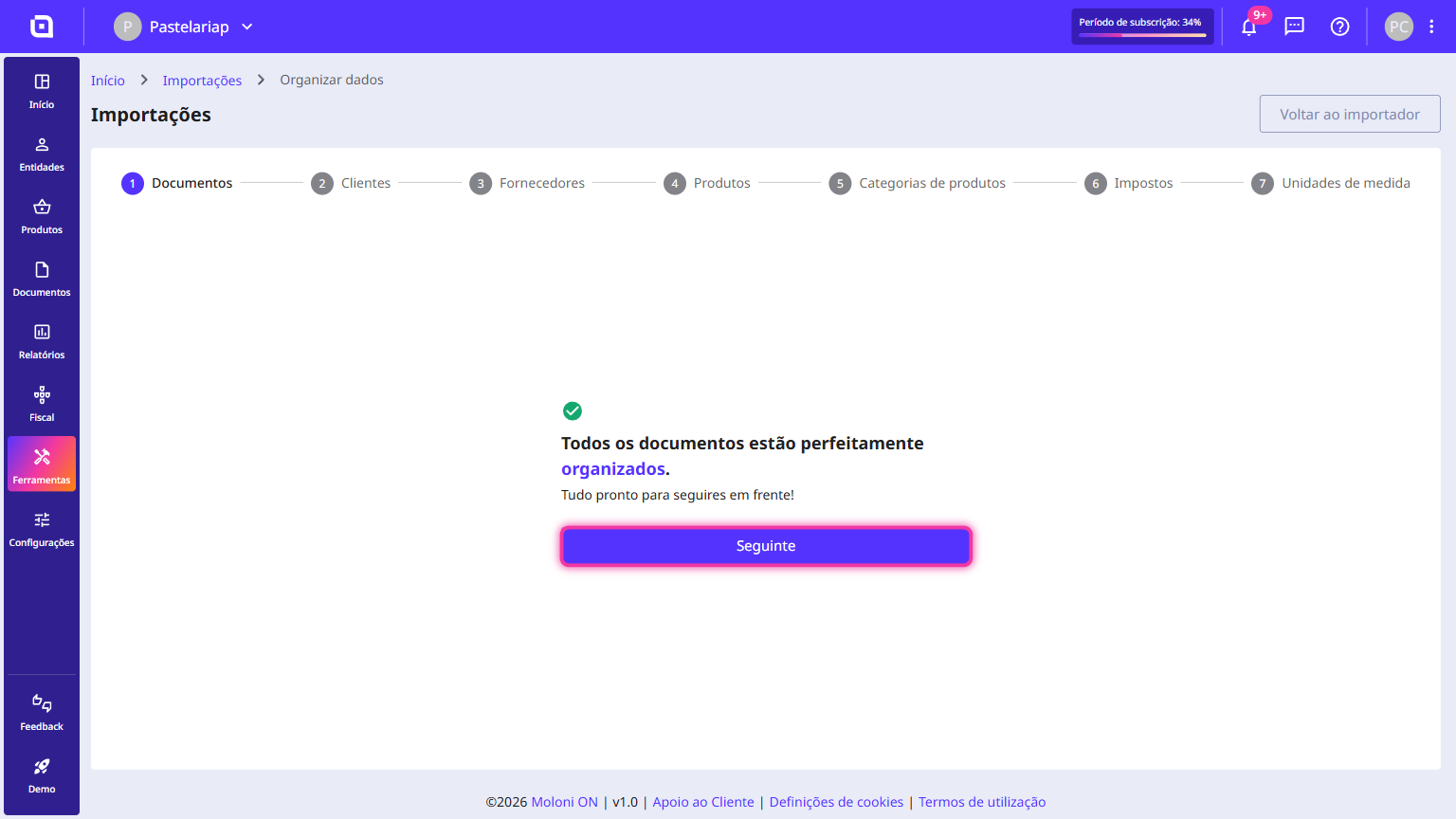
Once all the documents are organised, click Next.
3. Customers and Suppliers: in the Country and Language columns, select the corresponding options.
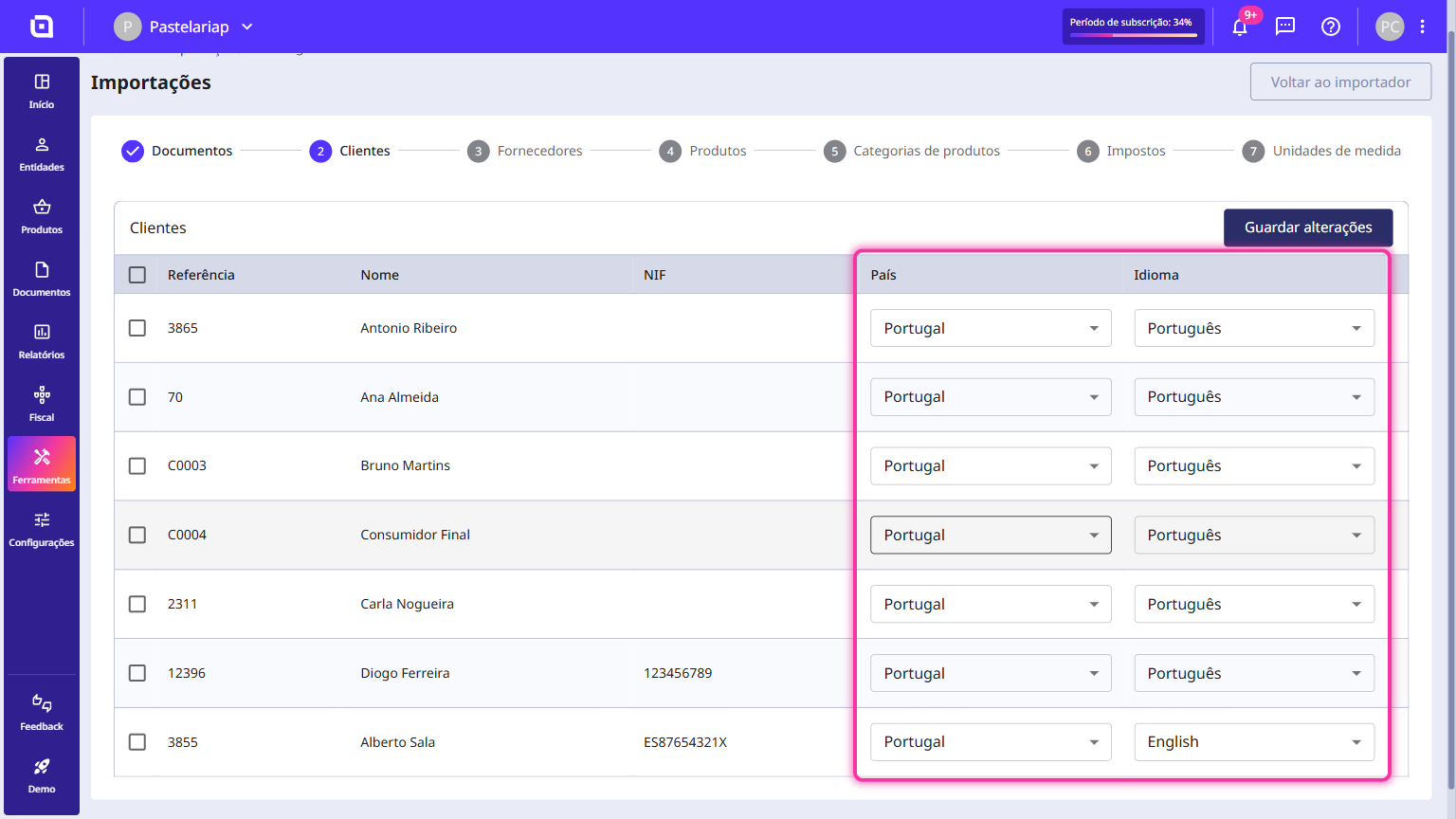
Click the Save changes button, confirm with Apply and, at the end, click Next.
4. Products: in the Price, Unit, and Category columns, select the corresponding options.
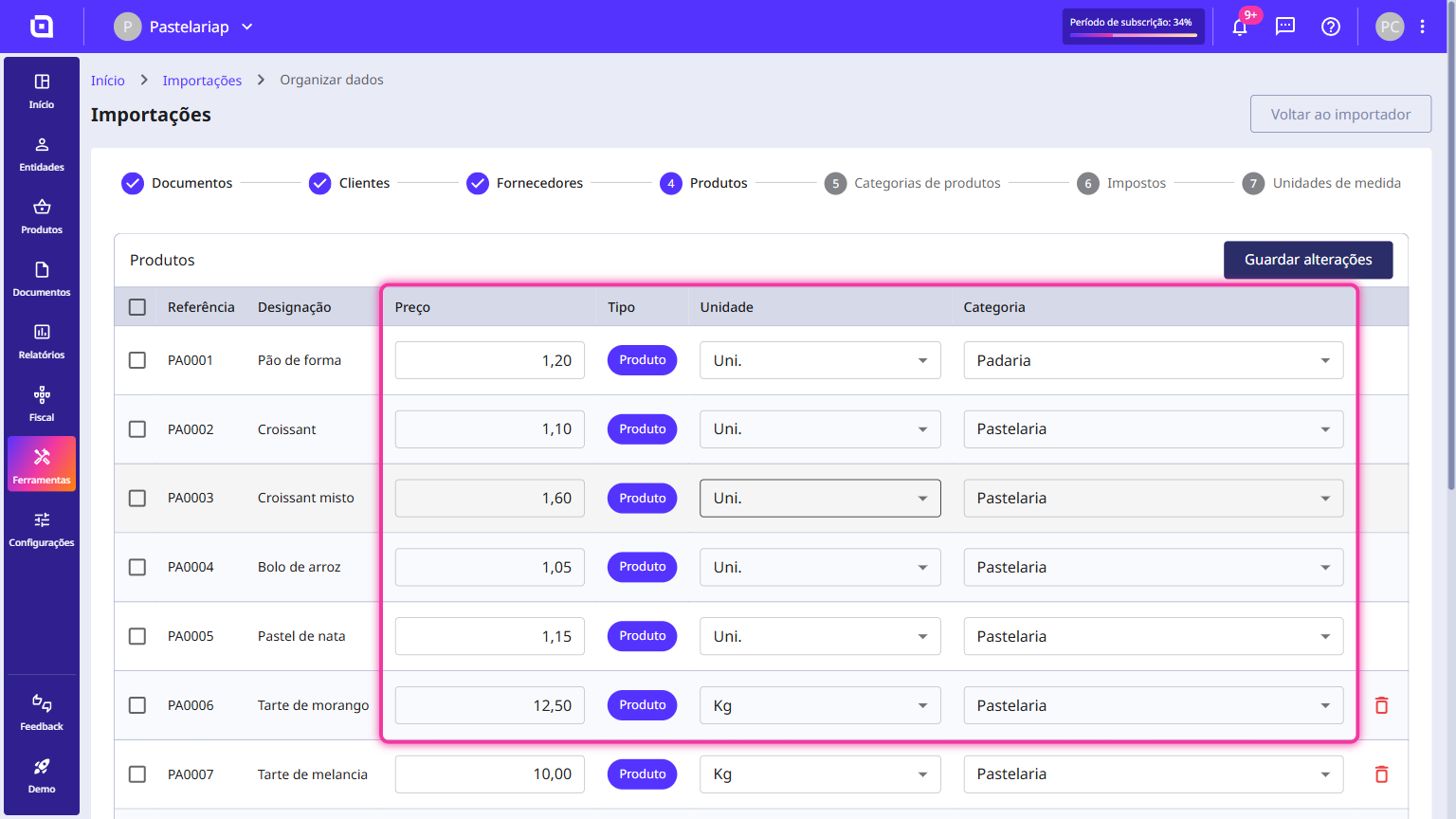
Click the Save changes button, confirm with Apply and move on with Next.
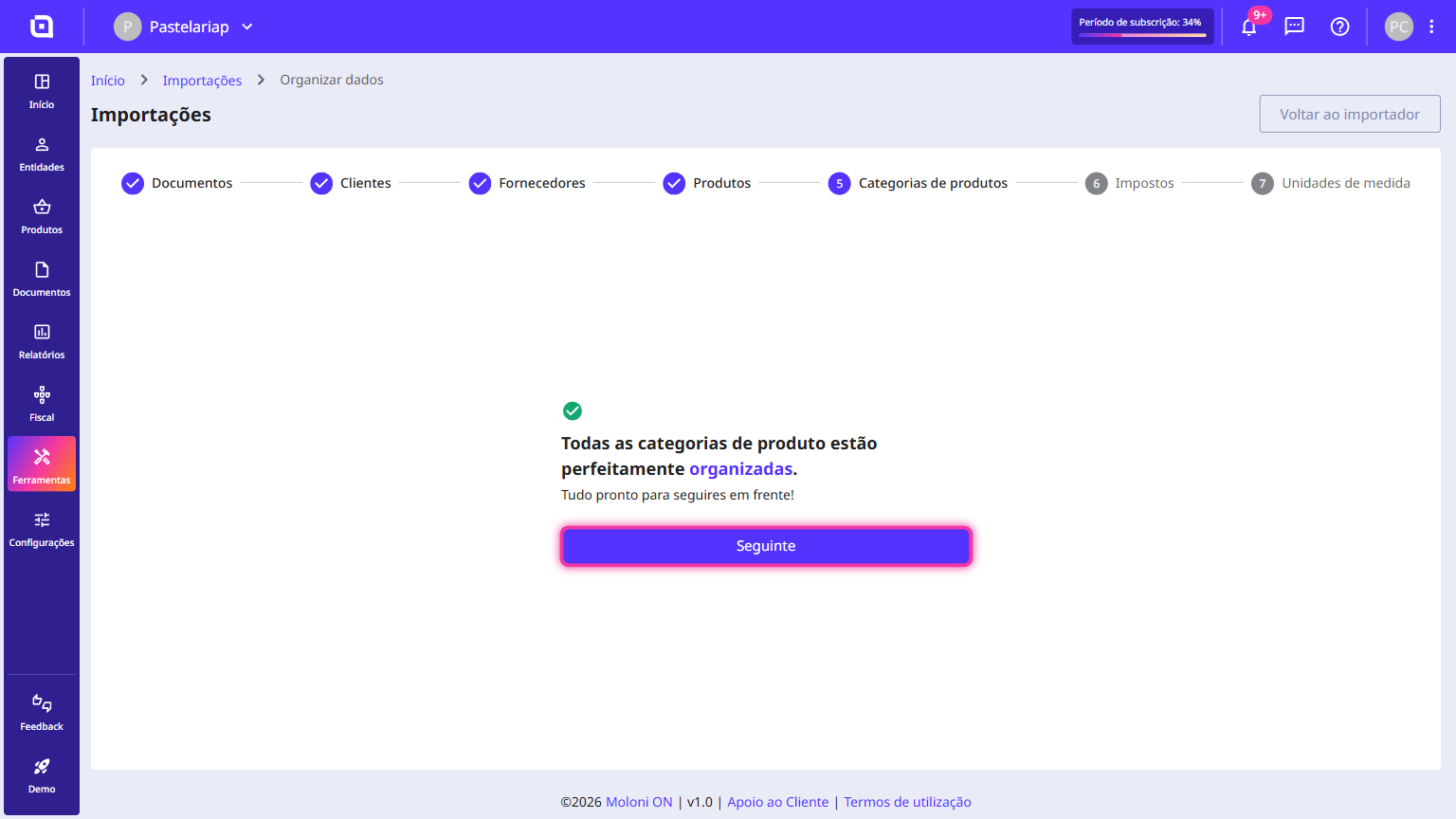
5. Product categories: in the Parent category column, select the corresponding option.
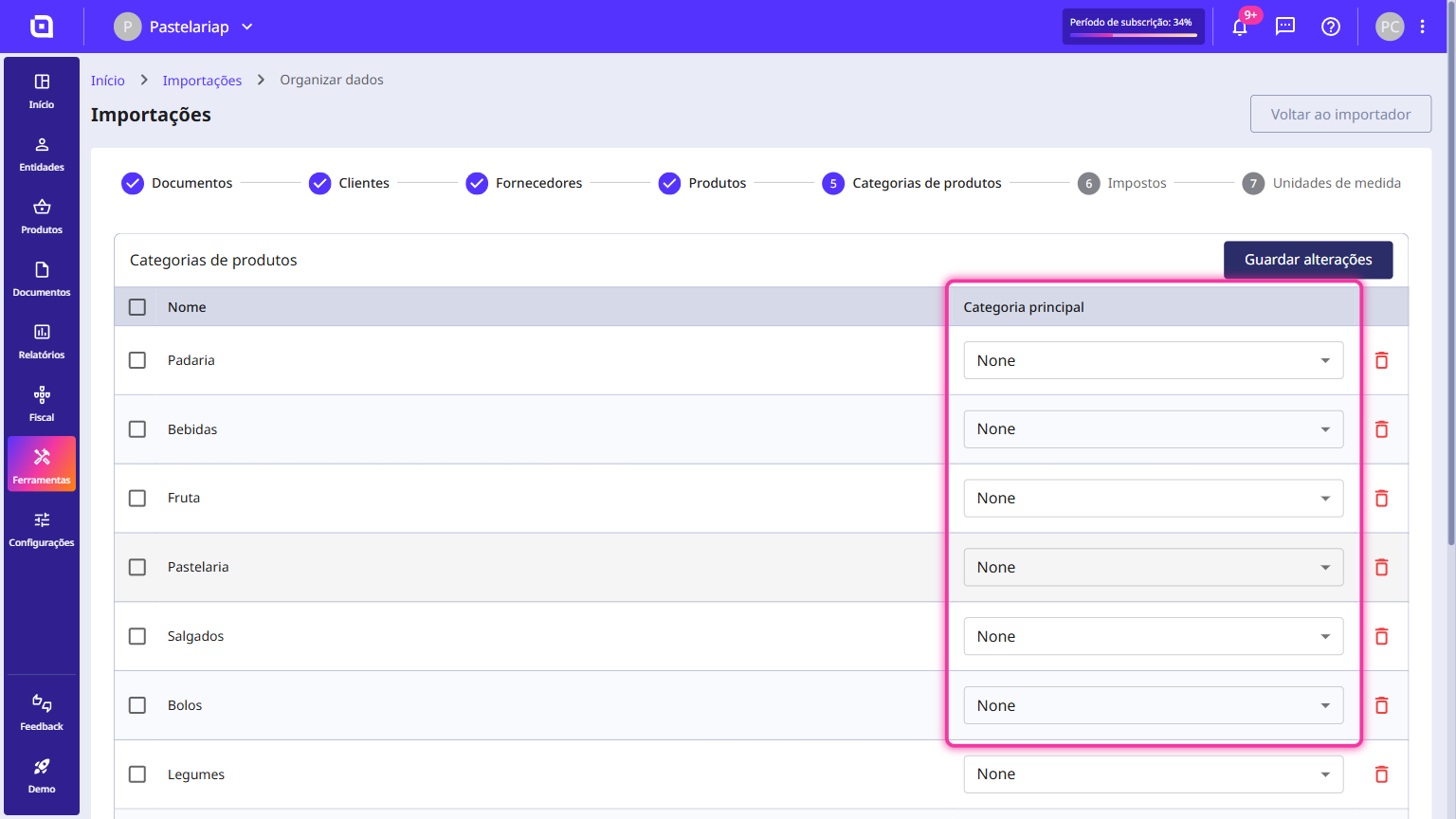
This allows you to define hierarchical relationships between categories by setting a parent category for the imported categories.
Click the Save changes button, confirm with Apply and, at the end, click Next.
6. Taxes: in the Name column, you can edit the name of the tax.
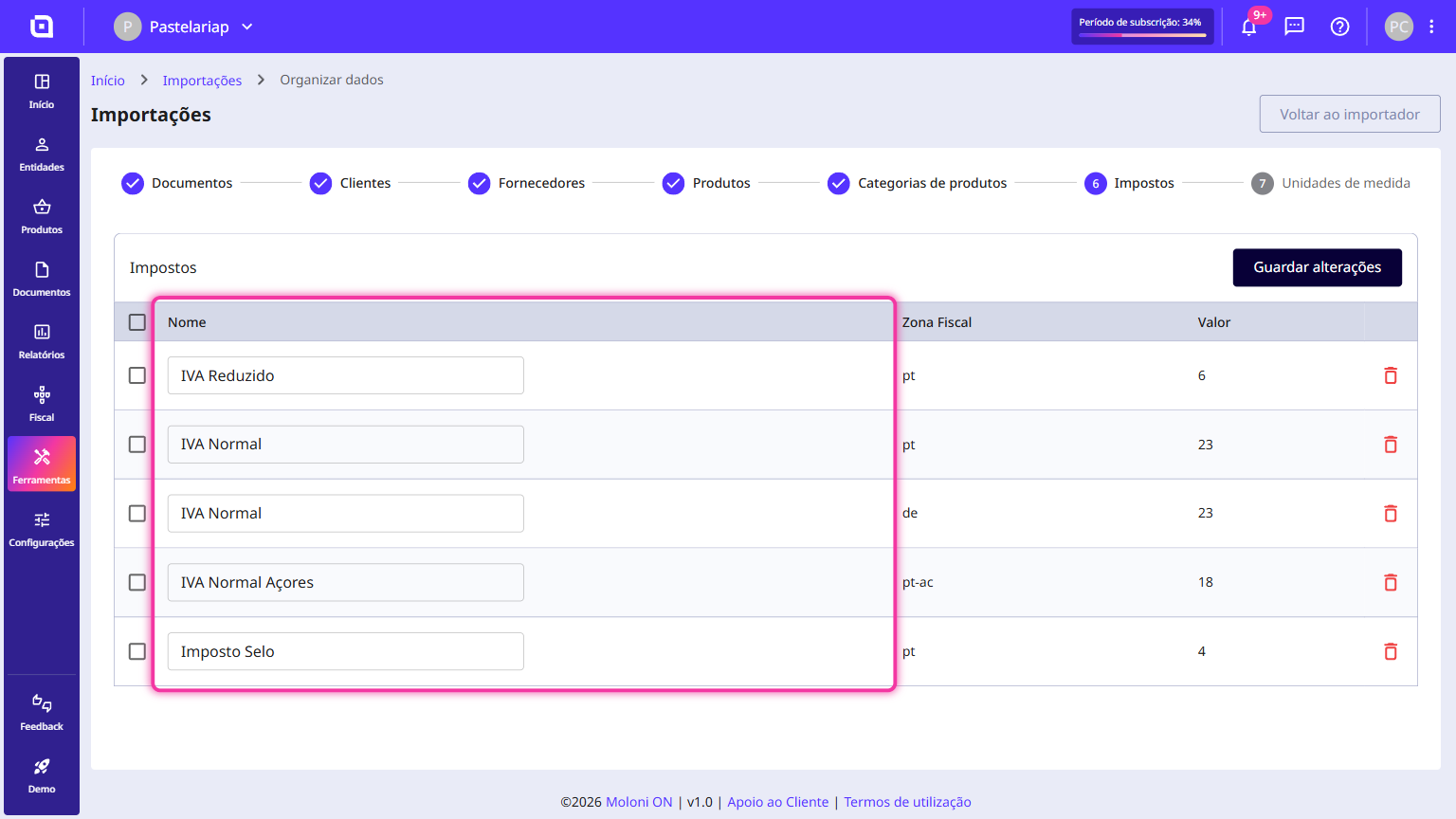
Click the Save changes button, confirm with Apply and move on with Next.
7. Units of measure: in the UNECERec20 code column, select the corresponding code.
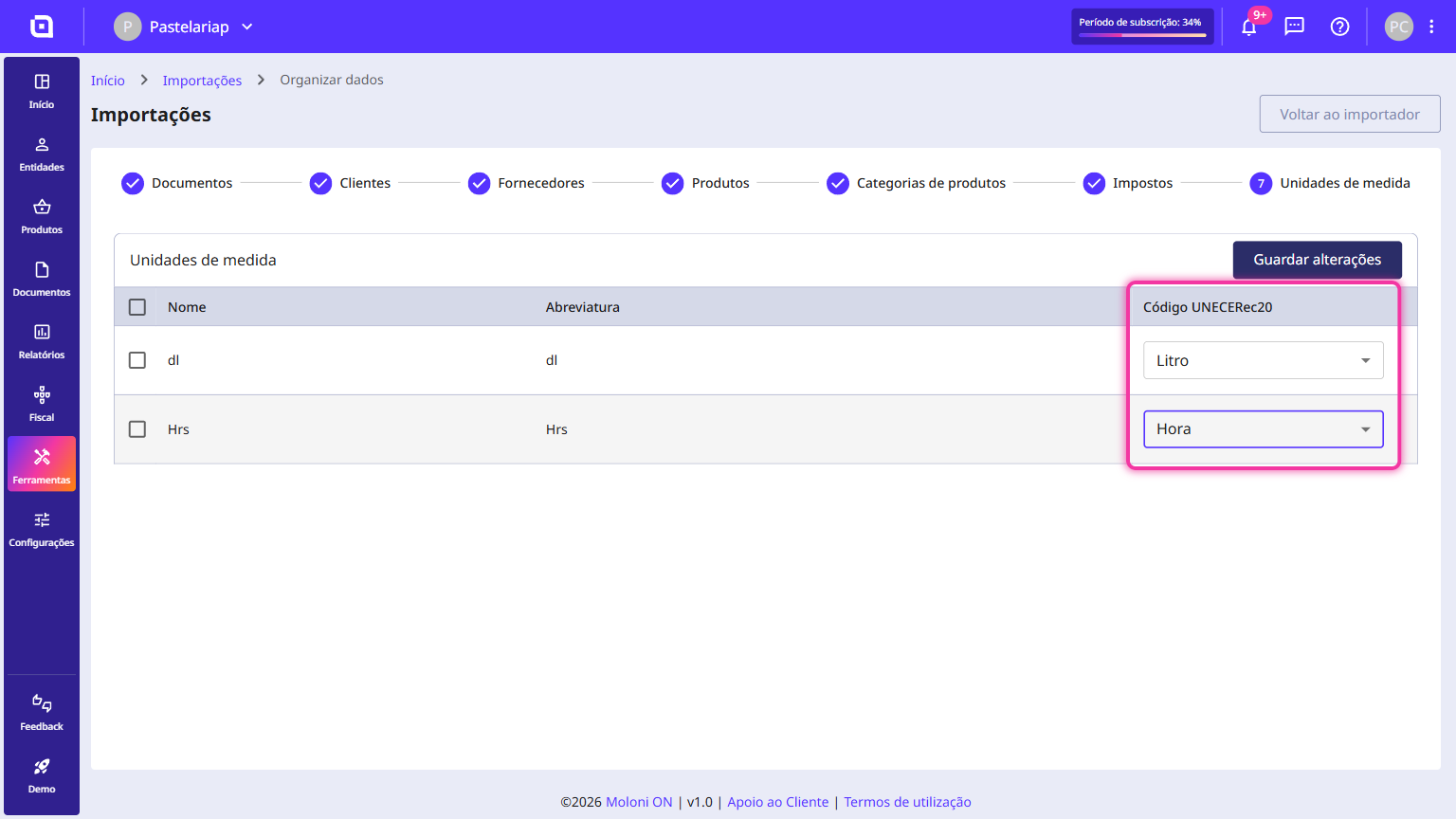
Click the Save changes button and confirm with Apply.
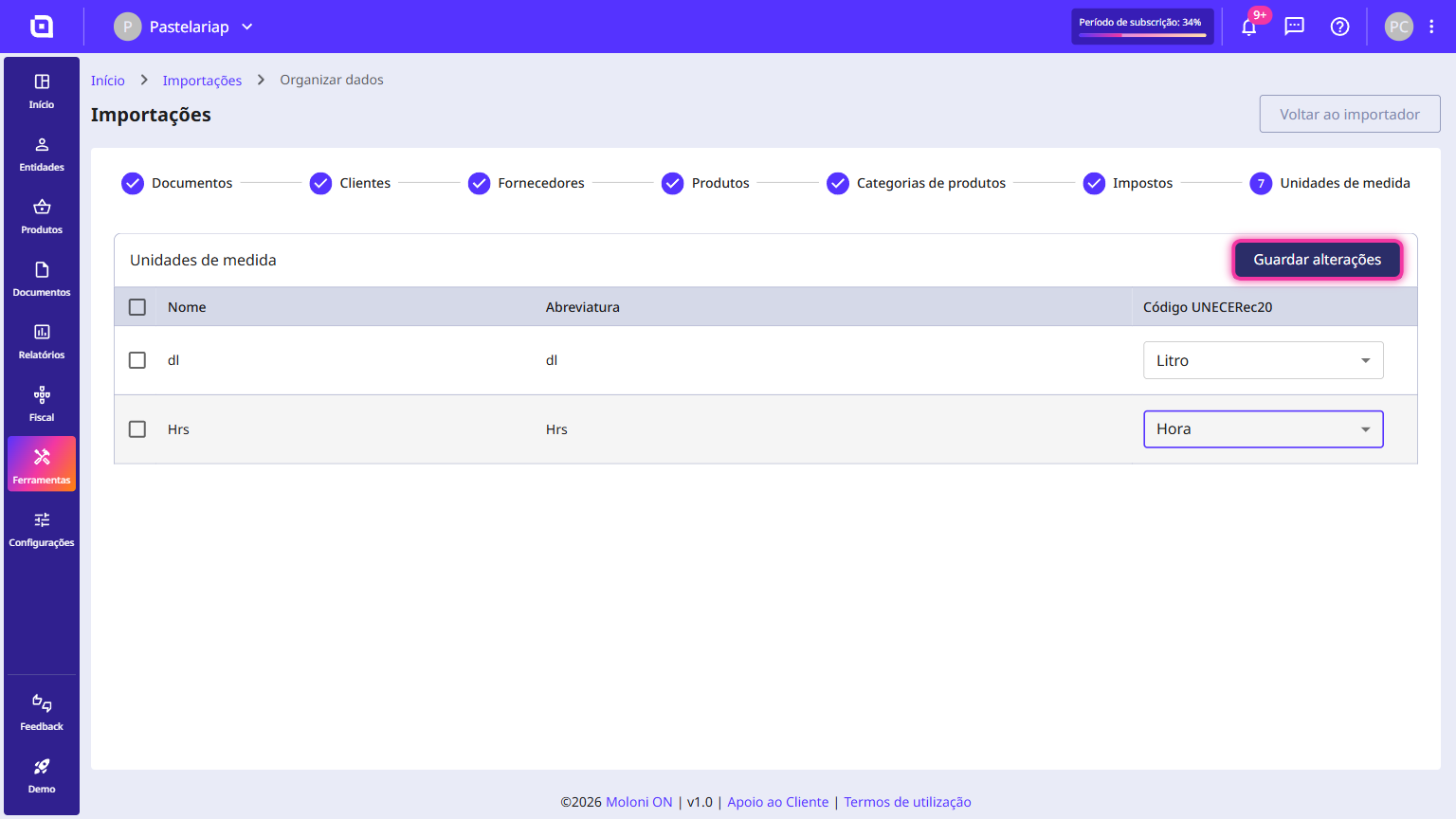
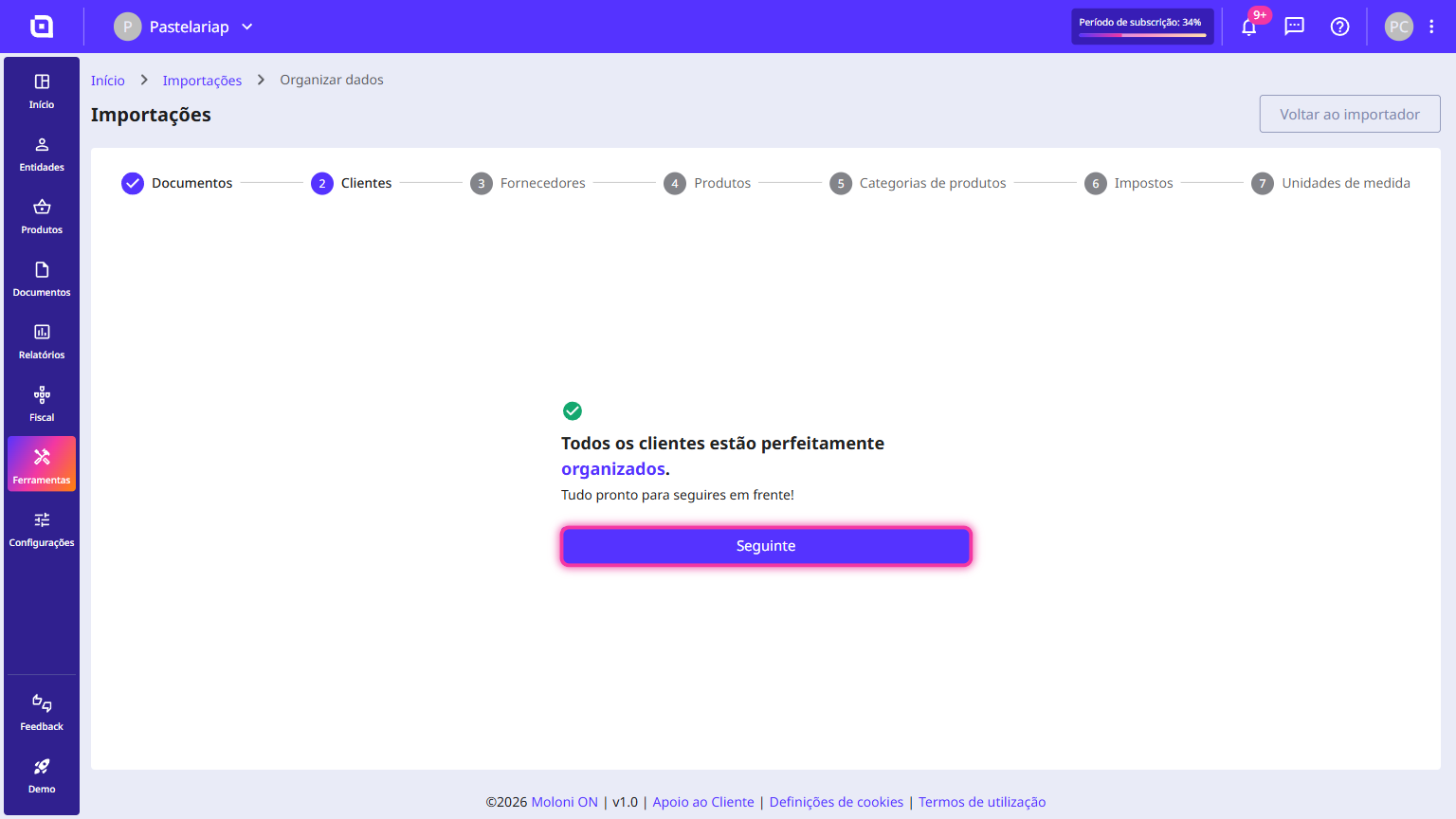
Once all the steps are complete, Moloni ON confirms that you have everything well-organised.