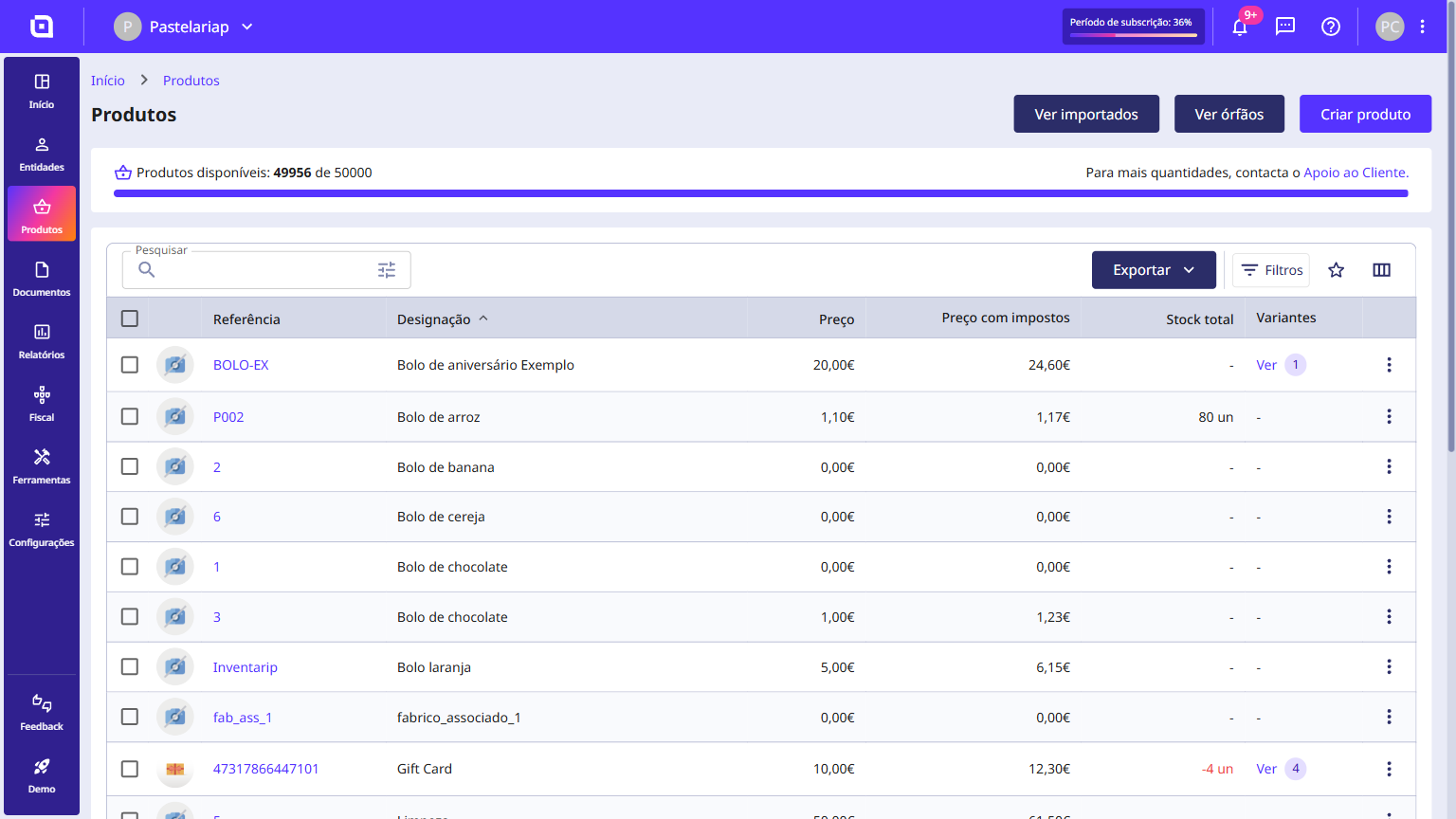
How to import products from an XLS or CSV file
In Moloni ON you can import products and services from an XLS or CSV file, choosing which column of the file matches each product detail. It is the fastest way to bring your whole catalogue into your account, without creating it product by product.
Prepare the file with one header row and one row per product. If you give the columns the same names as the Moloni ON fields - Reference, Name, Category or Price - Moloni ON suggests the type for some of them and you only have the remaining ones to confirm.
Which columns can I import?
Product
- Reference*
- Name*
- Summary
- Category*
- Type (product or service)*
- Unit of measure*
- Price*
- Price with taxes*
- Exemption reason
- Tax value
- Has stock (0 or 1) - 1 yes, 0 no
- Stock
- Min. stock
- TA product type code*
- TA product type name*
Tax
- Tax - name*
- Tax - value*
- Tax - exemption reason
Warehouse
- Warehouse - code
- Warehouse - name
- Warehouse - stock
- Warehouse - min. stock
Supplier
- Supplier - code
- Supplier - TRN
- Supplier - name
- Supplier - cost price
- Supplier - reference
Price list
- Price list - name
- Price list - value
Identifier
- CODE93, EAN13, EAN8, ISBN, ISSN, PDF417, QRCODE, UPCA and UPCE
Variant
- Name, price, price with taxes, reference, summary, stock and min. stock
- Warehouse and matching stock, identifiers and price lists
- Variants must be created beforehand so they can be imported
Fields marked with * are mandatory.
Important note:
-
Tax - name: if the tax already exists in Moloni ON, enter the exact same name in the column (e.g. IVA 6%) to avoid creating a duplicate tax. With a new name, Moloni ON creates a new tax that you have to accept before you can make the products visible.
-
TA product type: the Product type (TA stocks inventory) field is mandatory. Add the TA product type name column to your file (e.g. Mercadorias) or the TA product type code column - without it, the products come into the account but stay incomplete.
-
Warehouse: the import is guided by the warehouse code, which may already be created in Moloni ON. In the absence of a code, it is guided by the warehouse name.
Follow these steps:
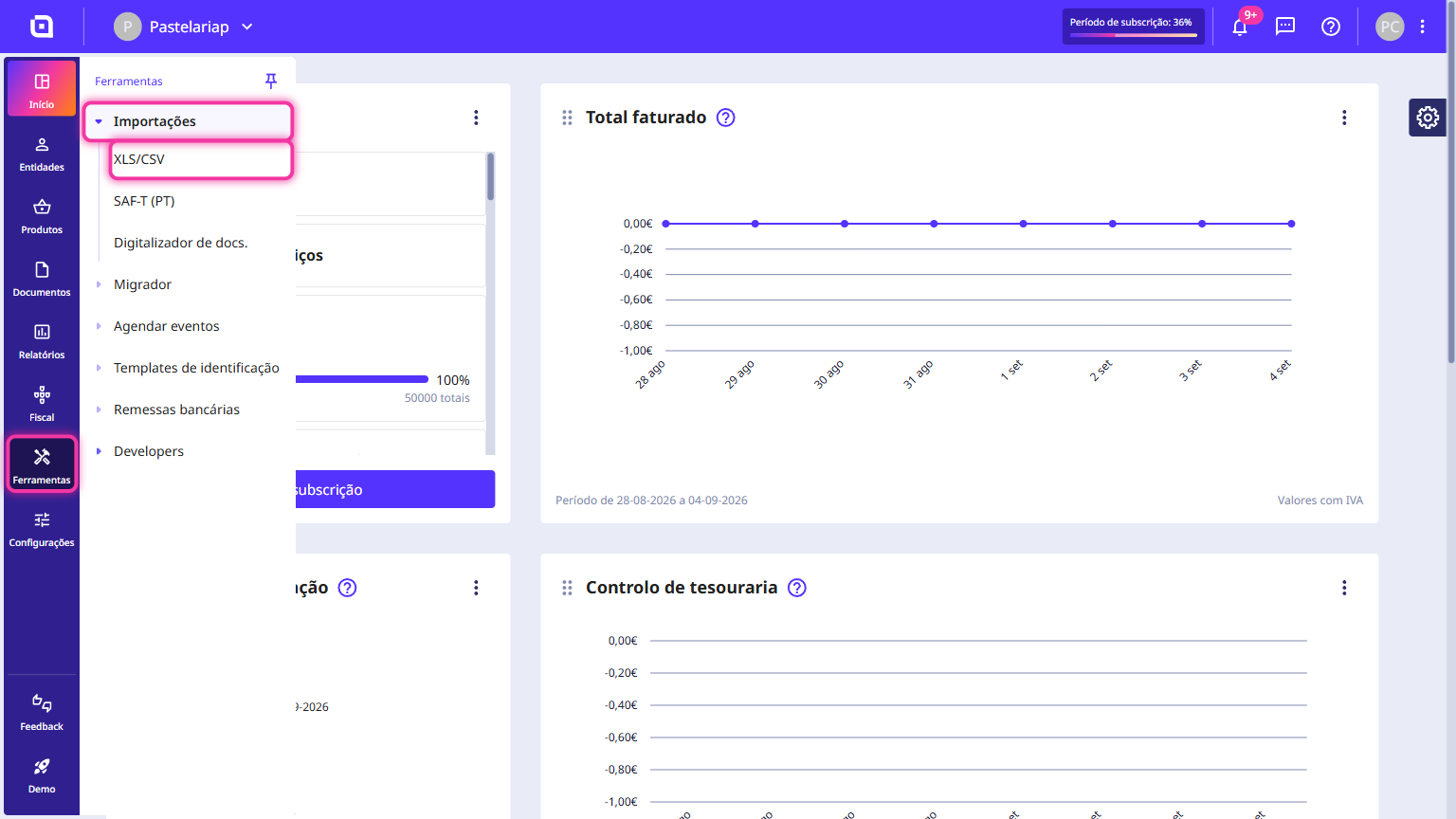
1. In the Client Area, in the left side menu, go to Tools, click on Imports and choose XLS/CSV.
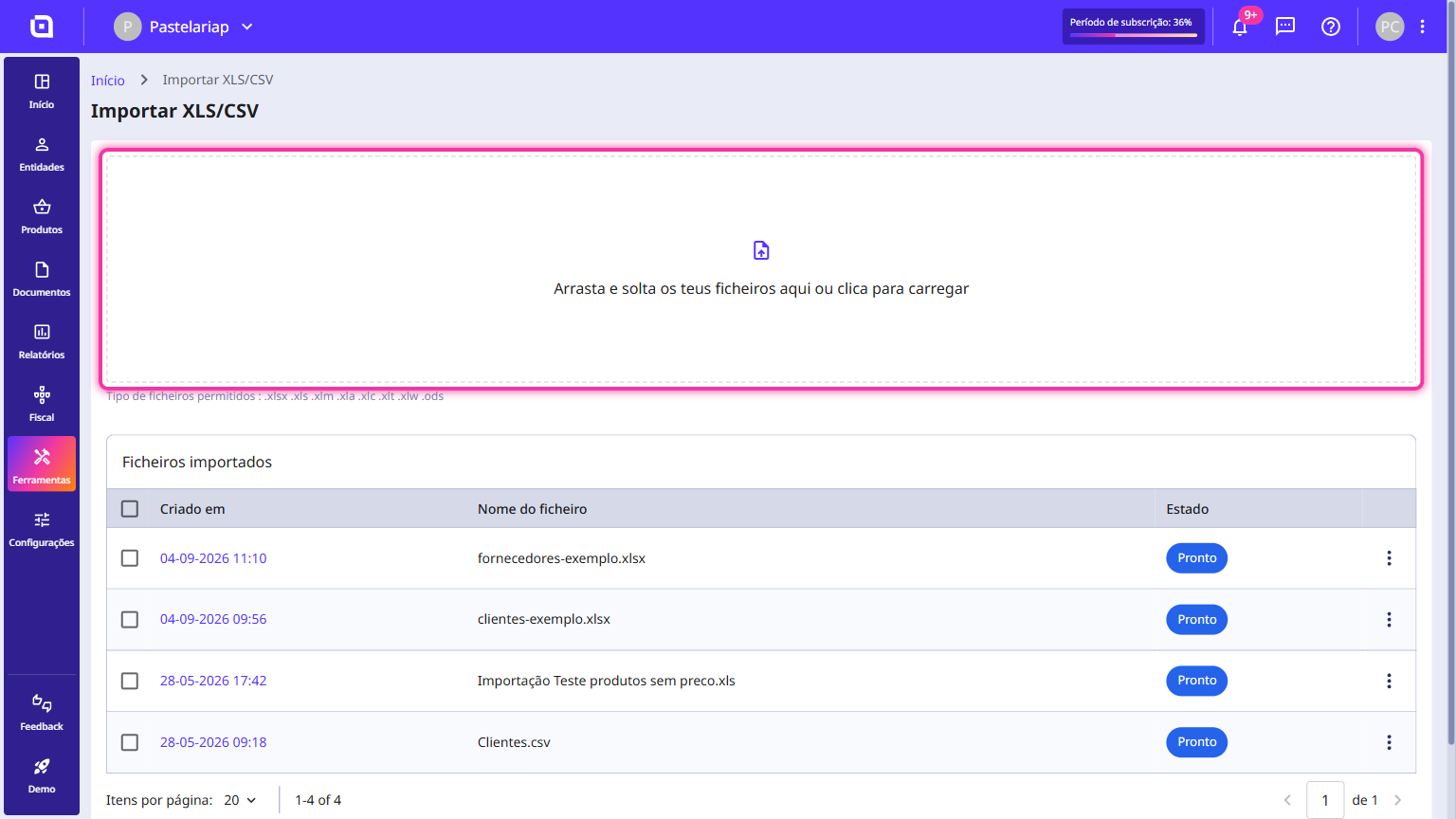
2. Drag the file into the upload area, in the centre of the page, or click that area to choose it from your computer.
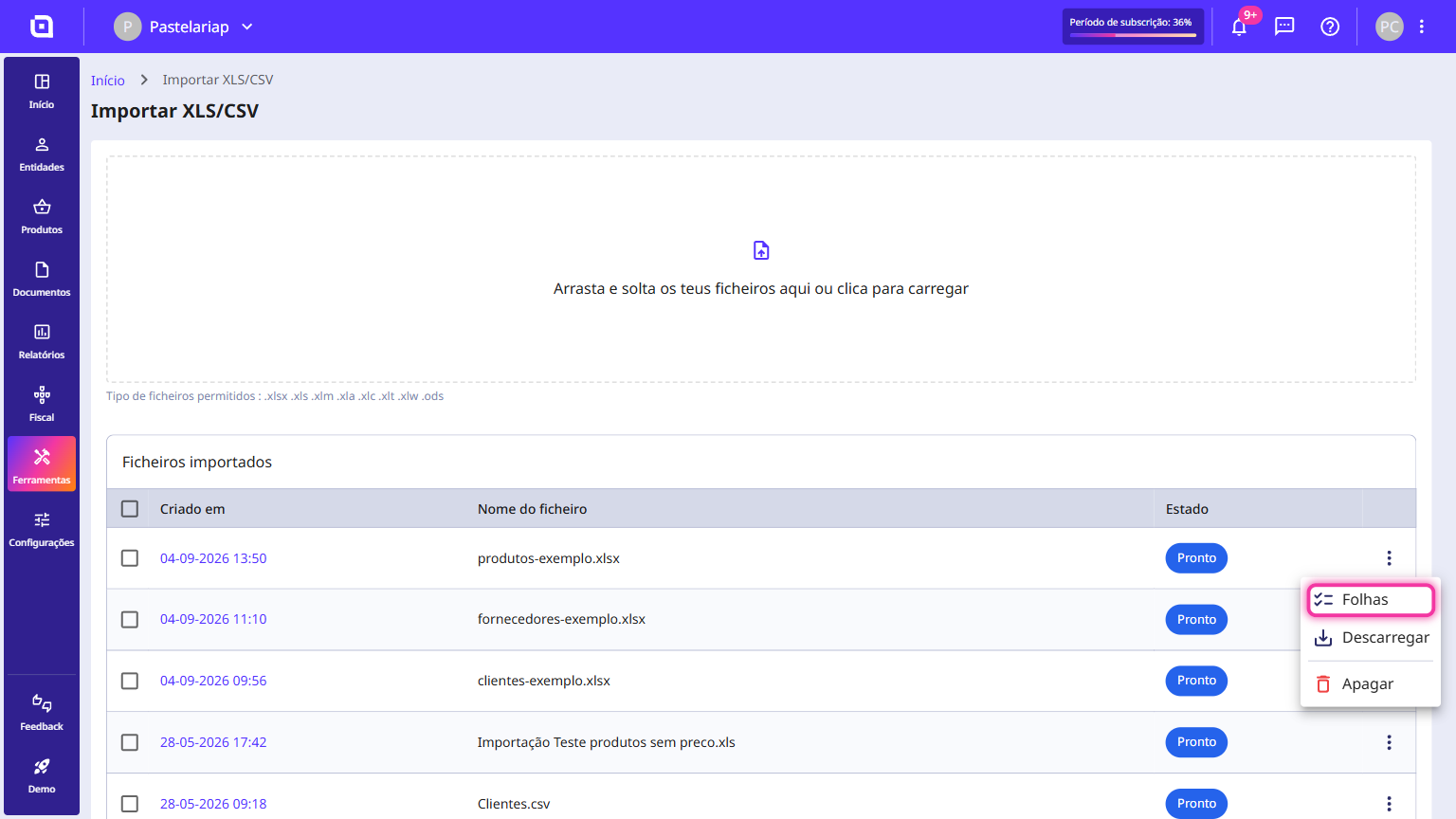
3. Moloni ON lets you know when the file is Ready. Click the three-dot menu on the file's row and select Sheets.
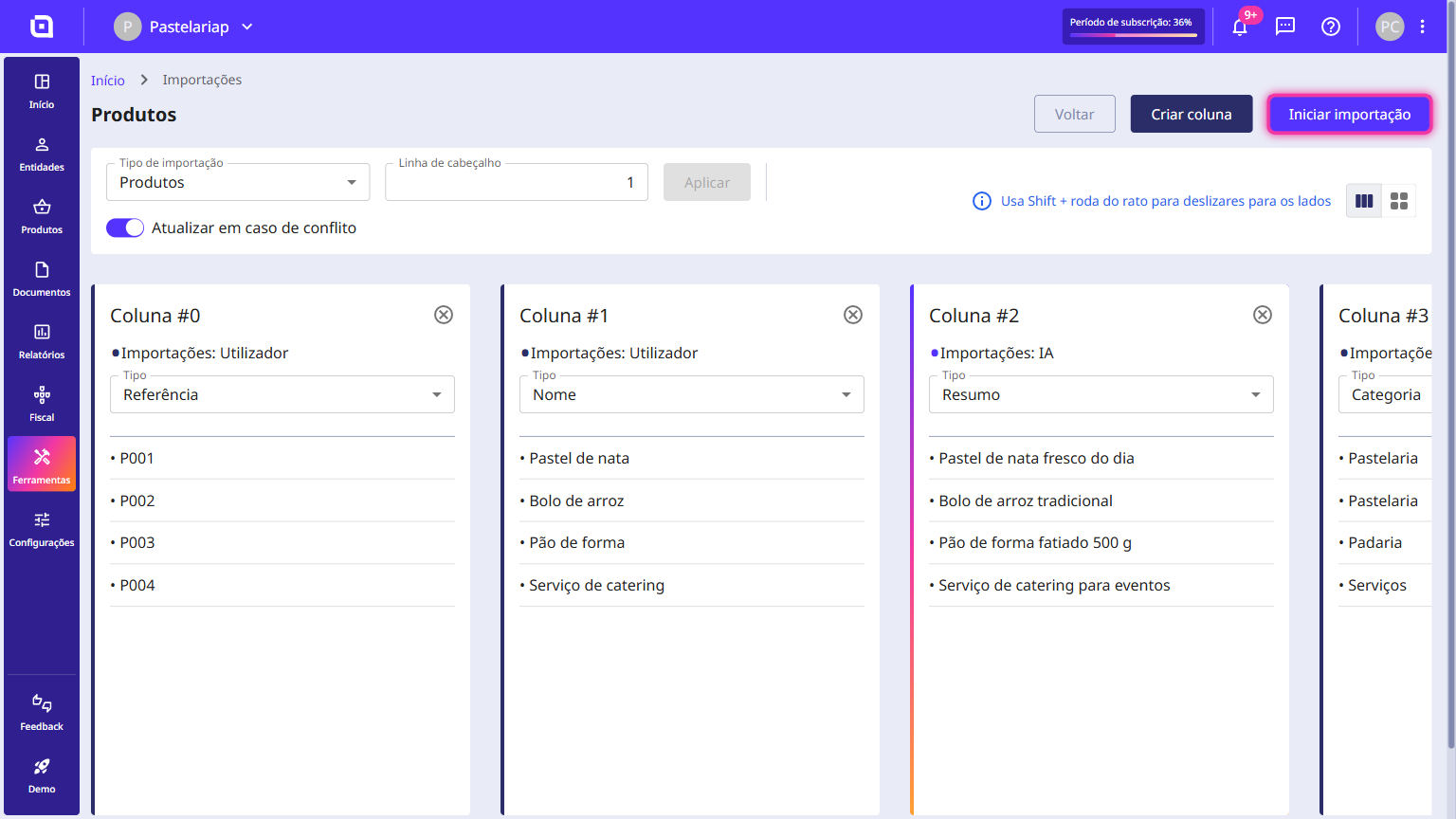
4. Start organising: under Import type select Products.
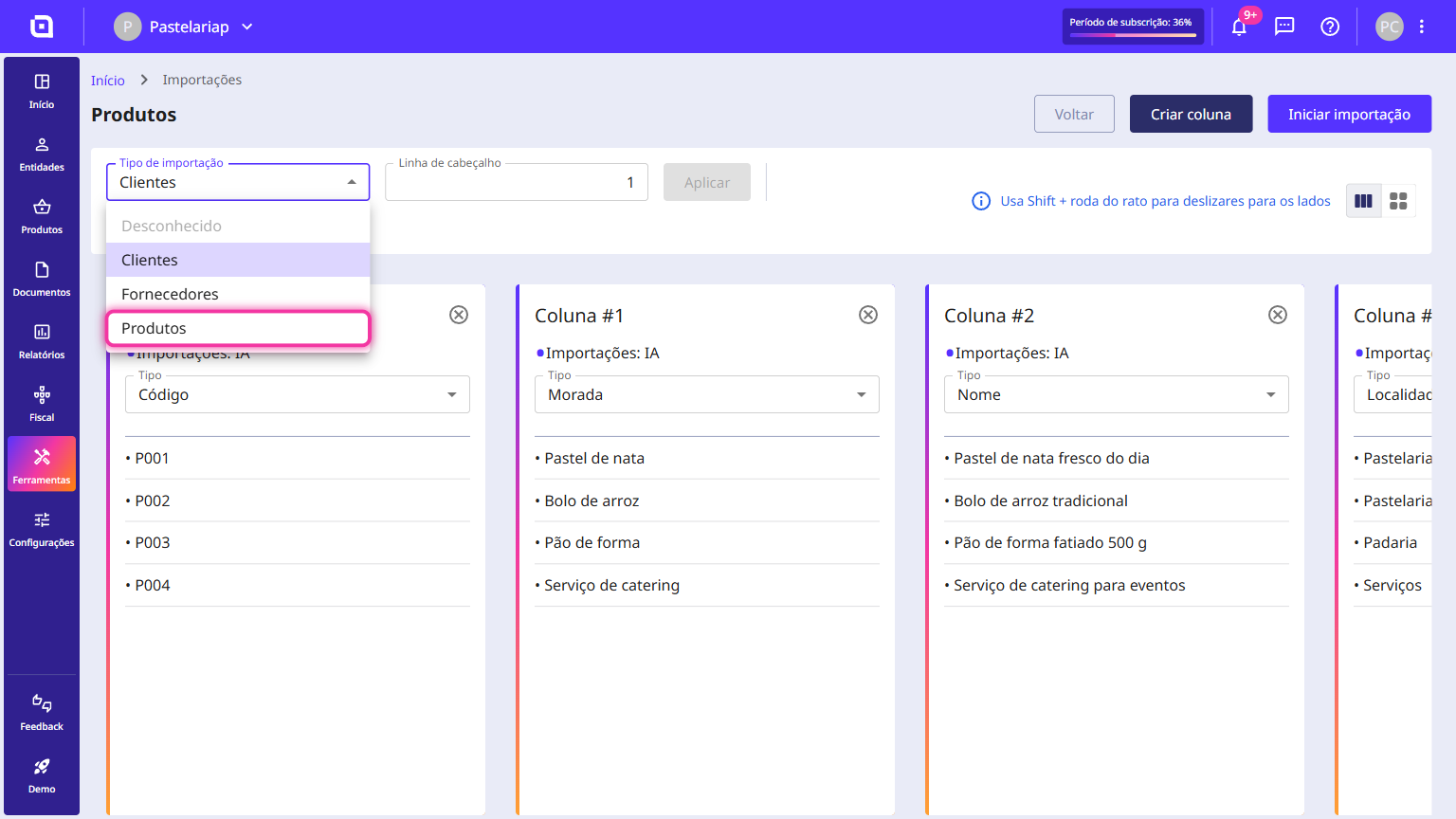
5. Under Header line select the row with the column names and click the Apply button.
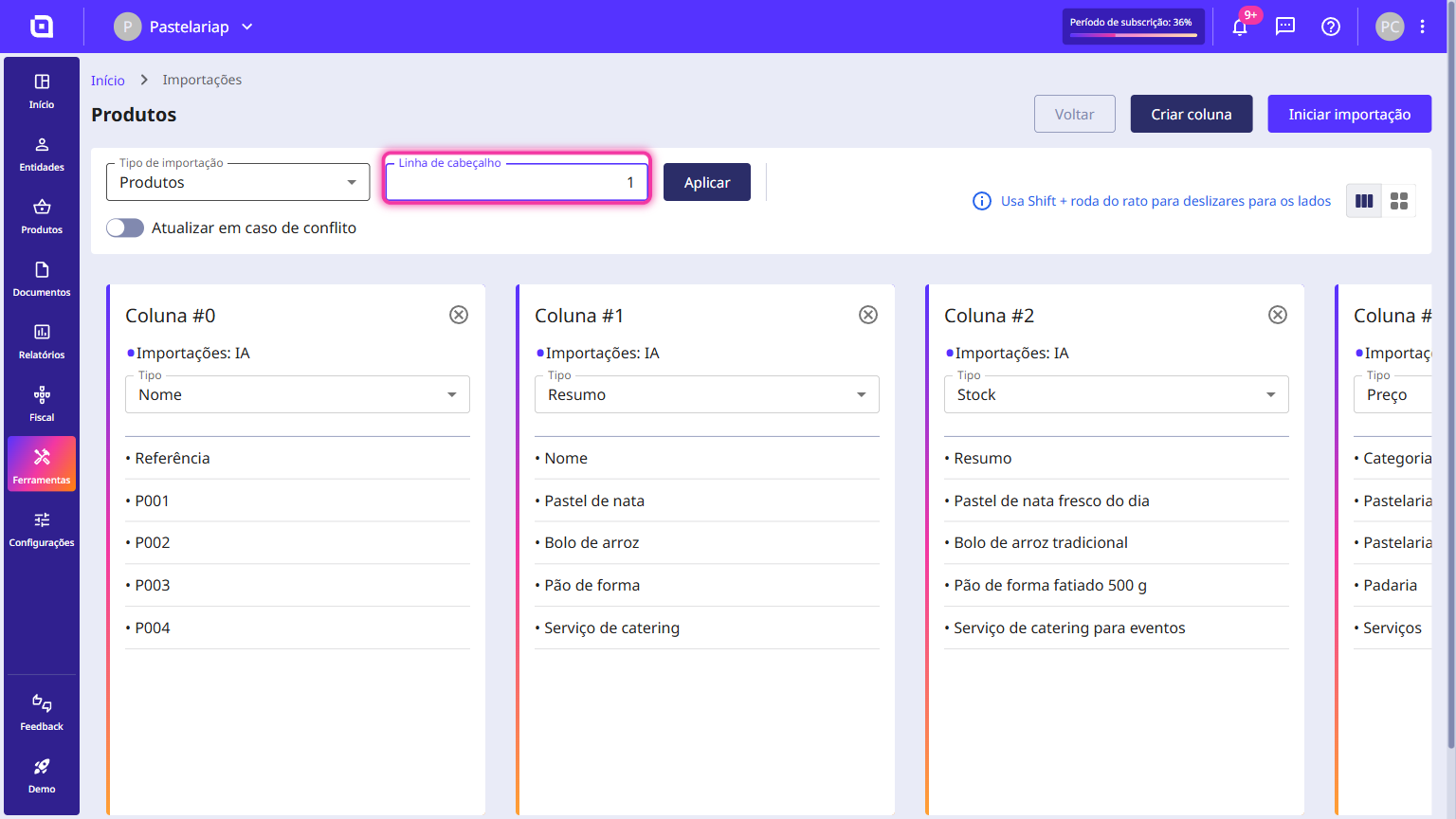
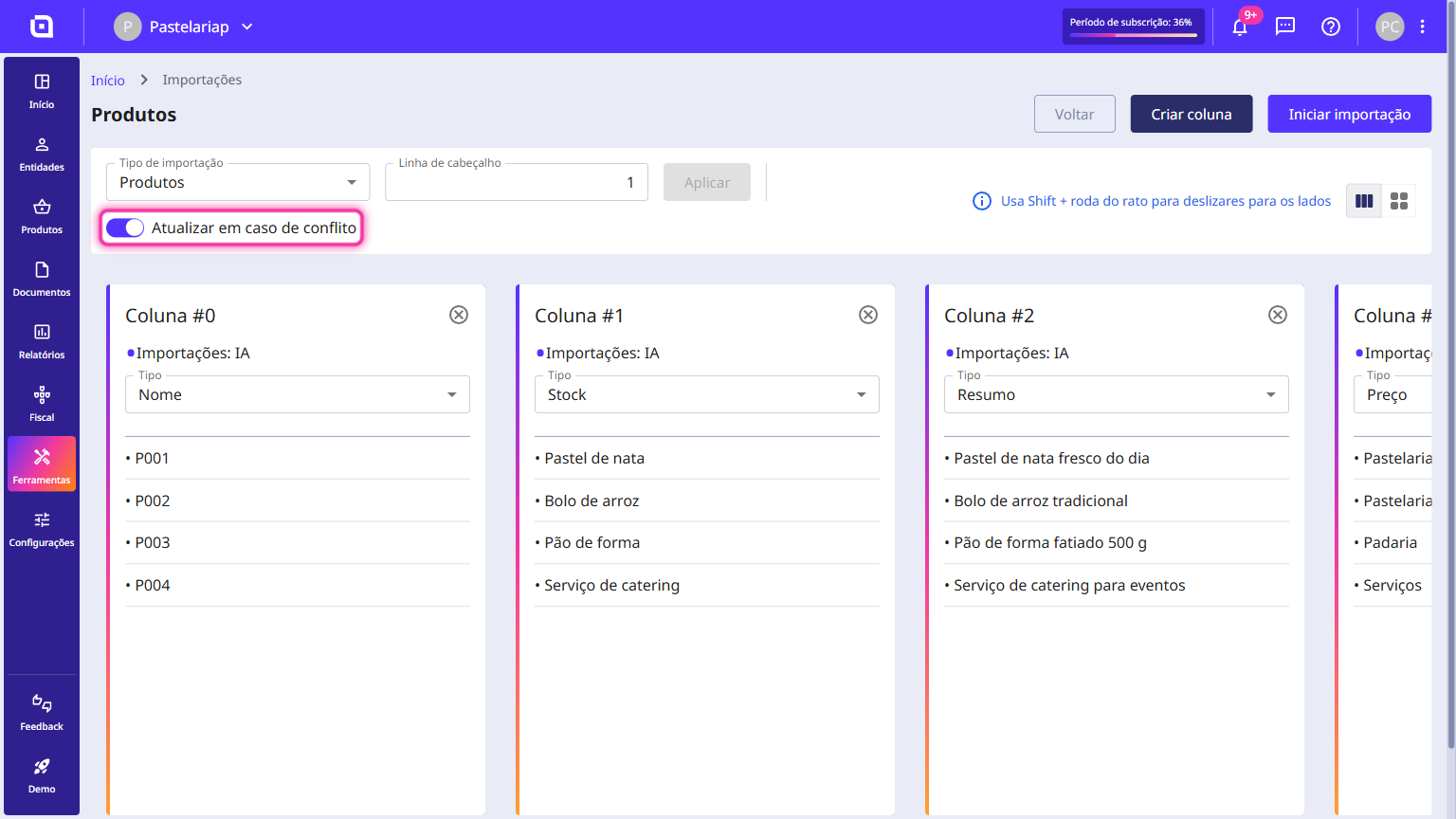
6. If you wish to update existing information, enable the Update in case of conflict option.
7. In each column, under the Type field, select the desired option. Moloni ON suggests a type for some of the columns based on the file header, so go through every column and confirm what is selected.
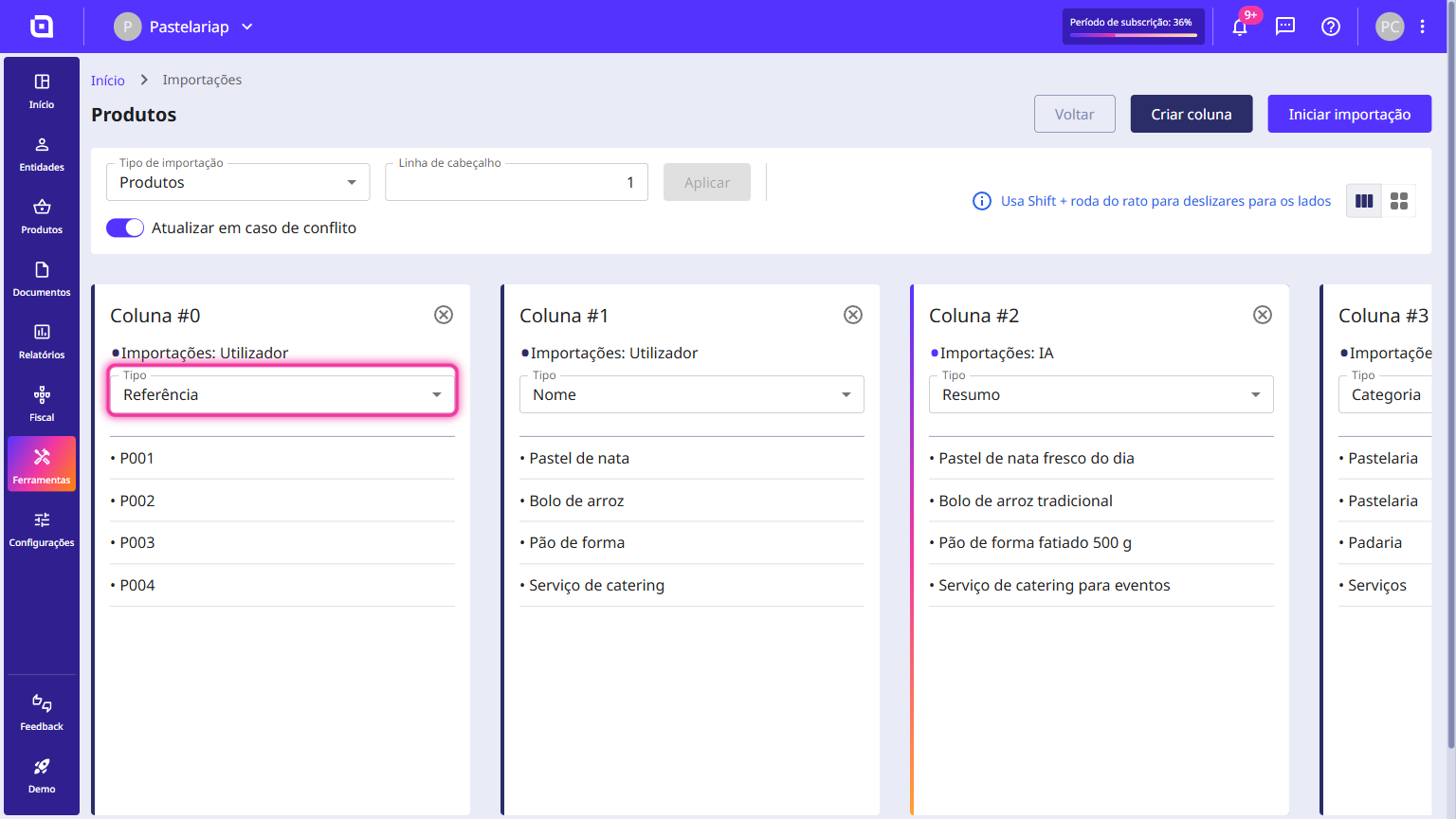
8. The list shows every detail you can import for a product - from the Reference and the Price to the Warehouse, the Supplier or the Variants.
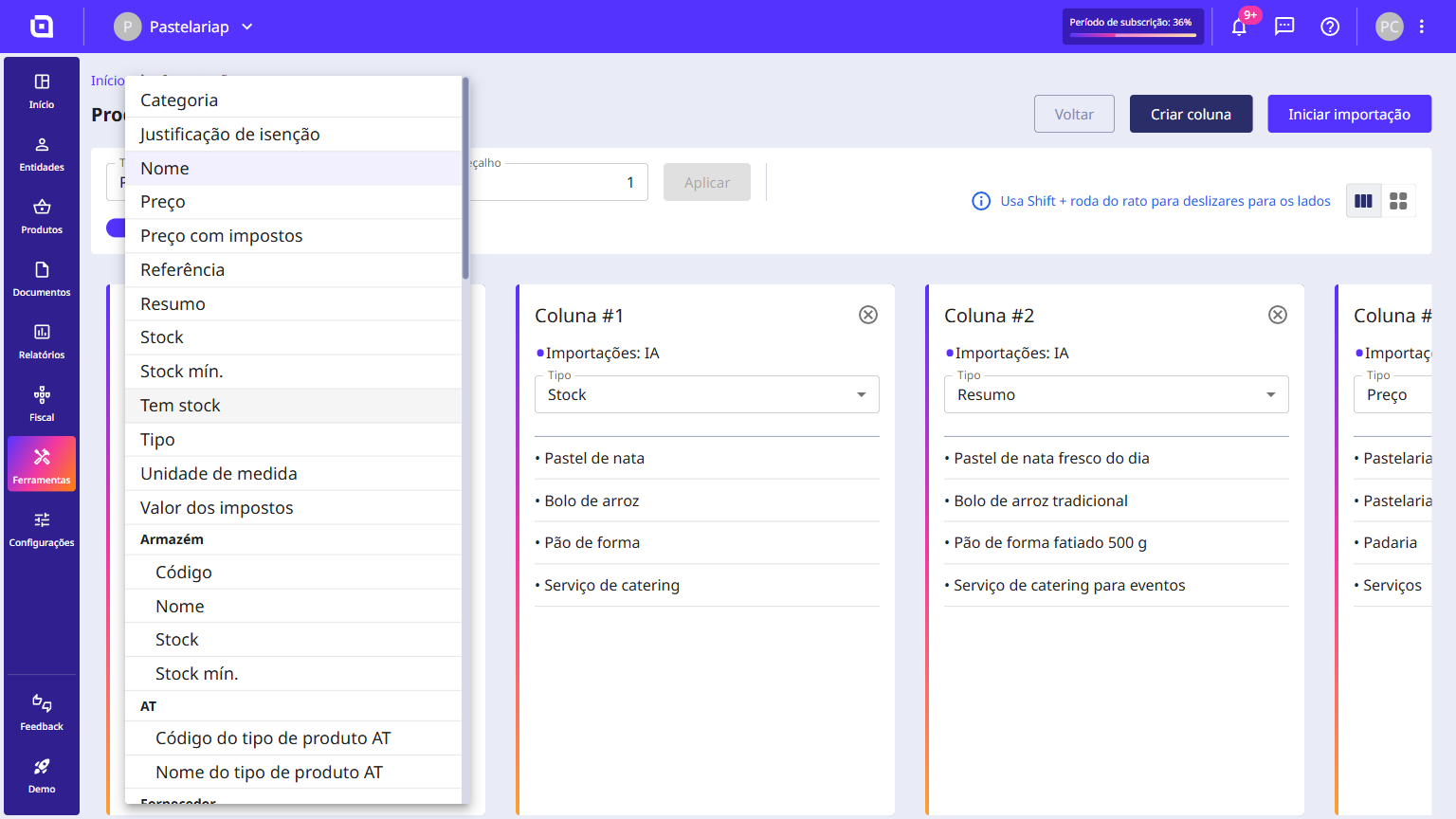
9. You can add new columns by clicking the Create column button.
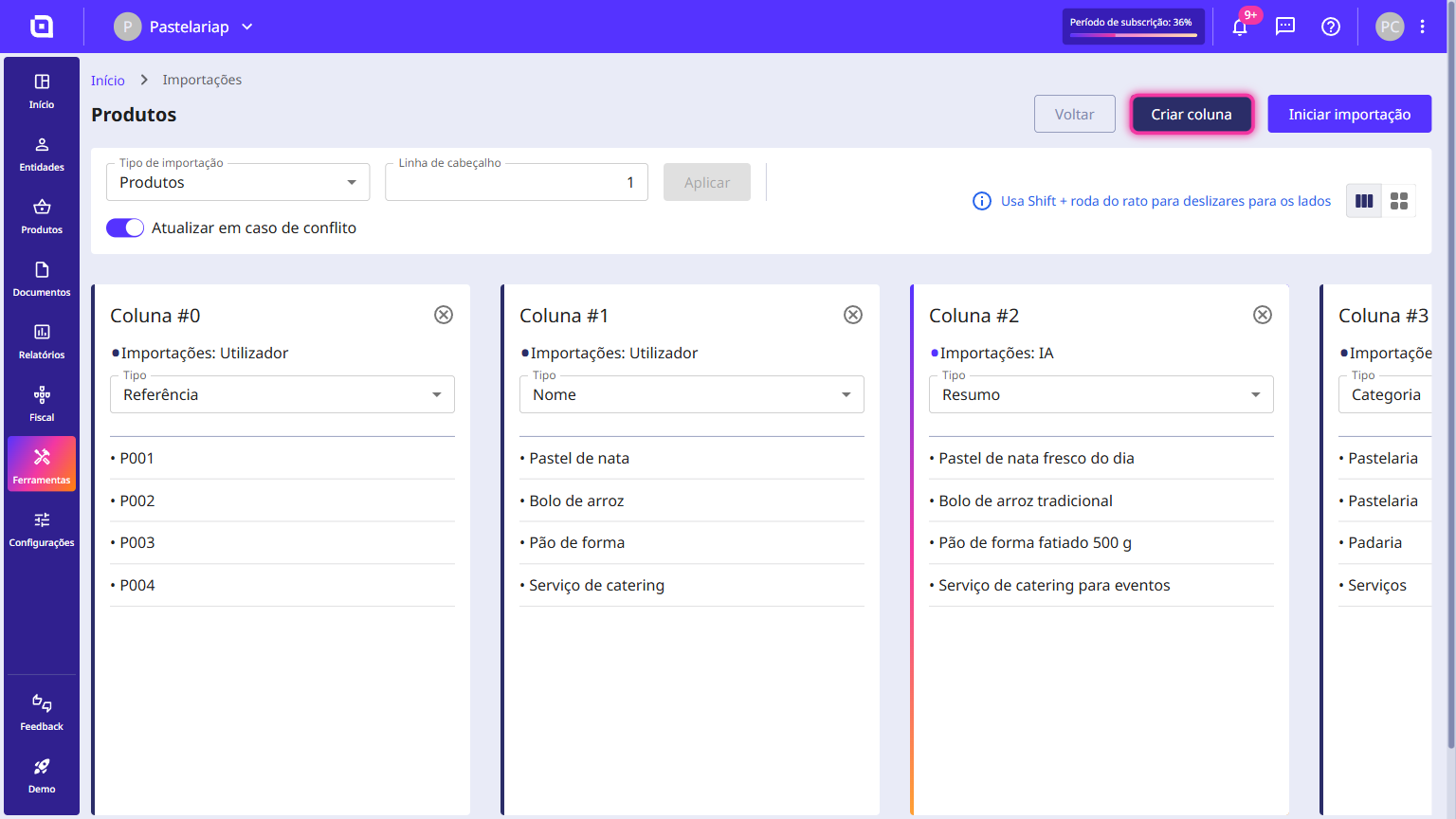
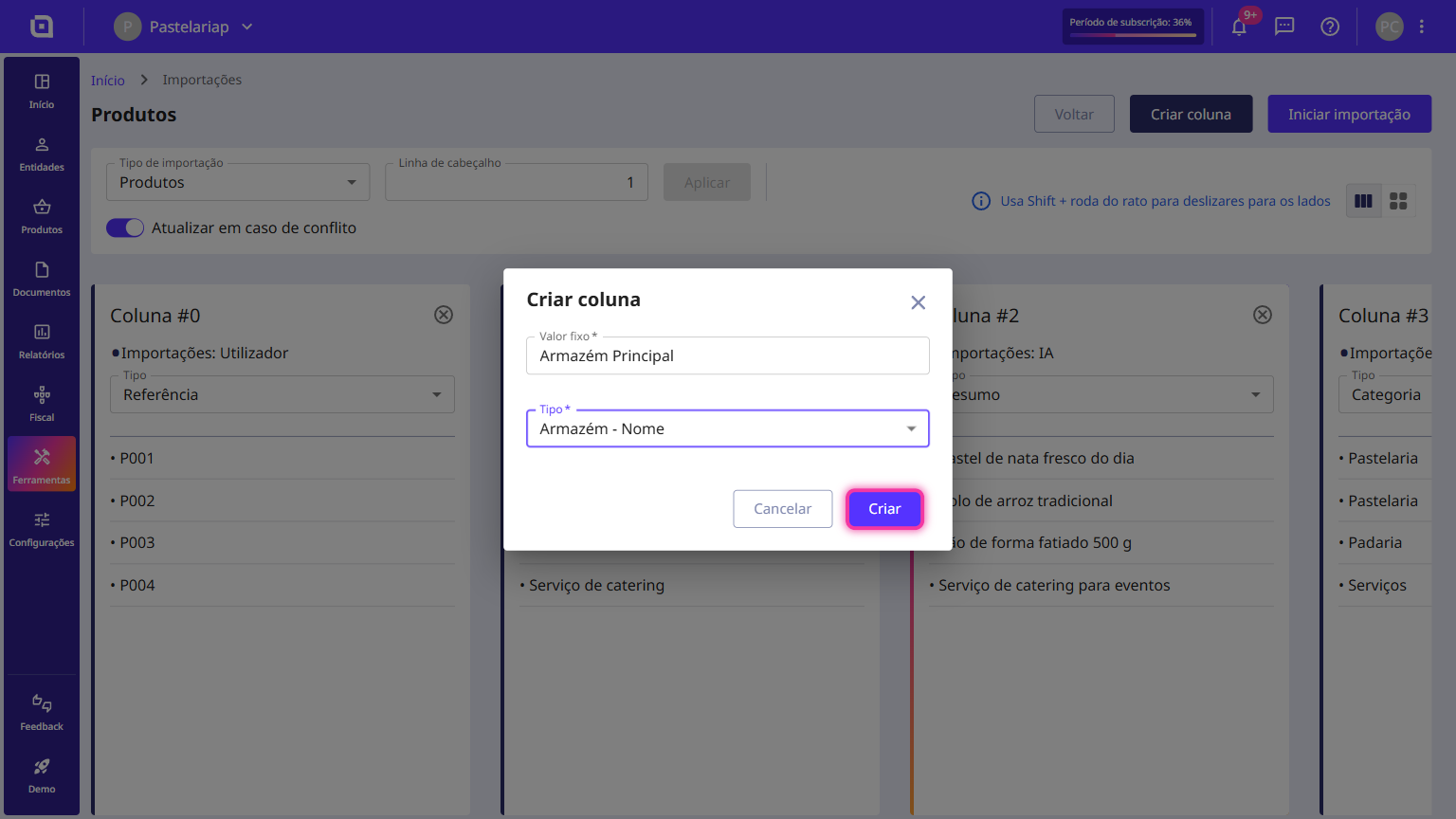
10. In the Fixed value field enter the value you want to apply to every row, choose the Type and click the Create button.
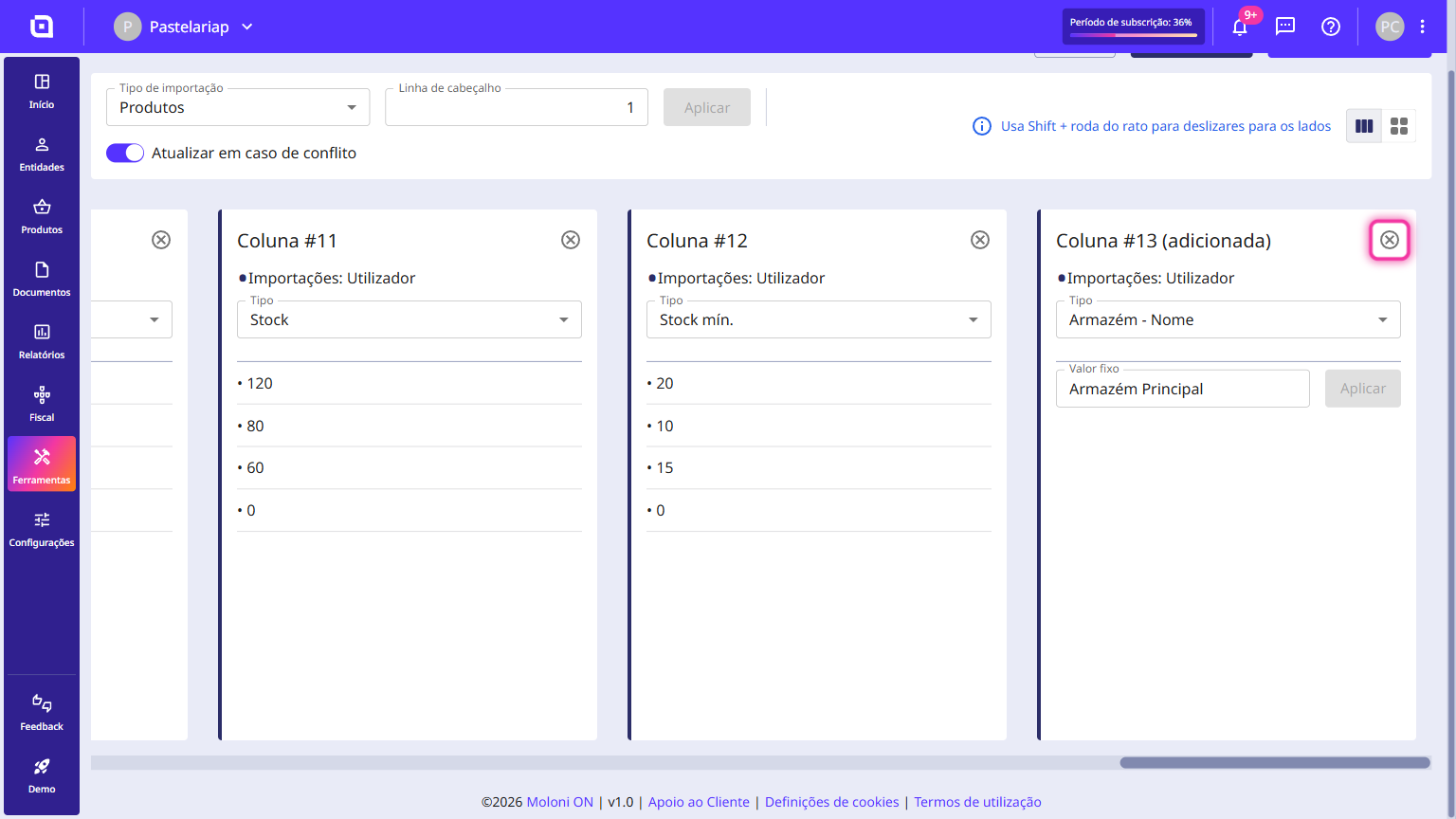
11. You can also delete the columns you do not wish to import, using the close icon on the column card.
12. Once the information is organised, click the Start import button to import the products.
13. When the import finishes, click the View imported button.
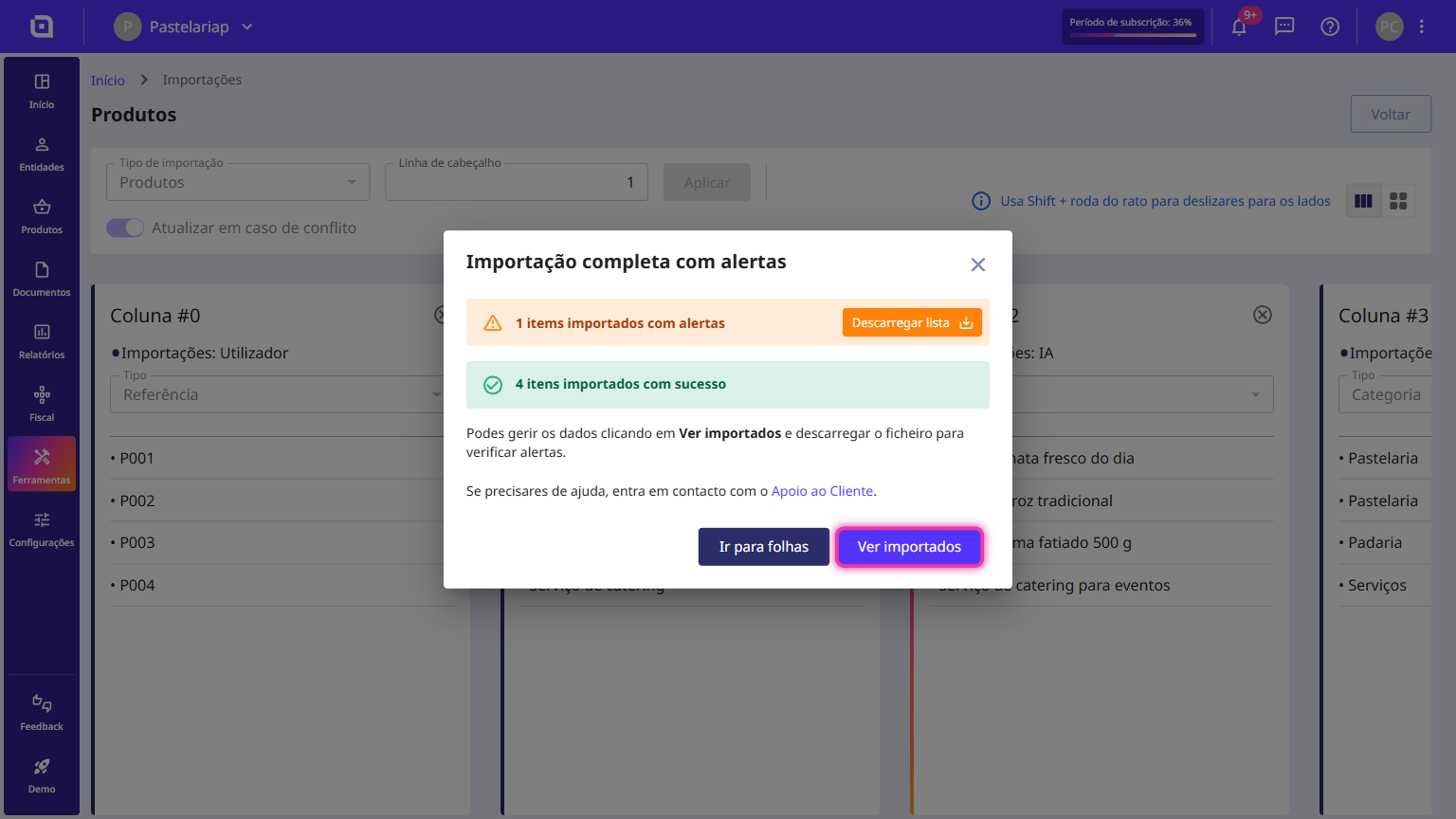
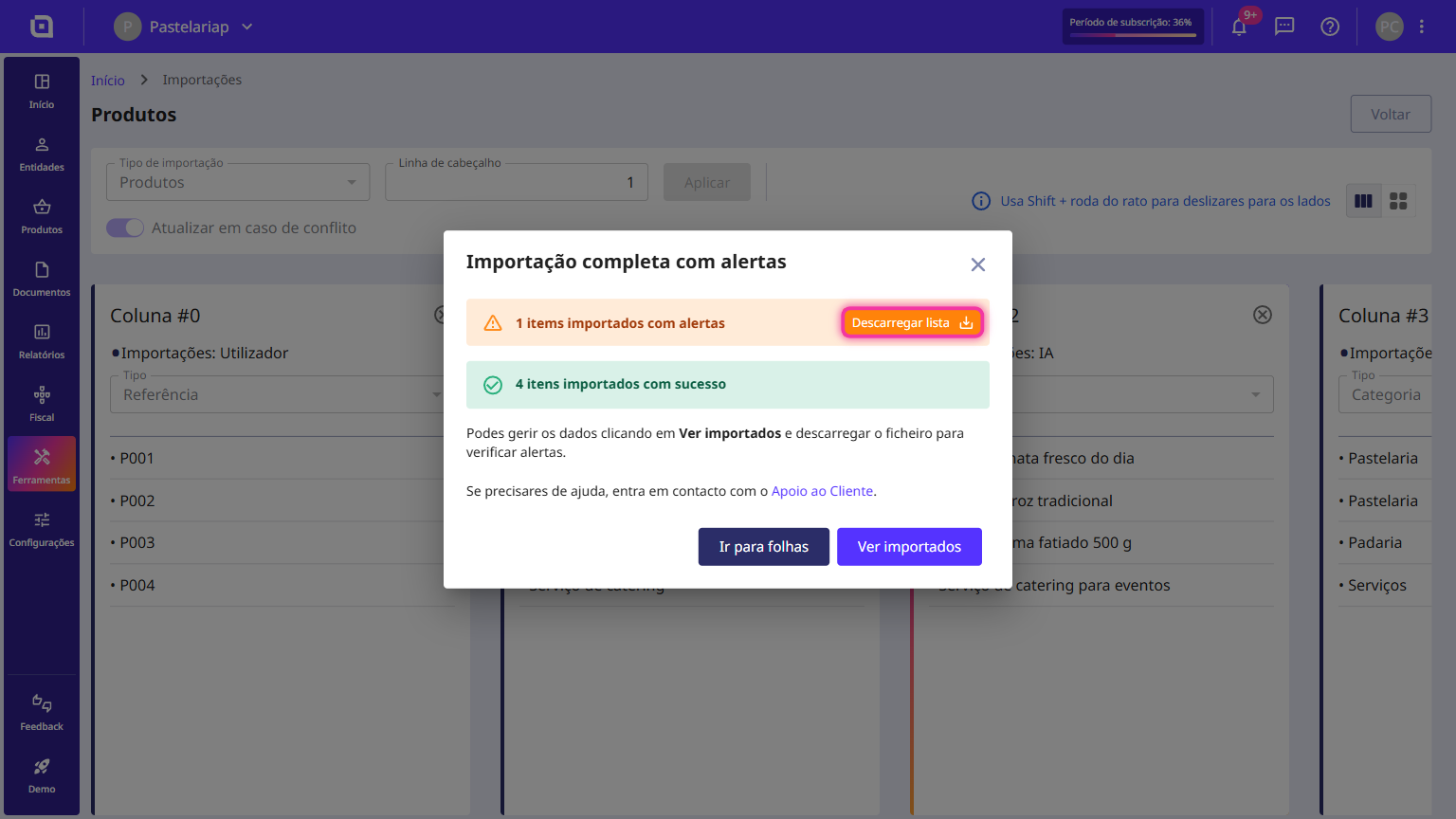
14. If the import shows errors and/or alerts, click the Download list button to check them. The file shows the rows that were left out and the reason for each one.
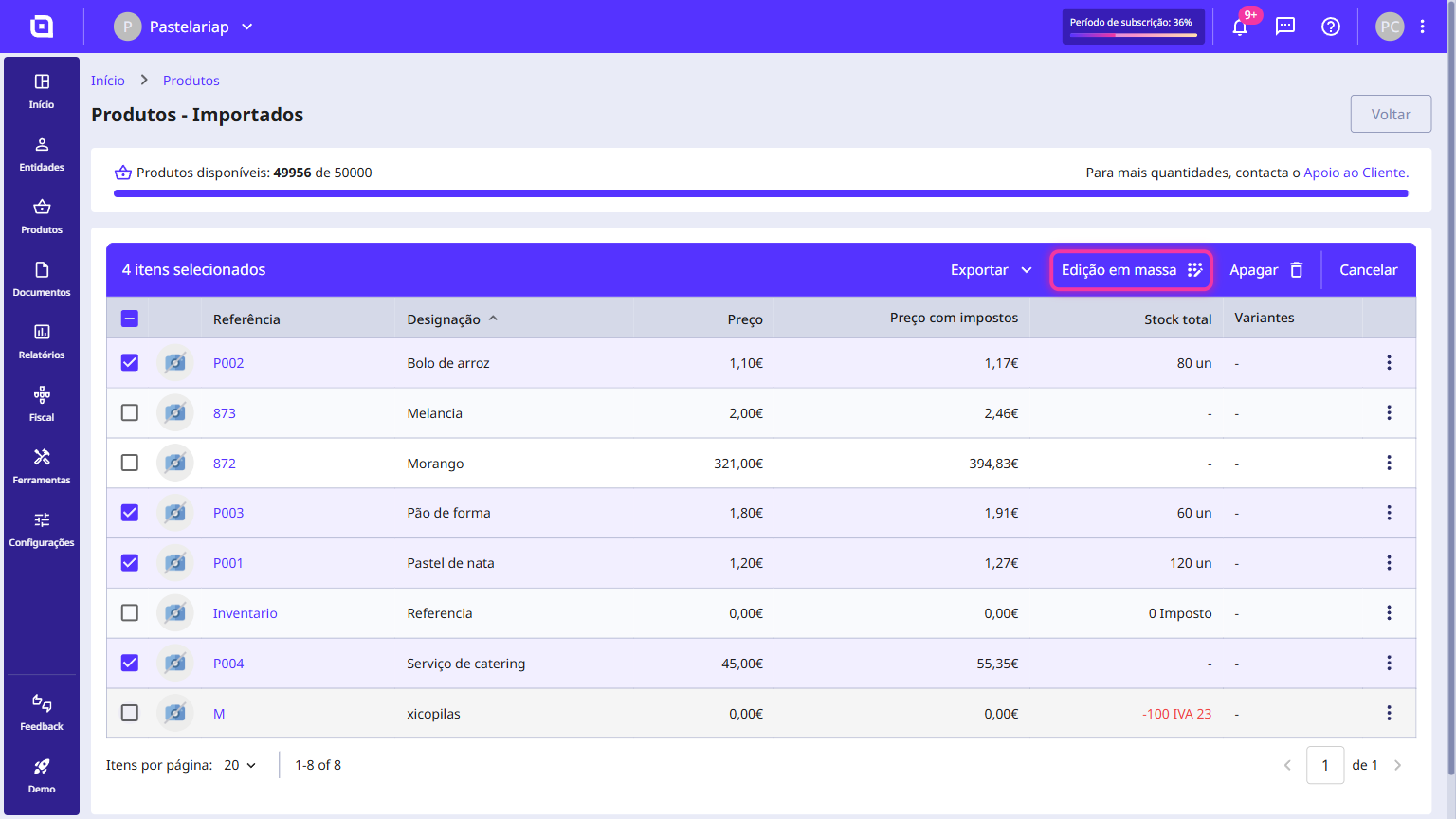
15. The Products - Imported list shows everything that came in from this and from previous imports.
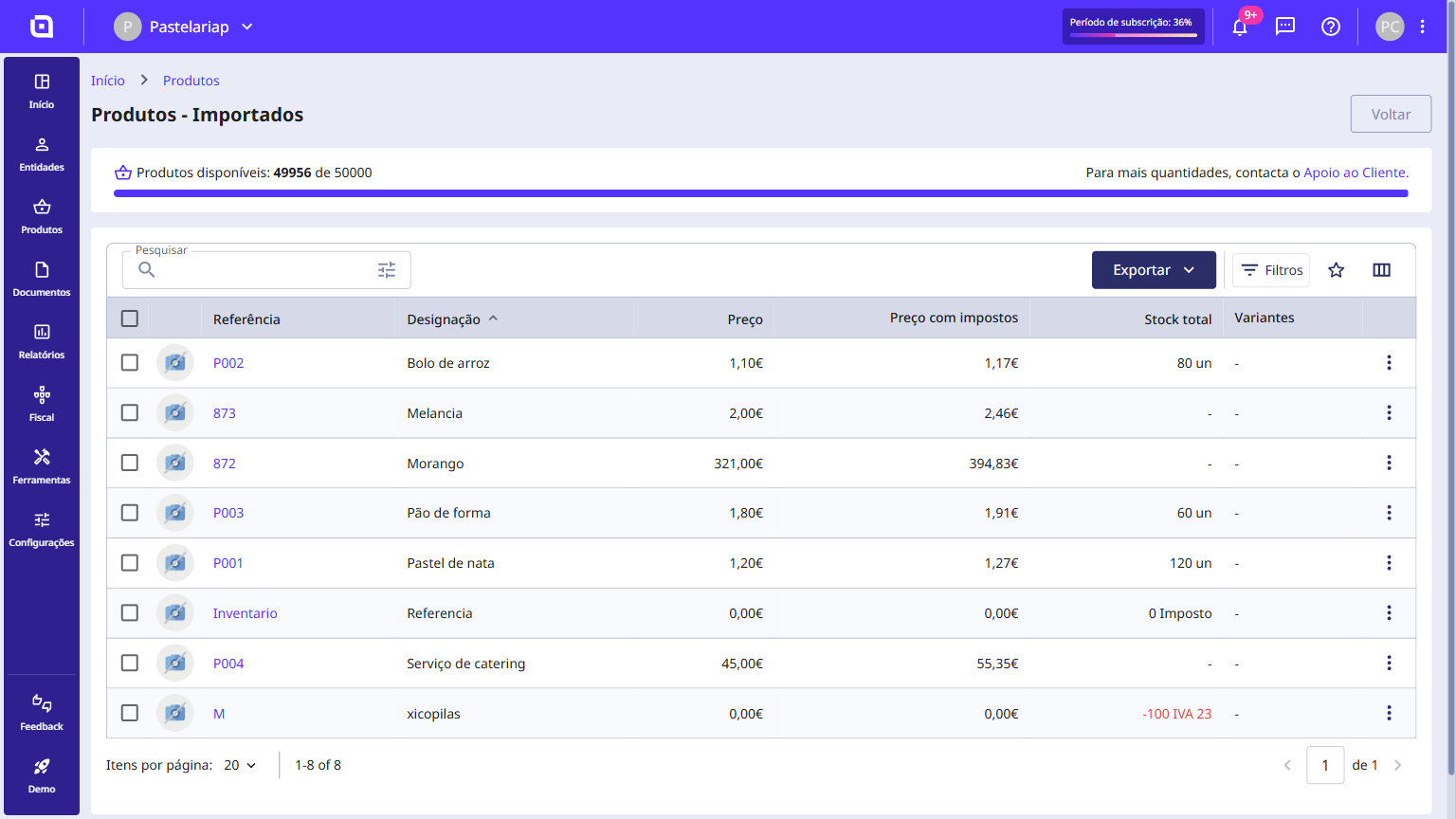
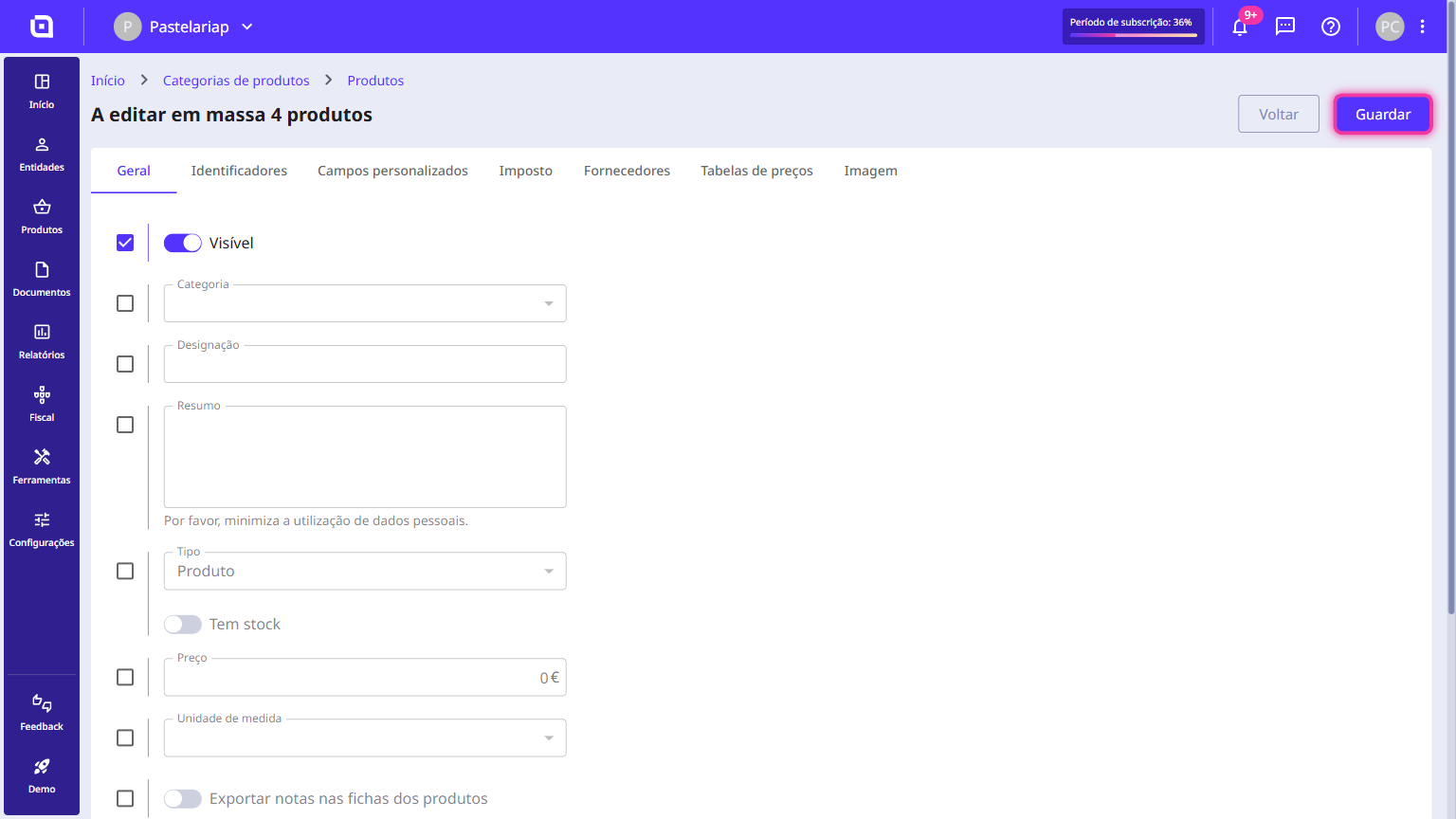
16. Select the imported products and click on Bulk edit. This feature allows you to update multiple data sets simultaneously.
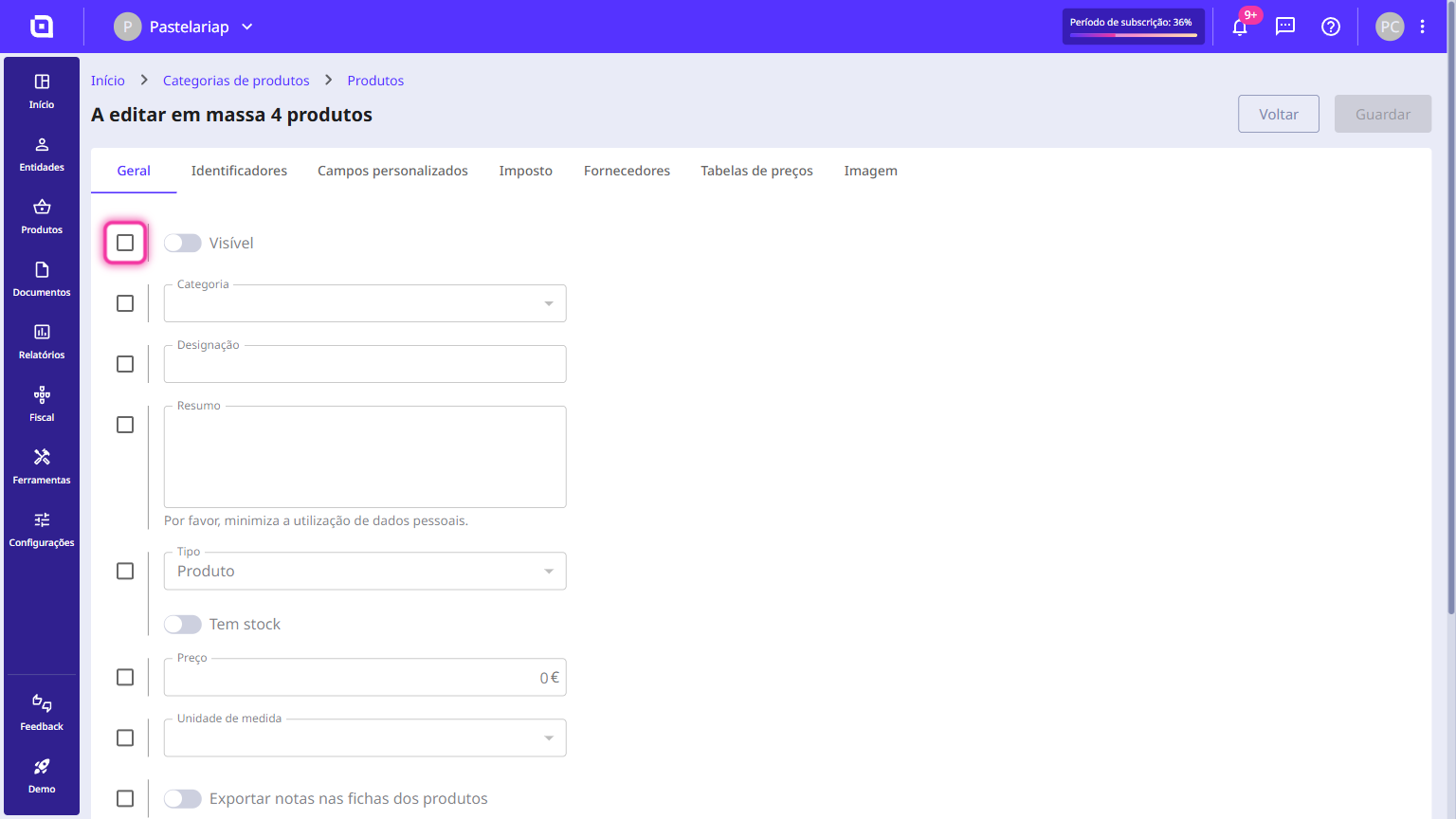
17. Enable the checkbox for the Visible option.
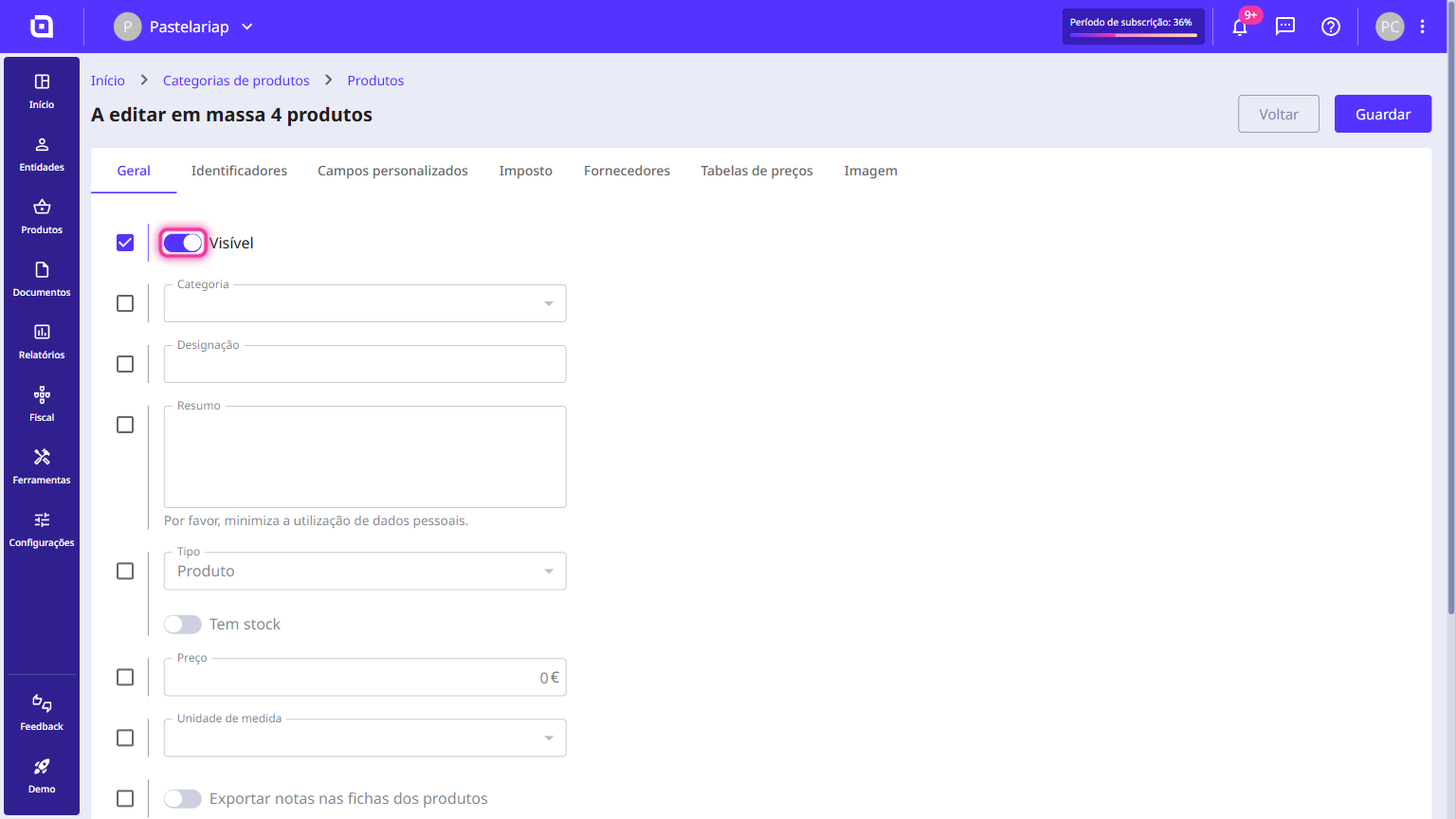
18. Enable the Visible option so that the products appear in the list.
19. To update other data simultaneously (e.g. Category), enable the respective checkboxes to the left of each field and fill in the required information.
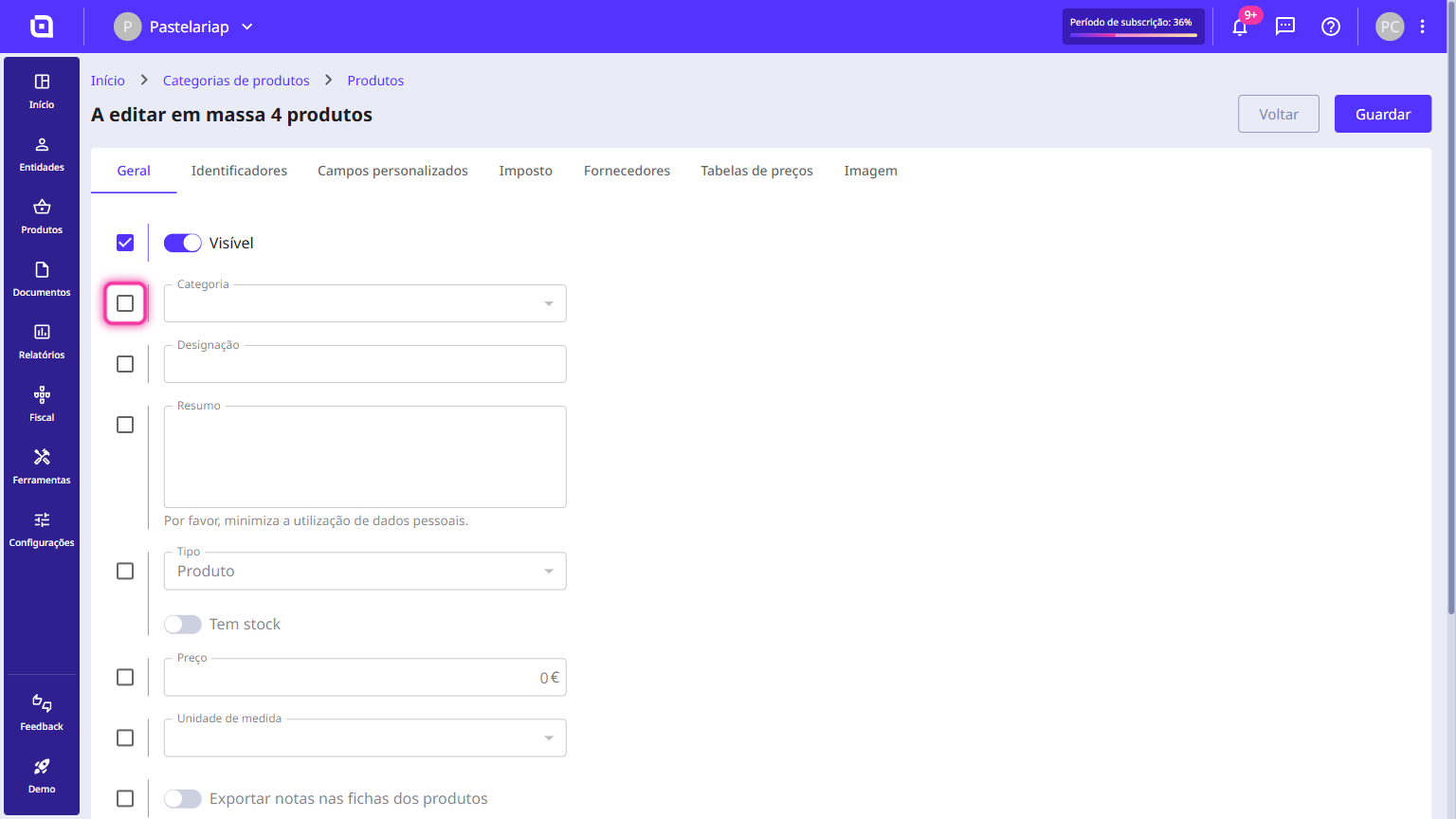
20. Confirm and click Save.
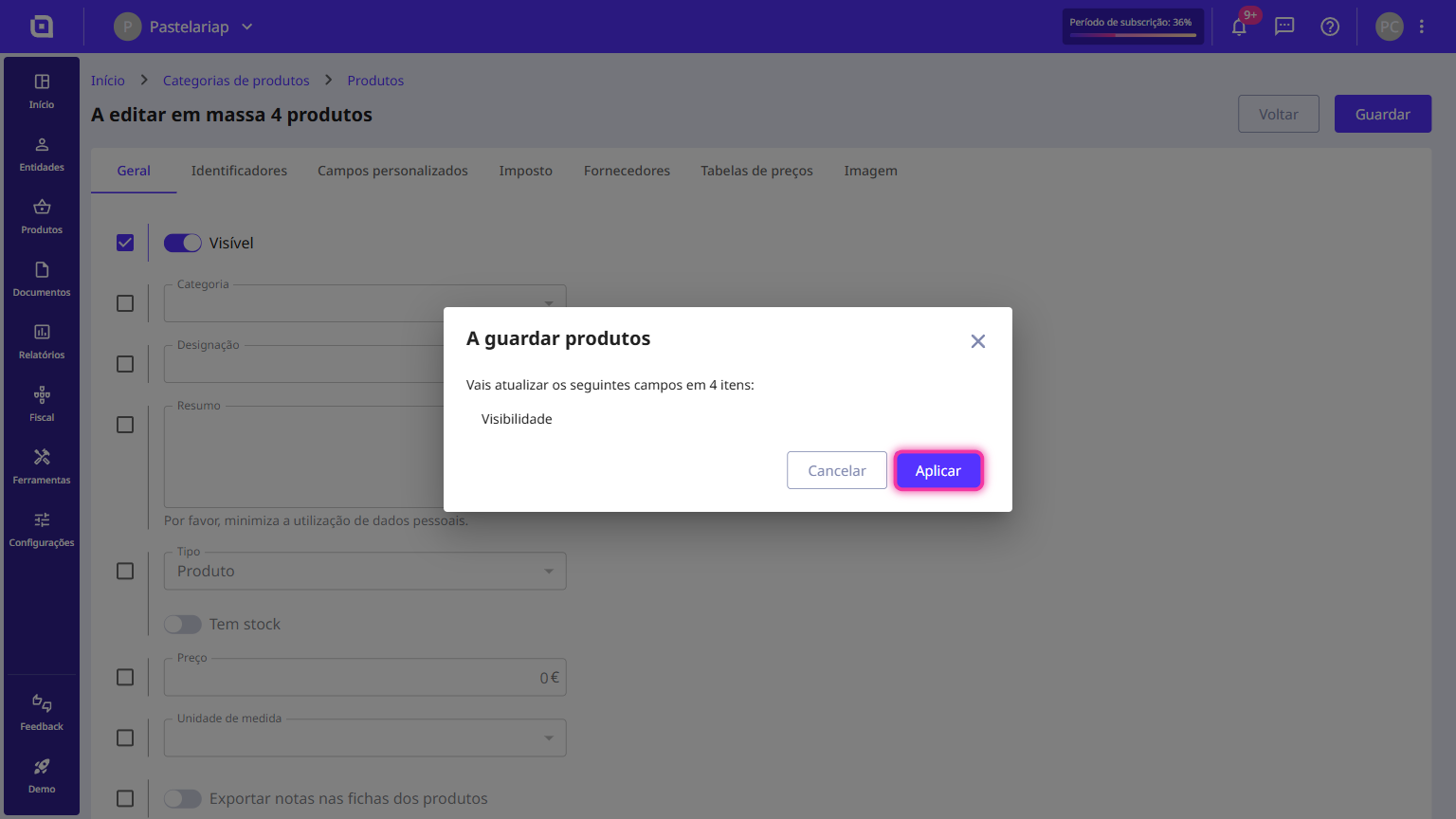
21. Moloni ON shows you which fields will be changed and in how many products. Click the Apply button.
22. Once the processing is done, click the Finish button.
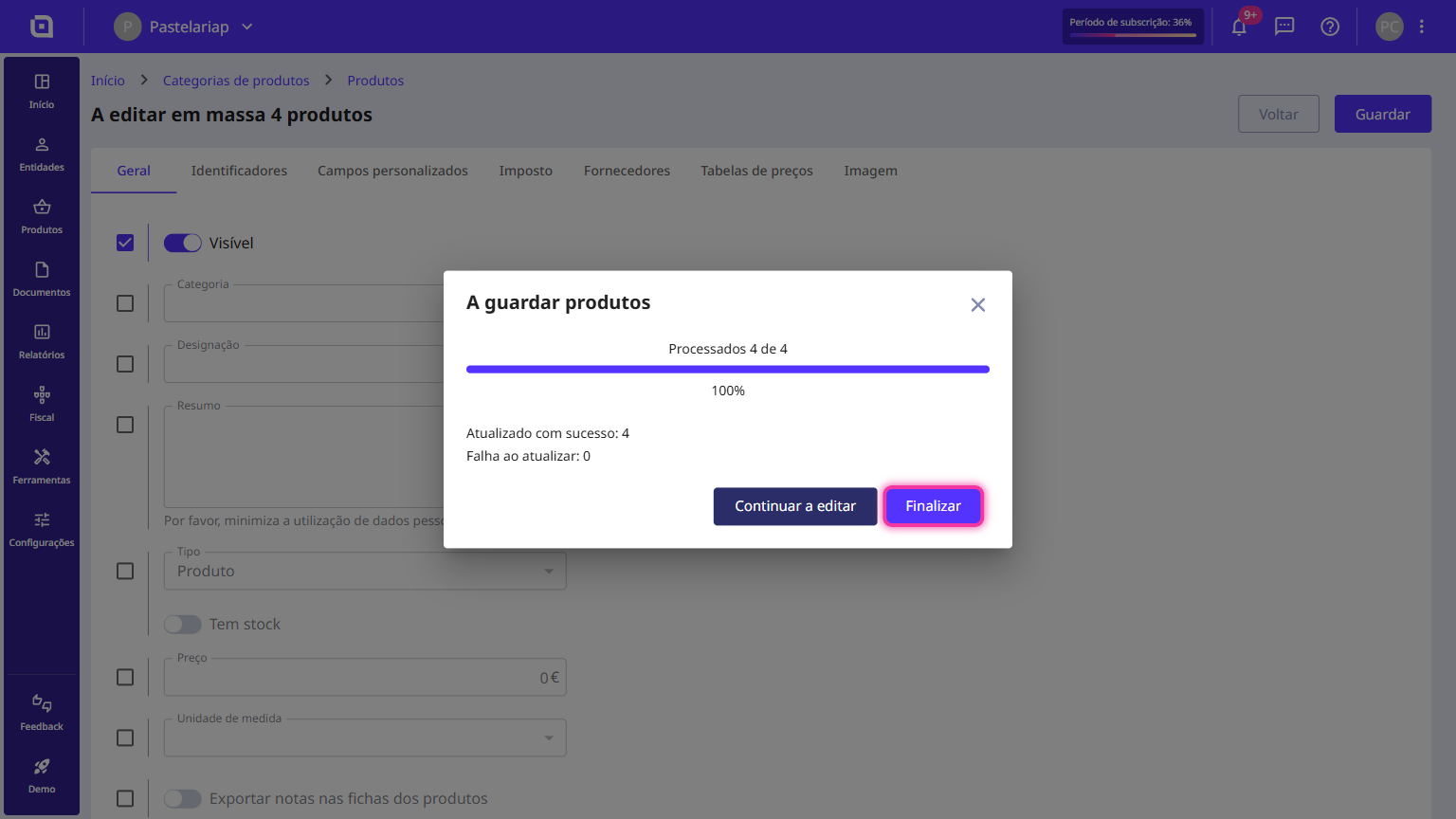
Import complete! Your products are updated and ready to be used in your documents.