How to create an event
With events, you can automate tasks such as sending email notifications or automatically issuing documents.
What is the limit for events and how do they work?
There is no limit on events. You can create as many as your business needs. Each event is a task that repeats according to your requirements.
You can set the repetition to:
- Daily;
- Weekly;
- Monthly;
- Yearly.
Follow these steps:
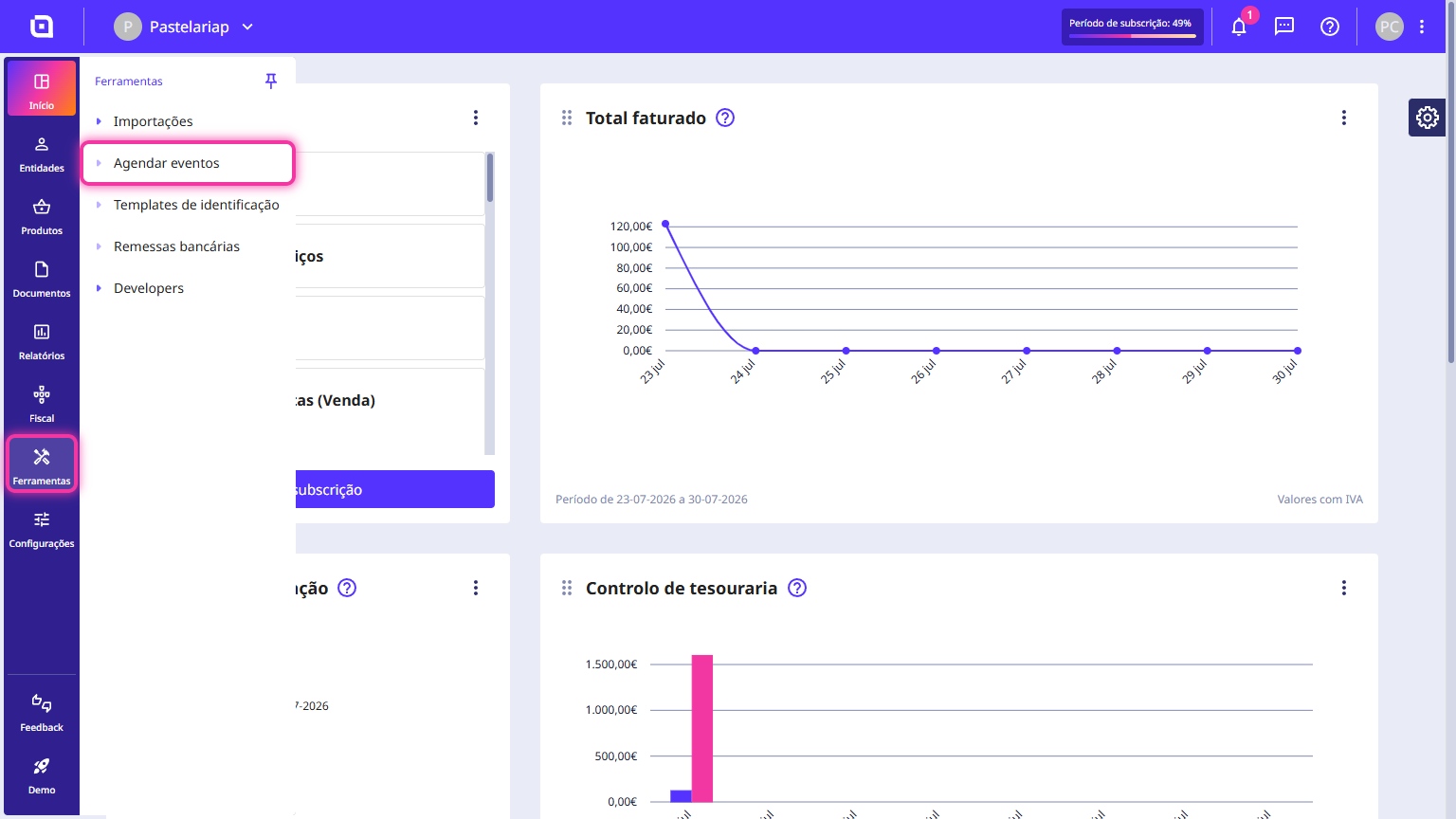
1. Go to the Tools menu and click Schedule events.
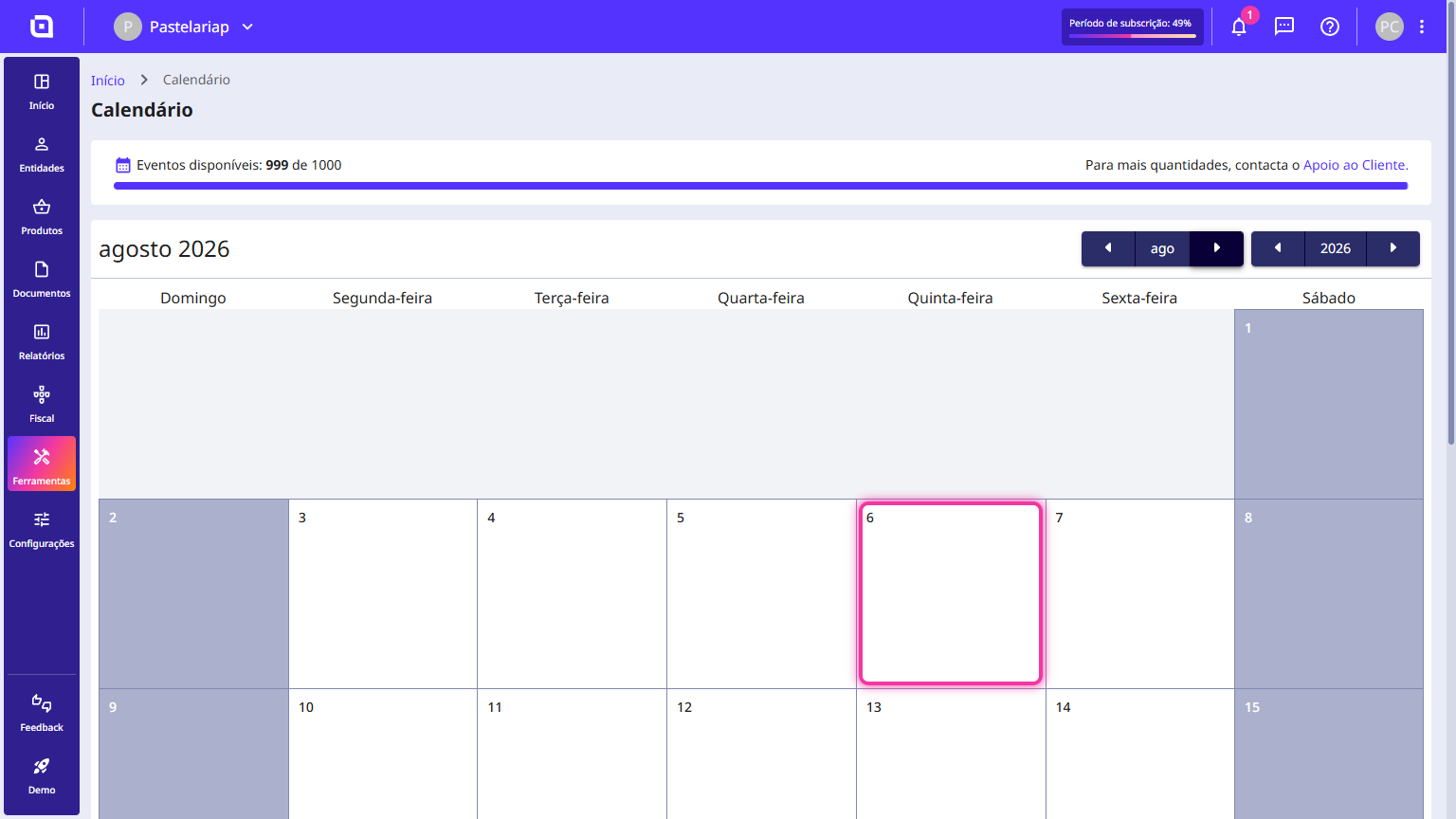
2. Select a day on the calendar.
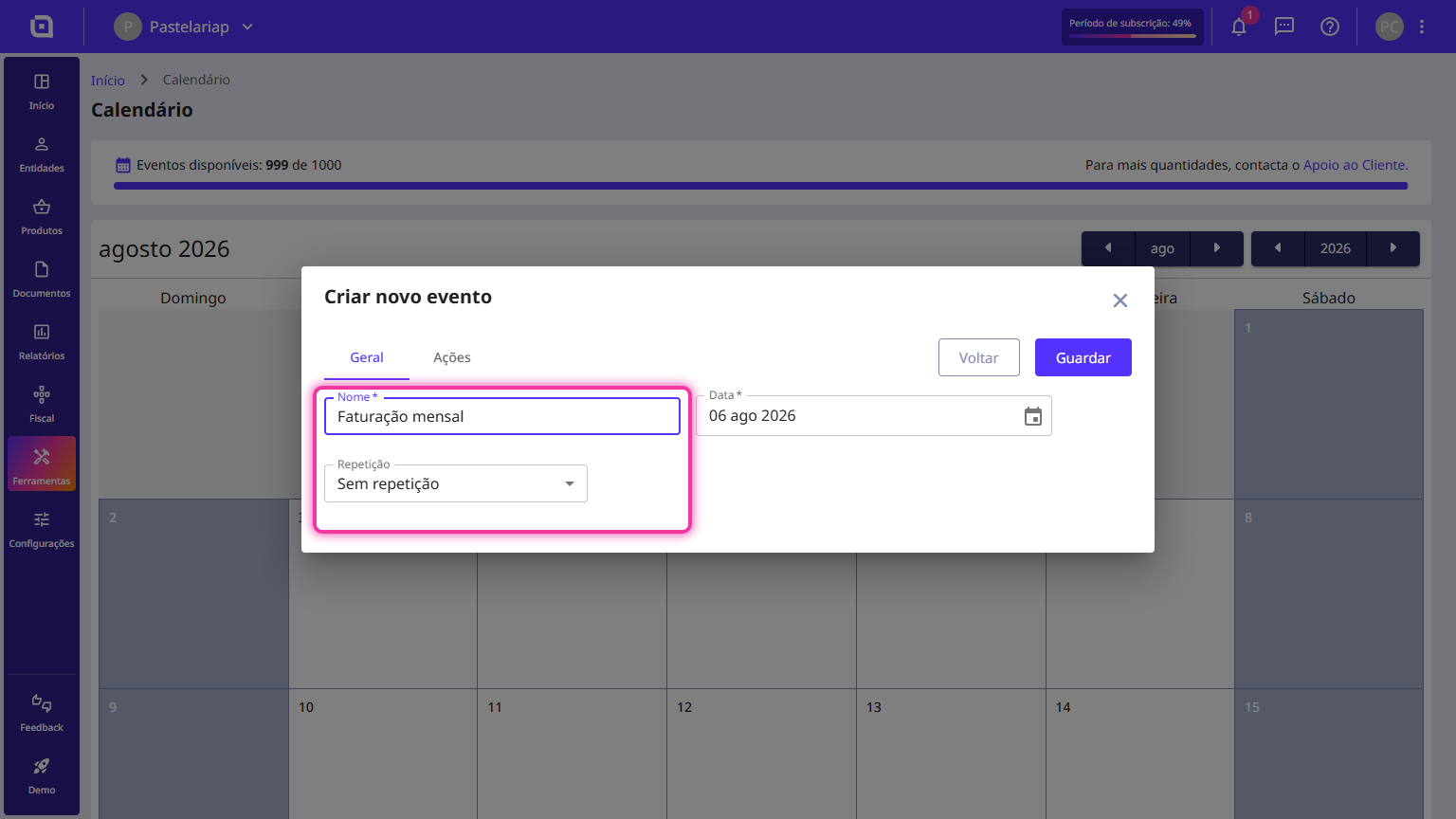
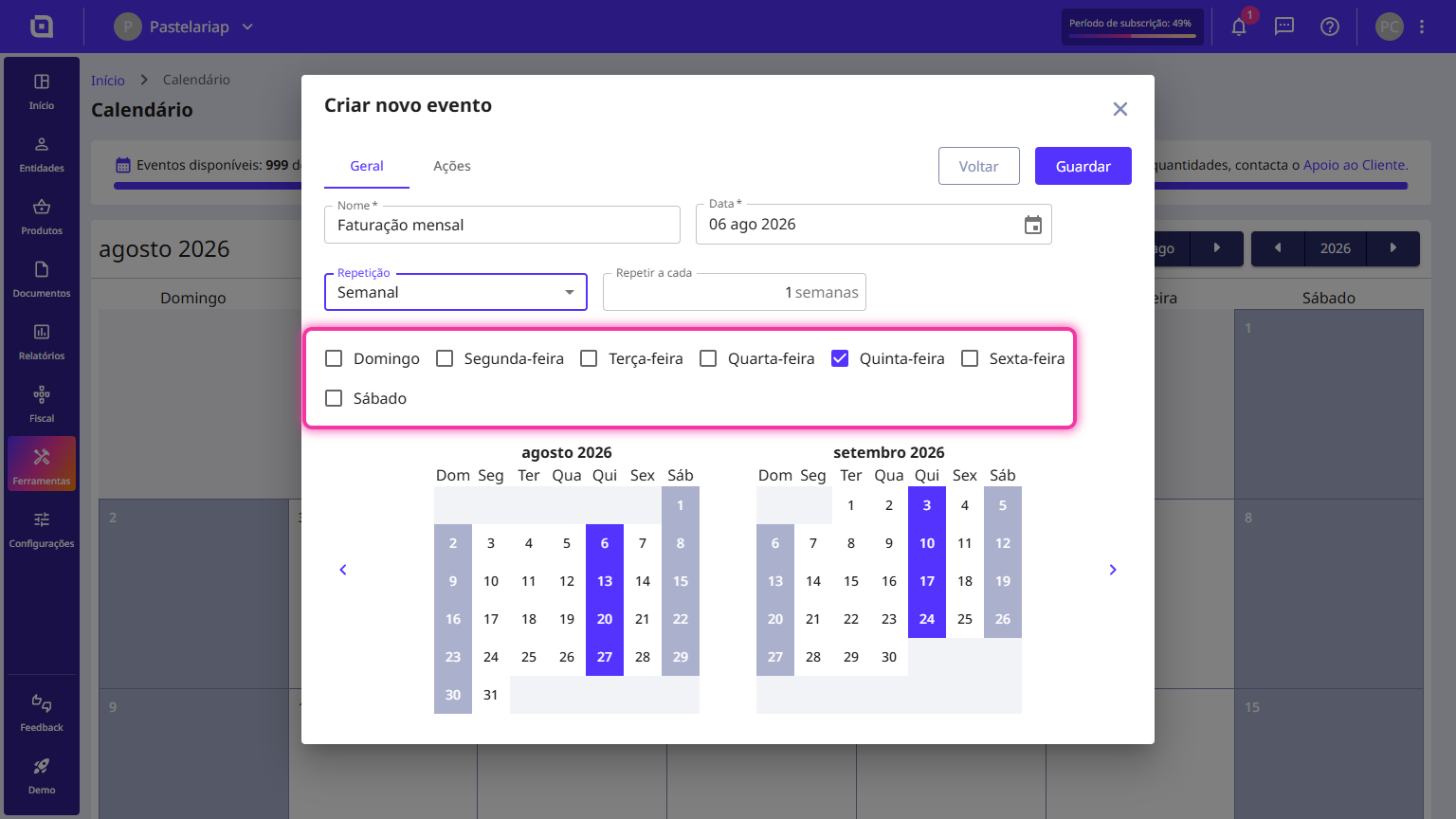
3. In the General tab, fill in the Name and, in the Repetition field, select the desired frequency.
4. Choose how the event will repeat, and enable the day of the week on which the event will run. You can view the selected options on the calendar.
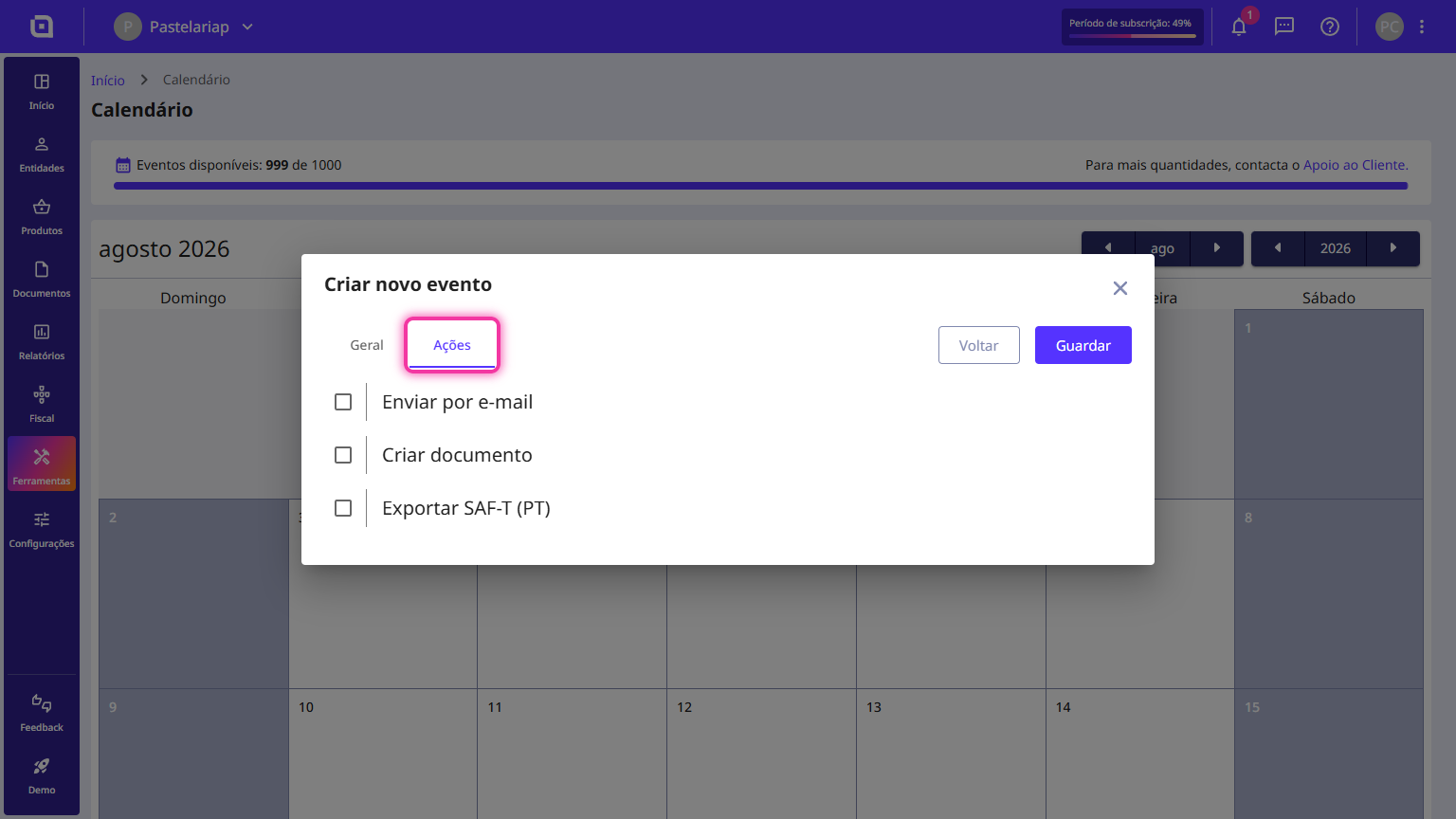
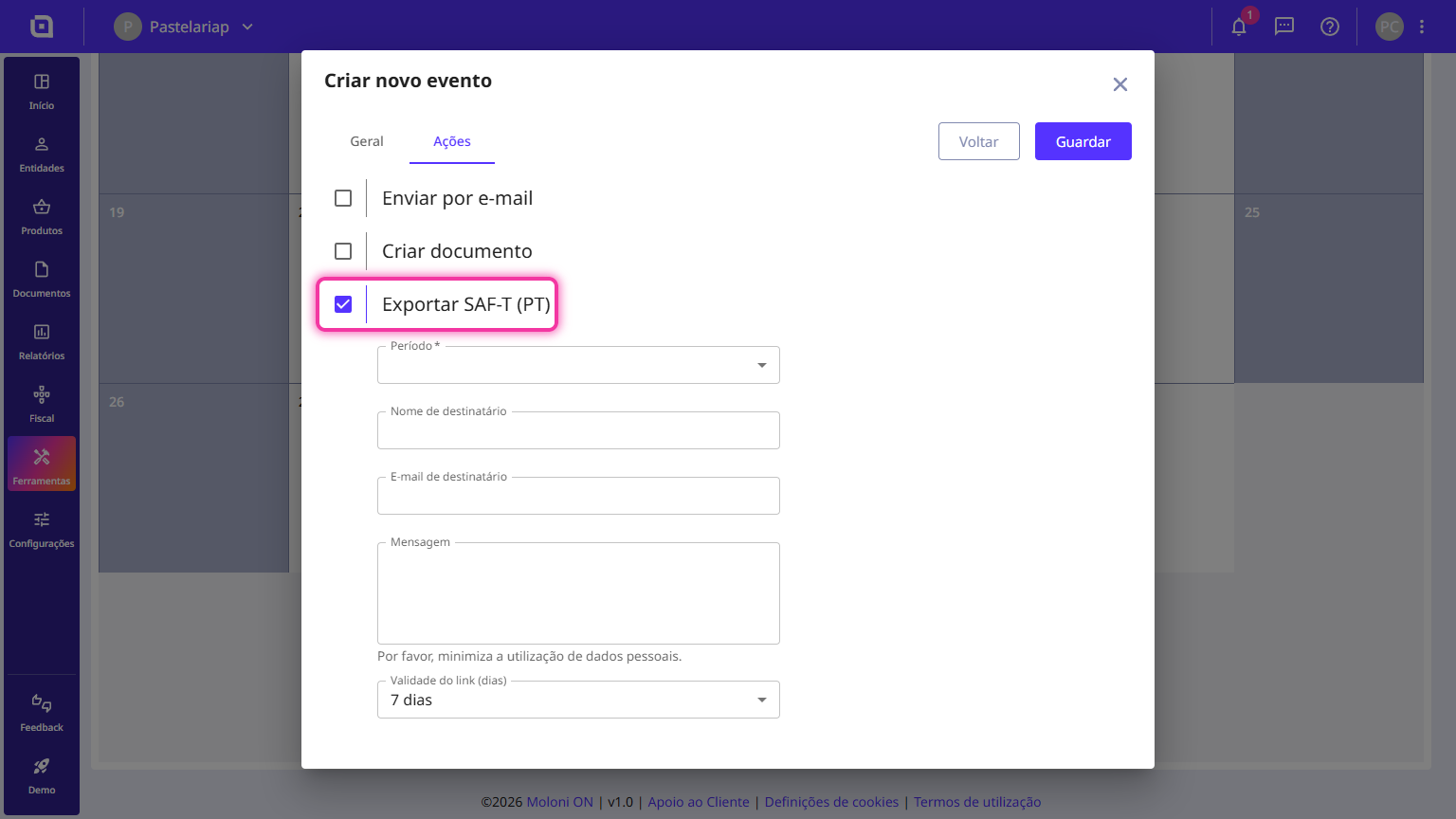
5. In the Actions tab there are 3 options: Send by email, Create document and Export SAF-T (PT).
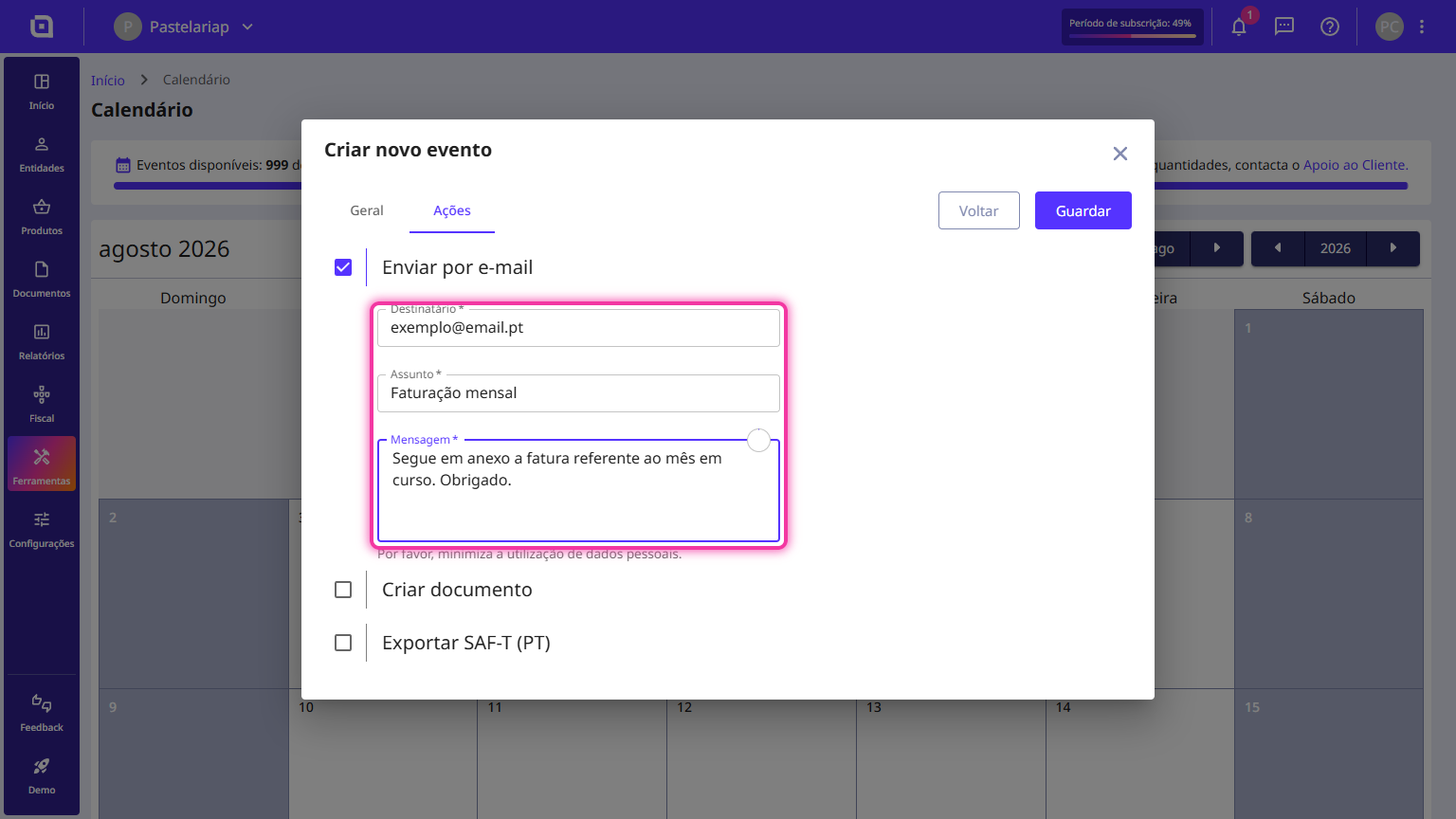
6. If you choose the Send by email option, fill in all required fields.
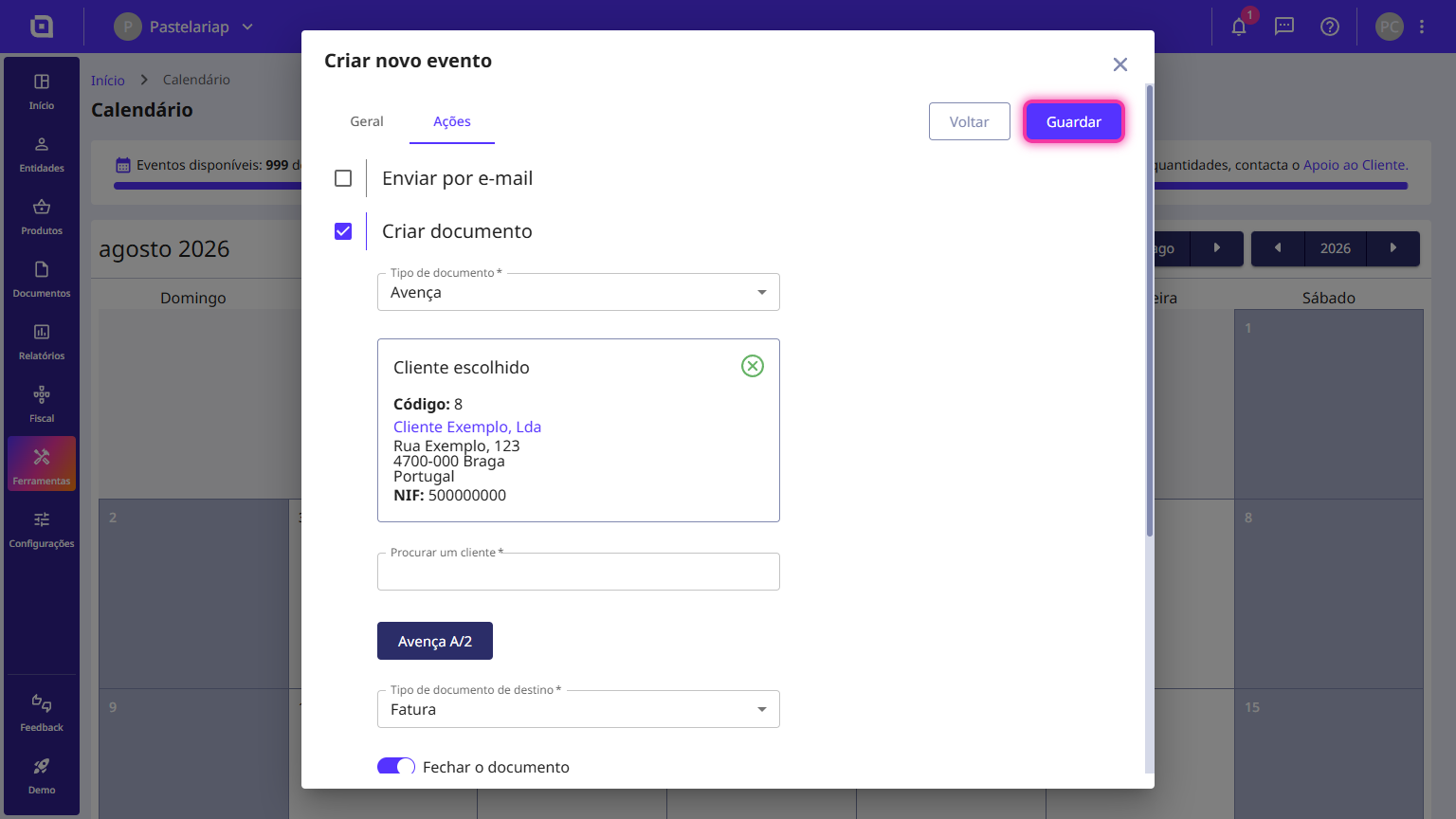
7. When enabling the Create document option, select the Recurring agreement option under Document type.
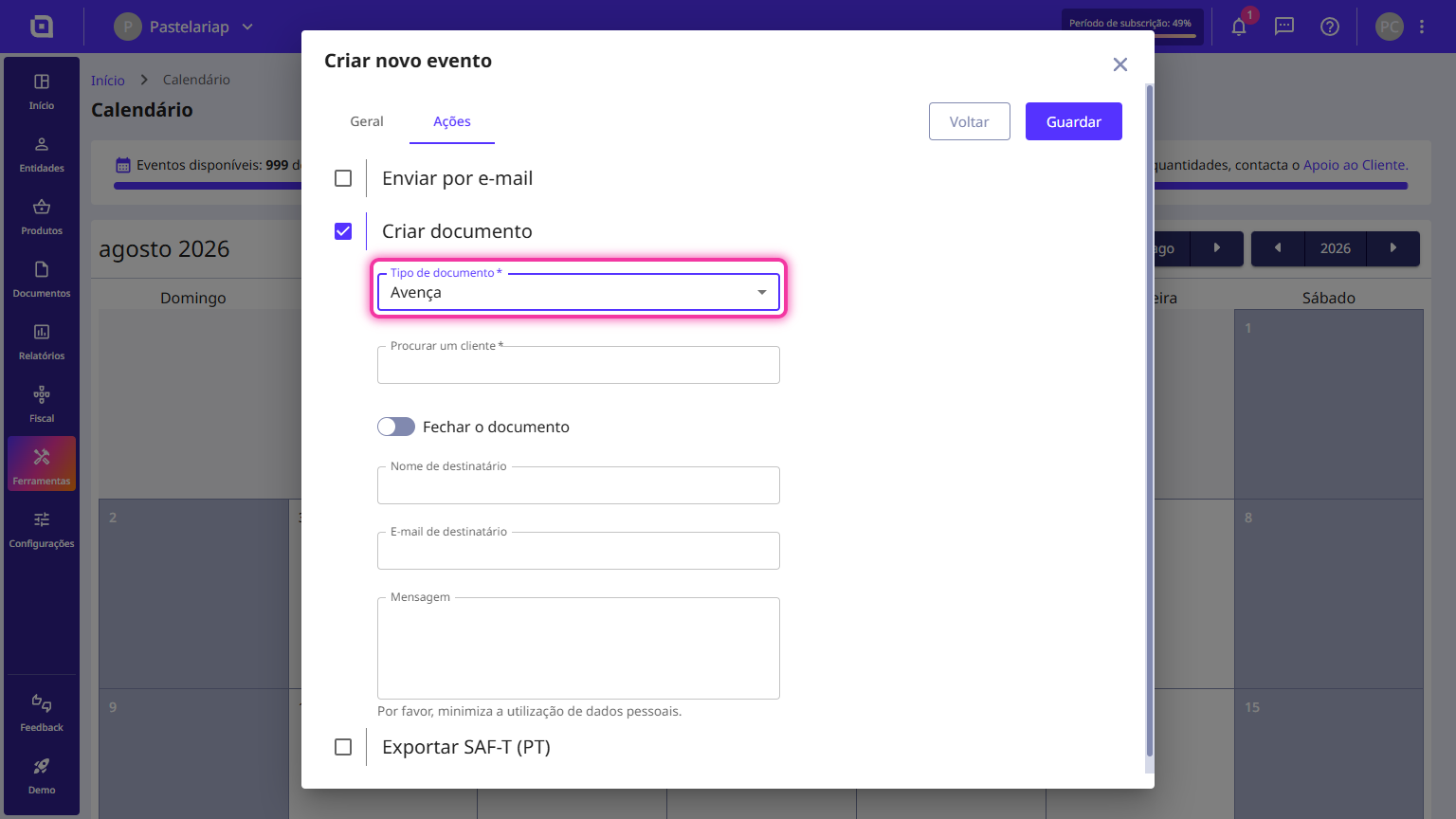
8. Search for the desired client.
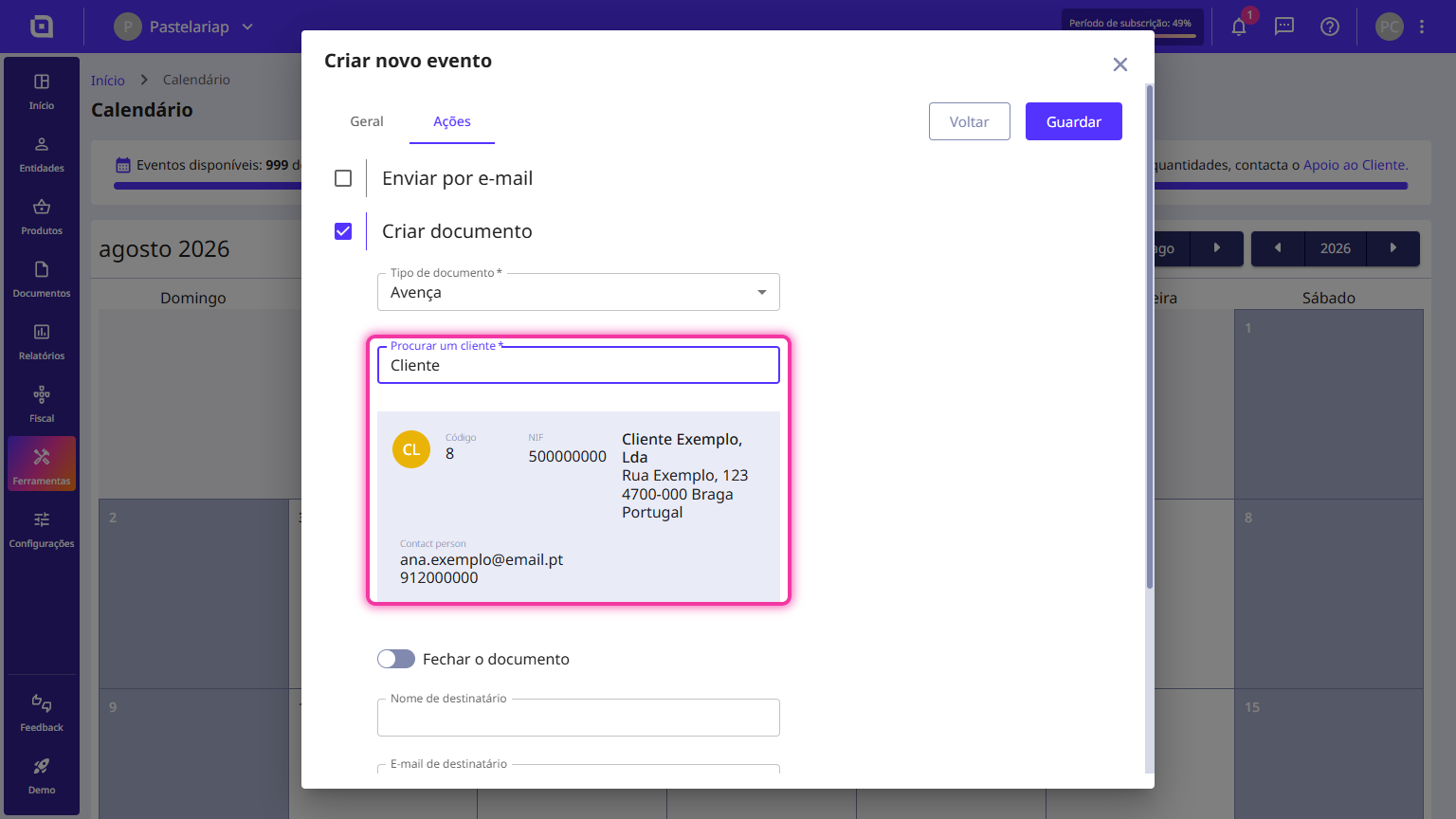
9. Click the Select a document button and choose the recurring agreement to use as the source document.
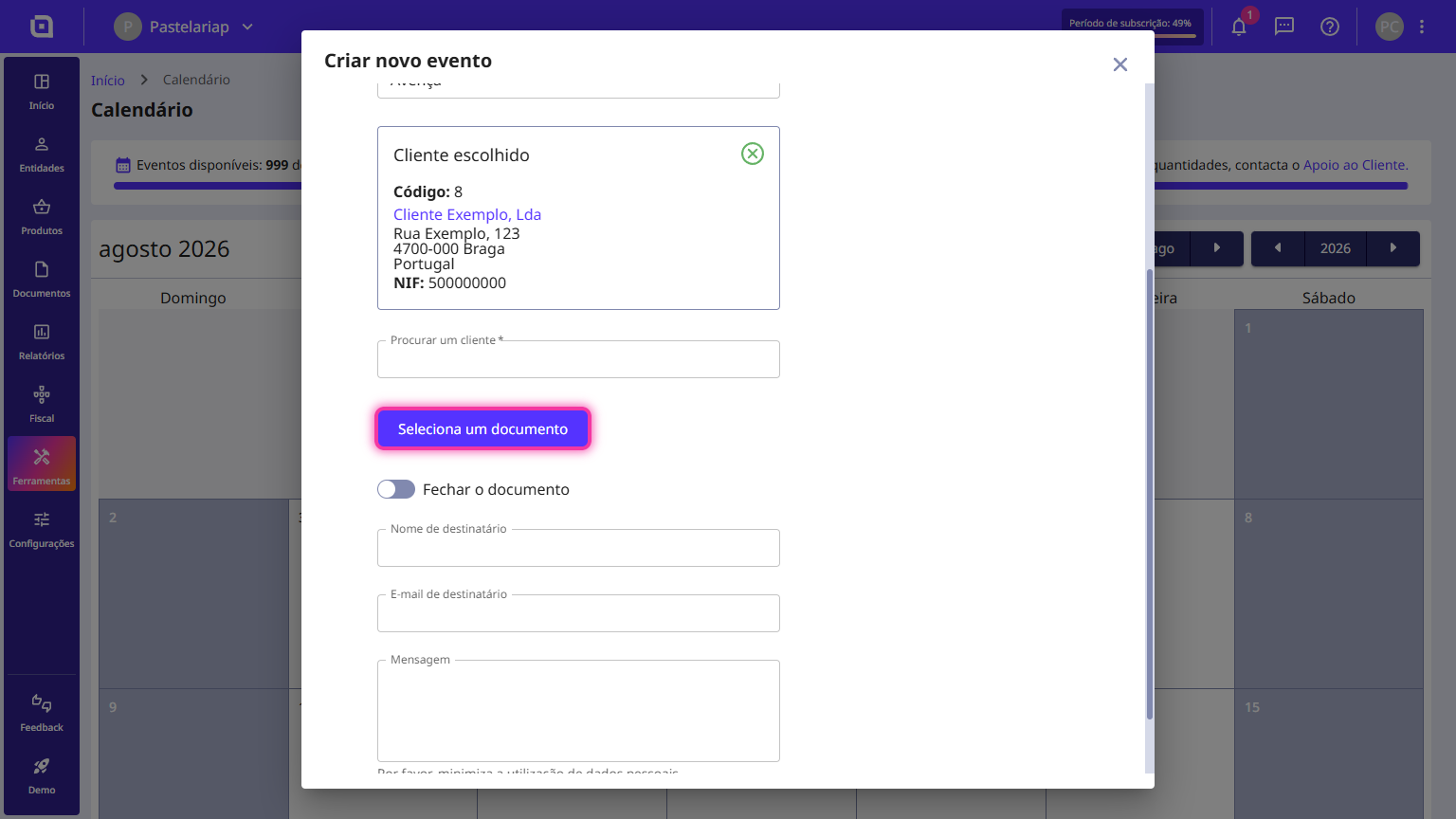
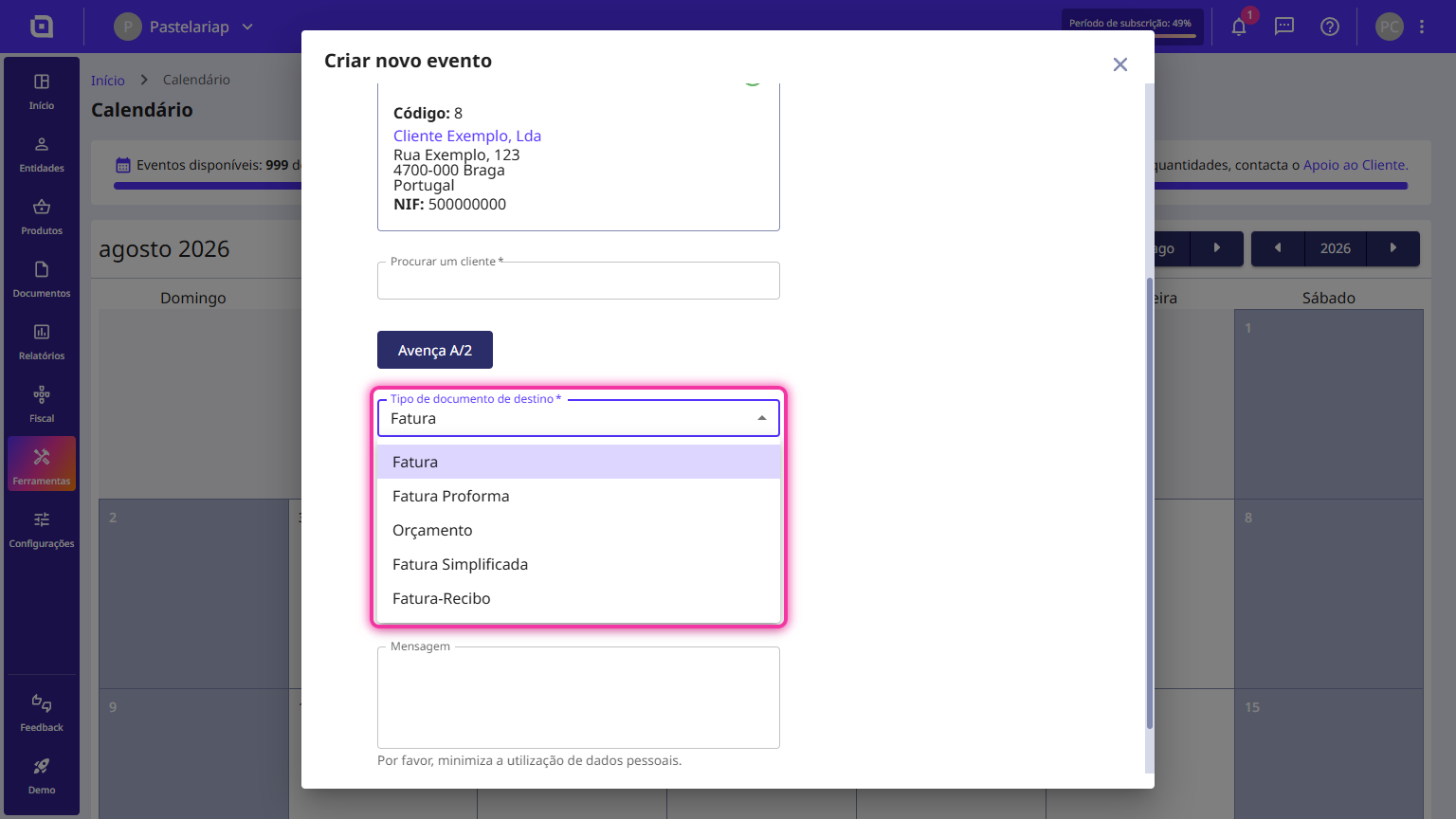
10. Select the Target document type.
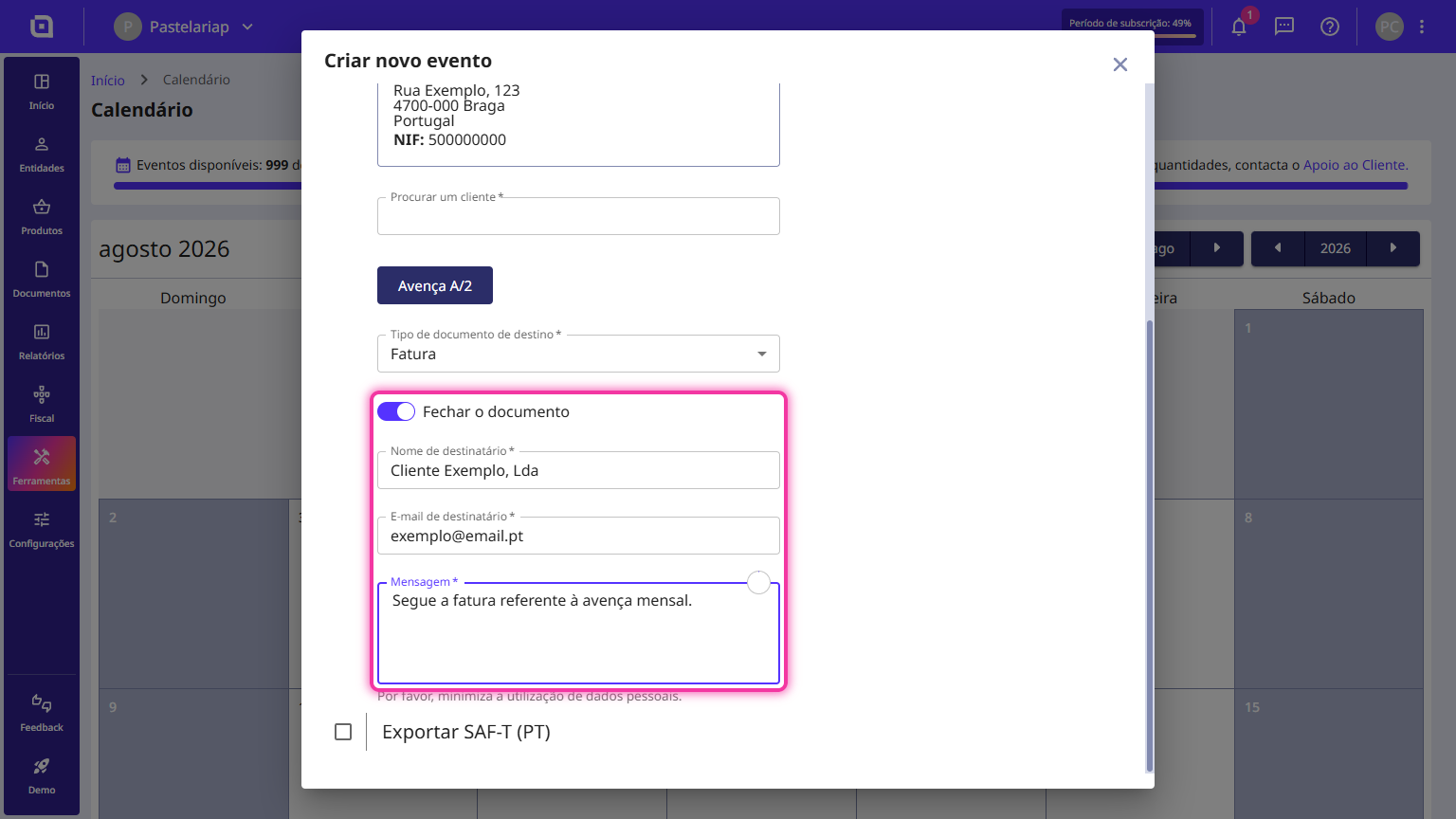
11. Enable the Finalise the document option, and fill in all the necessary fields so that the document can be finalised and sent by email.
12. If you enable the Export SAF-T (PT) option, select the Period to export. To send the file automatically by email, fill in the recipient's Name and Email, write a Message, and set the Link validity (days).
13. Finally, click Save.
Creating an event from a Recurring Agreement
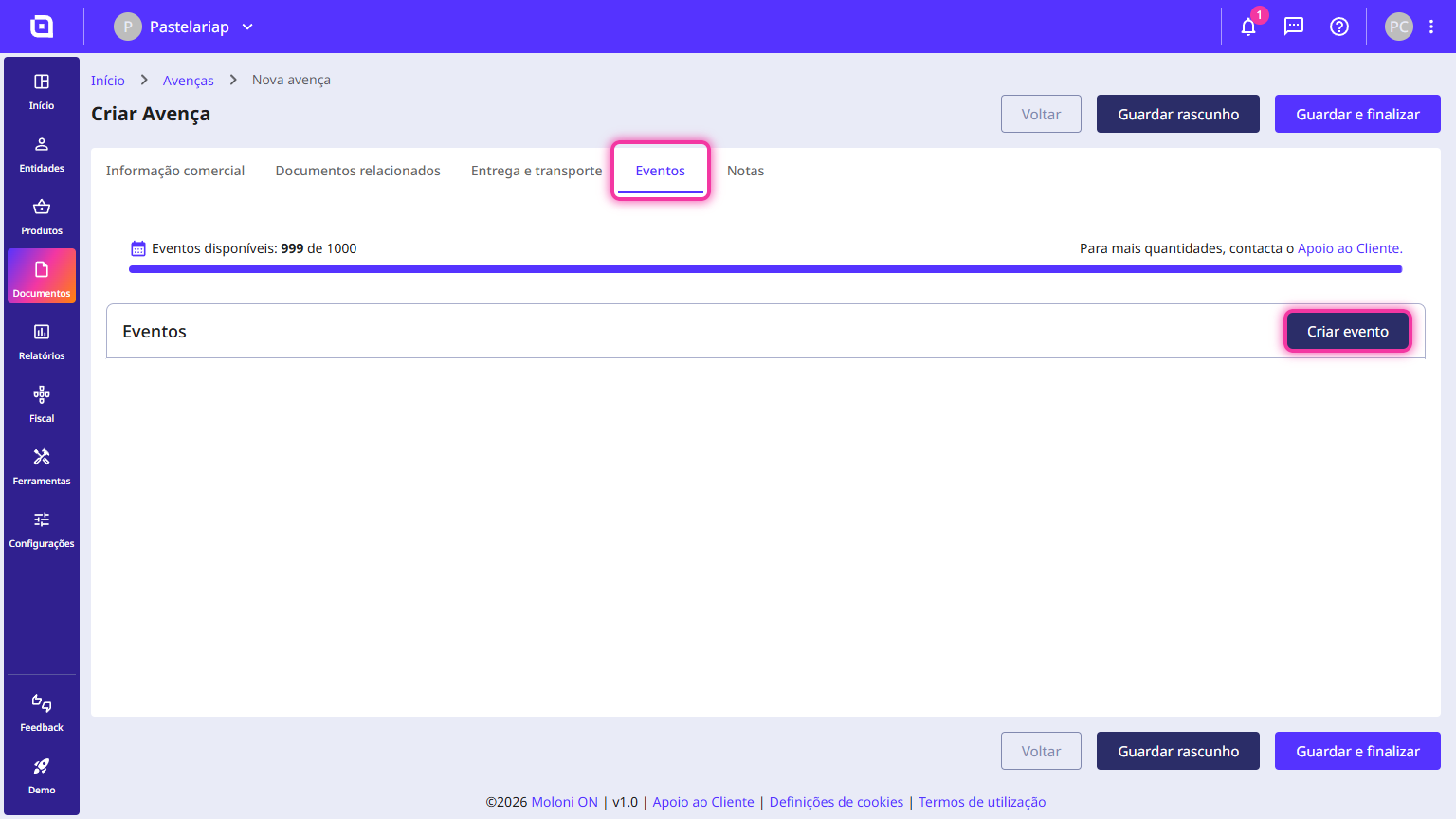
You can create an event directly while creating a recurring agreement. Select the Events tab and click the Create event button.