How to export an inventory file
Under the 2026 State Budget (OE2026), the communication of inventory valuation has been postponed. Therefore, Moloni ON provides two versions of the inventory file:
- Version 1_02, which corresponds to the inventory;
- Version 2_01, which corresponds to the valued inventory.
Follow the steps:
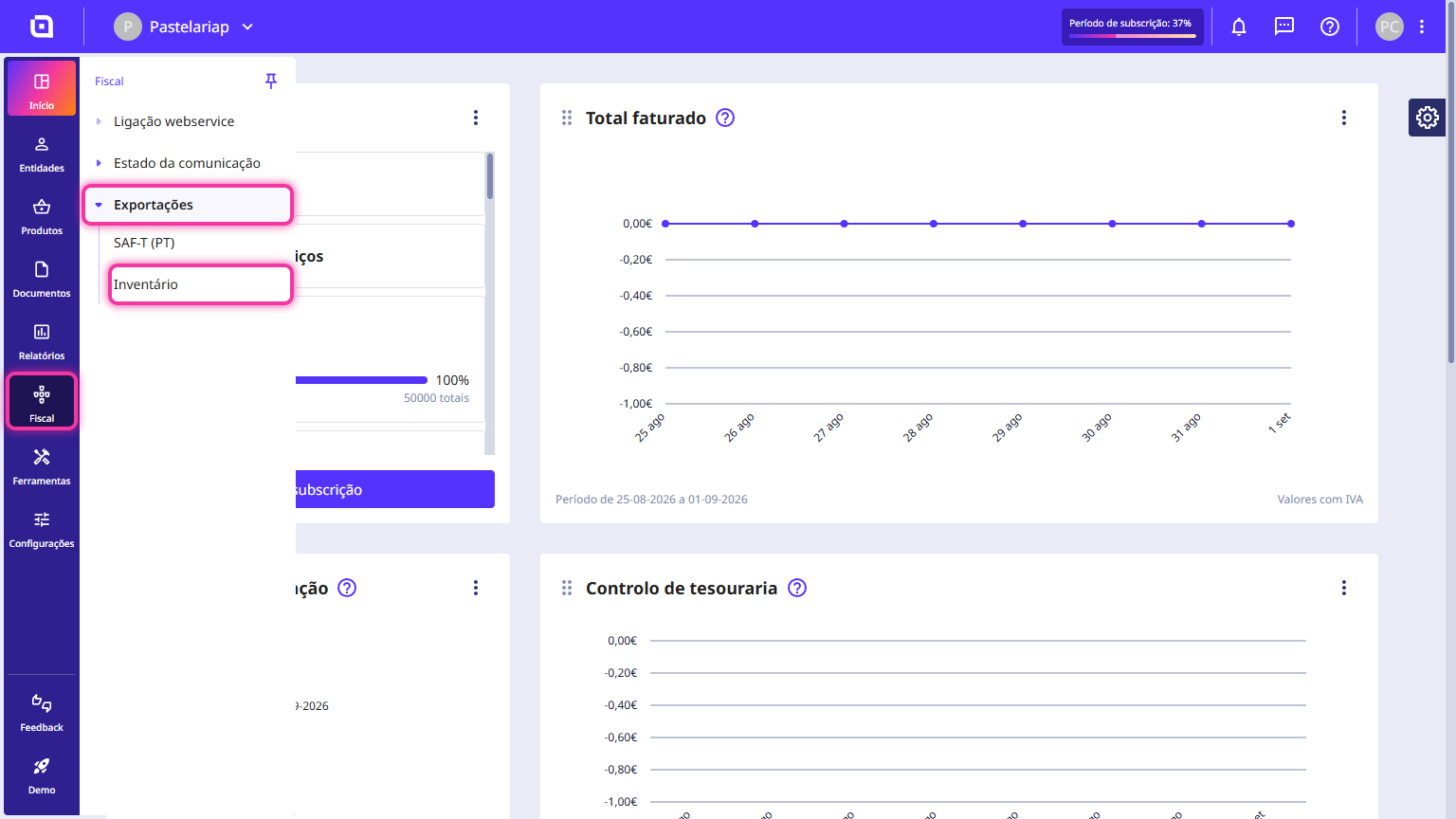
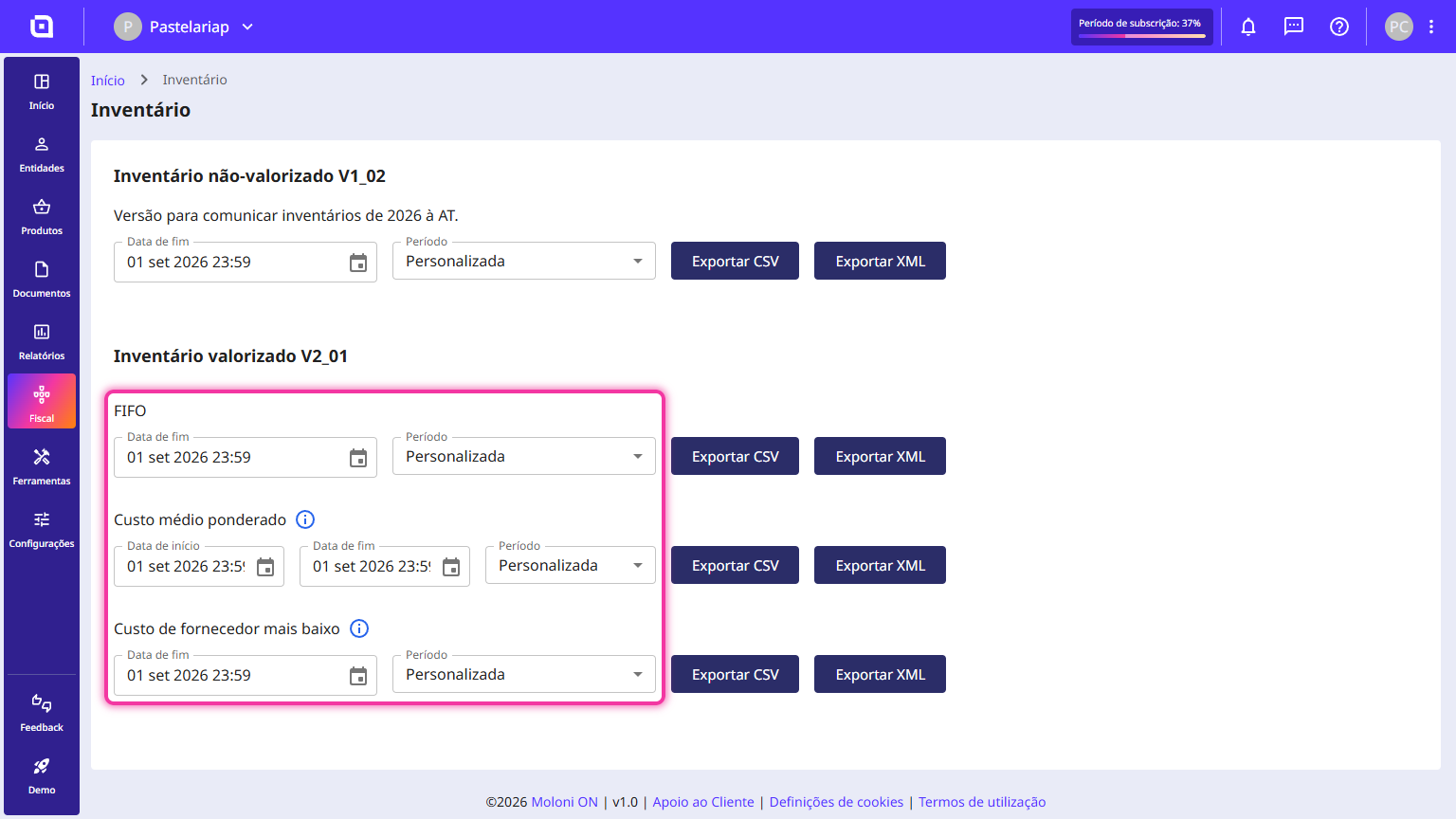
1. In the Client Area, go to the Fiscal menu, select Exports and click on Inventory.
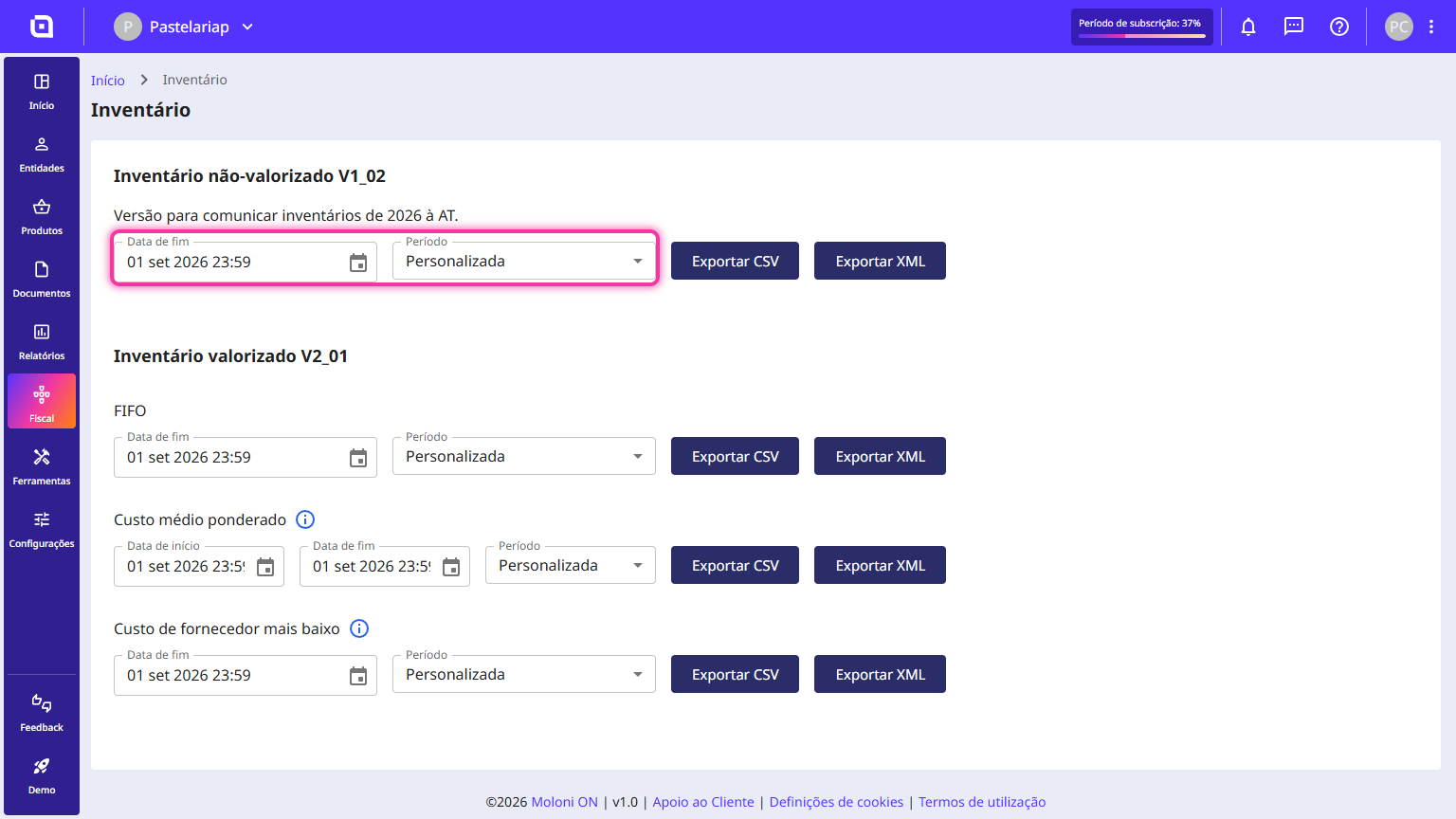
2. To export the inventory, select the end date or predefined period.
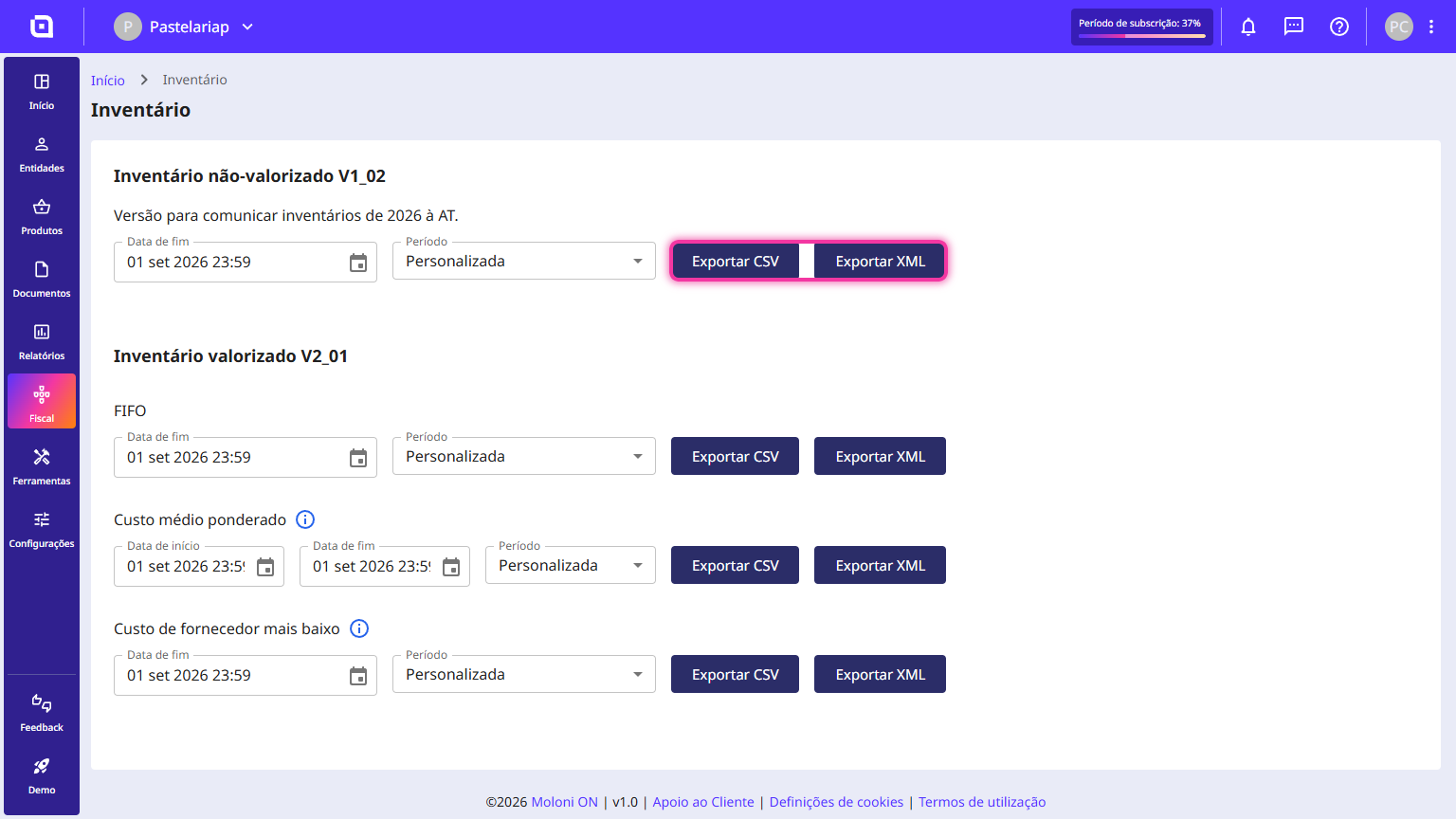
3. Select the desired format.
4. To export the valued Inventory, select the desired costing method and the date or predefined period.
- FIFO - stands for "first in, first out," which indicates that the first products to enter the inventory will be the first to leave, meaning, to be sold. These will be sold at the price of the oldest goods, while the remaining products will be sold at the most recent price.
- Weighted average cost - means that the cost is calculated by taking a weighted average of all movements within the date range.
- Lowest supplier cost - is the lowest cost price, with applied discounts, recorded on the item's card.
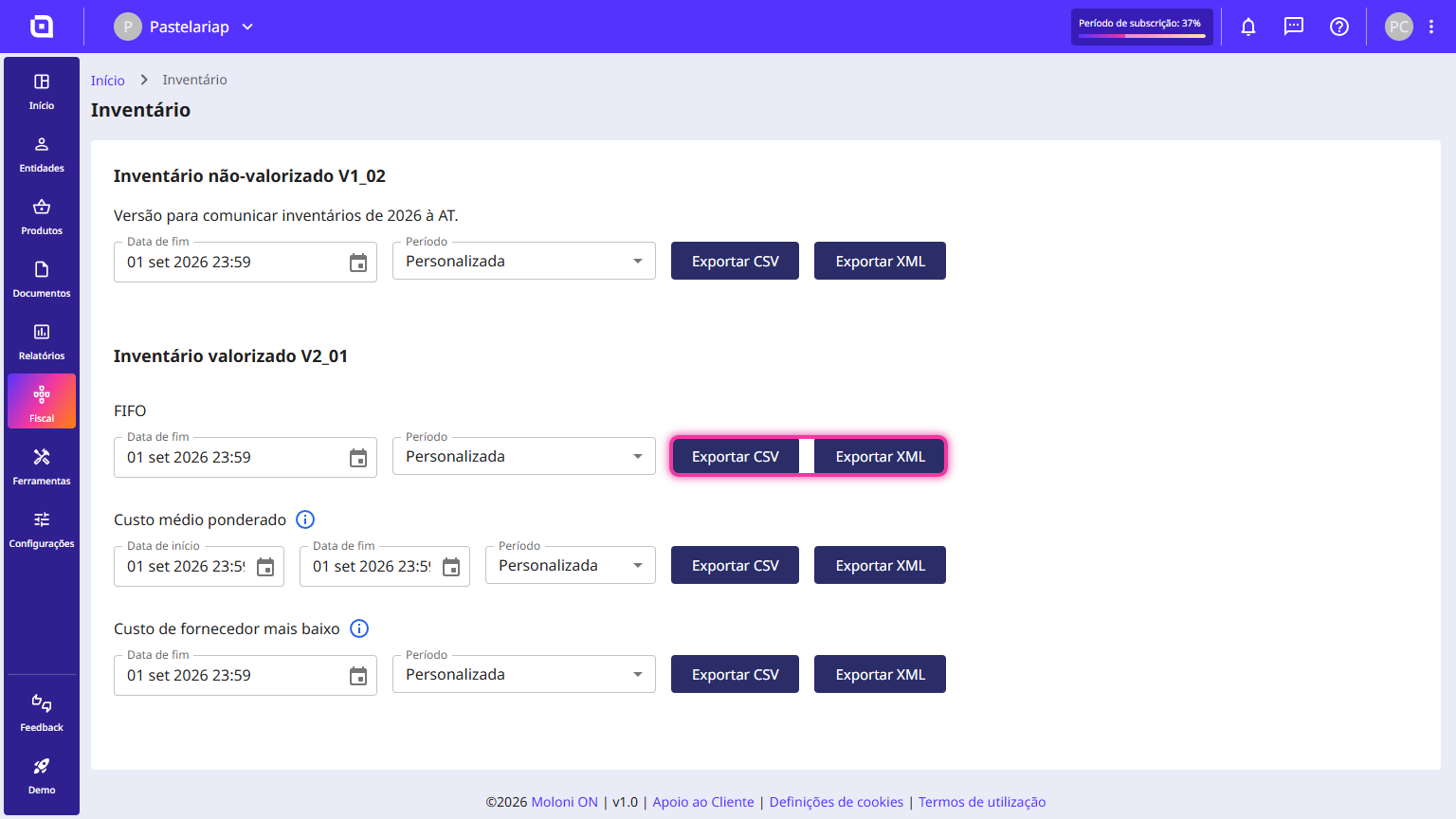
5. Select the desired format.
How to submit an inventory on the TA website
Follow the steps:
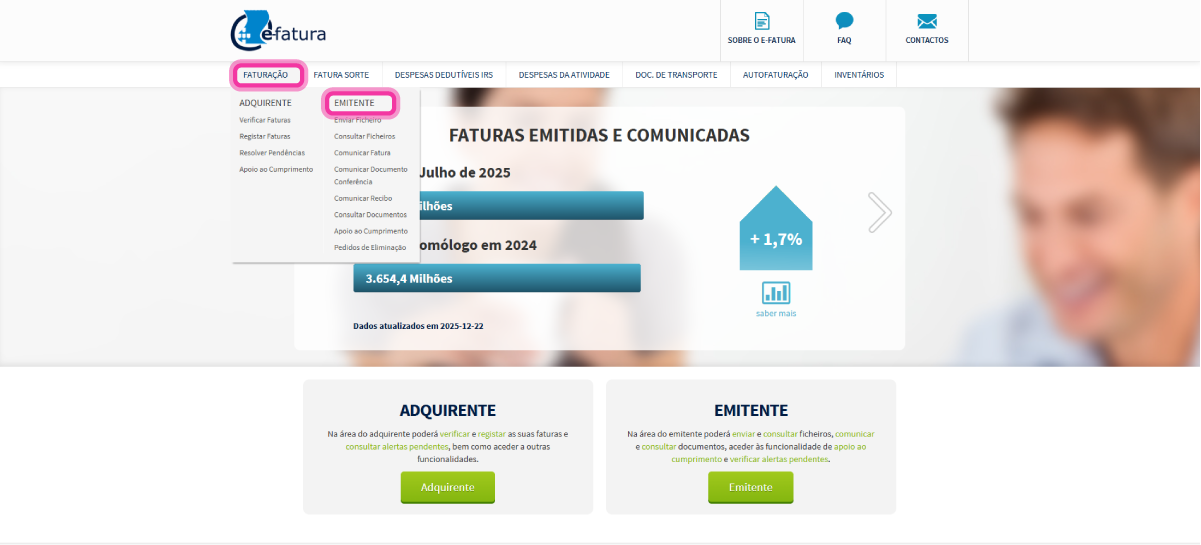
1. Go to the e-Fatura website.
2. Go to the menu Faturação and select the Emitente option.
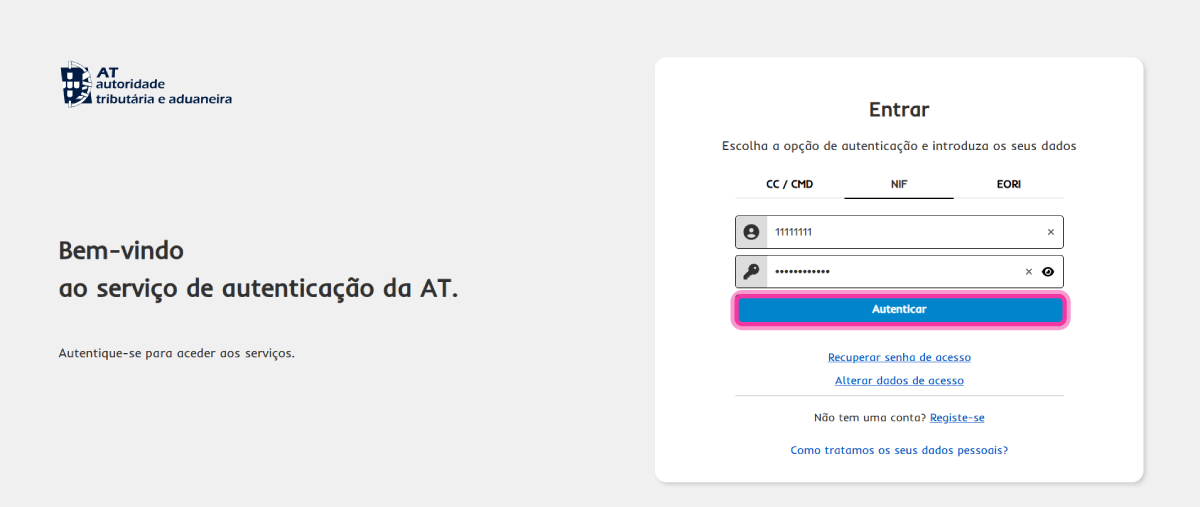
3. Enter your access details and click on Autenticar.
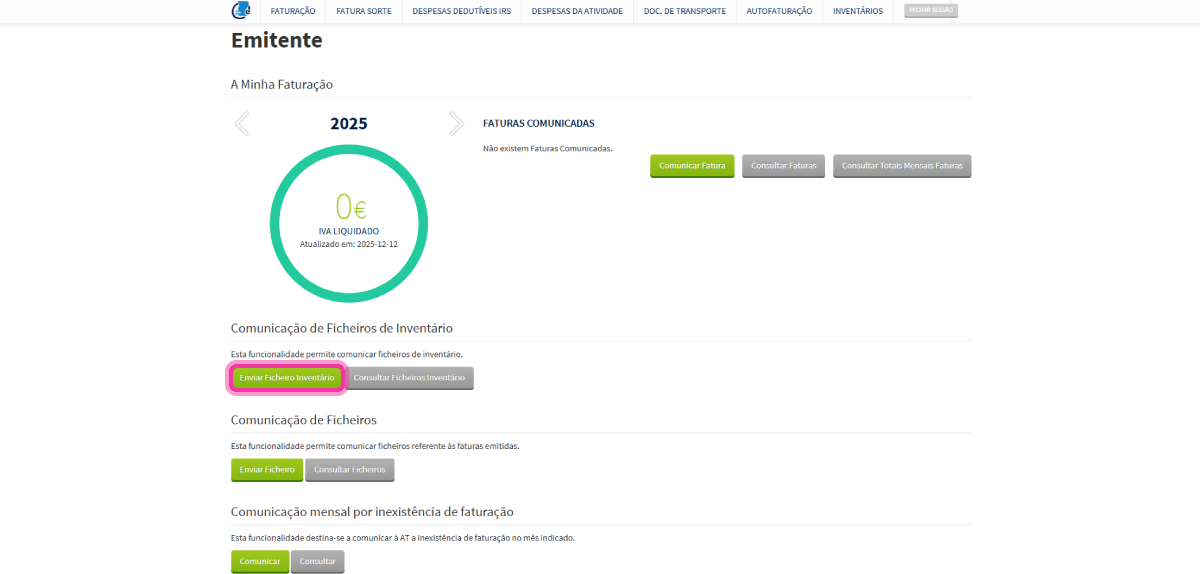
4. On this page, click on Enviar Ficheiro Inventário.
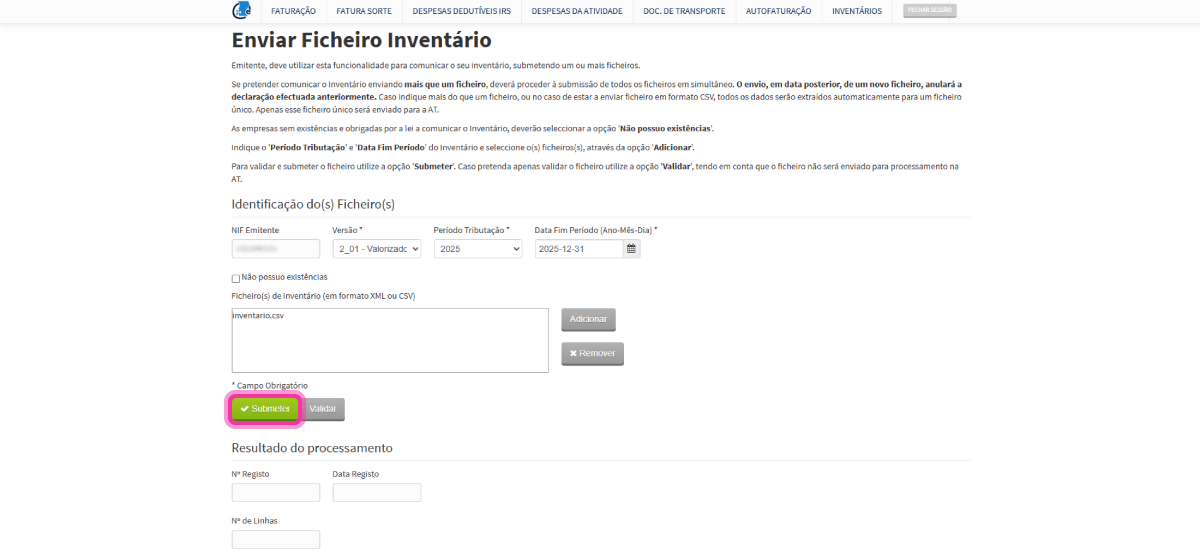
5. Enter the details related to the document, such as the Versão, Período Tributação, Data Fim Período, and click on Adicionar to look for the desired file. If you wish to communicate the inventory by sending more than one file, you must do so simultaneously. The permitted formats are XML or CSV.
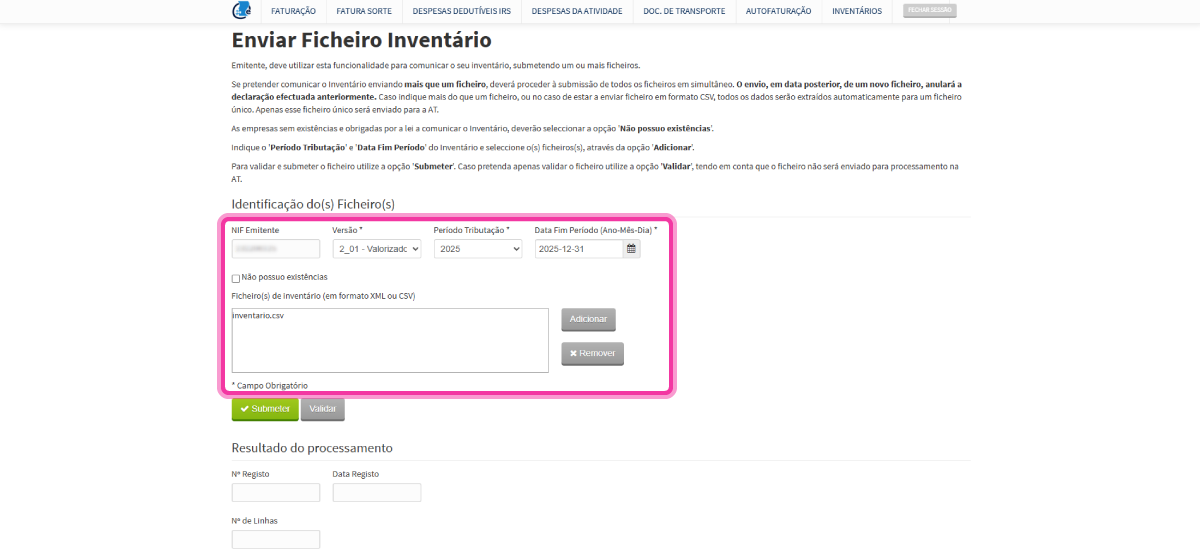
6. The file has been added to the platform. Click on Submeter to send the inventory.