How to insert units of measure
Units of measure define how quantities appear on your documents - for example, units, hours, kilos or litres. Create them in Settings > Other settings > Units of measure and link each one to its UNECERec20 code - that code is what lets you export your documents according to the CIUS-PT standard.
Follow these steps:
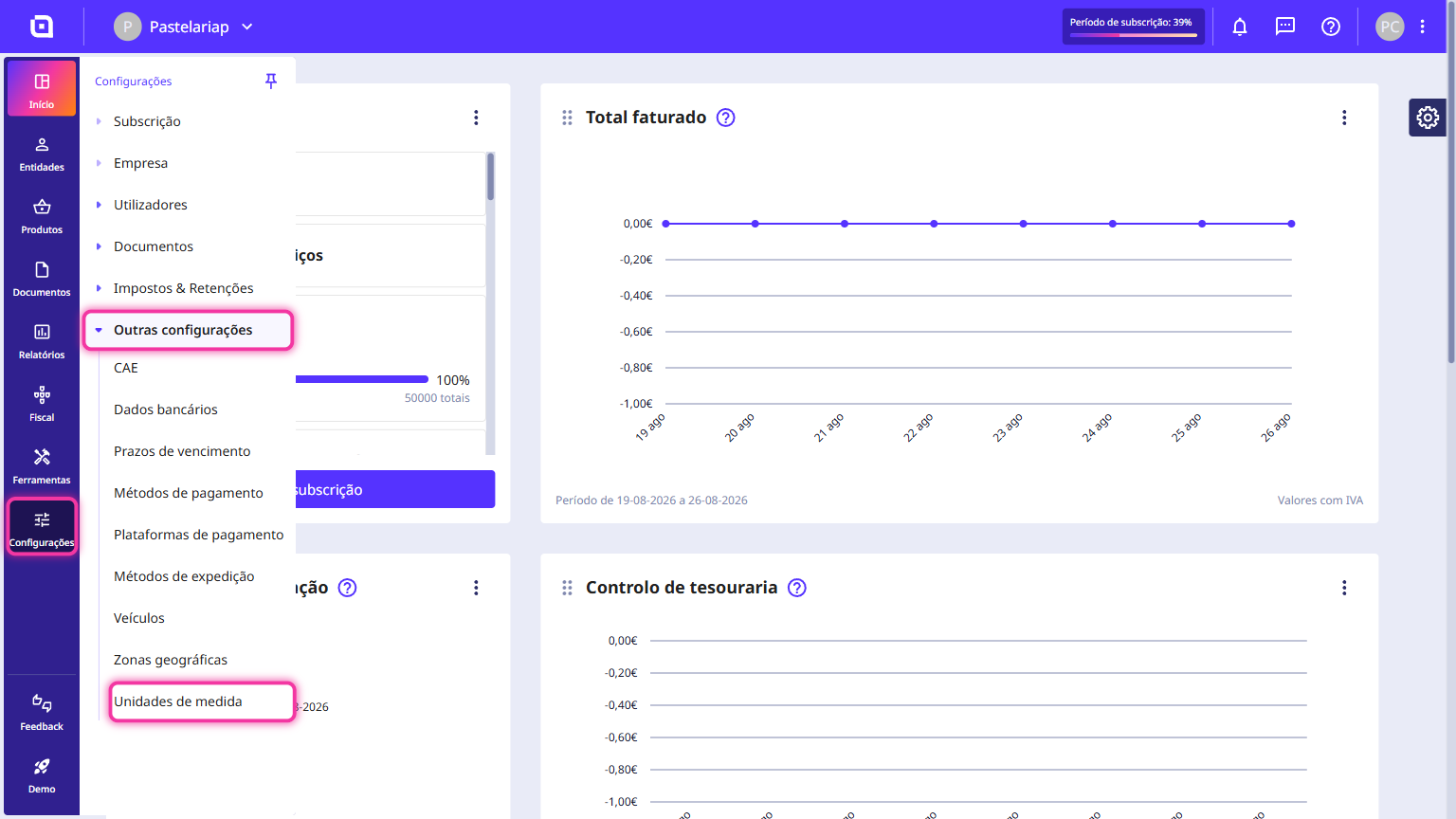
1. In the Client Area, go to the Settings menu, select Other settings and click on Units of measure.
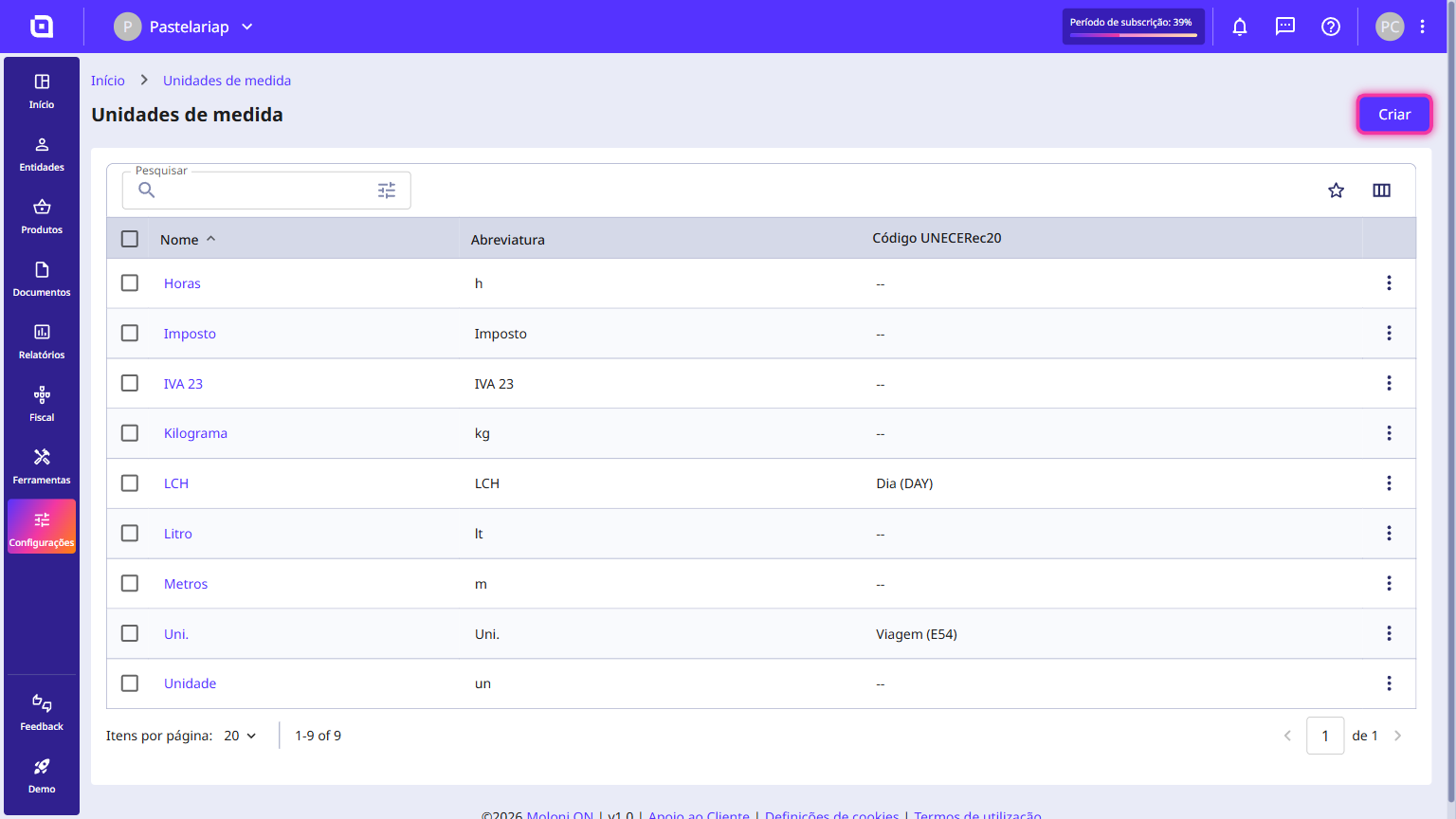
2. A list will be displayed with the units of measure that have been added to your account. To create a new unit of measure, click Create.
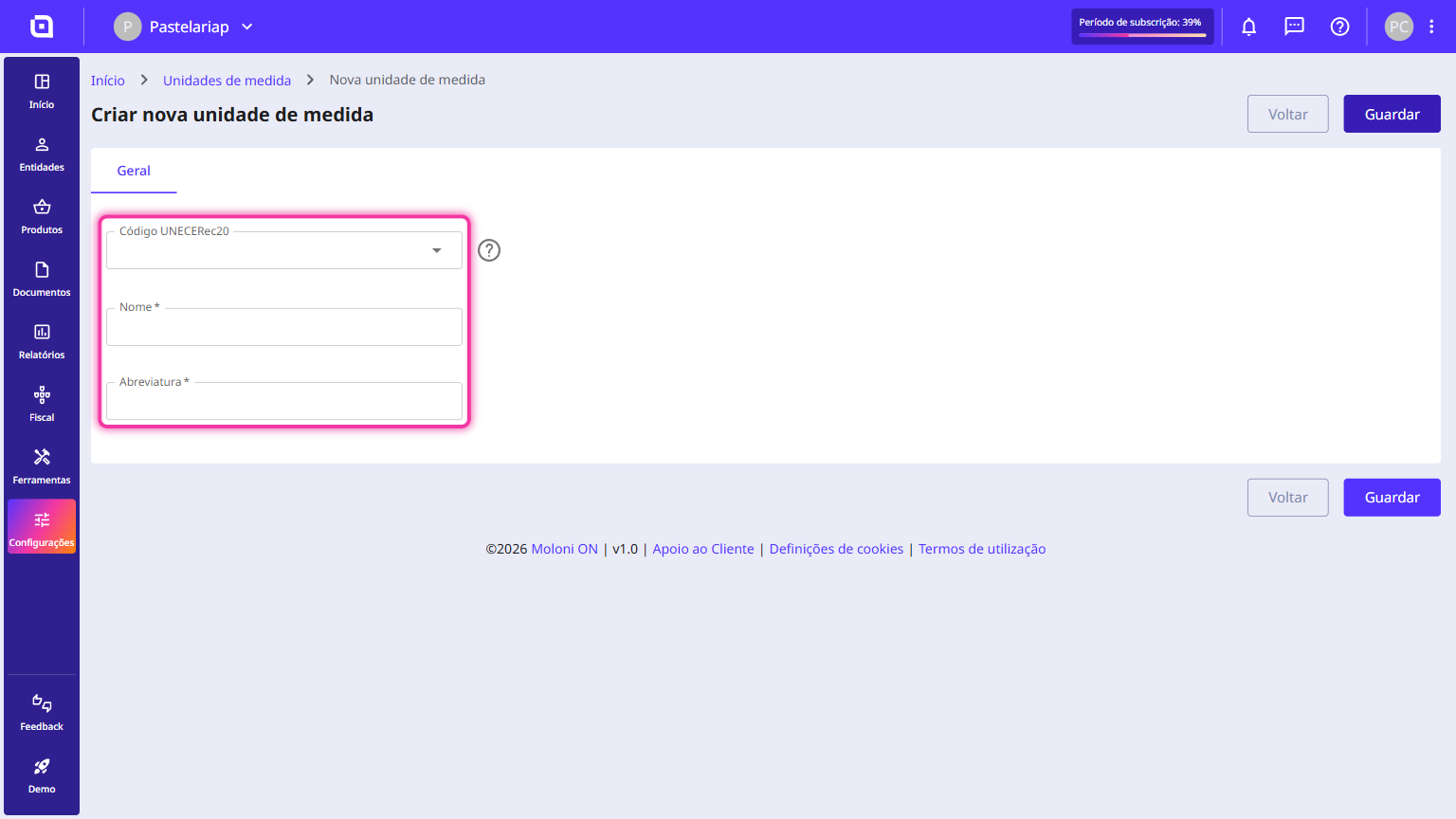
3. In this form, fill in the following fields:
- UNECERec20 code - type the name of the unit and choose the matching code from the list (for example, Hour (LH) or Kilogram (KGM)). Fill in this field if you intend to export documents according to the CIUS-PT standard;
- Name - the full name of the unit of measure (for example, Hours or Kilograms);
- Abbreviation - the short form that appears on your documents (for example, H or Kg).
4. Click Save.
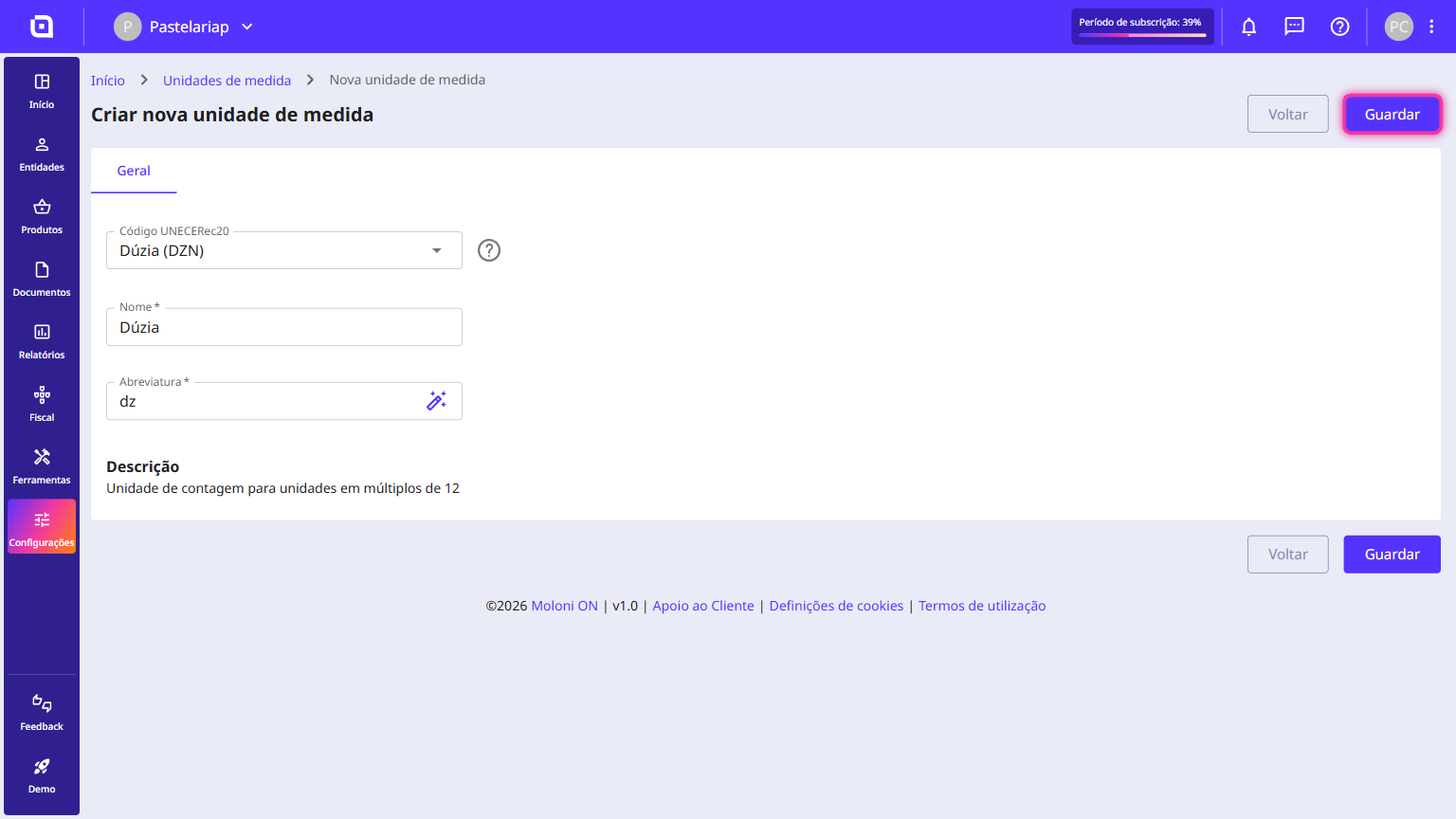
From now on, when you create or edit a product, you can choose the new unit in the Unit of measure field.