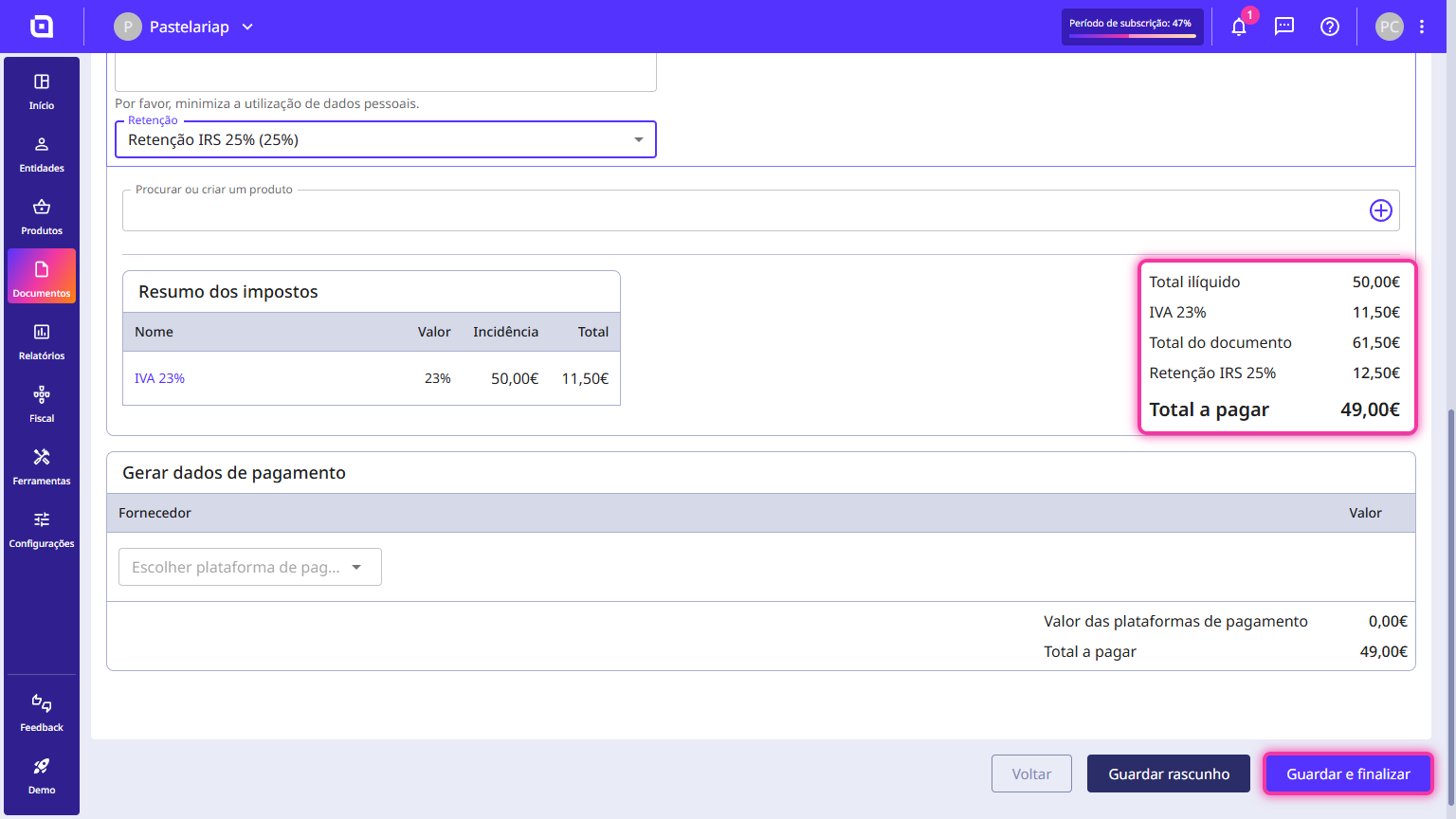
How to create and add a withholding tax to a document
Withholding taxes (such as IRS or IRC) are percentages that your business customers withhold when paying for certain services. In Moloni ON you can create your withholding tax rates and add them directly to your documents, ensuring that the correct amounts are deducted automatically during invoicing, in accordance with your legal obligations.
How to create a withholding tax
This feature is used to register the withholding tax percentages (such as IRS or IRC) that must be withheld by your business customers when paying for certain services. By setting up the withholding tax in advance with its name and percentage value, you ensure that it can be selected and calculated instantly when issuing your invoices.
Follow these steps:
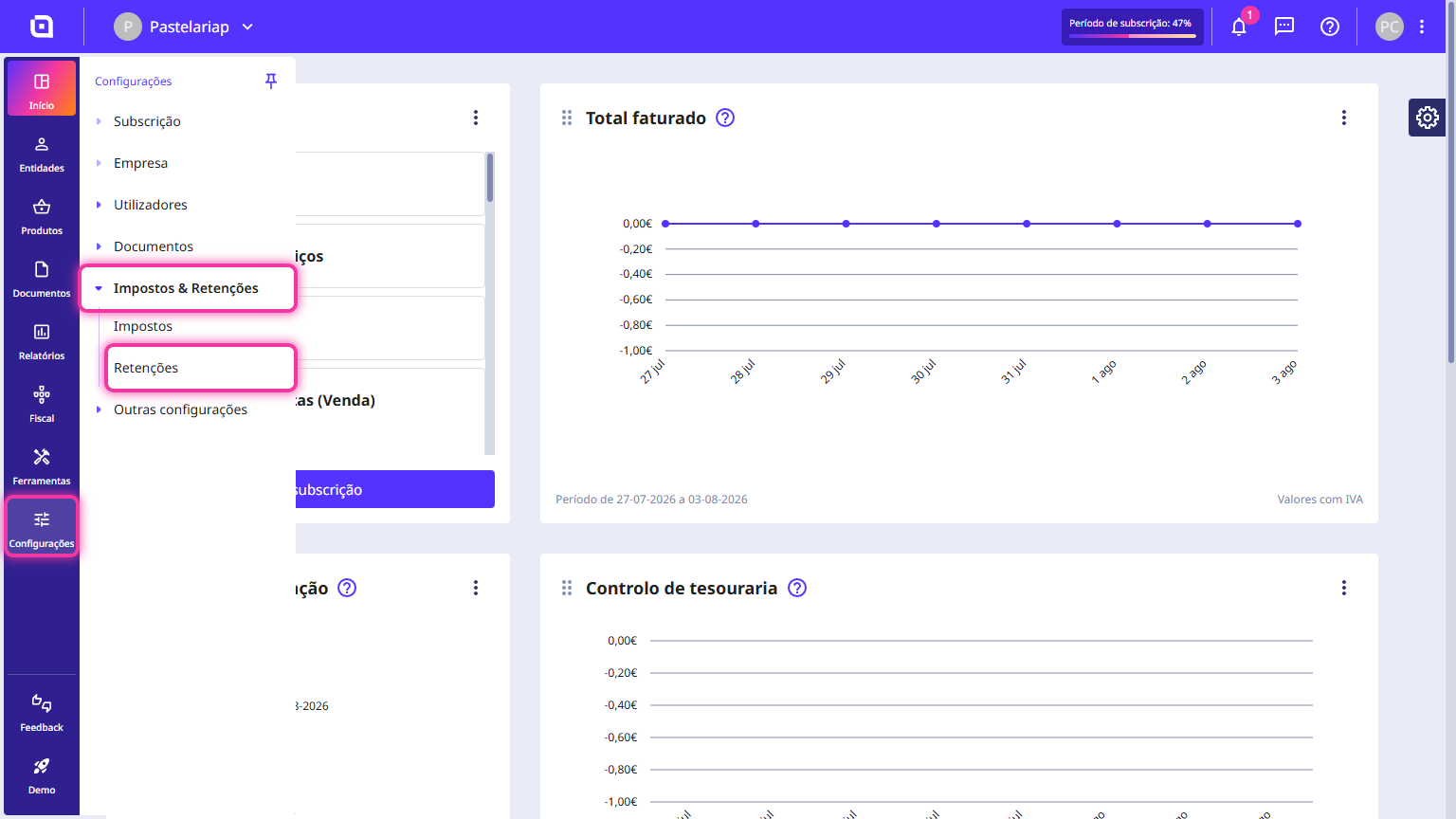
1. In the left-hand side menu, go to the Settings section, expand the Taxes & Withholdings option and click on Withholdings.
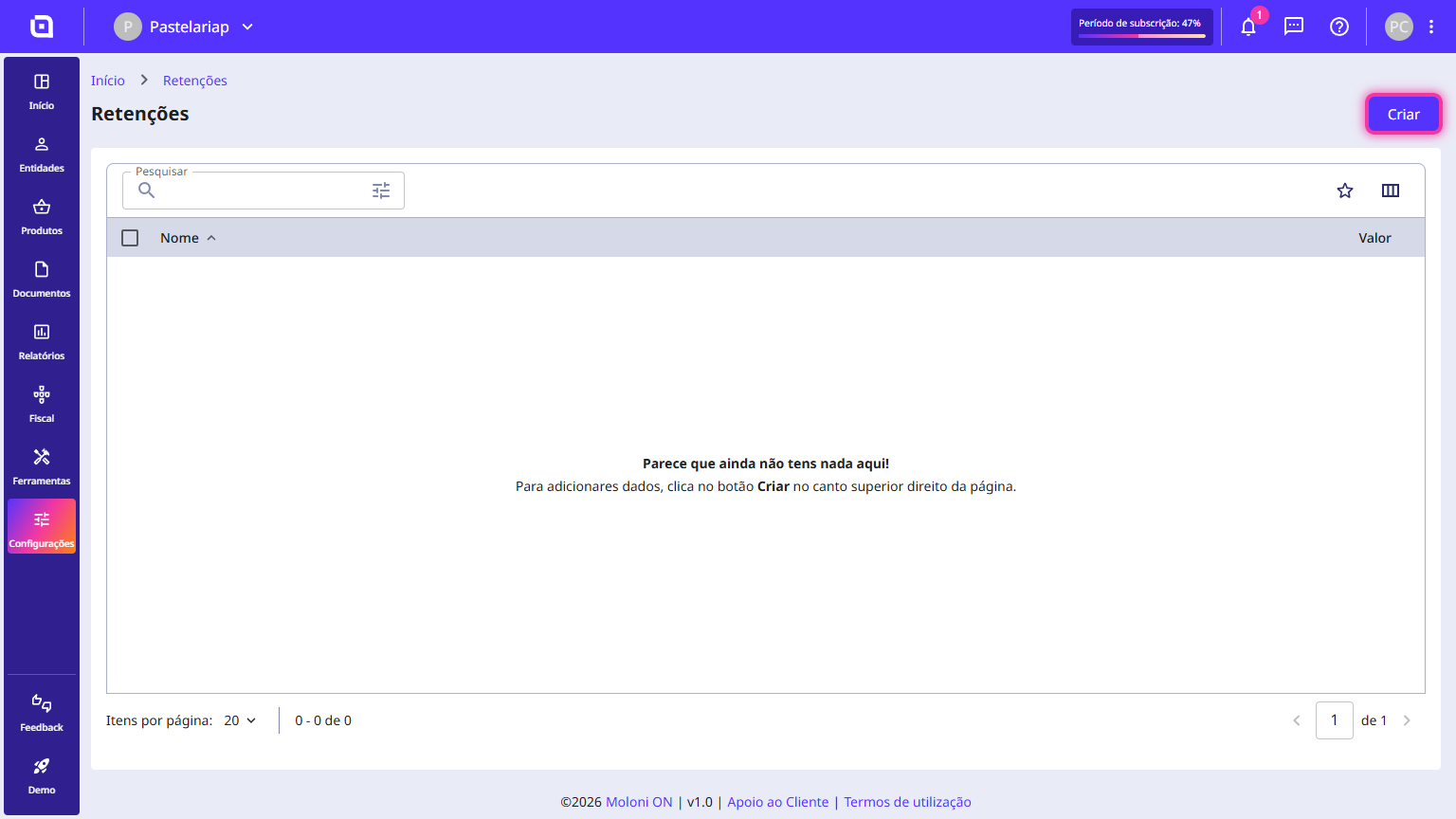
2. On the main screen listing the withholdings, click the Create button located in the top right corner.
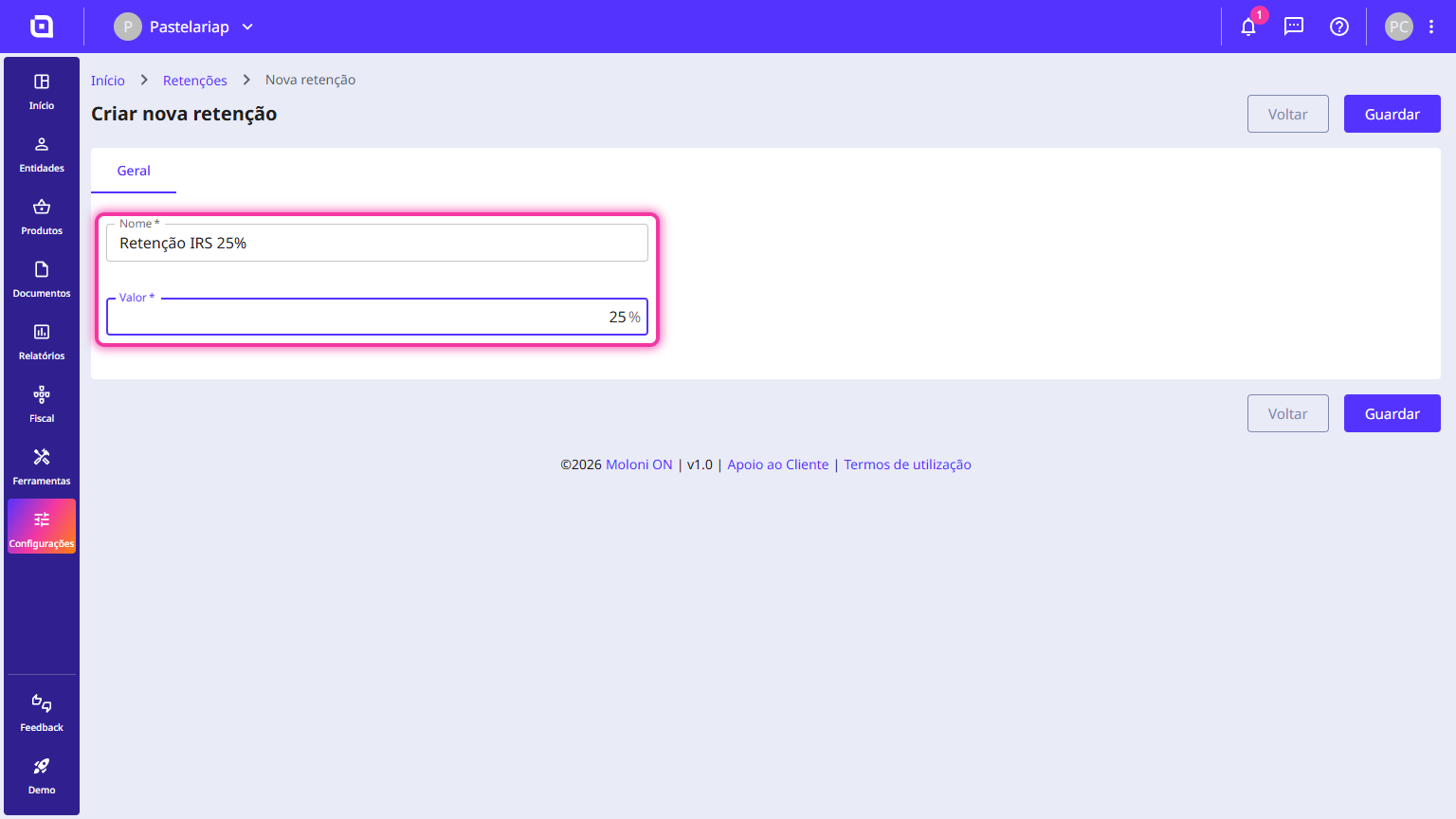
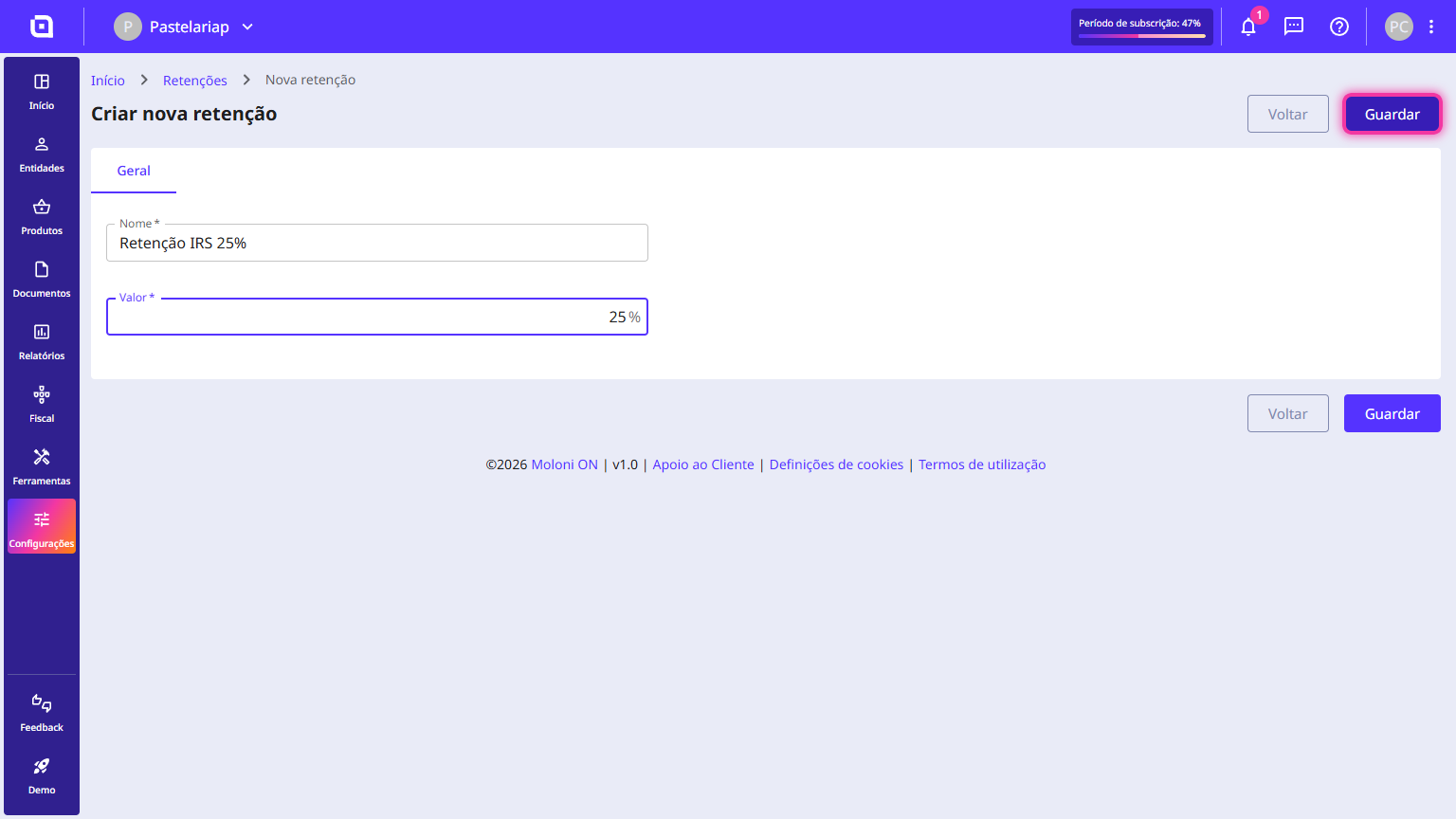
3. On the General tab of the creation form, fill in the requested information:
- Enter the withholding Name (e.g. Retenção IRS 25%).
- Set the percentage Value (%) of the rate to be deducted.
4. After filling in the mandatory fields, click the Save button in the top right corner to register and activate the new withholding tax rate in the system.
How to add a withholding tax to a document
This feature lets you associate a withholding tax rate (such as IRS or IRC) directly with a sales line while creating a document. By doing so, you ensure that its percentage value is deducted instantly in the totals of that specific document, without needing to change the product's global settings.
Follow these steps:
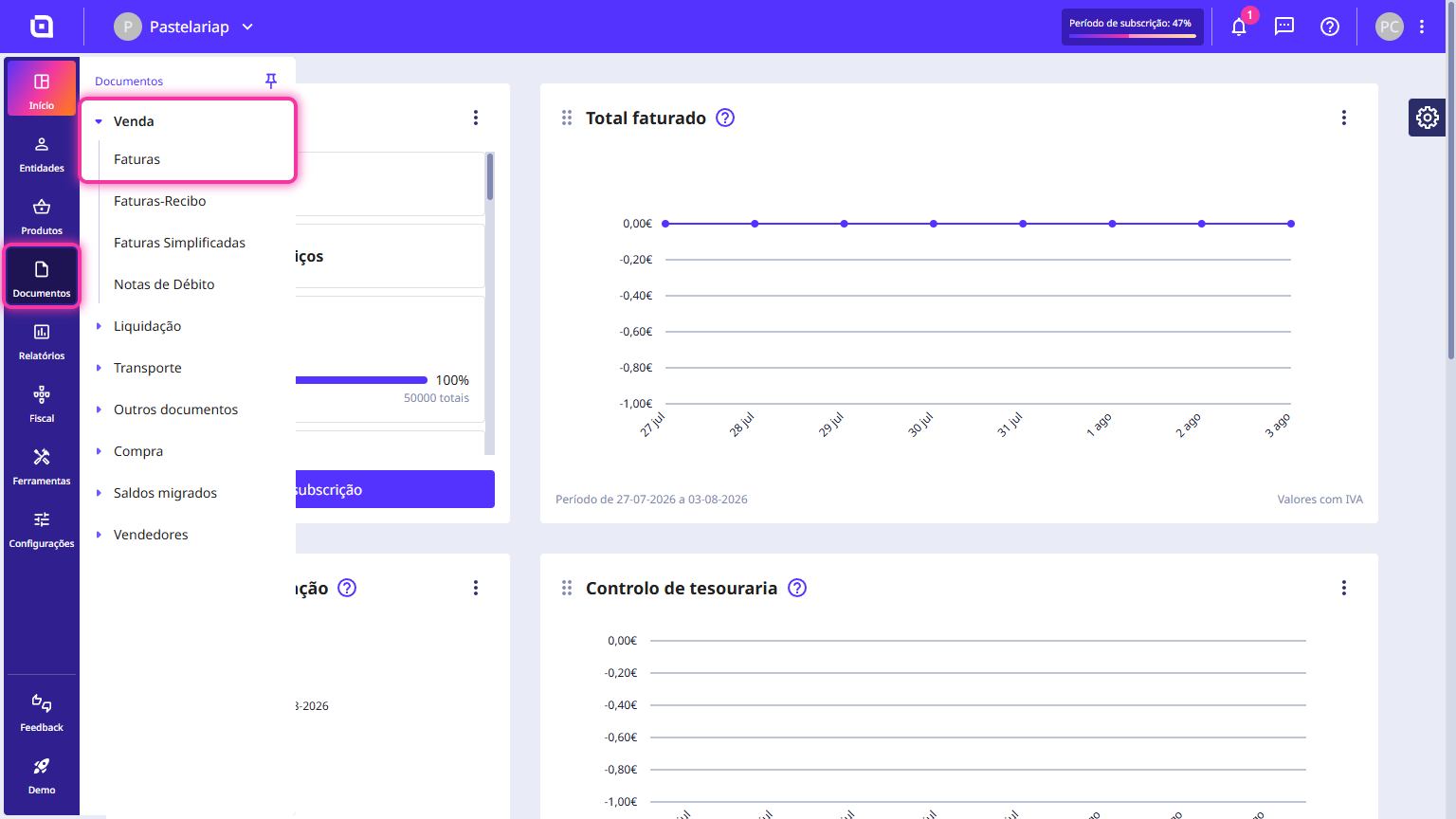
1. In the left-hand side menu, go to the Documents section, expand the Sale option and click on Invoices.
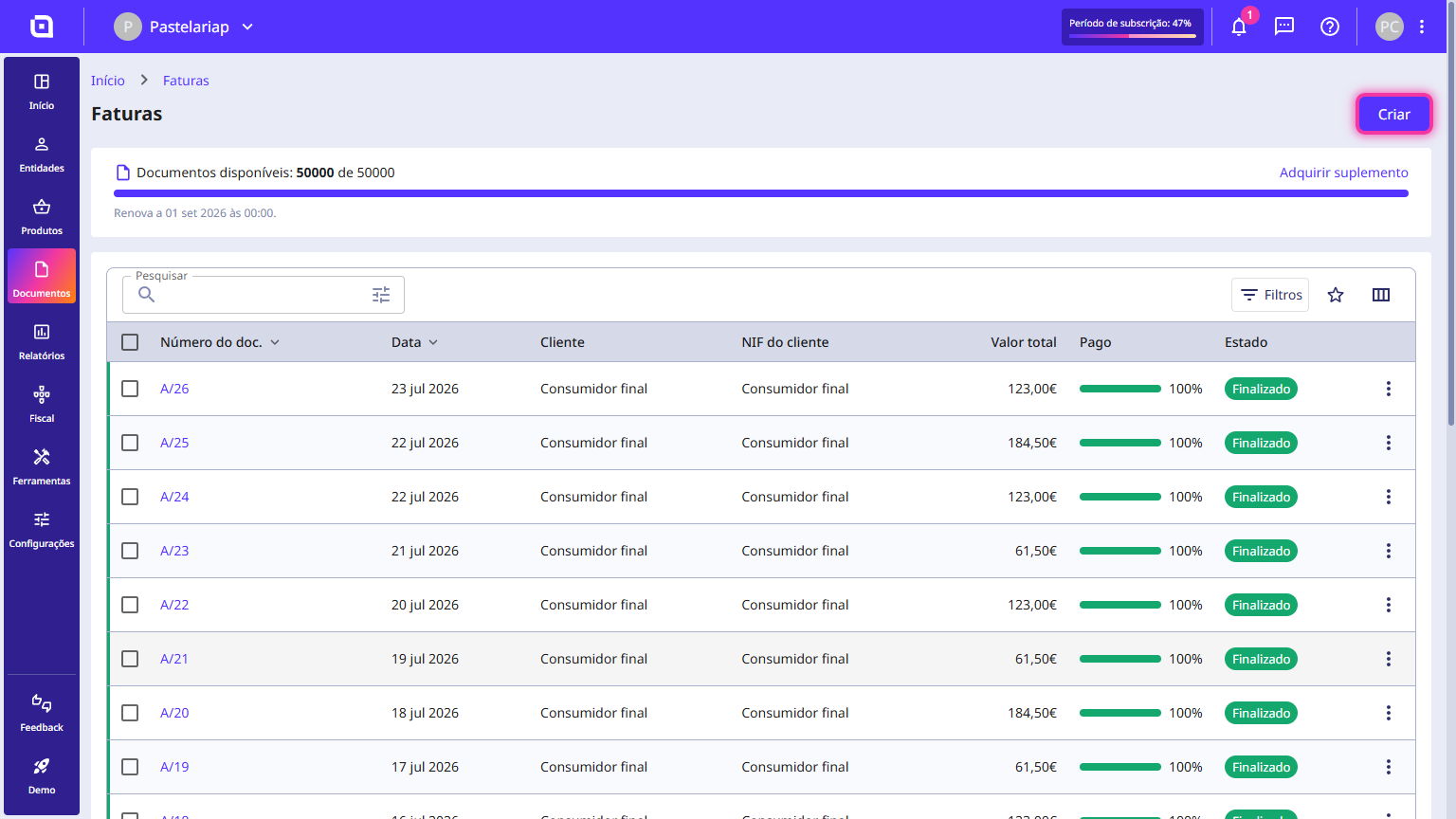
2. On the main invoices screen, click the Create button located in the top right corner.
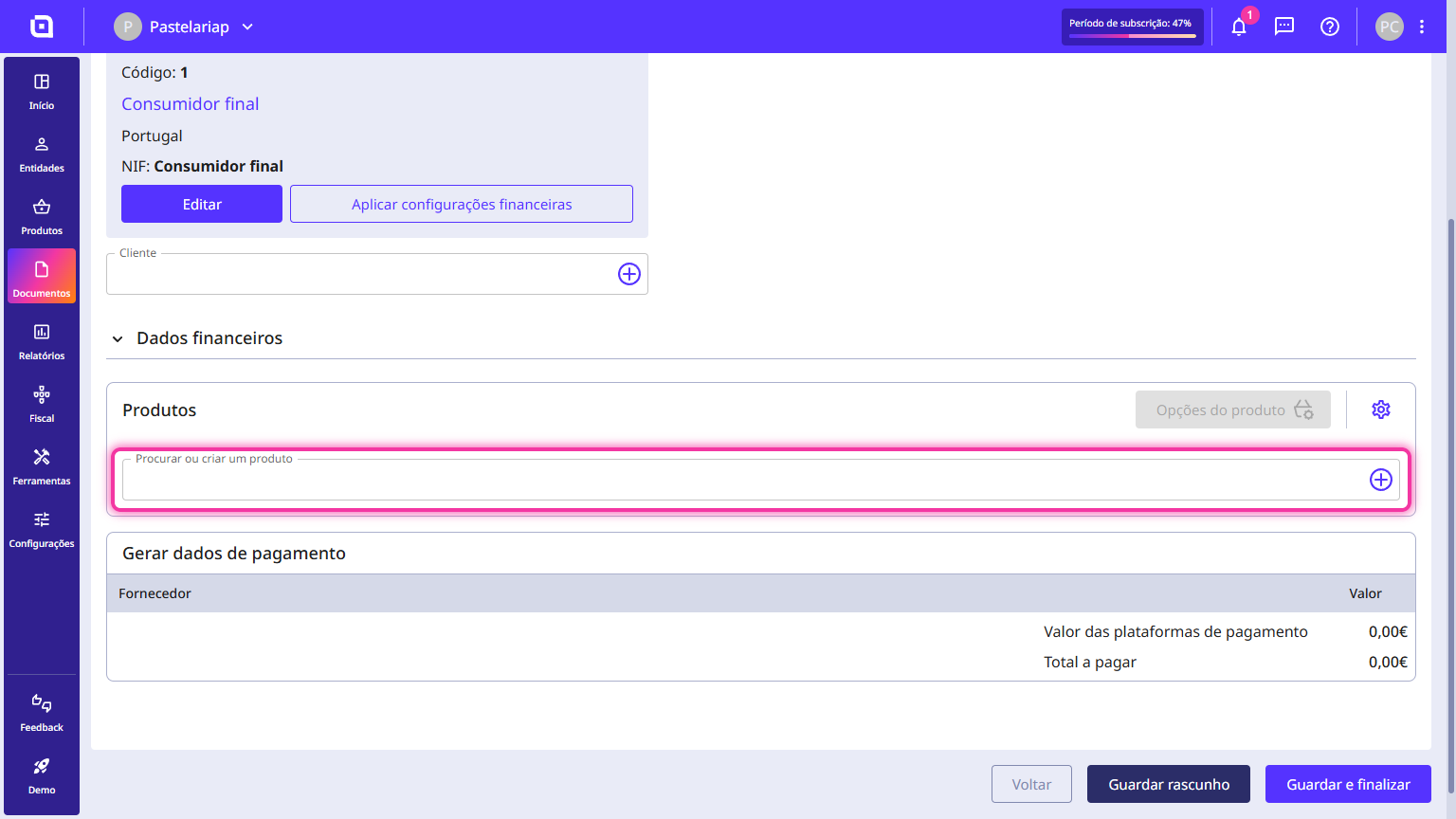
3. On the invoice creation form, you can search for or directly create the desired product in the products section.
4. On the added product's line, find the left side of the line and click the expand arrow (located next to the product's checkbox) to open the product's additional details.
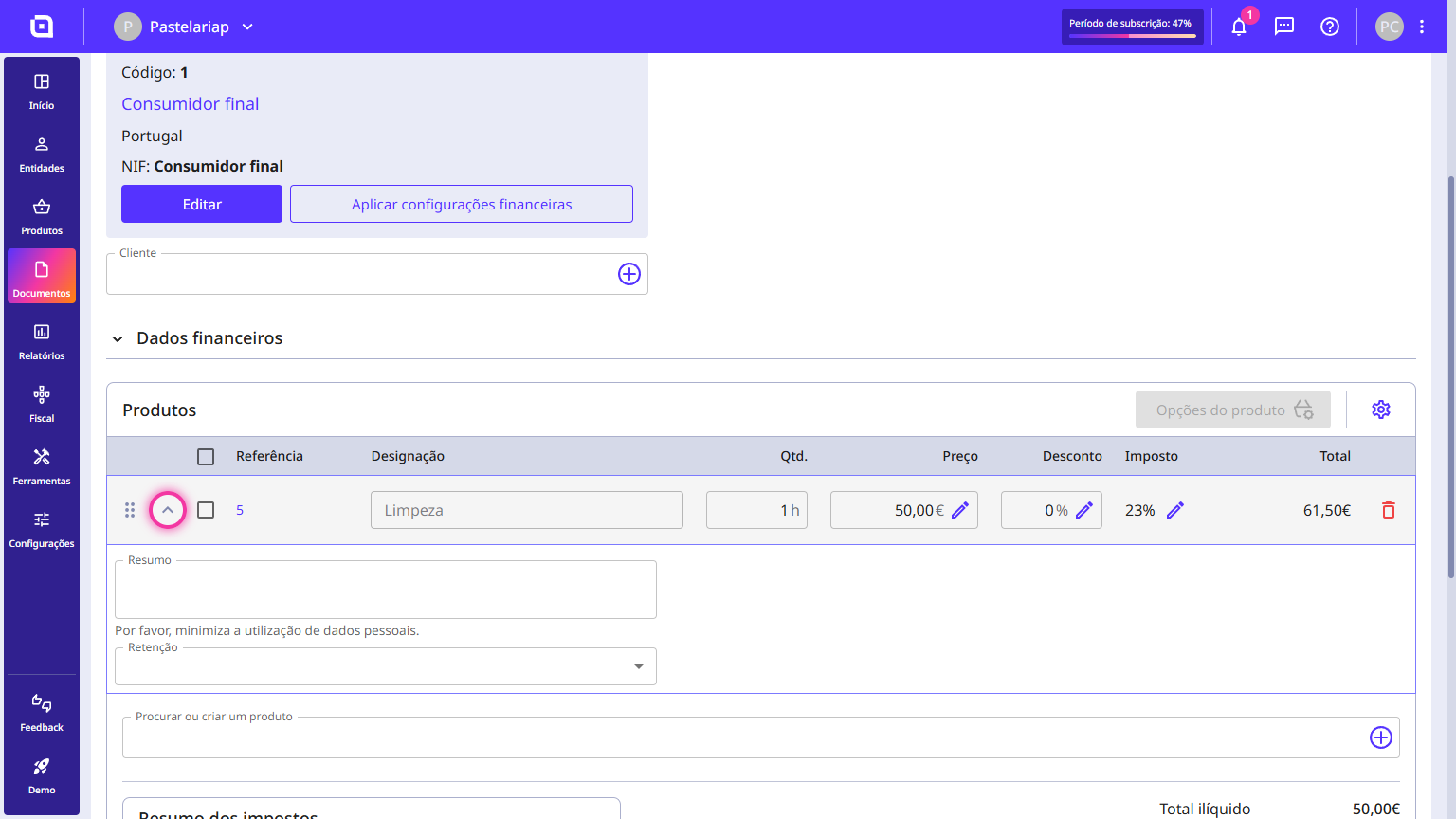
5. In the Withholding field, select the applicable withholding tax rate you want to add to that product (e.g. Retenção IRS 25%).
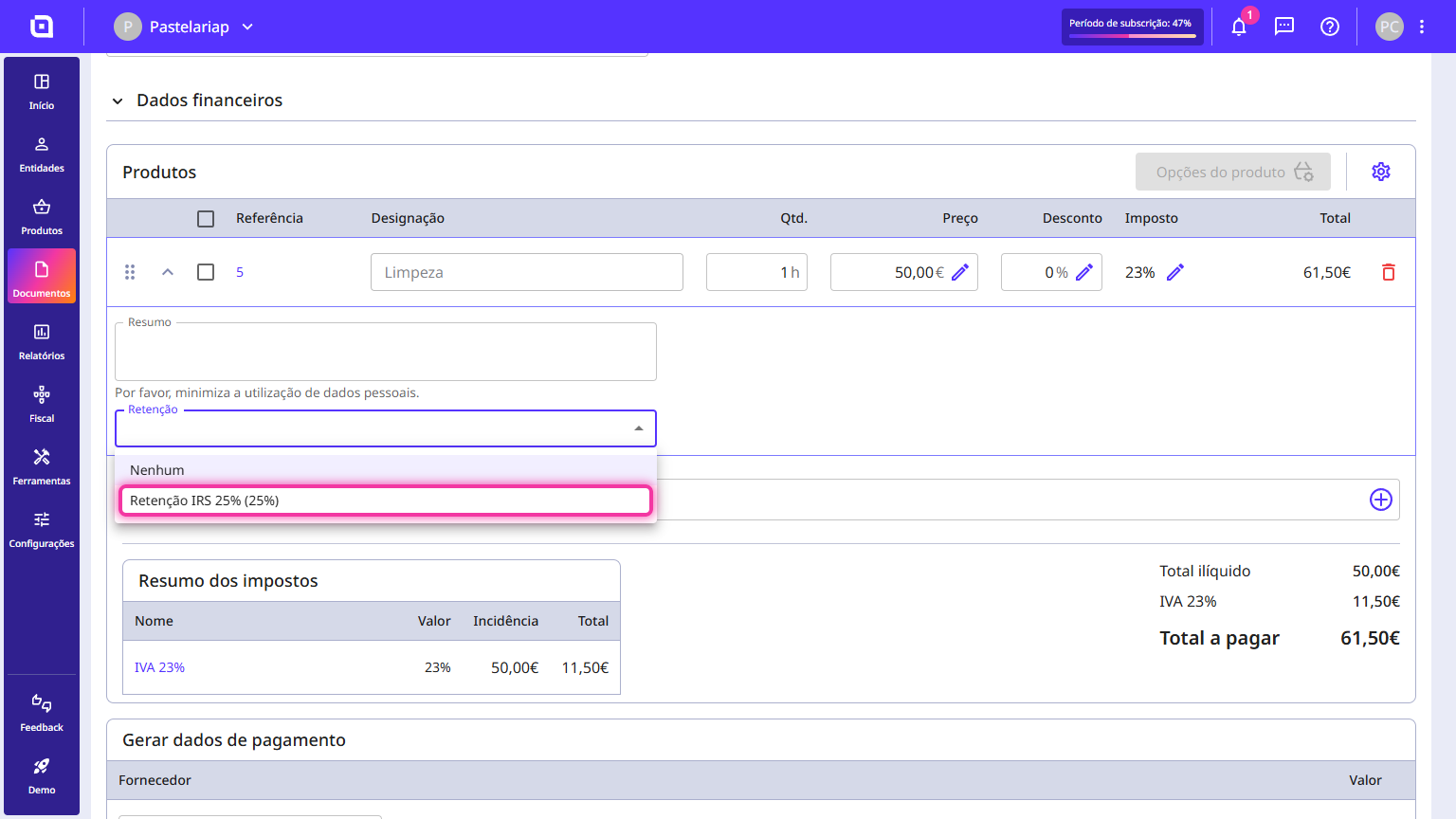
6. After confirming that the calculations were correctly updated in the totals, click the Save and finish button located in the bottom right corner to complete the document.