How to add bank details to documents
This feature is extremely useful because by including banking details directly on your documents, you avoid wasting time manually sending payment information to your customers.
Follow these steps:
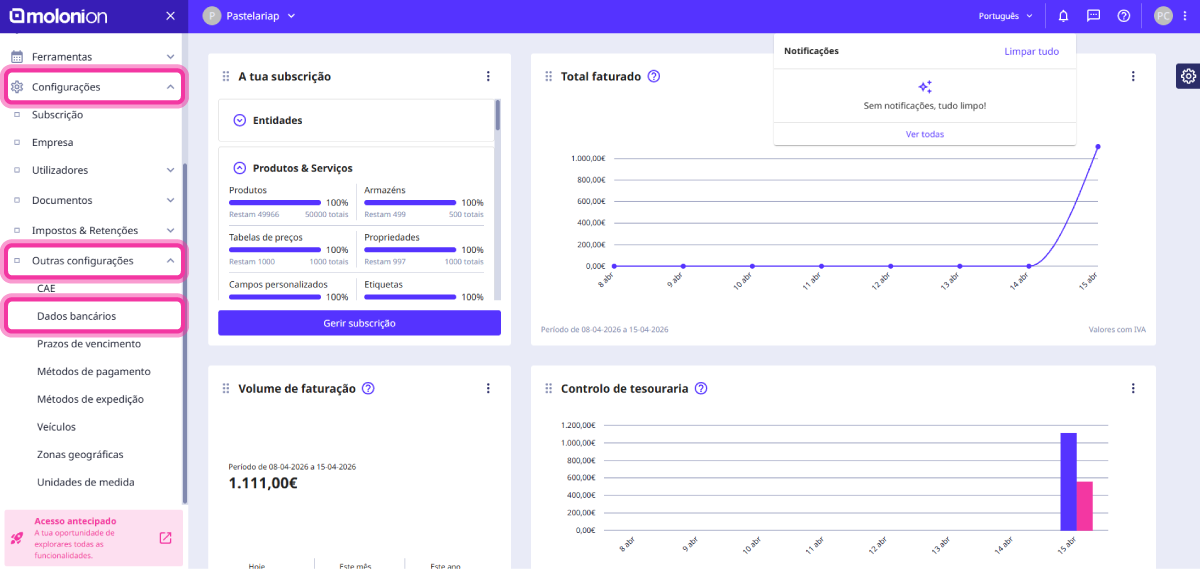
1. In the Client Area, access the Settings menu, select Other settings and click on Bank details.
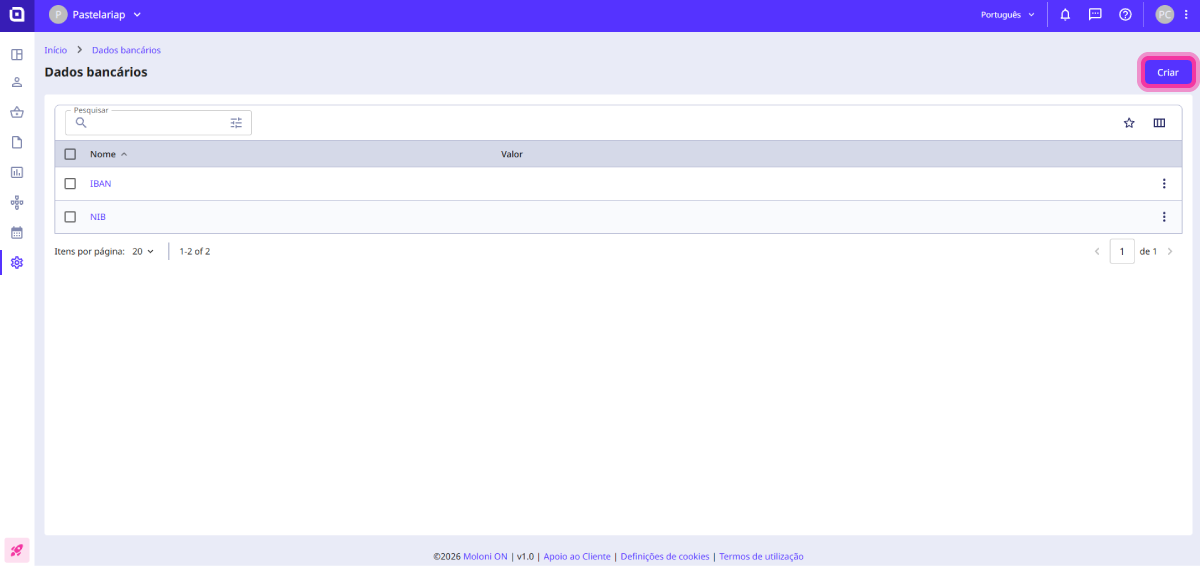
2. In the top right corner, click the Create button.
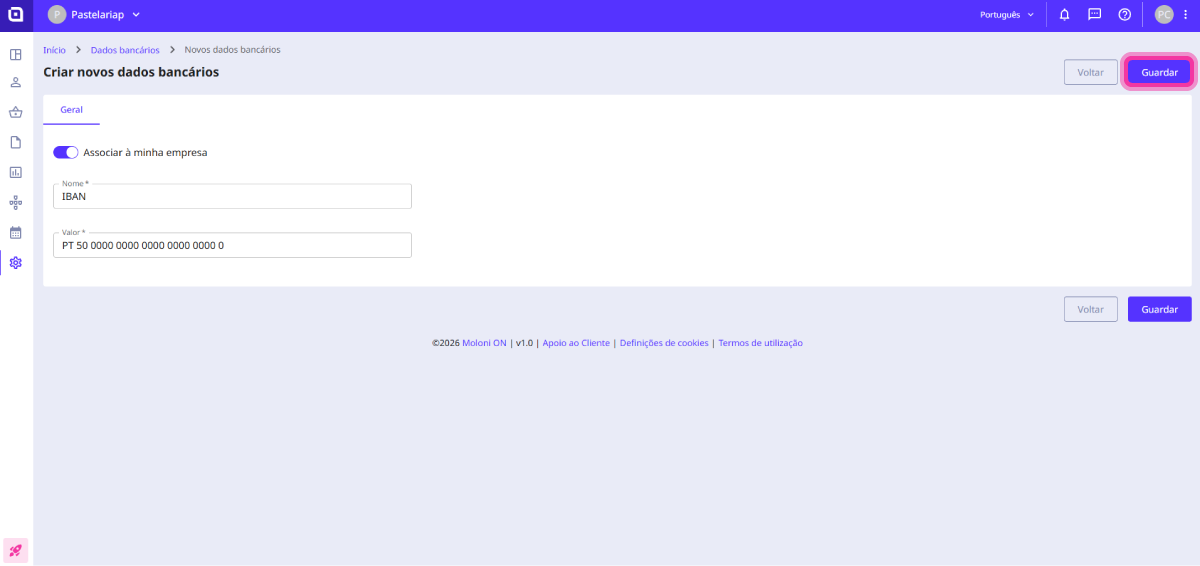
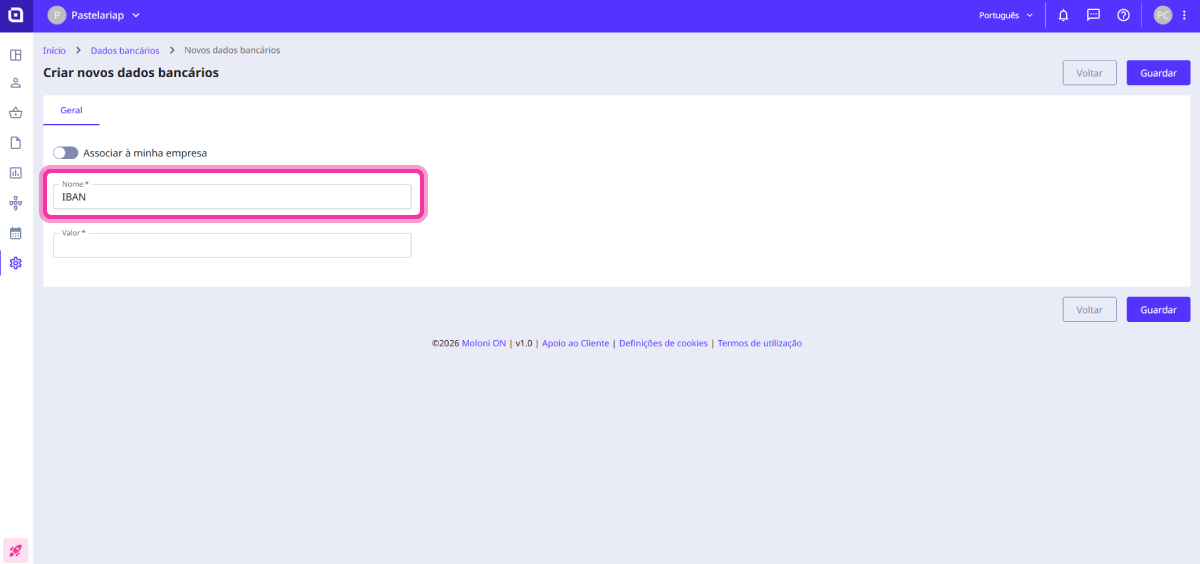
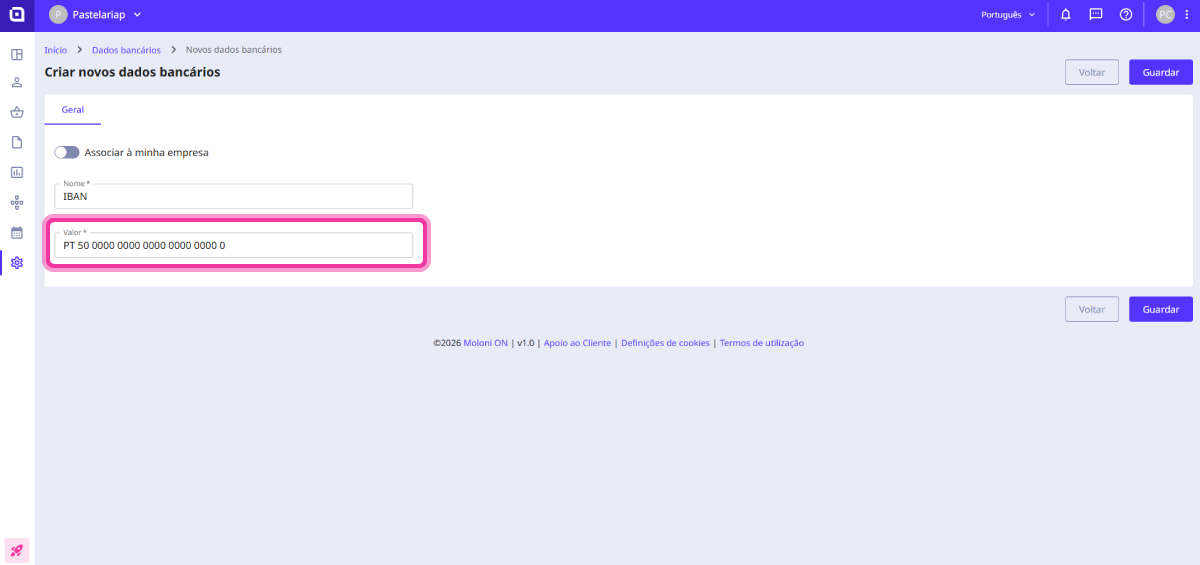
3. In the Name field, enter the identification for the data (e.g. IBAN, SWIFT, or the Bank's name).
4. In the Value field, enter the number or code corresponding to the bank detail.
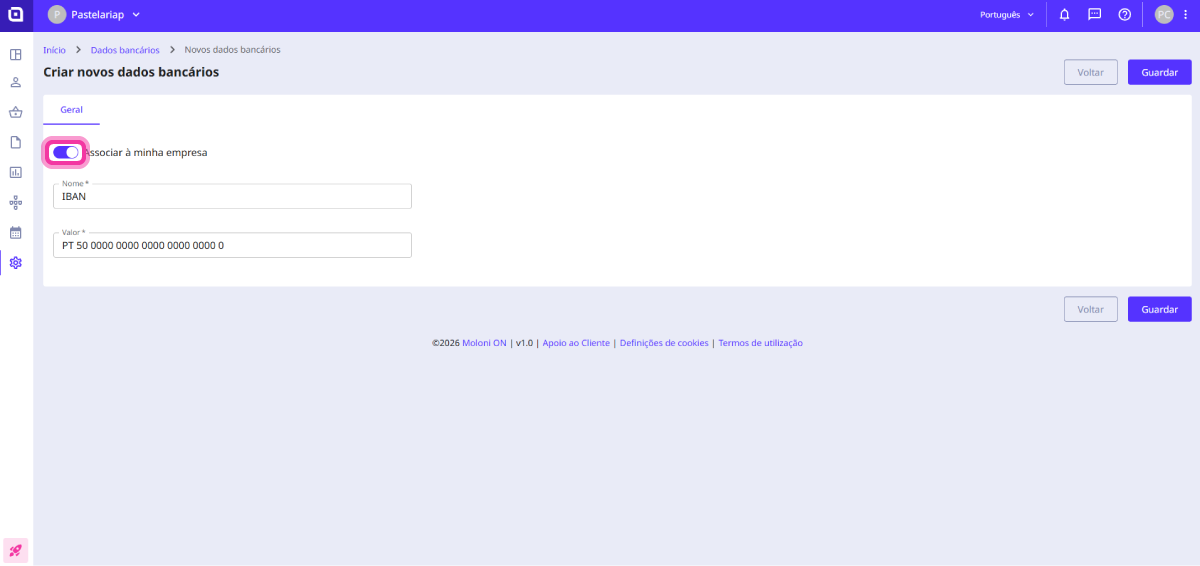
5. Activate the option Associate with my company so that these bank details are associated with it and appear on issued documents.
6. Click the Save button.