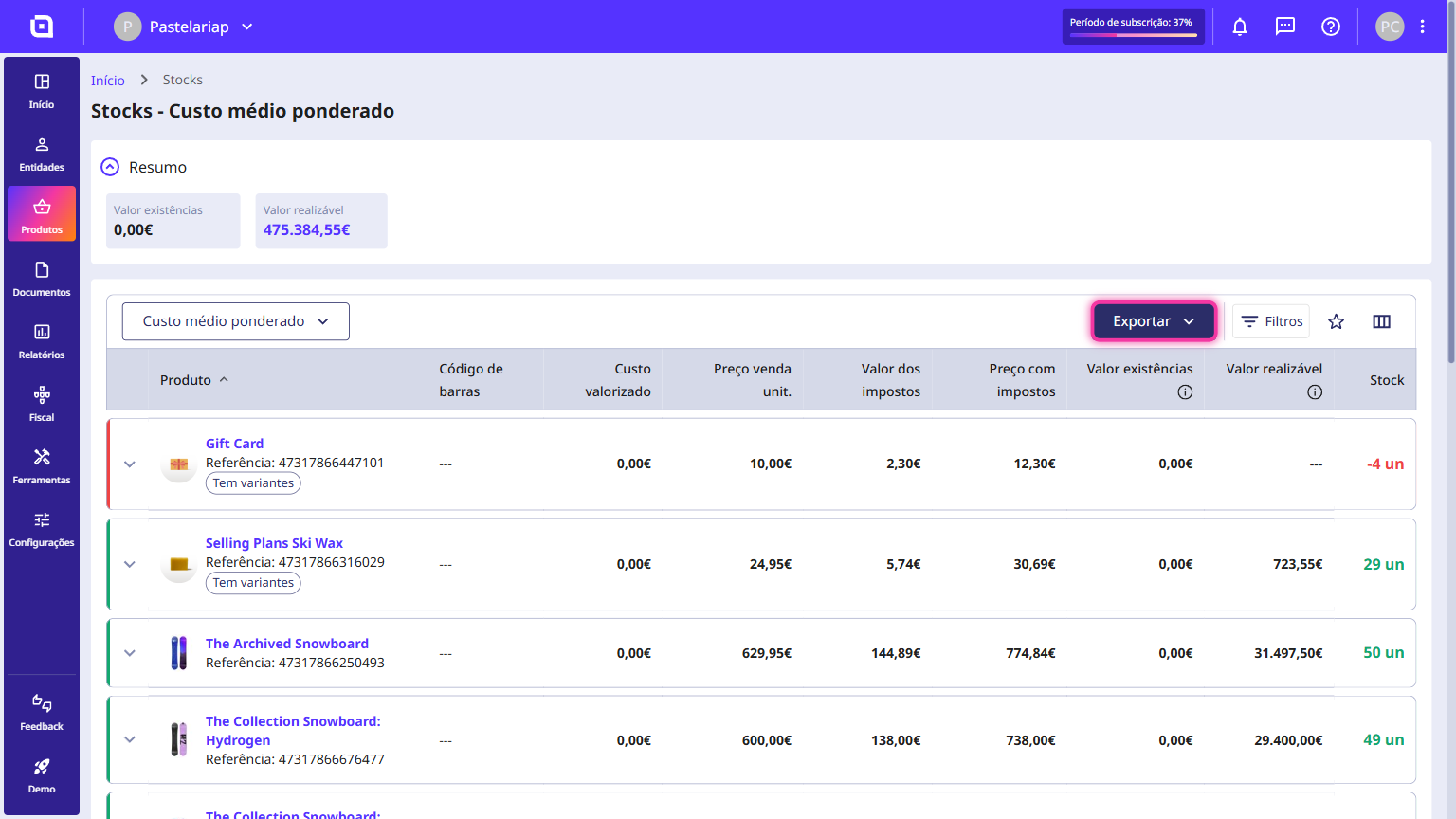
How to manage product stock
Follow these steps:
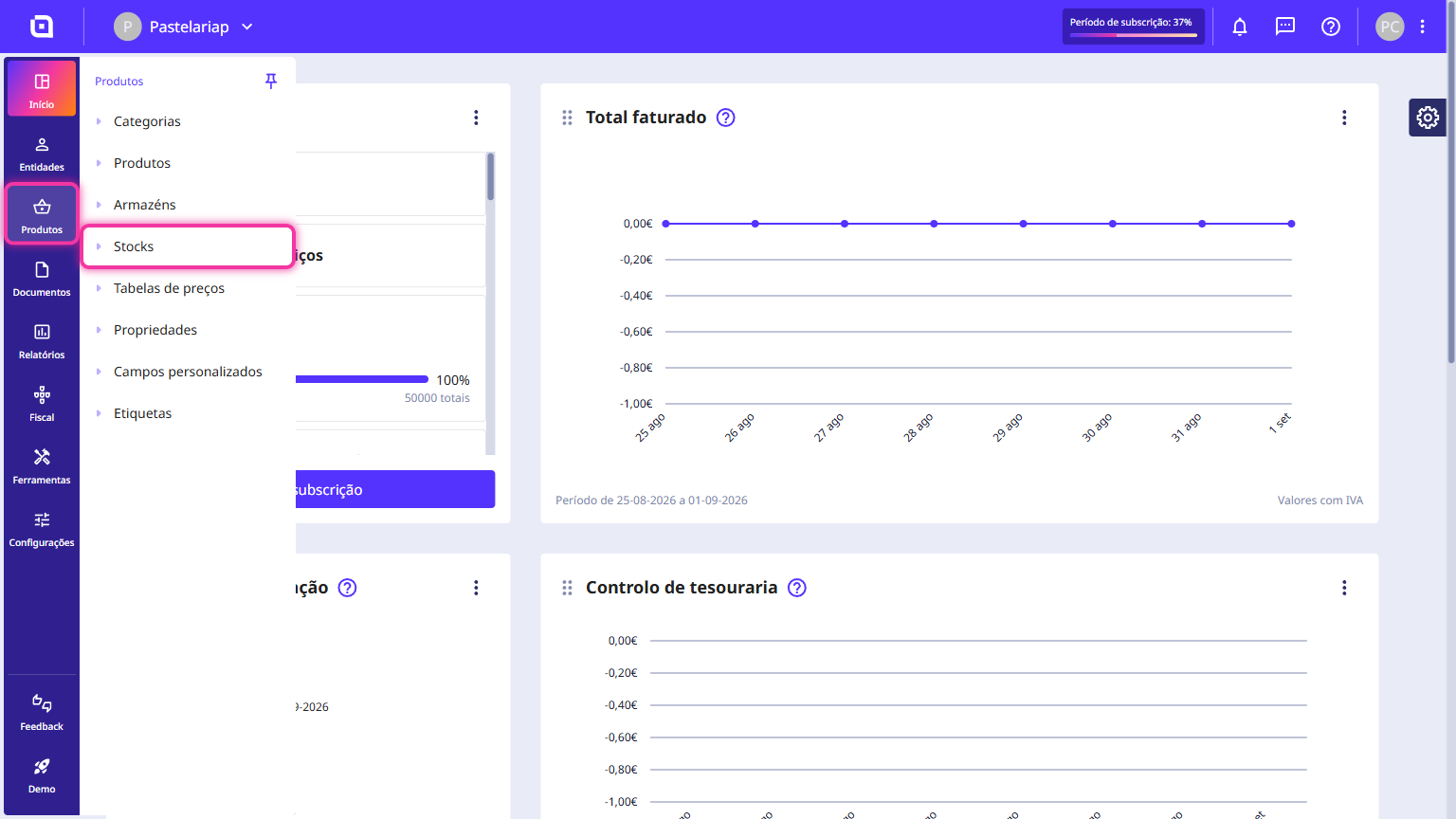
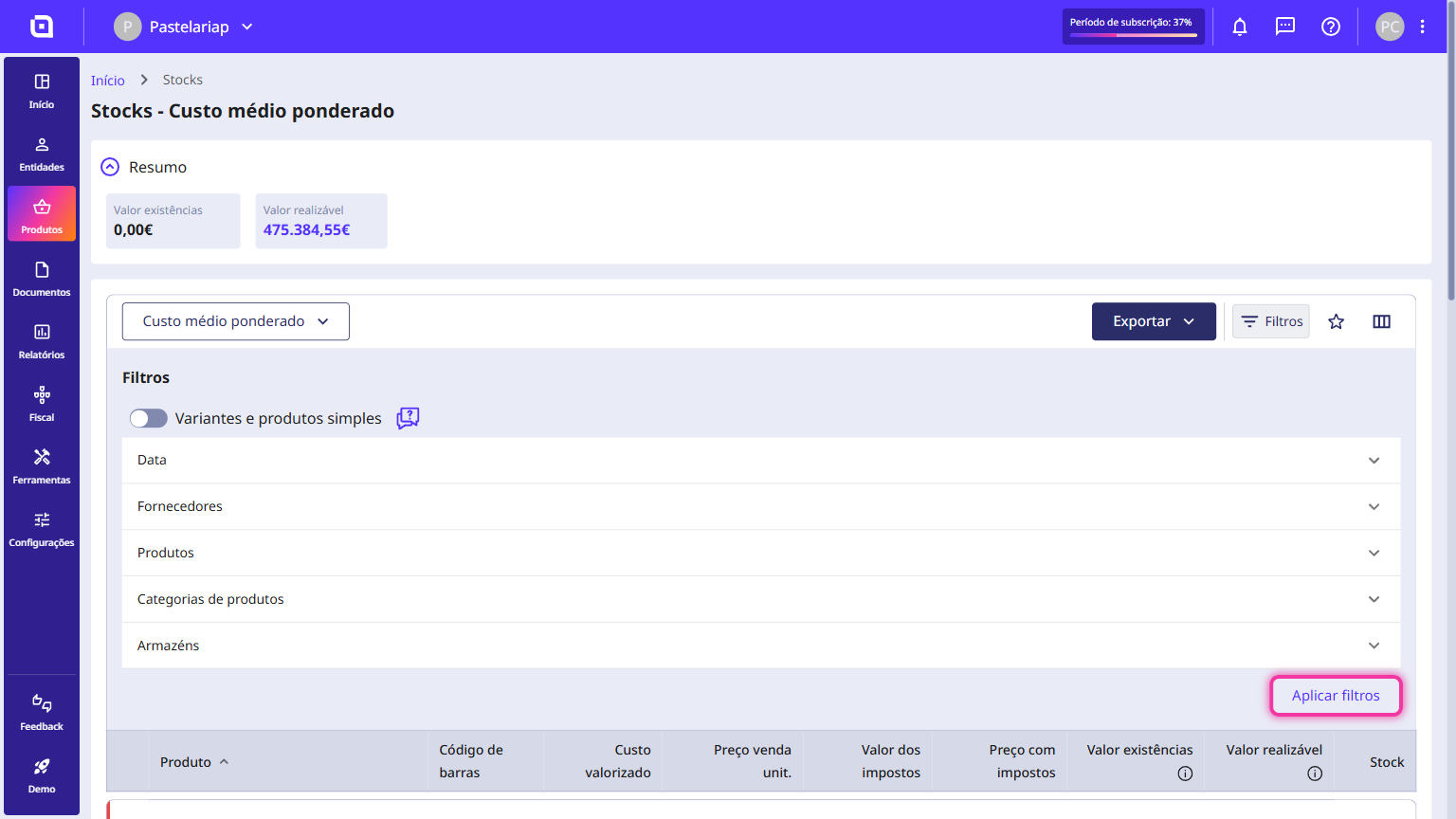
1. In the Client Area, go to the Products menu and click on Stocks.
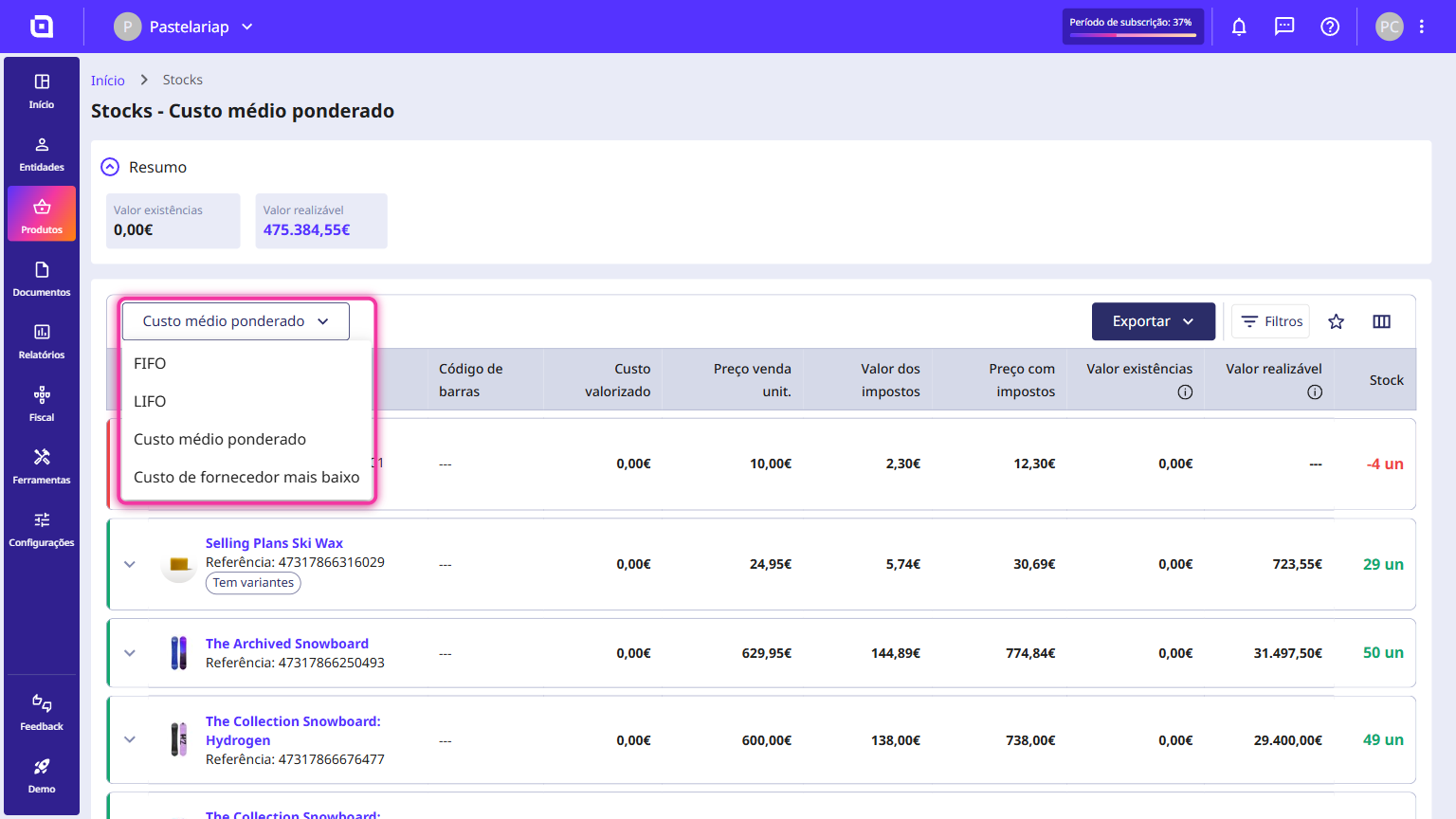
2. Here you will find a list showing the stock for all added products. You can choose your preferred stock valuation method:
- Weighted average cost;
- FIFO;
- LIFO;
- Lowest supplier cost.
Each of these options affects the reflected valuation cost and the value of existing stock. Click on one of them to view the details of a product's stock movements.
3. Using the Filters button, you can segment the list by:
- Date;
- Suppliers;
- Products;
- Product categories;
- Warehouses.
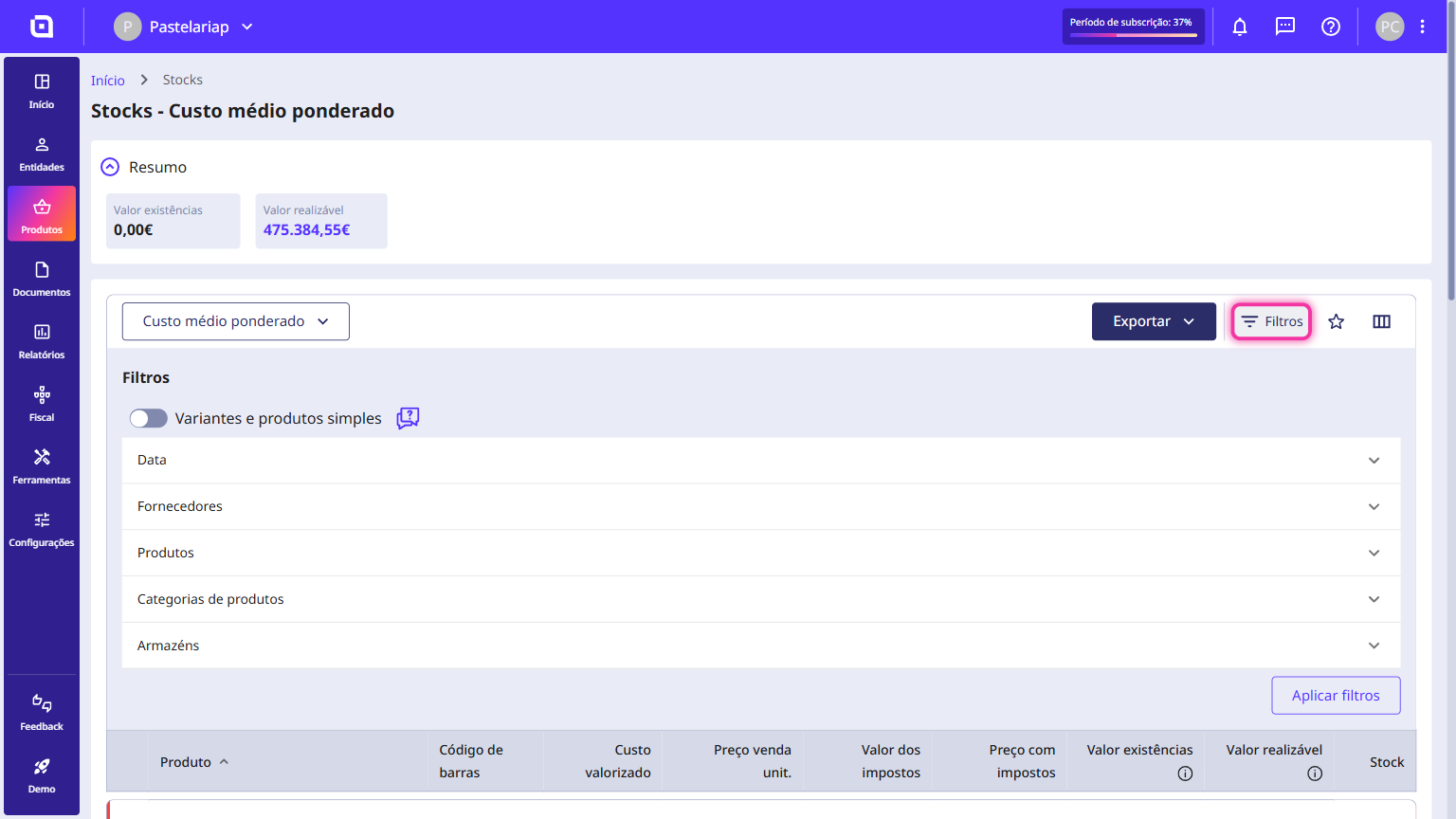
4. Click the Apply filters button to update the list.
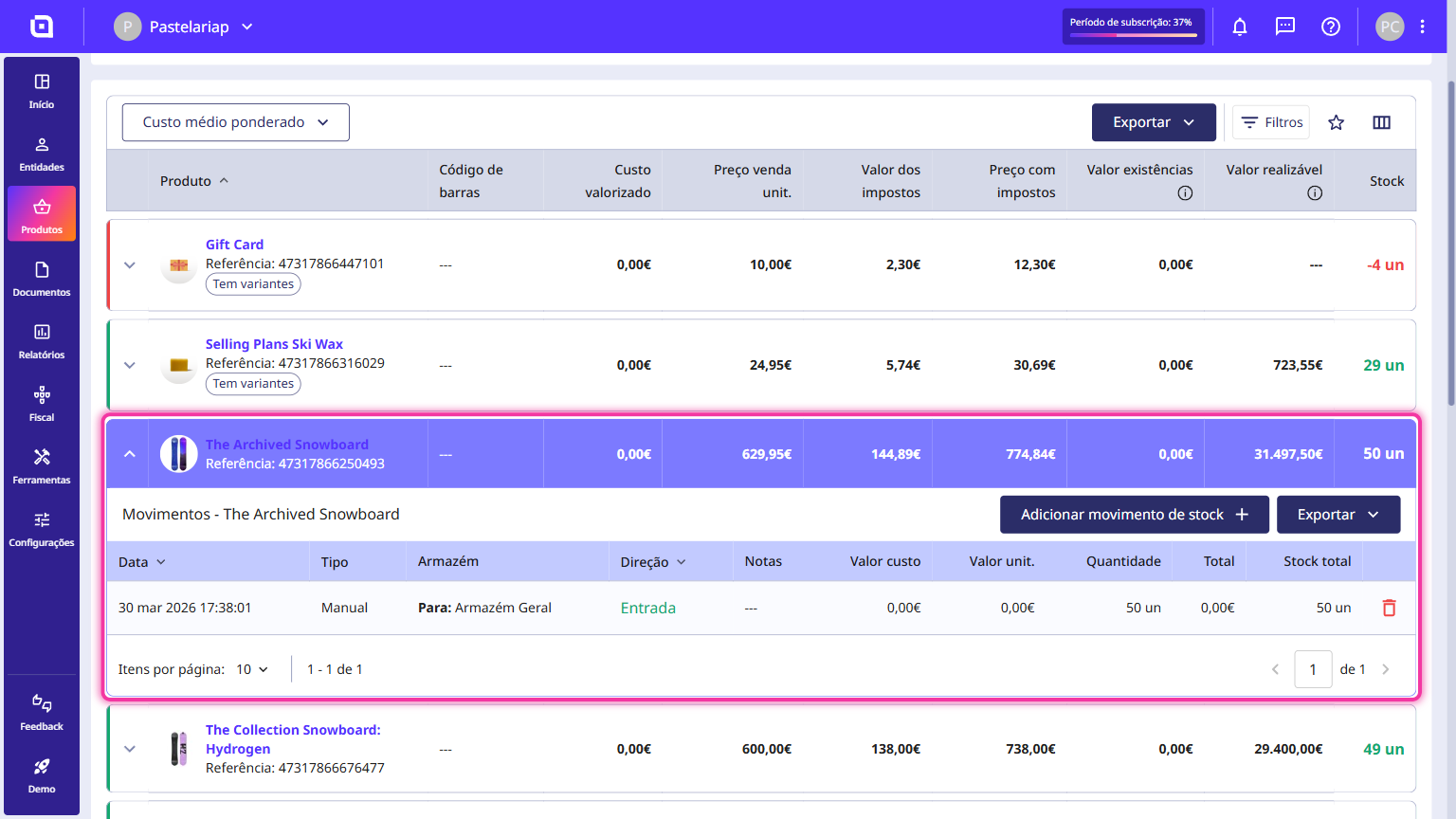
5. By selecting a product, you can consult all its stock movements.
6. By clicking the Export button, you can export the data for each product in PDF or XLS format.
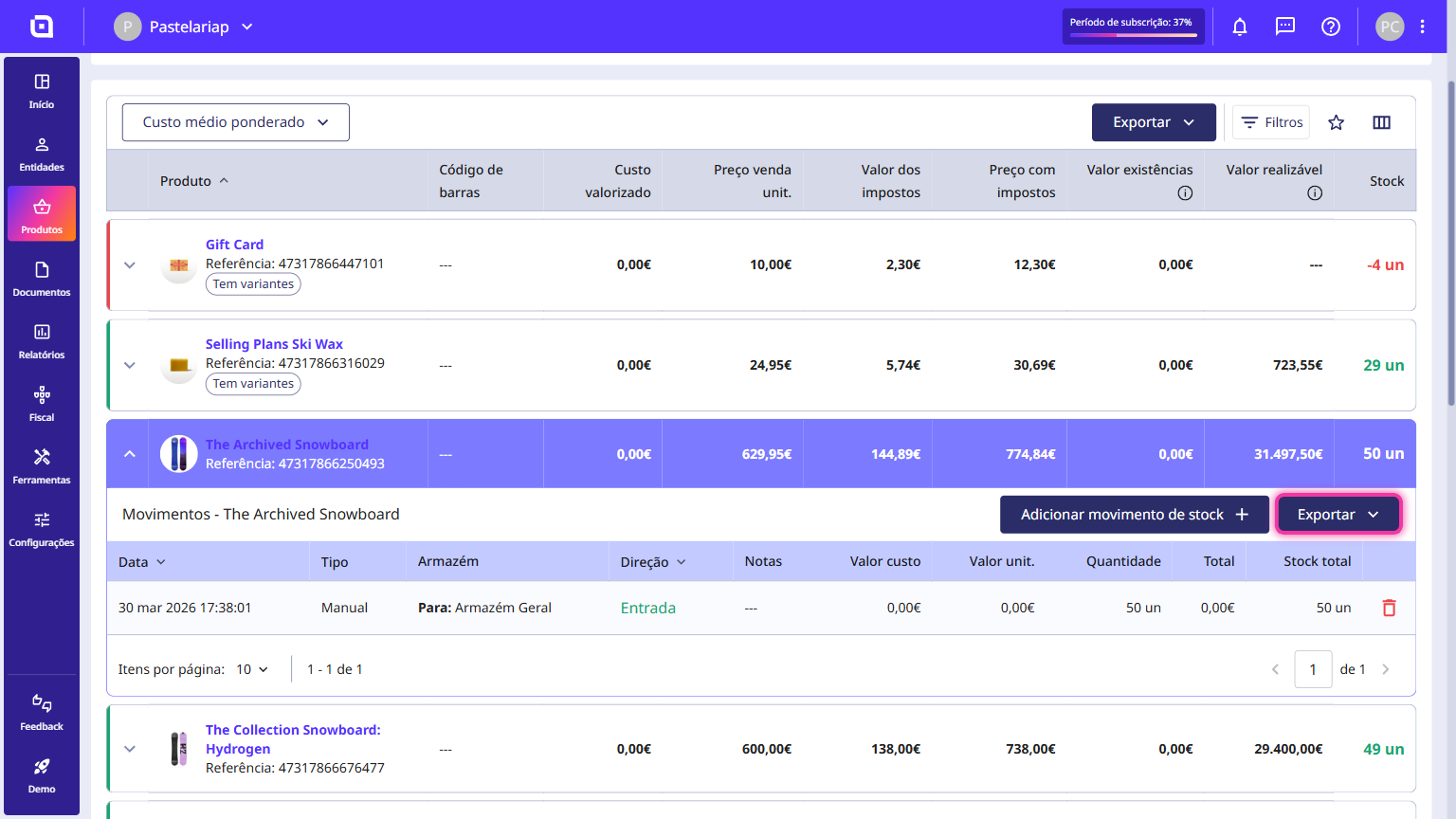
7. You can also export the data from the complete list using the Export button located at the top of the page.