Two-Factor Authentication (2FA)
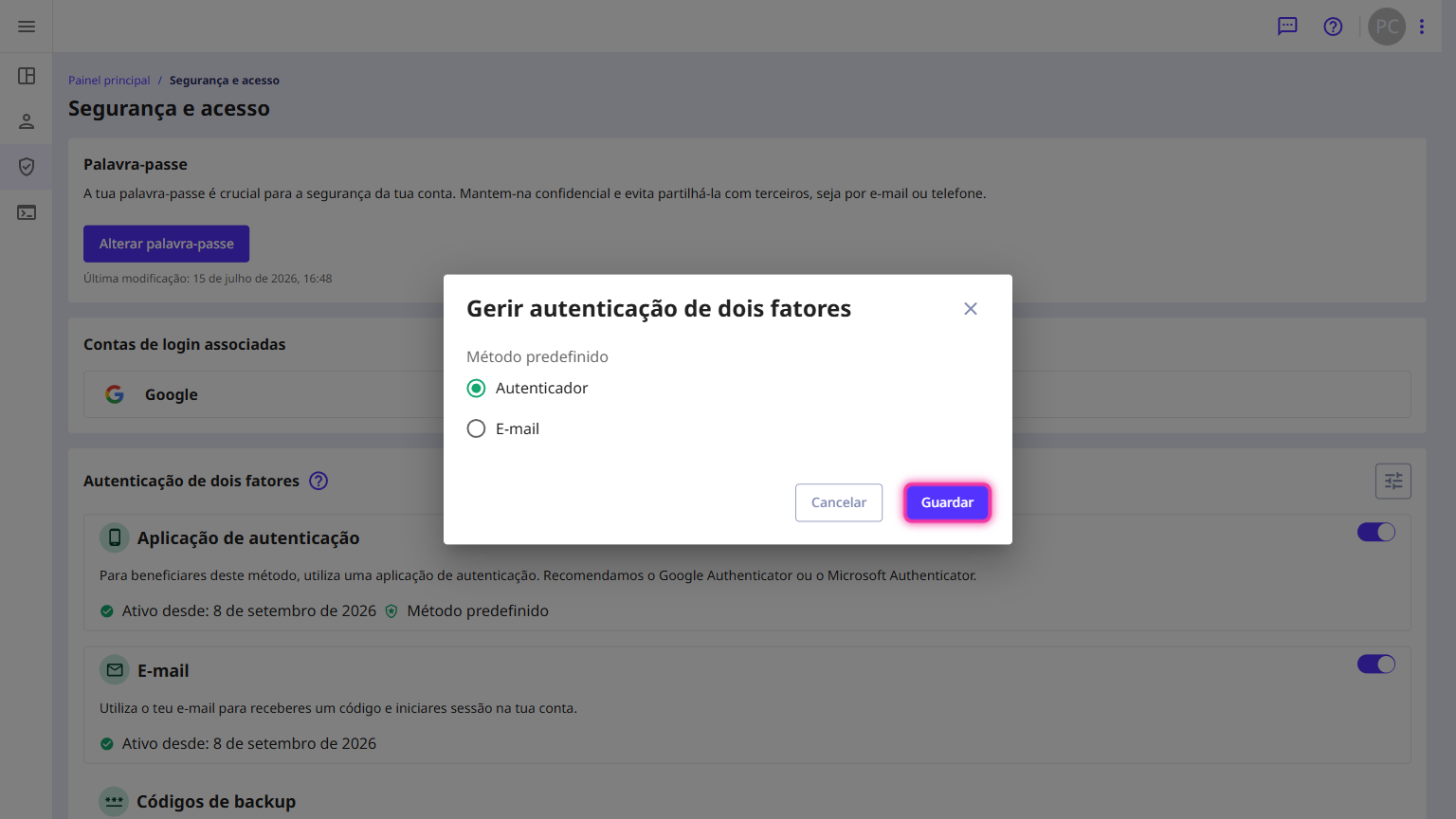
If you activate several authentication methods, you can choose one as the primary method.
Authentication must be configured by each individual user. This means that if your account has multiple users, each person must complete this process separately.
Enable 2FA via mobile phone (authentication app)
Follow the steps:
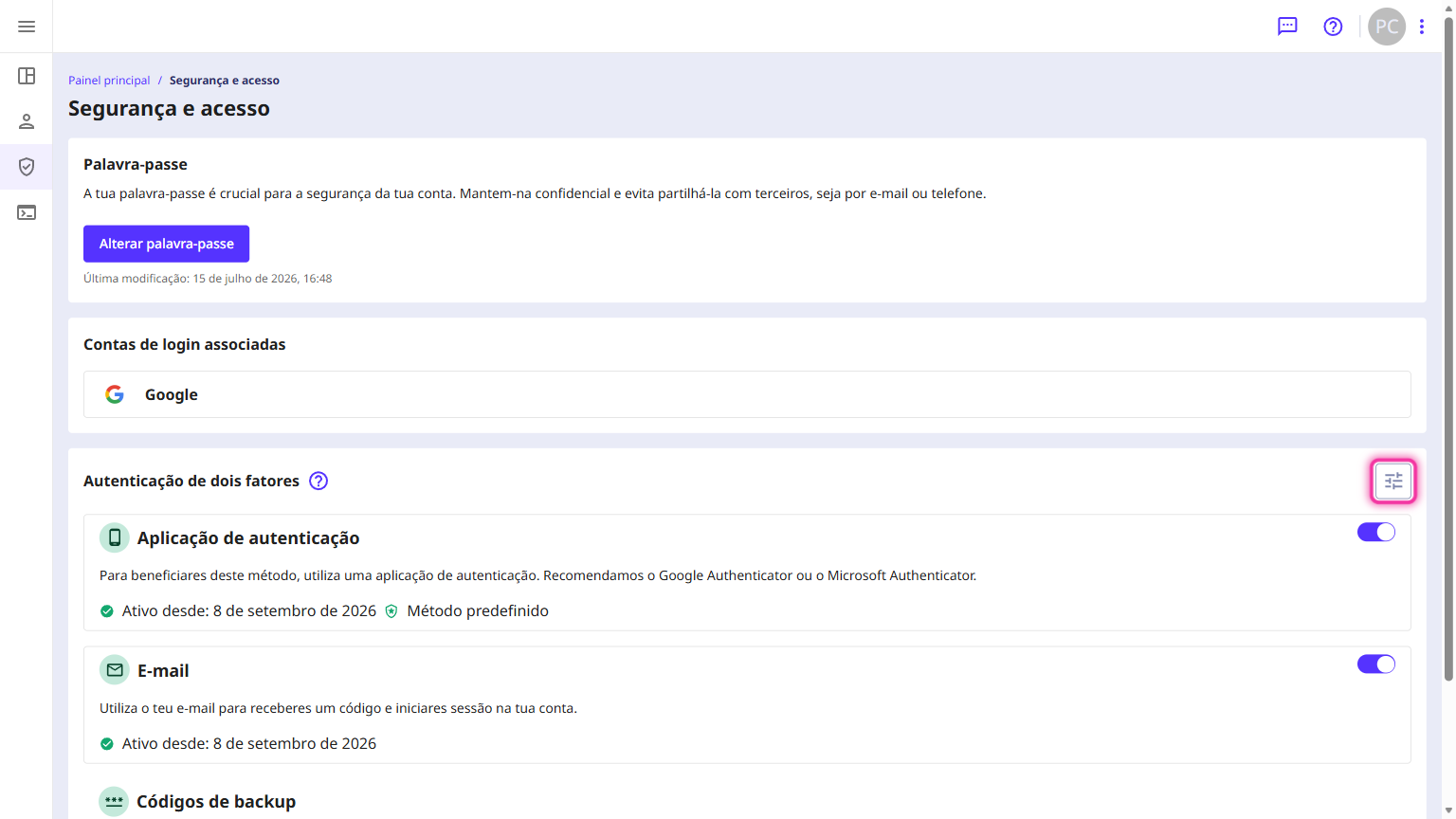
1. In the customer area, access the user menu and click on Security and access.
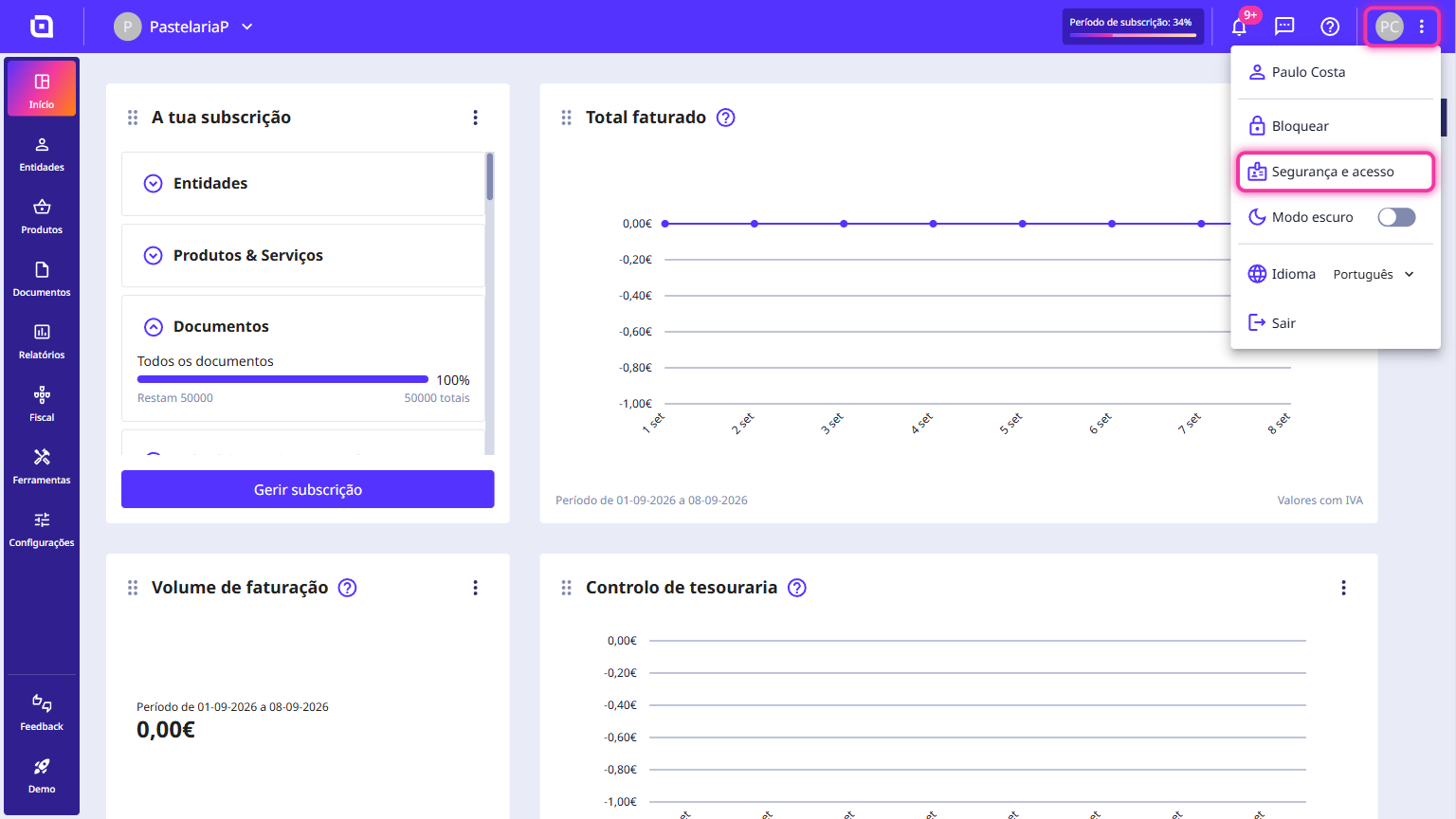
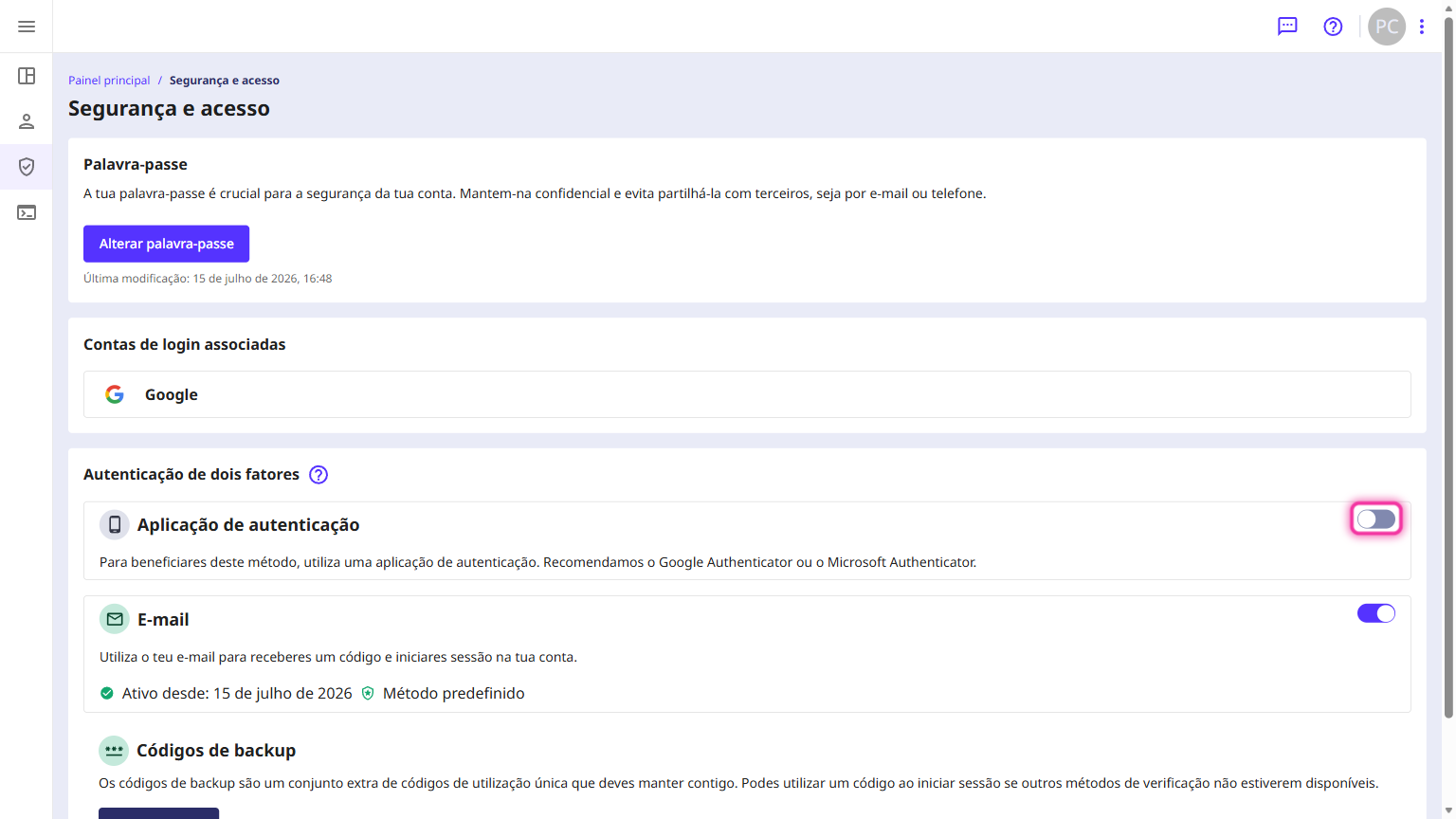
2. Activate the button in the Authentication app section.
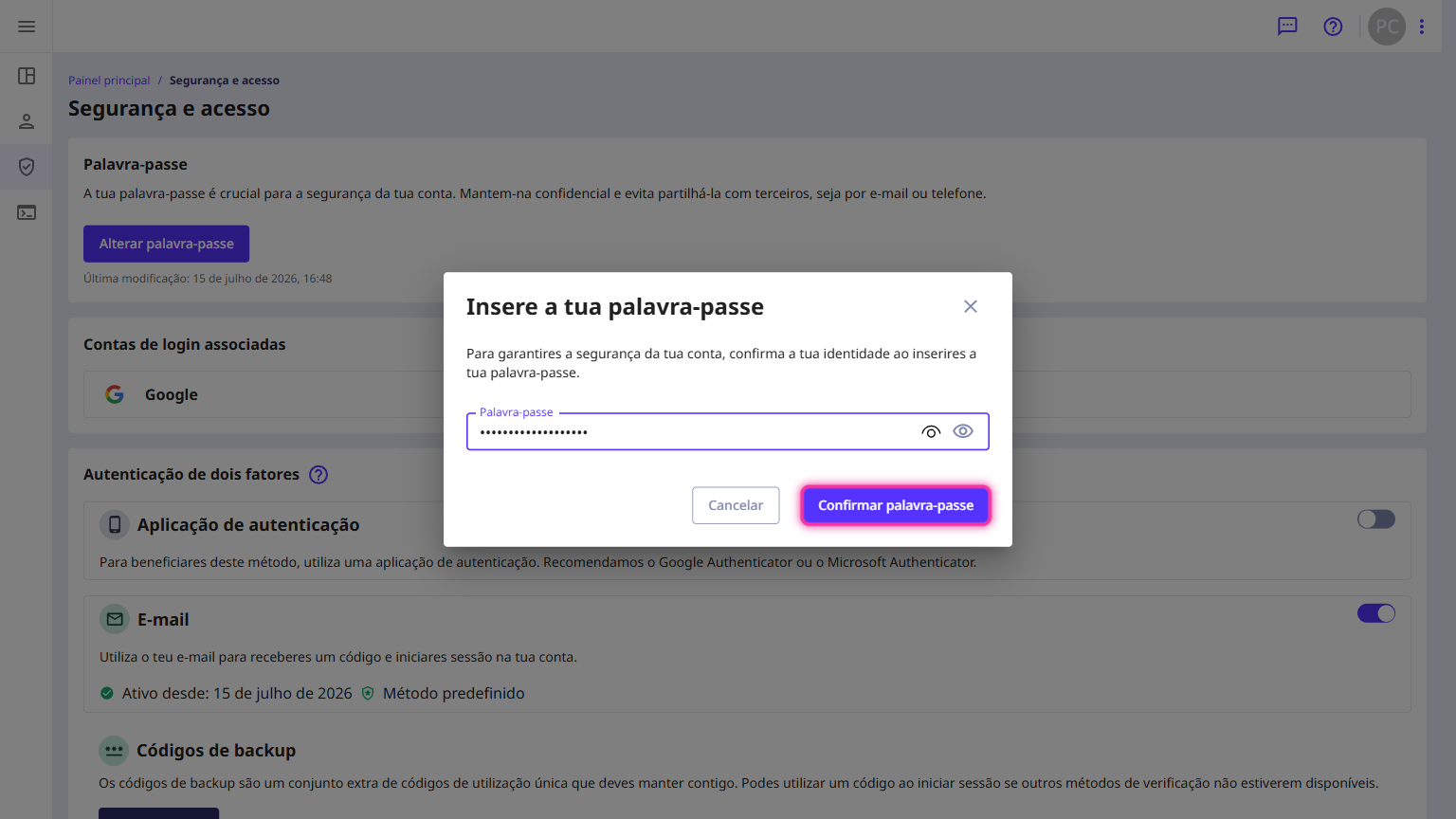
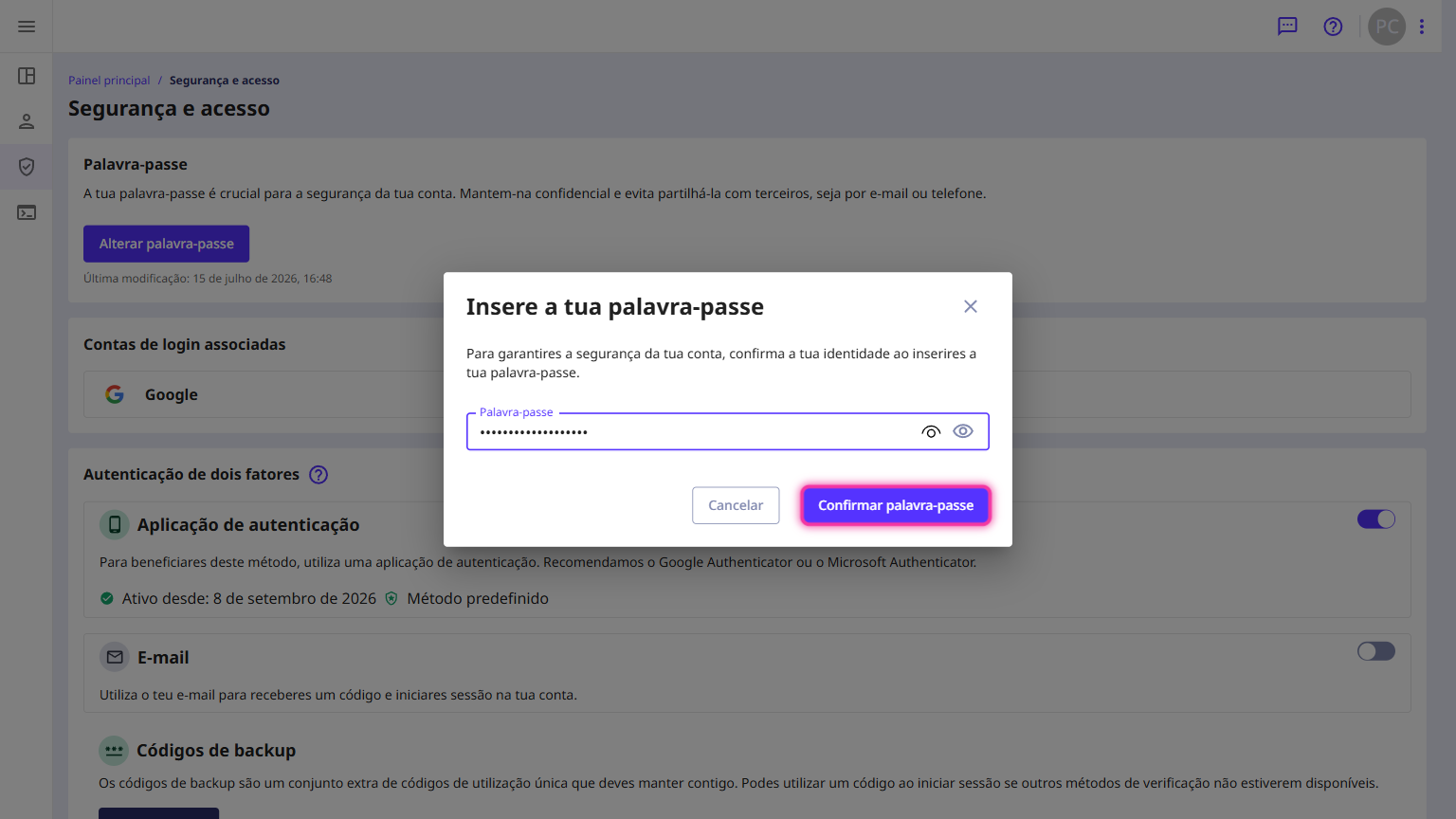
3. Enter your password and click on Confirm password.
4. In this section, use an authentication app to read the QR Code or enter the code manually.
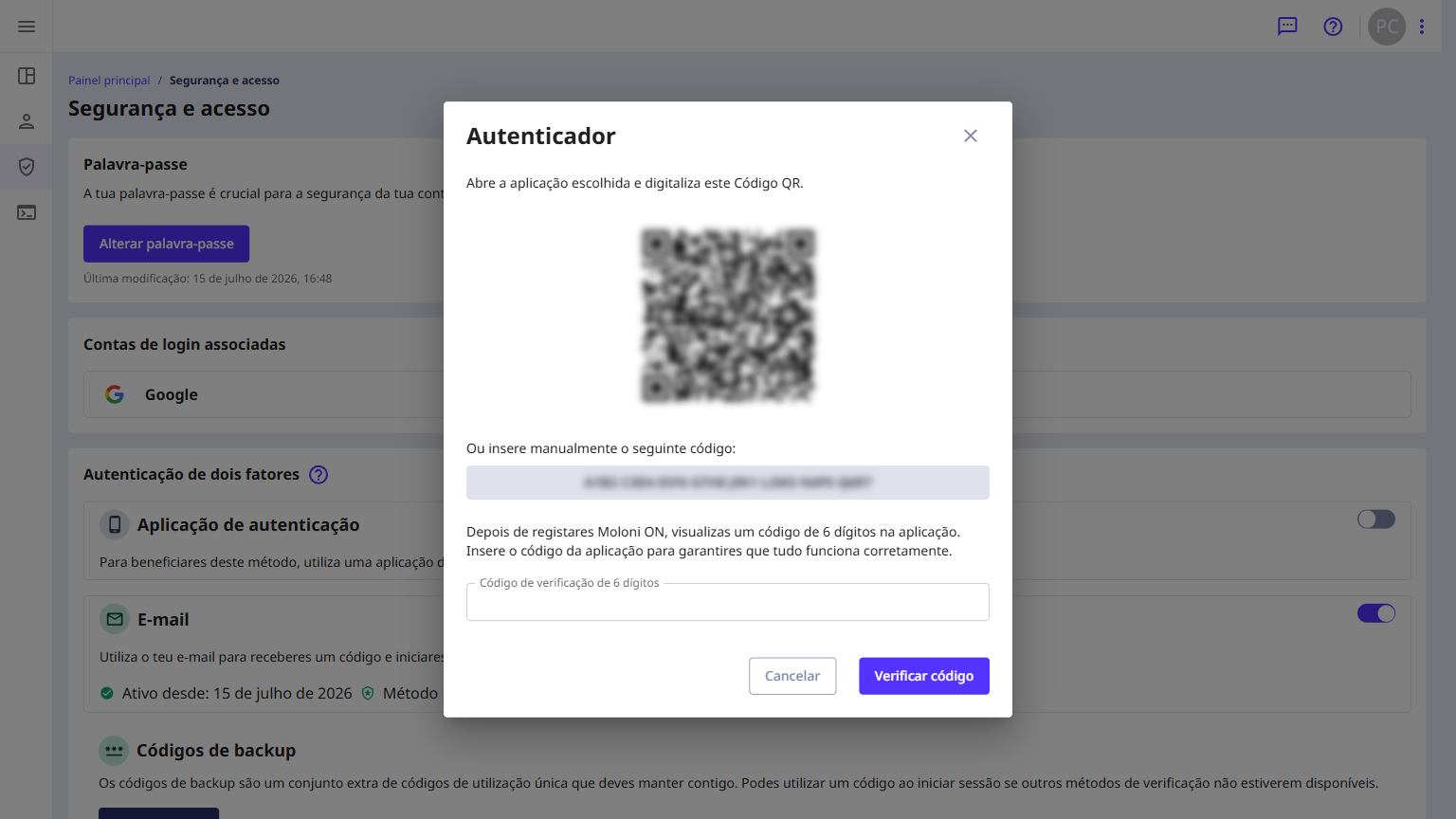
We recommend the applications Google Authenticator or Microsoft Authenticator.
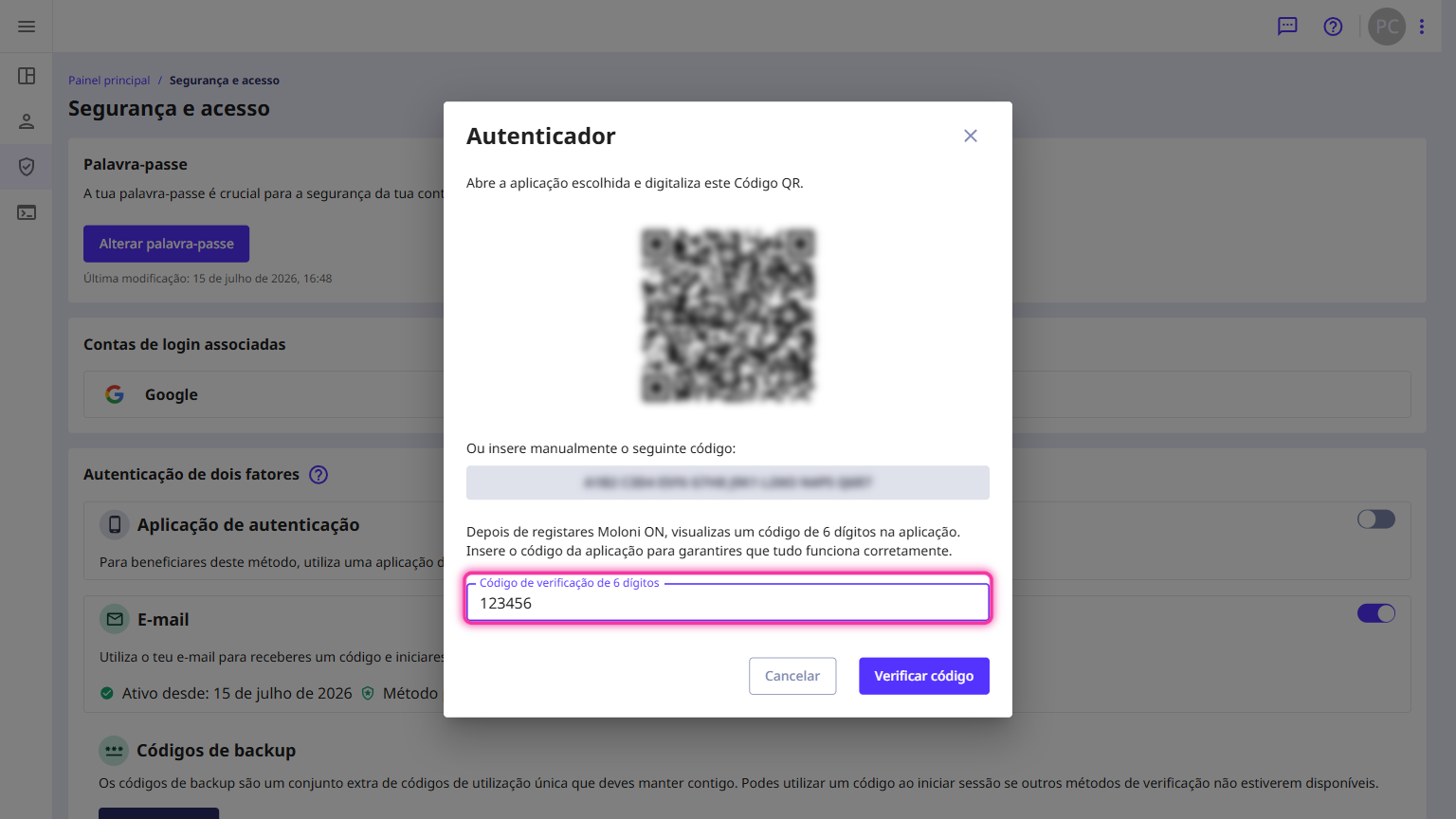
5. After setup, a 6-digit code is generated in the application used. This code must be entered in the 6-digit verification code field.
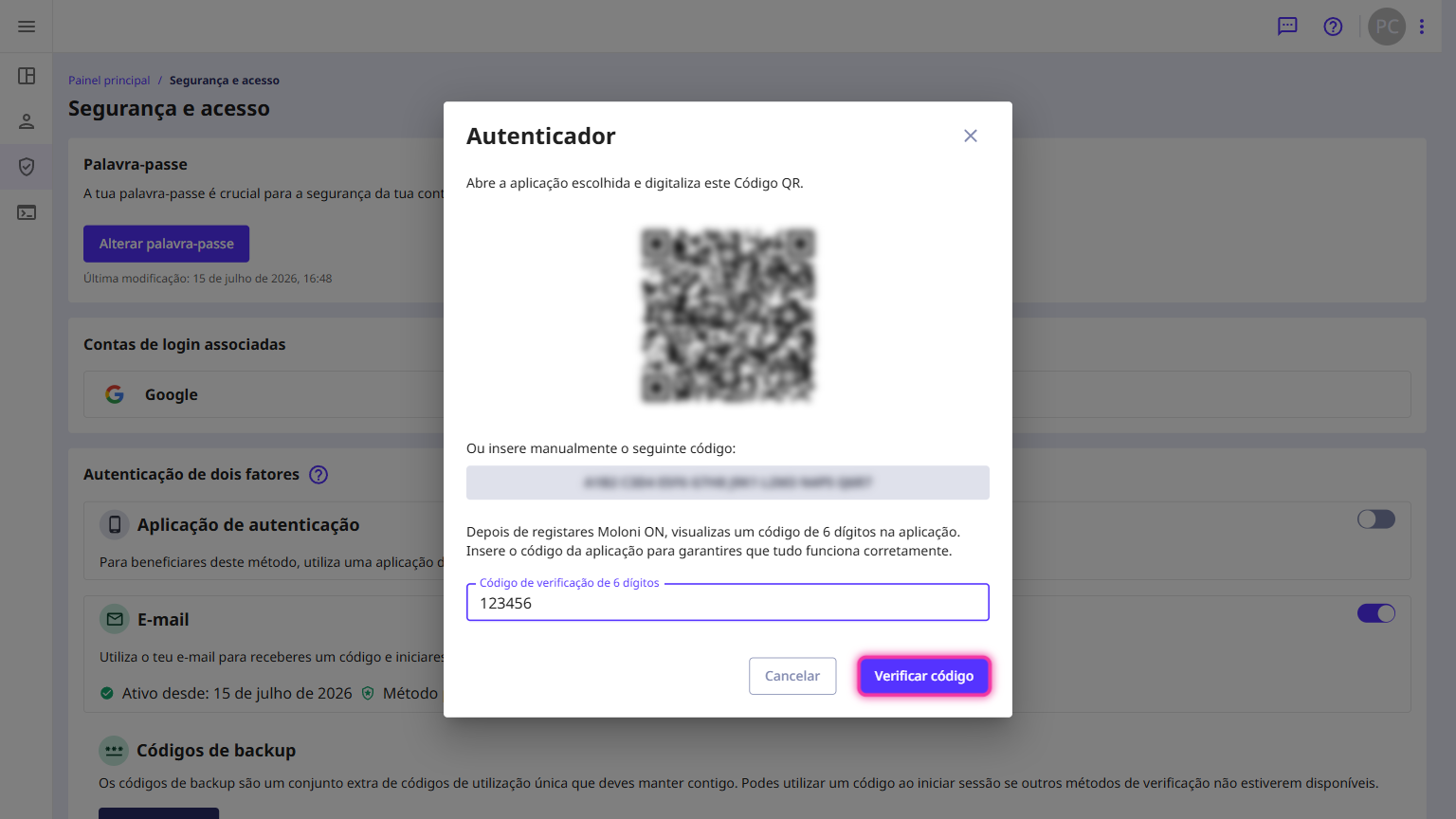
6. Click on Verify code.
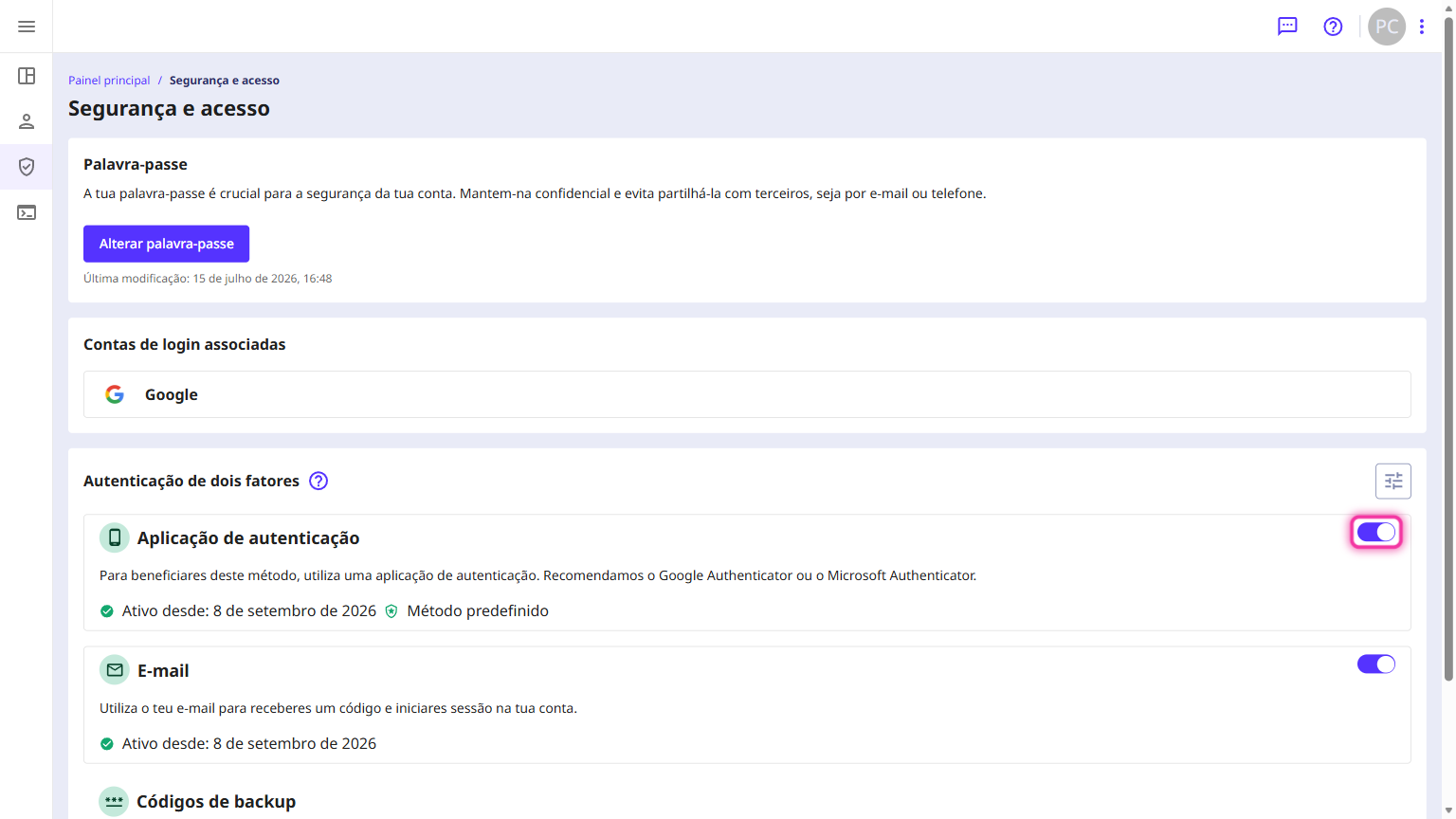
7. If you wish, you can disable this authentication method, but you must have both methods active. To do this, turn off the button in the Authentication app section.
8. Enter your password and click on Confirm password.
Enable 2FA via e-mail
Follow the steps:
1. In the customer area, access the user menu and click on Security and access.
2. Activate the button in the Email section.
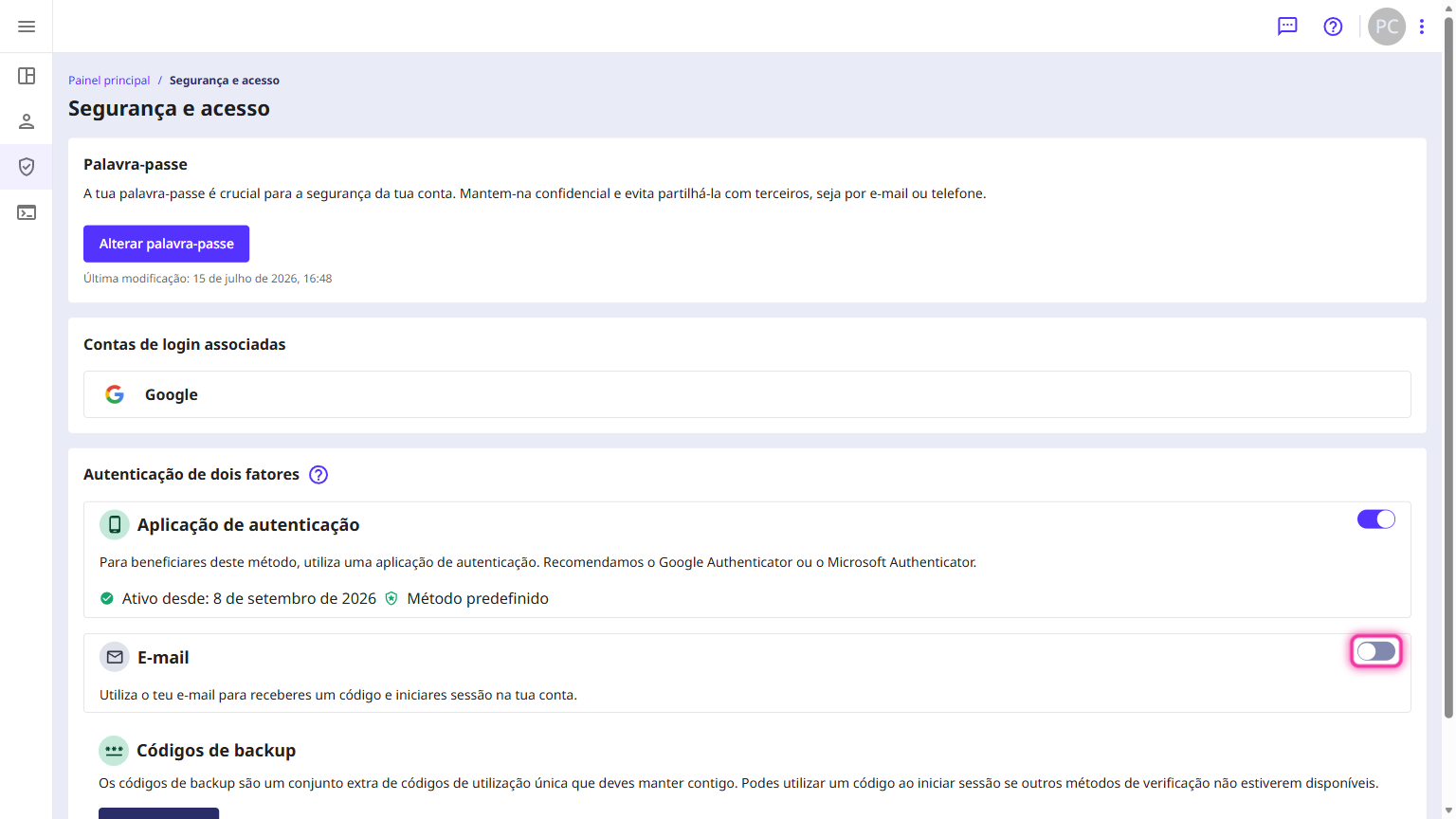
3. Enter your password and click the Confirm password button.
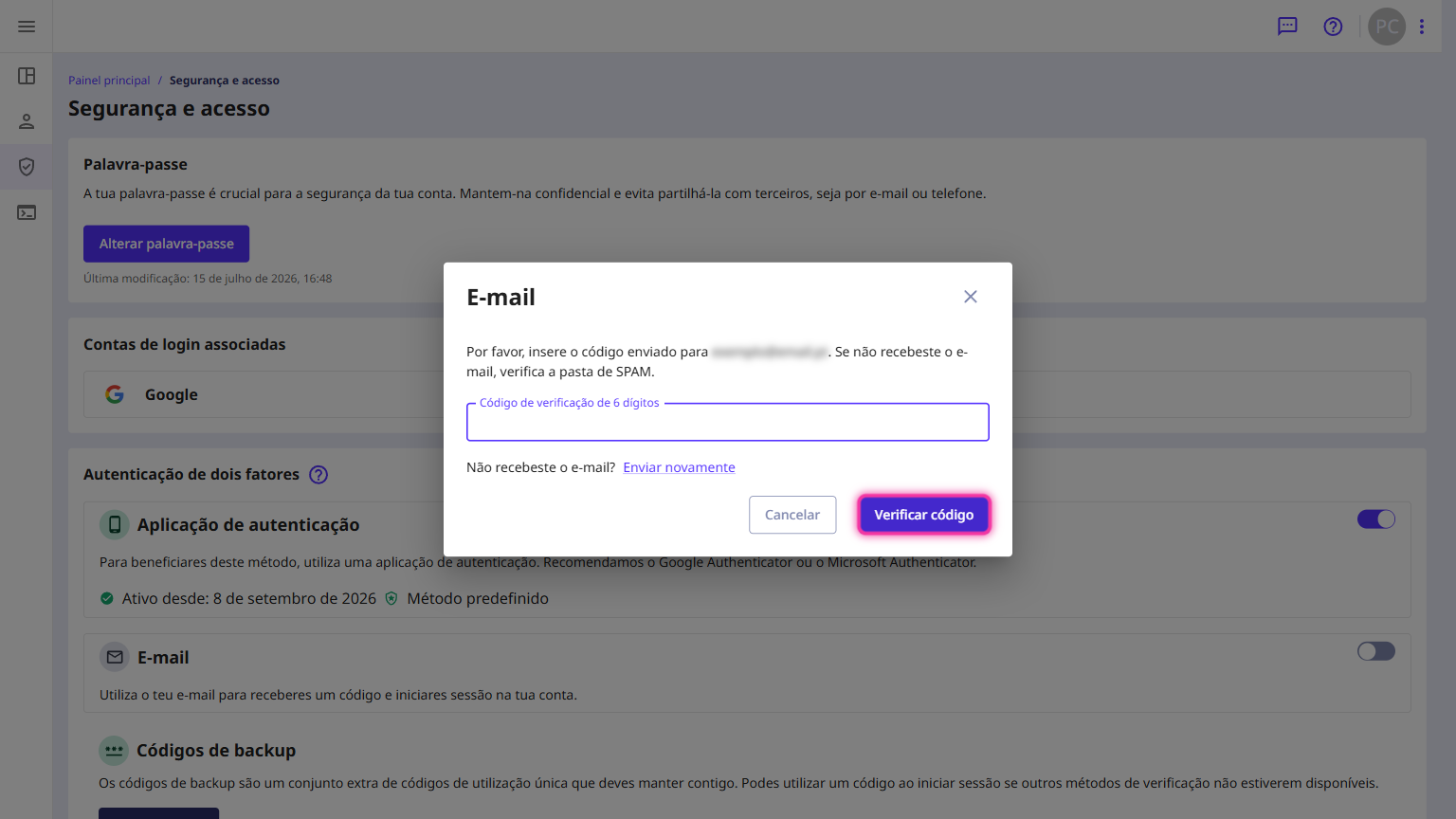
4. Enter the verification code received via your email and click the Verify code button.
5. If you wish, you can disable this authentication method, but you must have both methods active. To do this, turn off the button in the Email section.
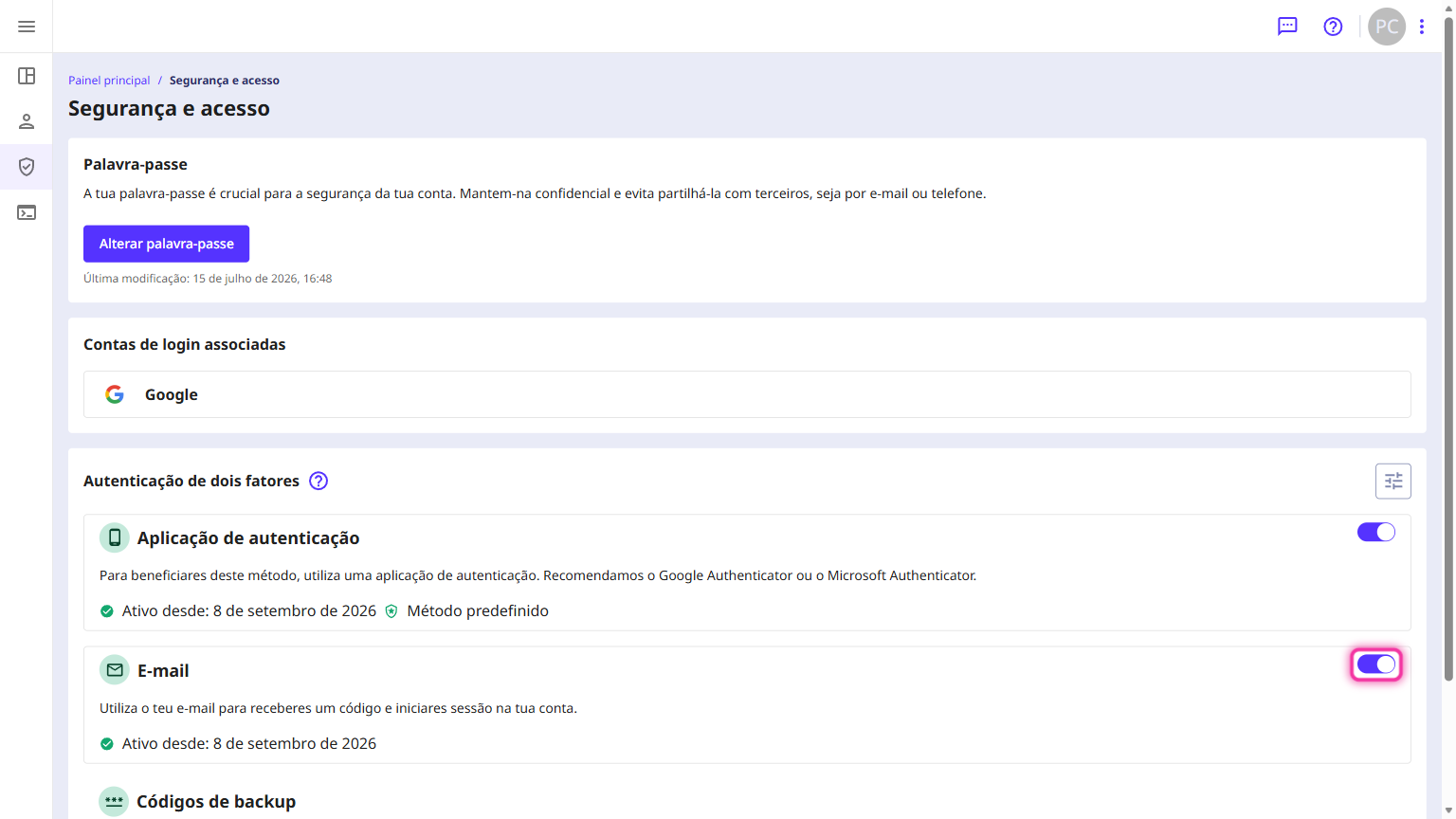
6. Enter your password and click on Confirm password.
Set one of these methods as primary
You can only set one of these methods as primary if you have both methods active.
Follow these steps:
1. In the customer area, access the user menu and click on Security and access.
2. Click the preferences button, located in the right-hand corner of the Two-factor authentication section.
3. Select the method you want to set as primary and click the Save button.