How to use the Moloni ON configurator
Follow the steps:
1. You can select the payment method, which can be annual, quarterly or monthly.
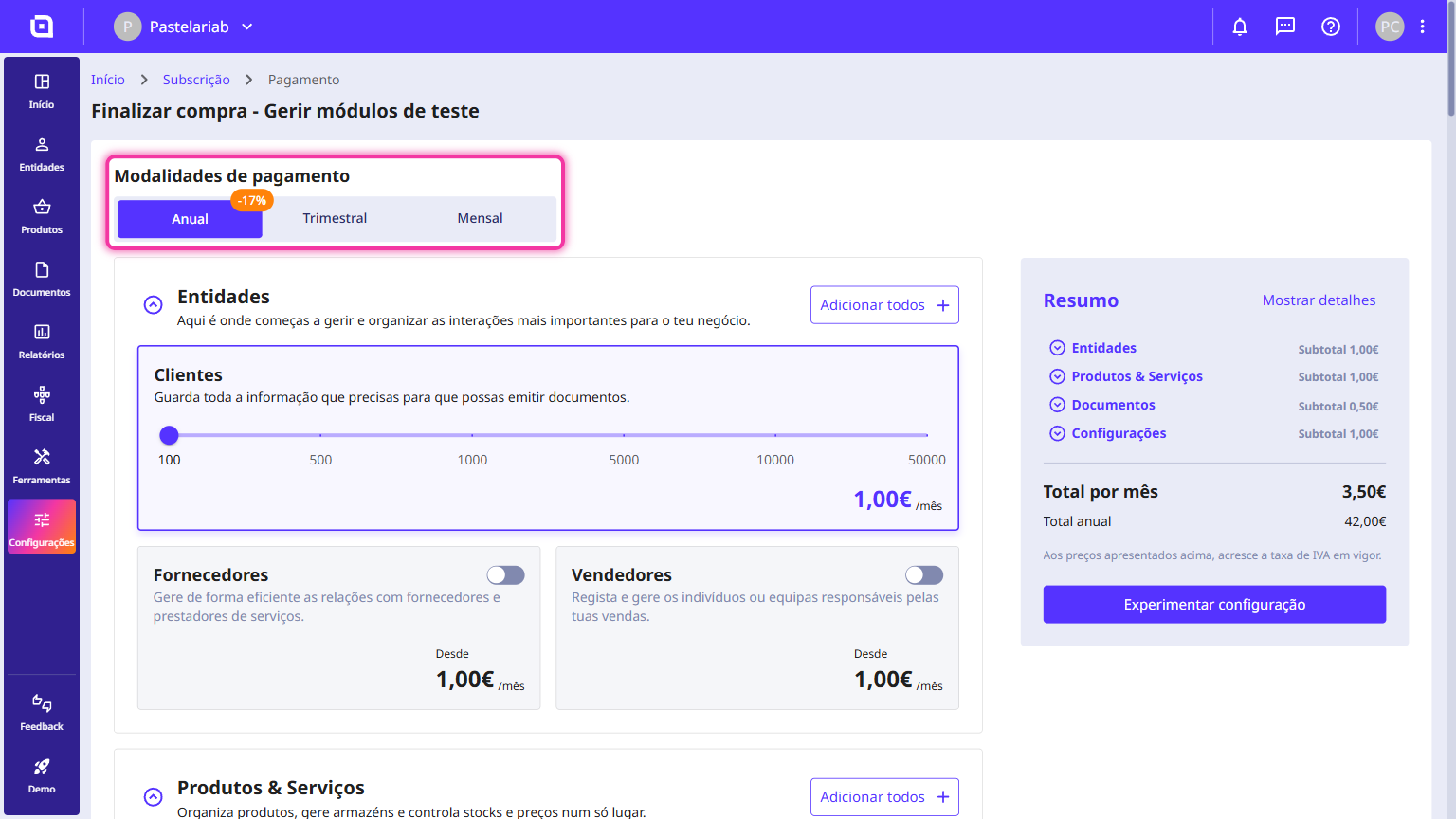
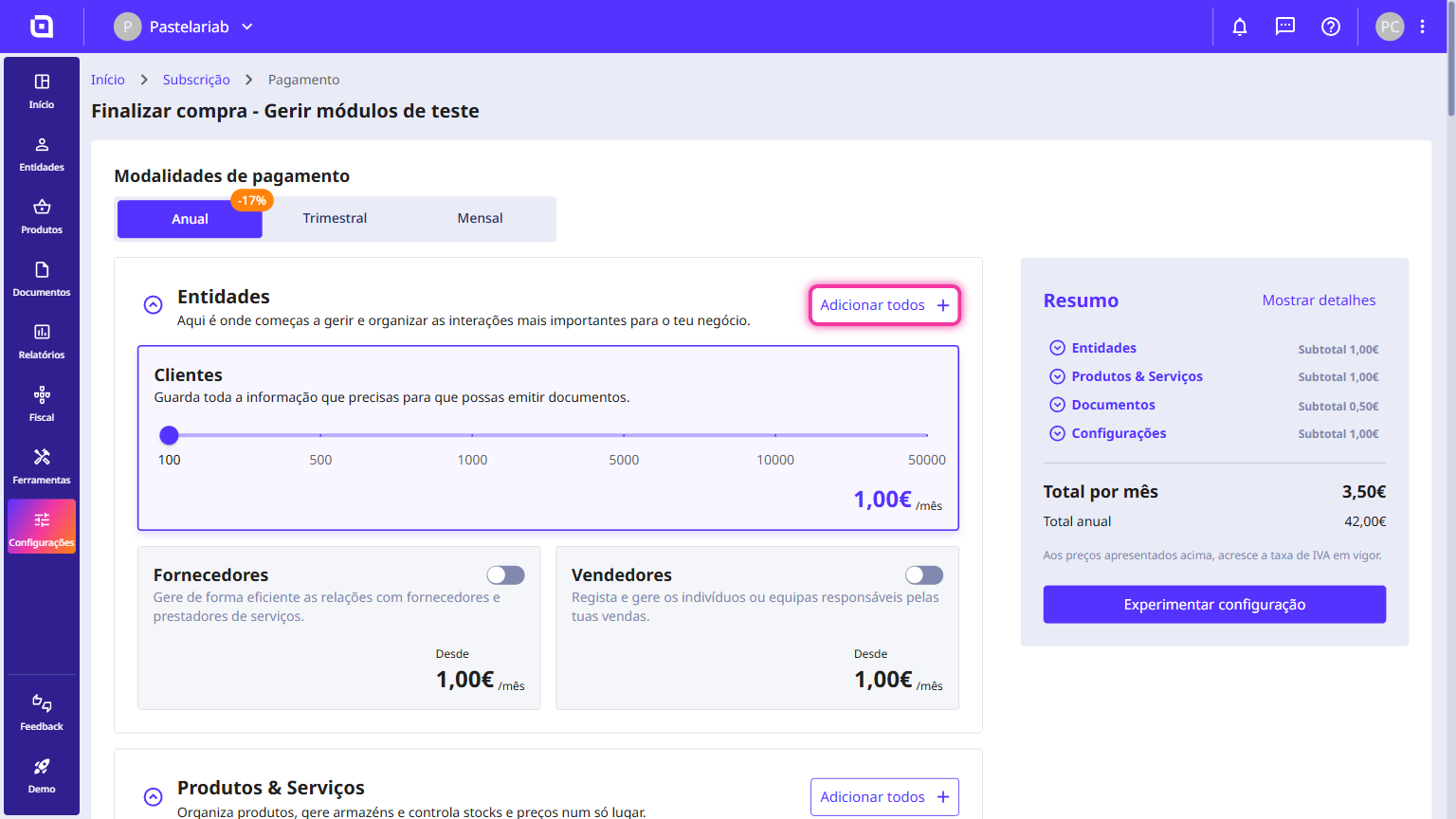
In each section, you have the Add all button, which allows you to add all add-ons at once.
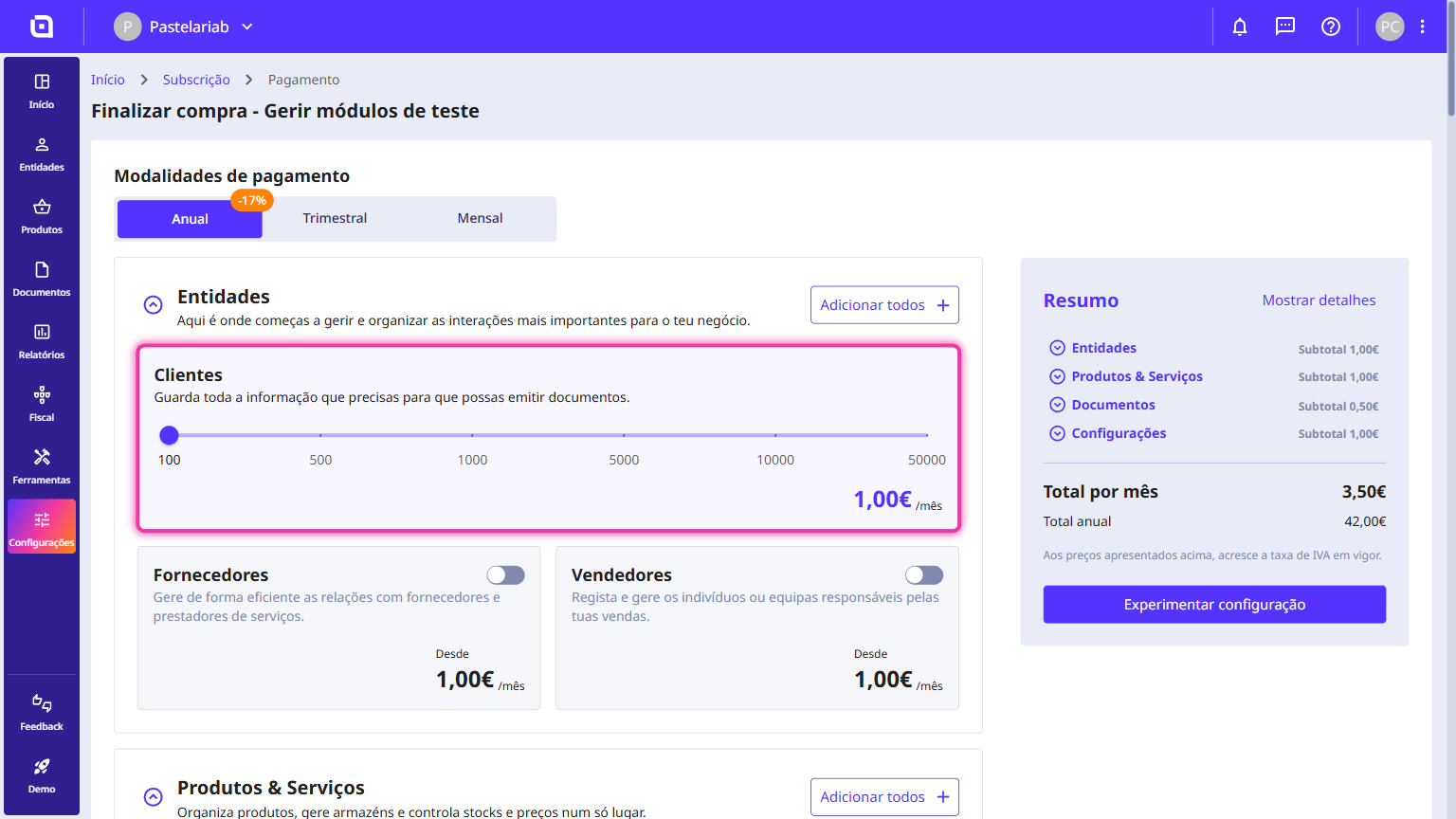
2. In the Entities section, you can select the number of customers and enable suppliers and salespeople.
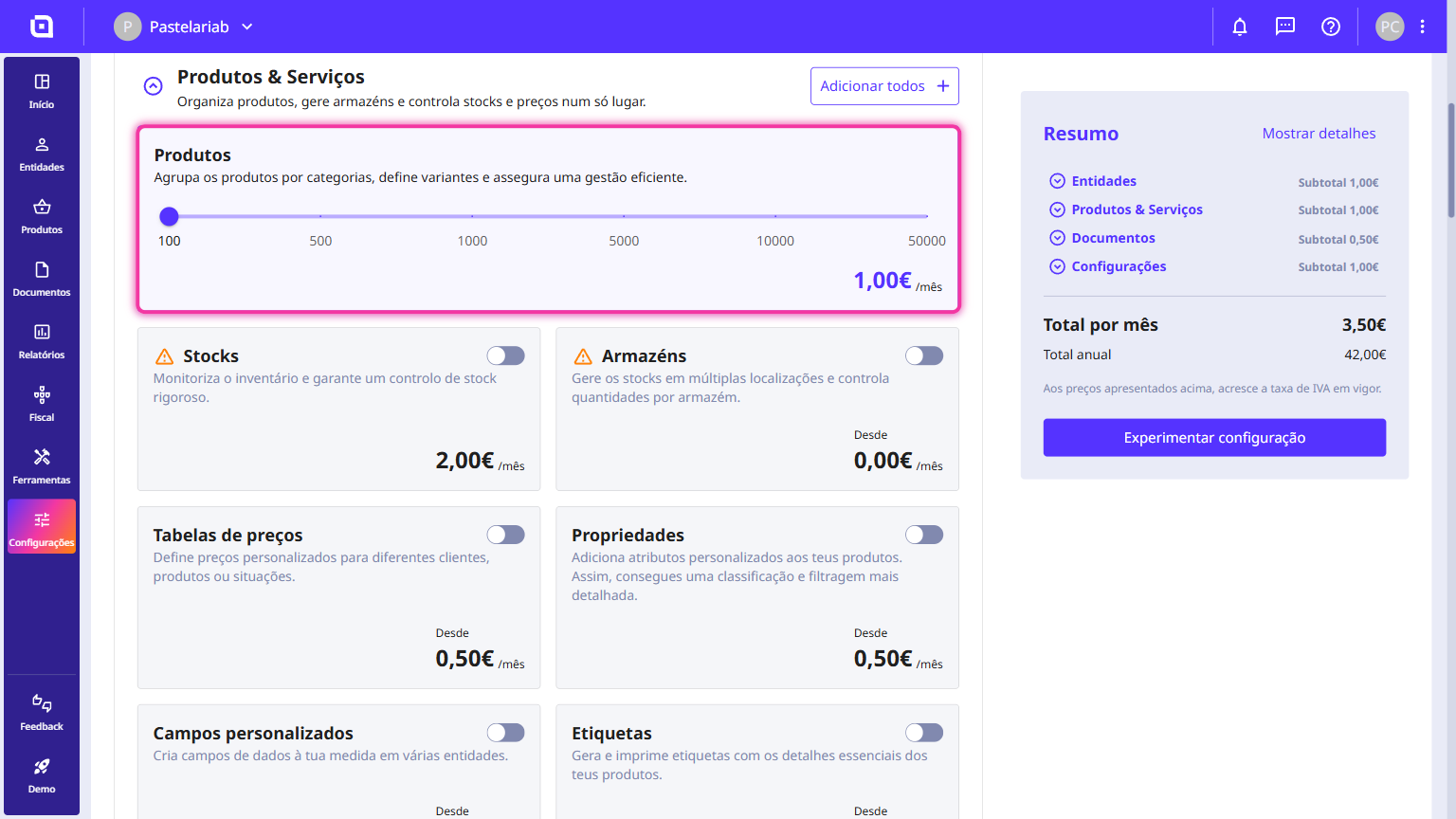
3. In the Products & Services section, you can select the quantity of products to add to your account. You can also include add-ons such as stocks, warehouses, price lists, properties, custom fields and tags.
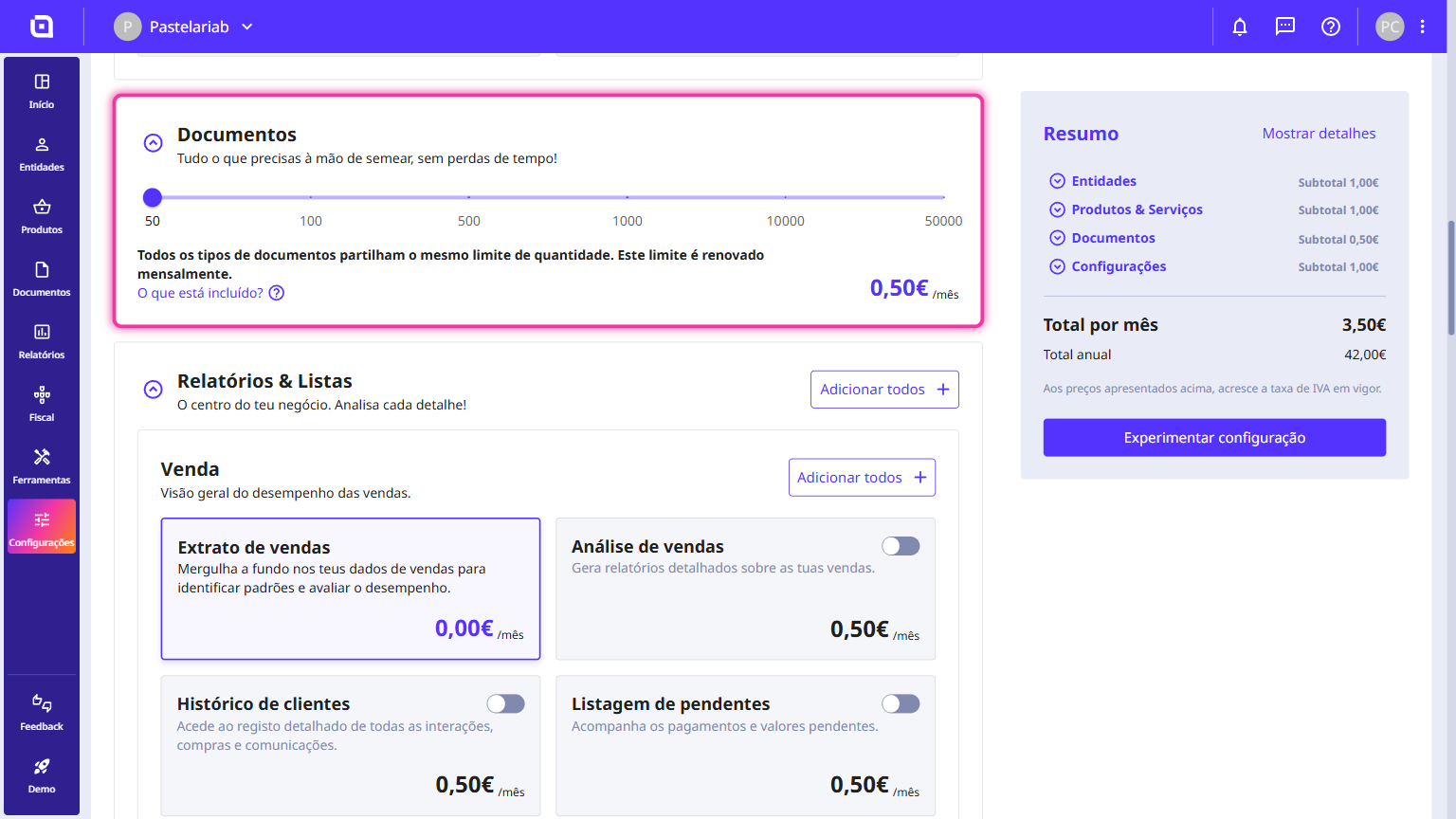
4. In the Documents section, you can select the quantity of documents to add to your account. All document types are included in the Starter pack.
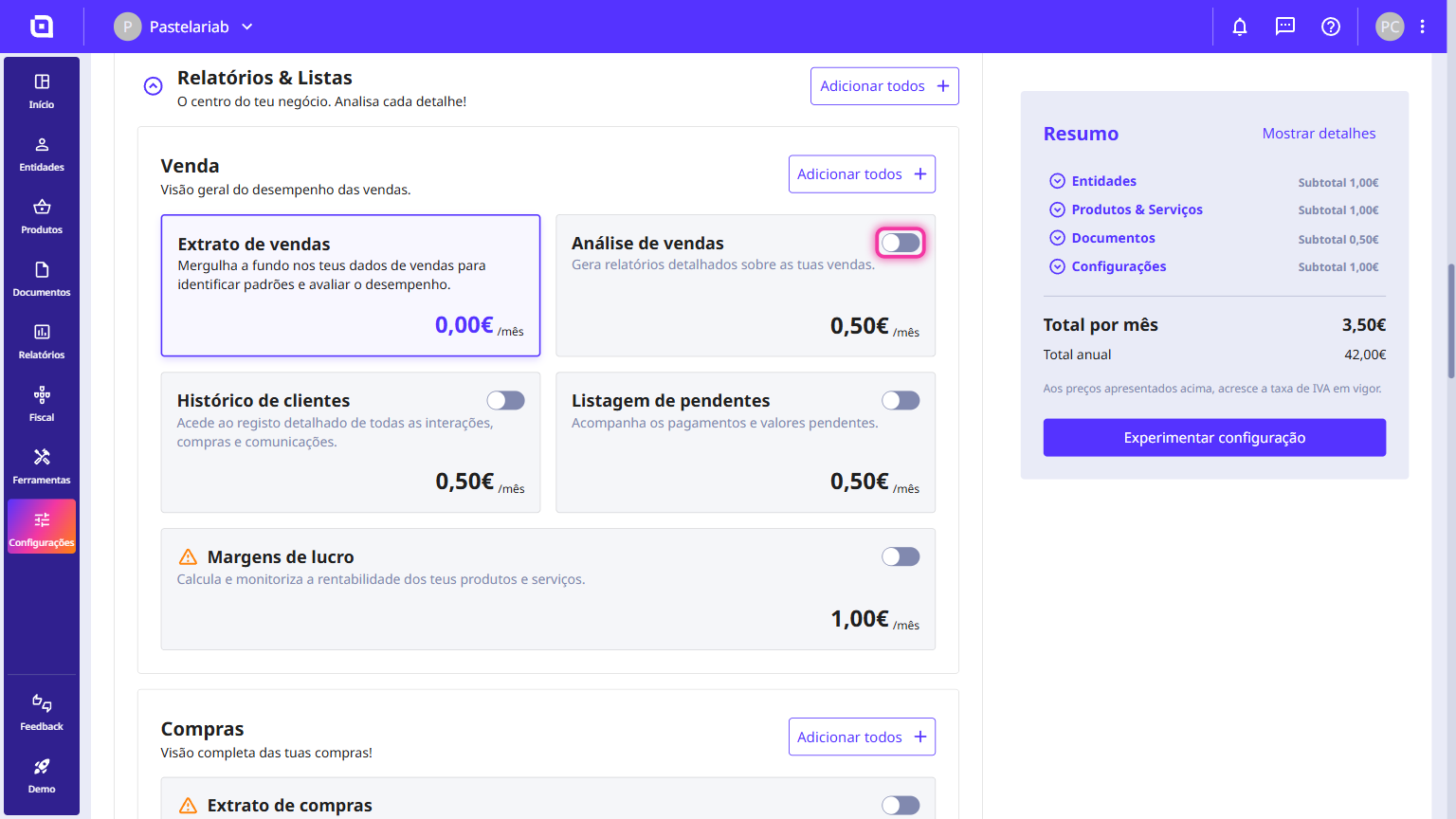
5. In the Reports & Lists section, you can activate the report types for your sales, purchases, salespeople and VAT reports. The lists include statements, analyses, history and pending items.
6. In the Tax Authority section, we ensure full compliance with the TA free of charge.
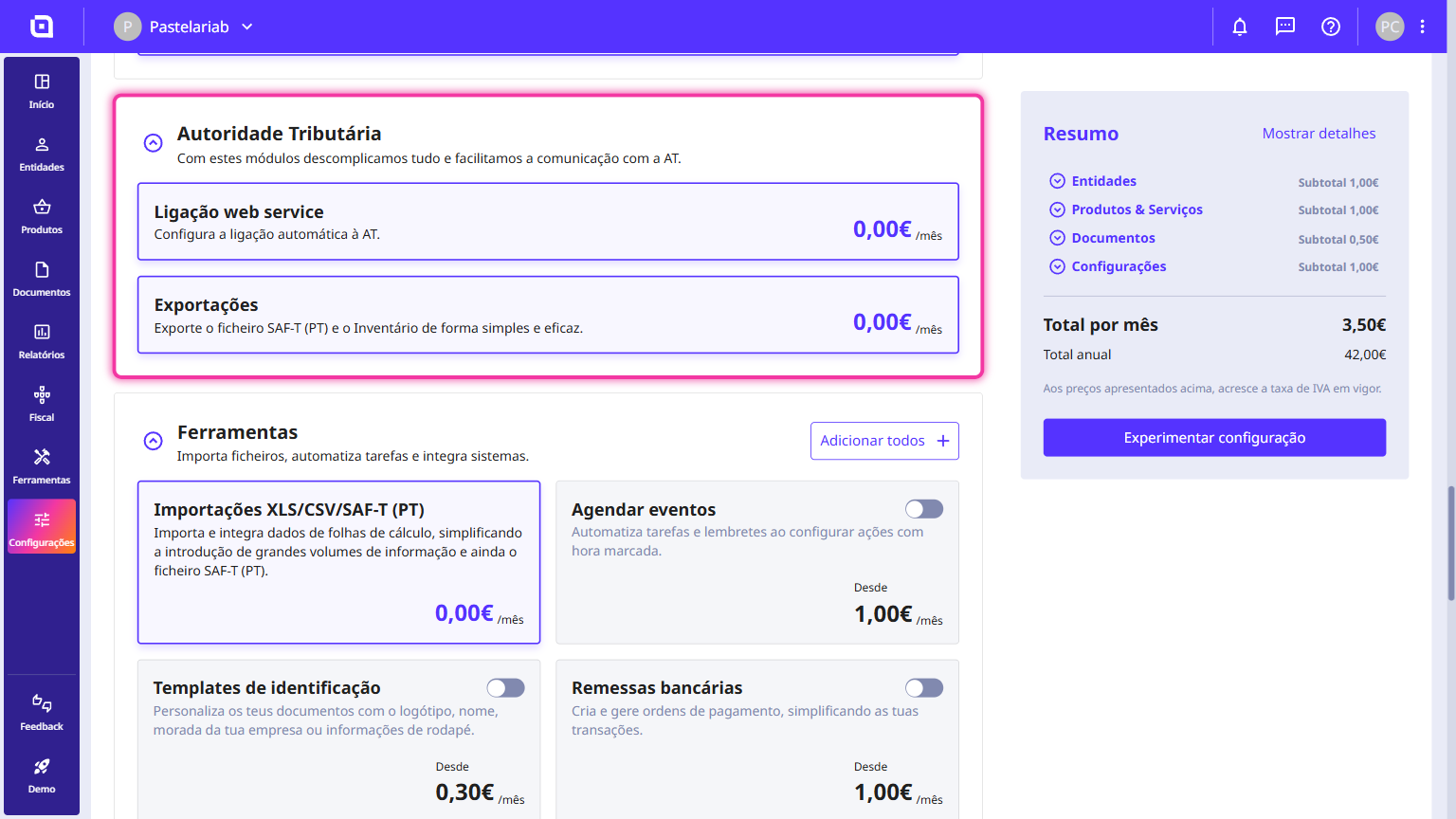
7. In the Tools section, you can activate add-ons such as XLS/CSV and SAF-T (PT) imports, schedule events, identity templates, bank remittances, API client and Webhooks.
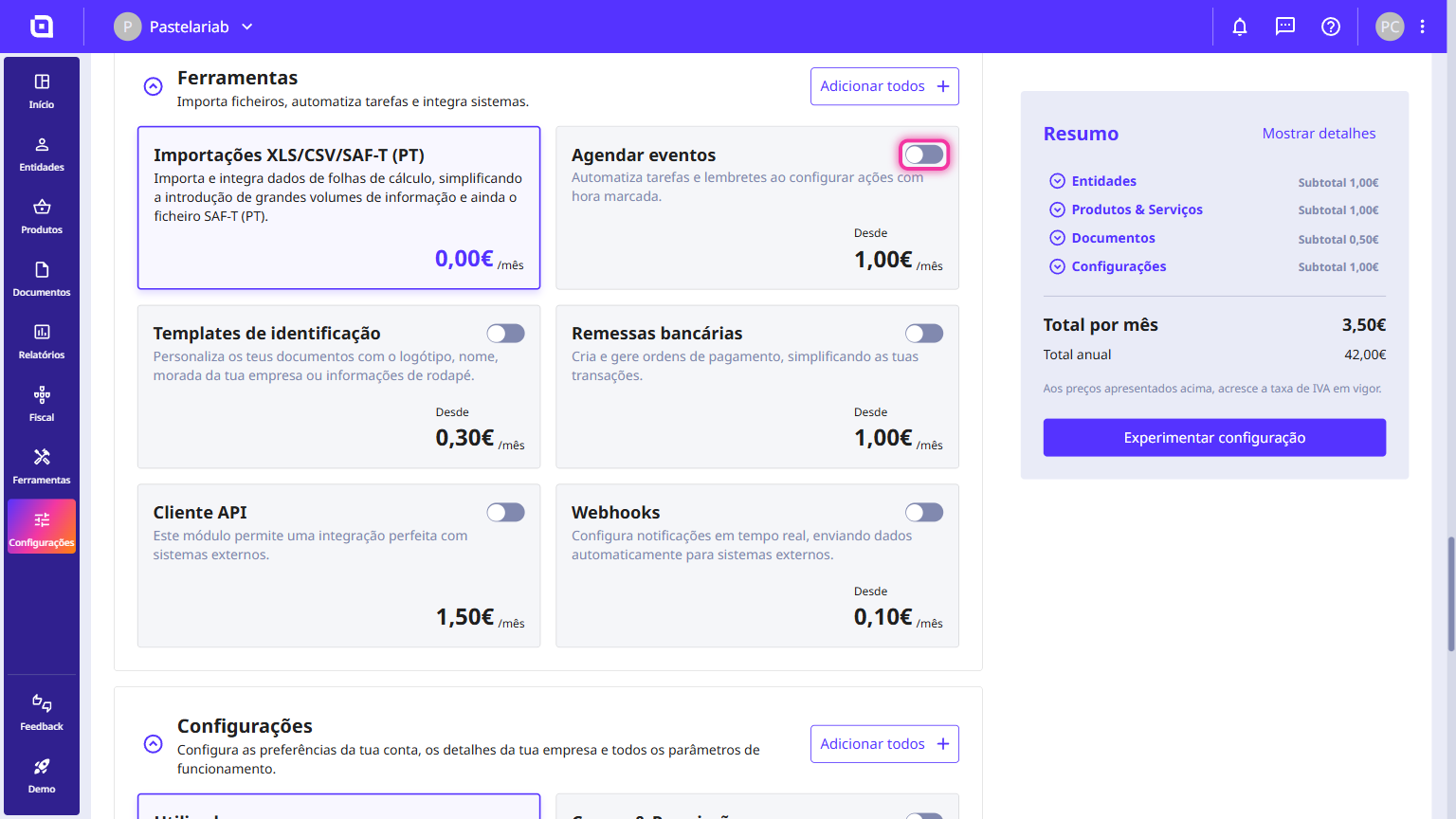
8. In the Settings section, you can select the number of users to add to your account. You can also add roles and permissions, CAE and other settings such as bank details, vehicles, payment terms, among others.
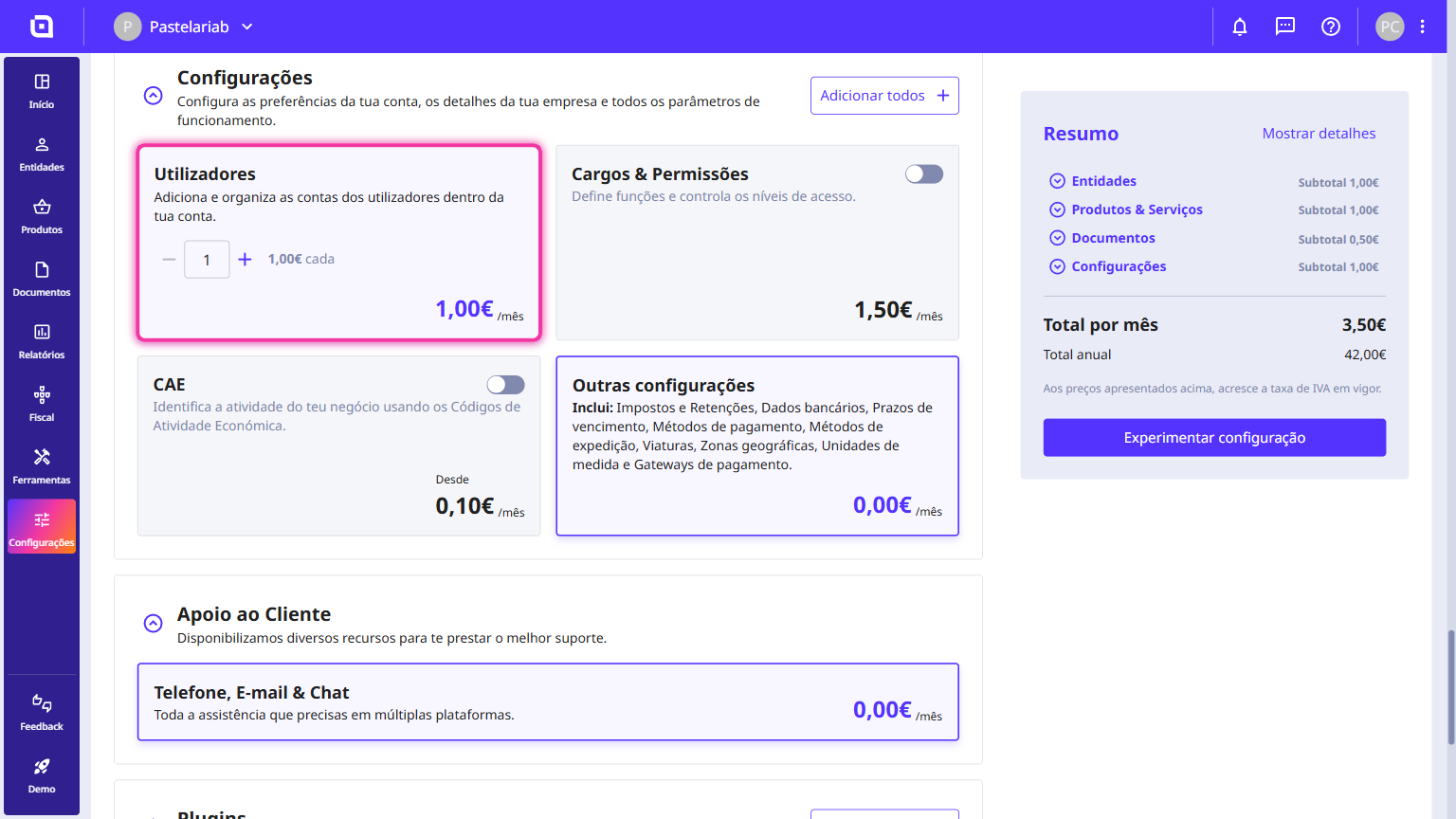
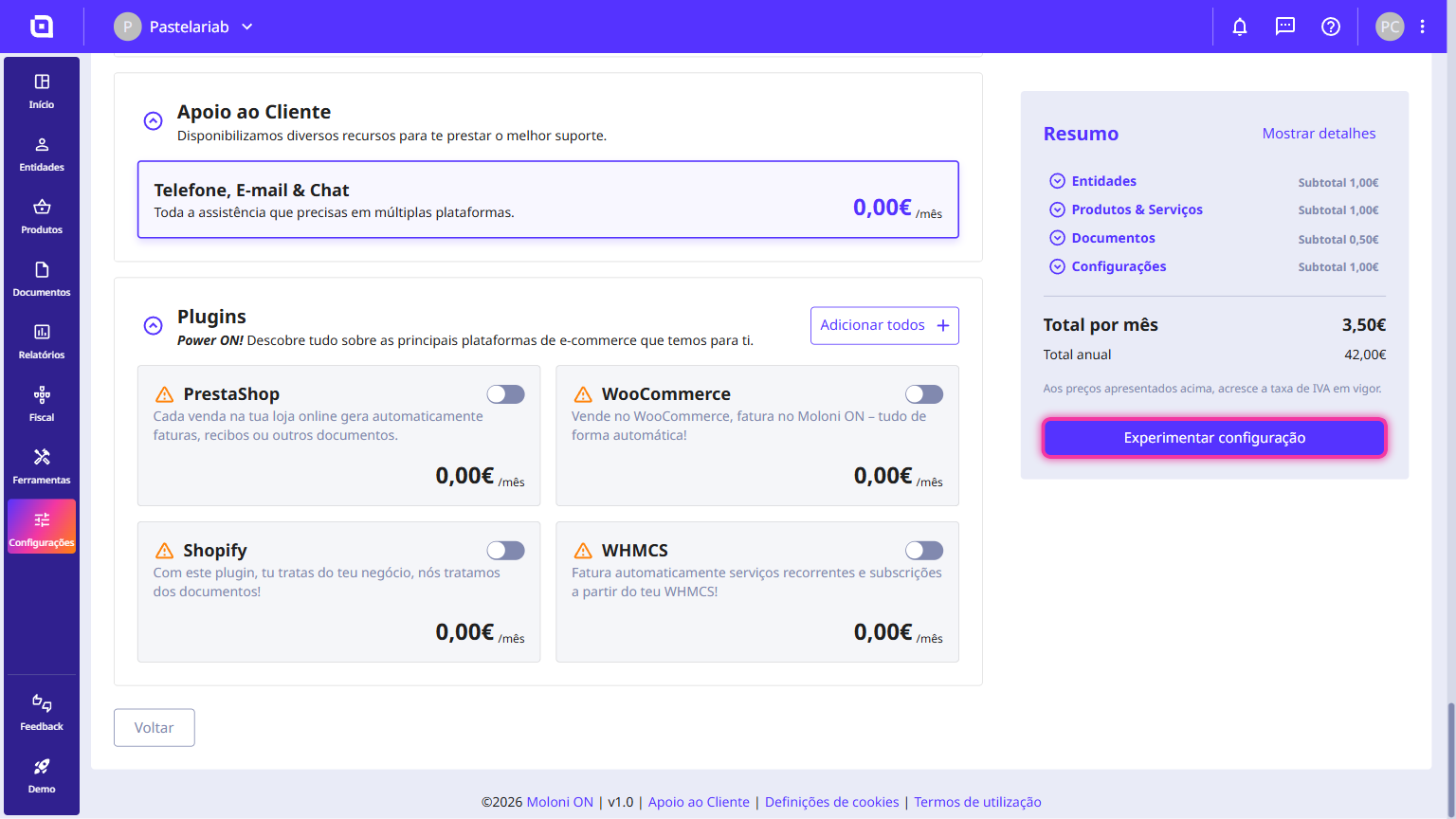
9. In the Customer Support section, we offer the Phone, Email and Chat add-ons so that you have all the necessary assistance at any time.
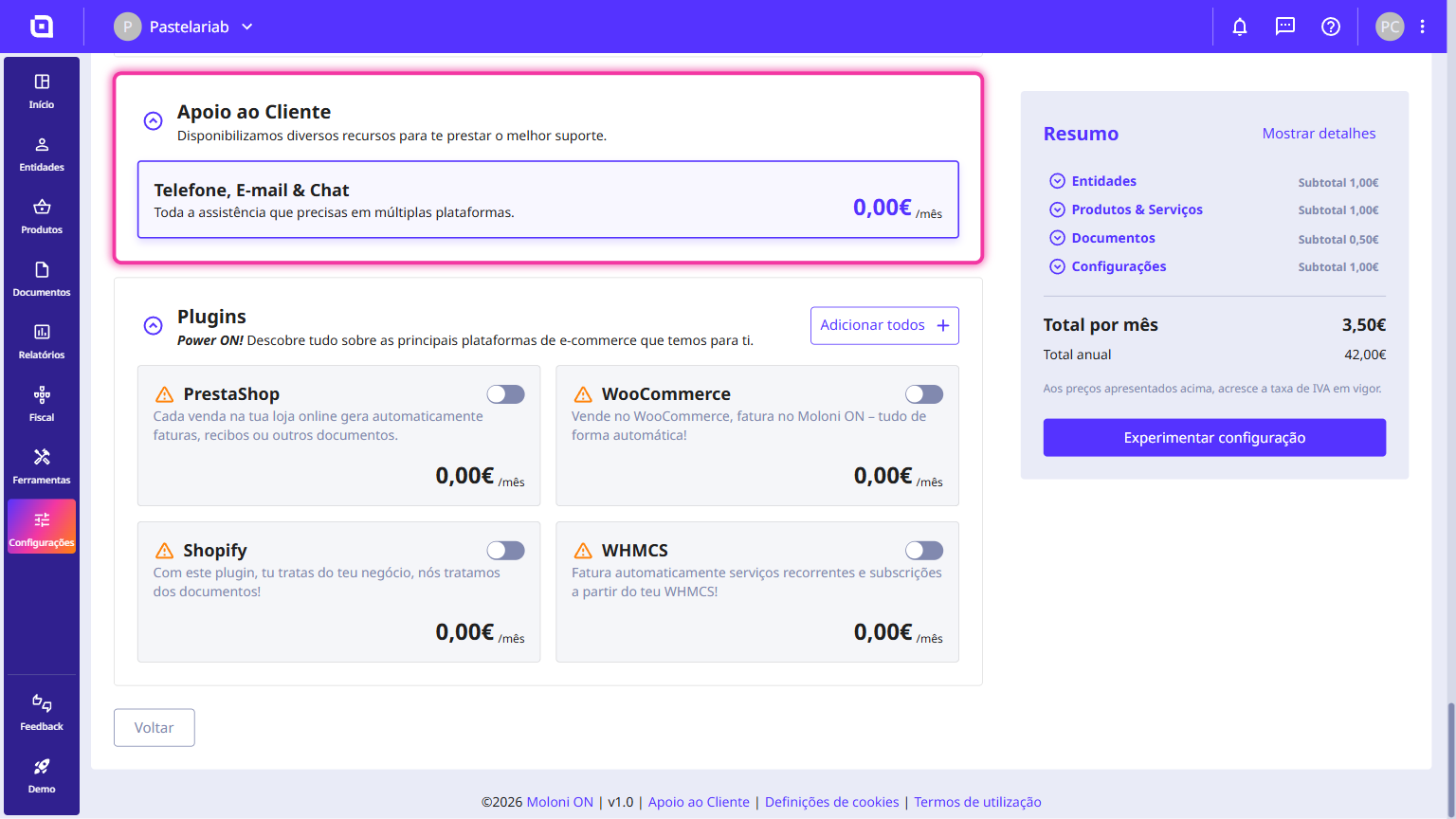
10. In the Plugins section, you can activate the integration of your account with PrestaShop, WooCommerce, Shopify or WHMCS.
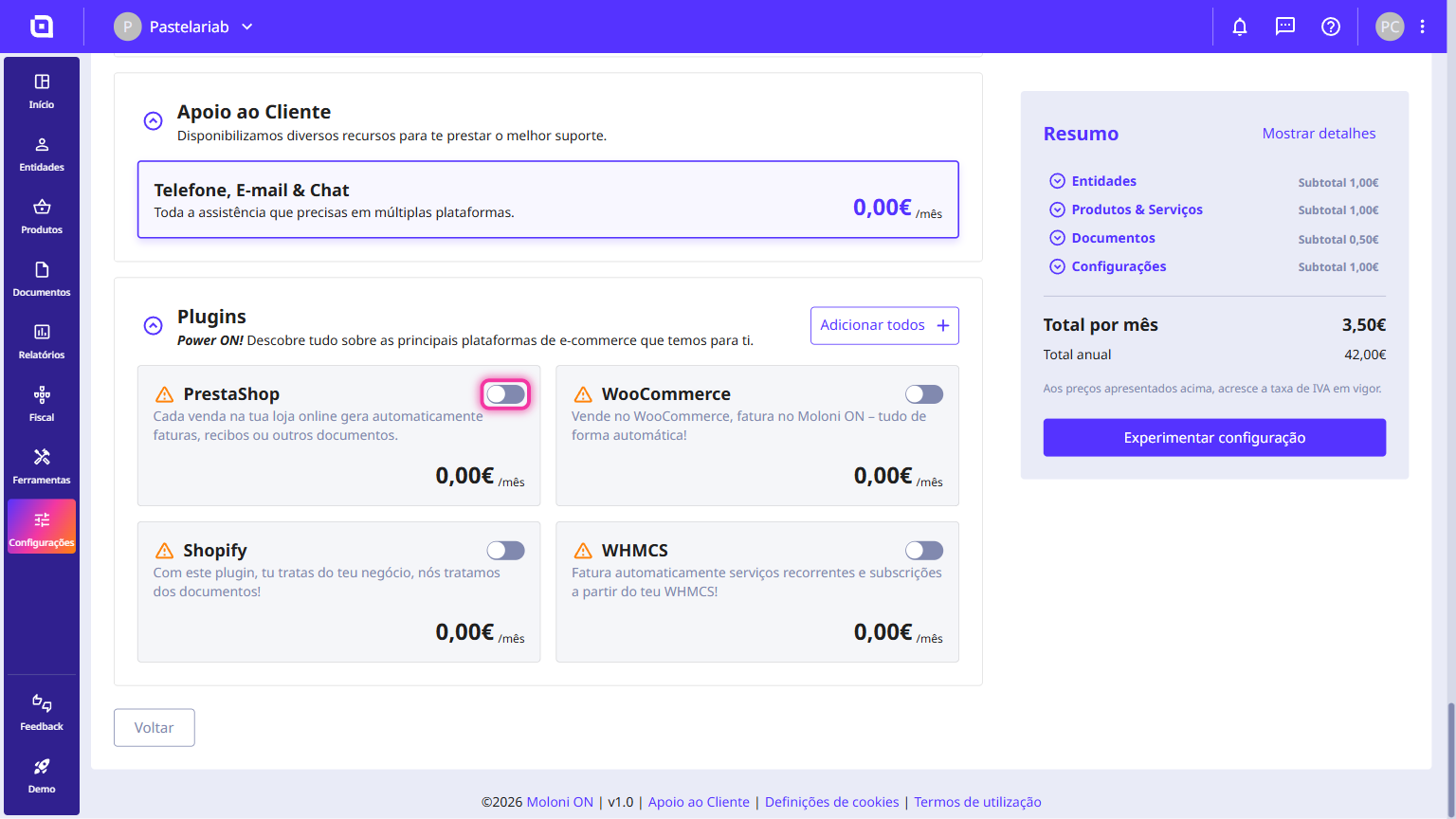
11. In the Summary section, check all the add-ons associated with your subscription, as well as the corresponding value.
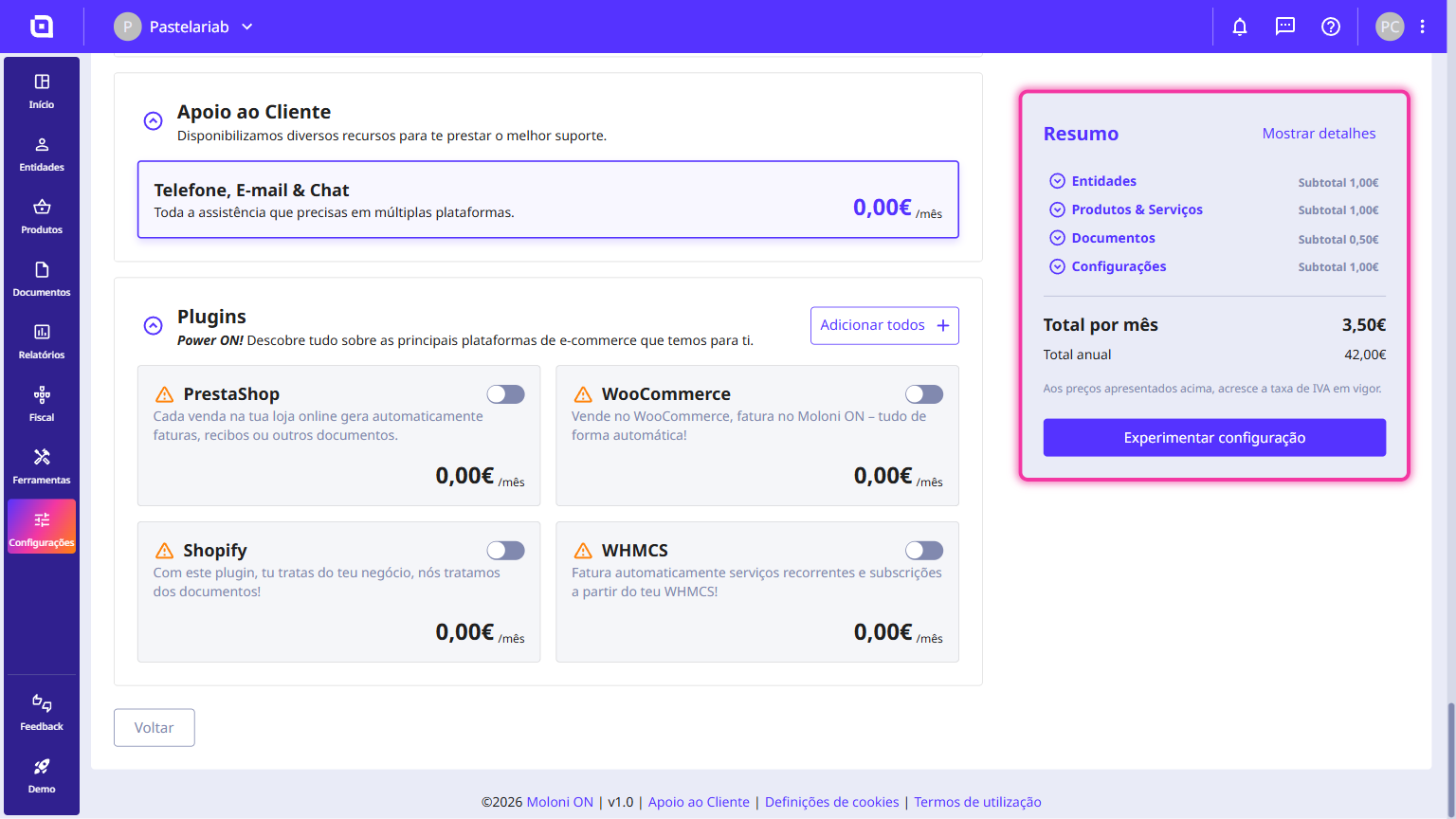
12. To start invoicing, click Try this configuration.