How to manually enter a transport document code
This code must be previously obtained through the TA's phone service.
Follow these steps:
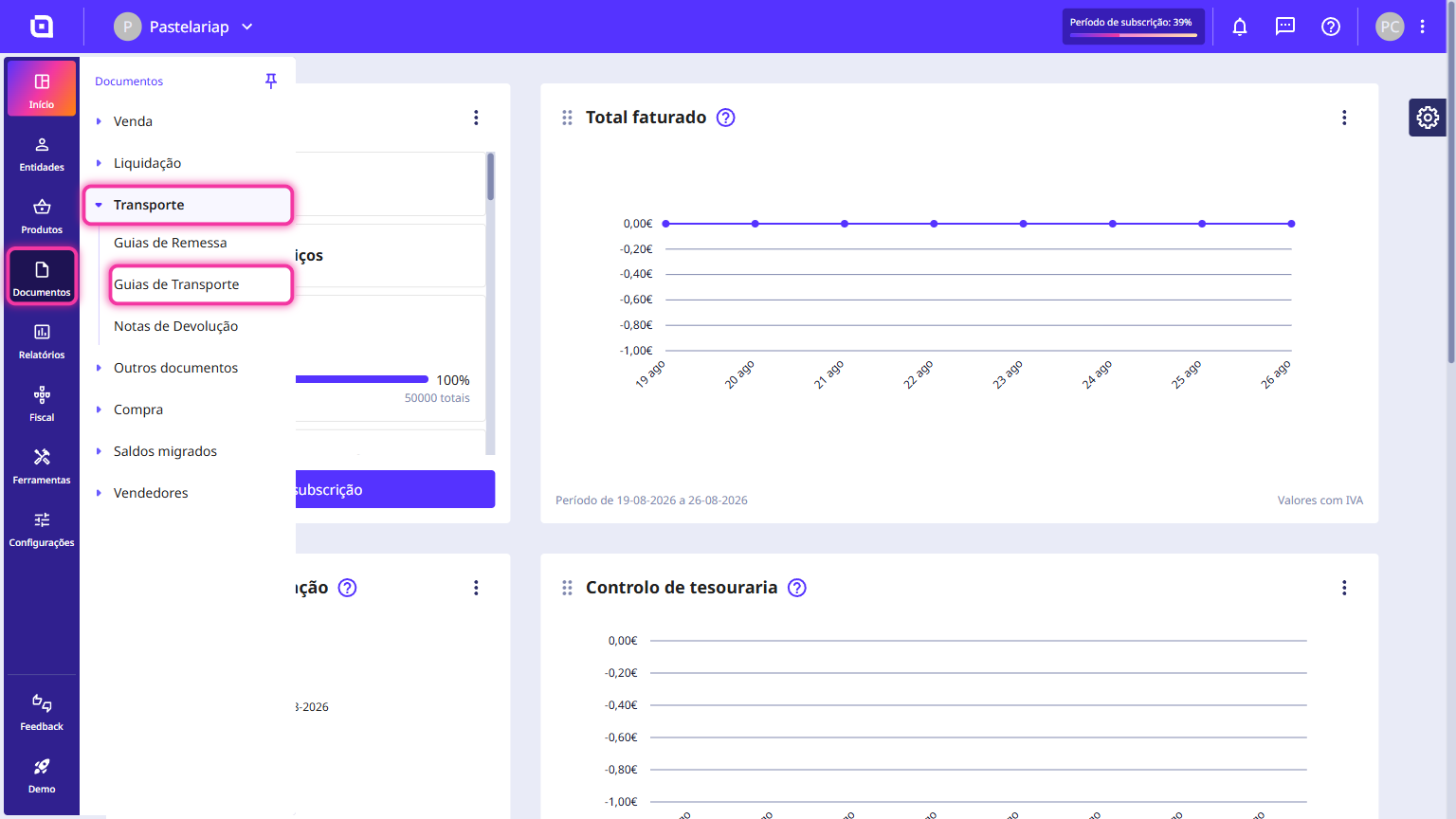
1. Go to the menu Documents > Transport and select the desired transport document type.
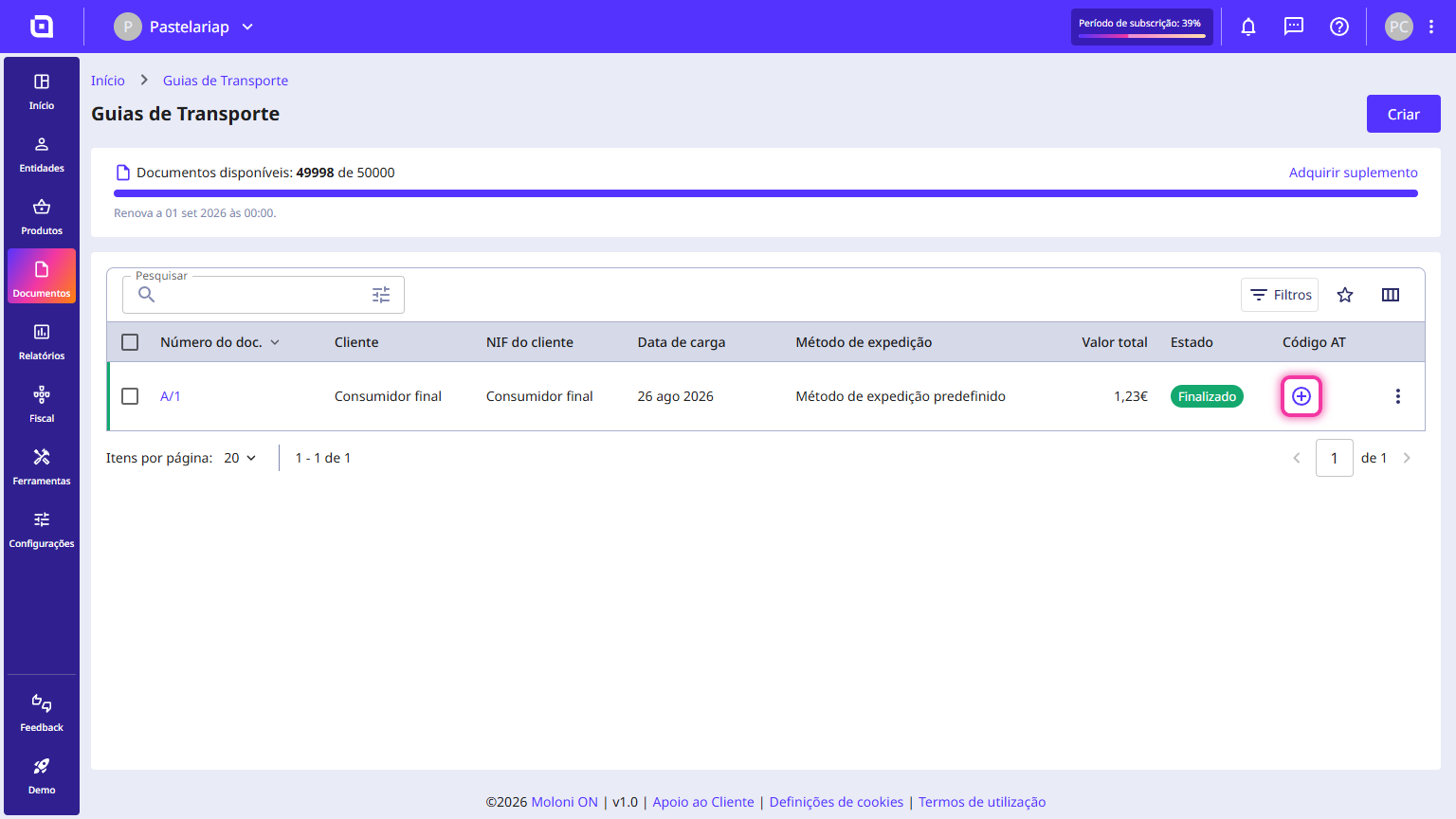
2. A list of documents is displayed. On the desired document, click the (+) button.
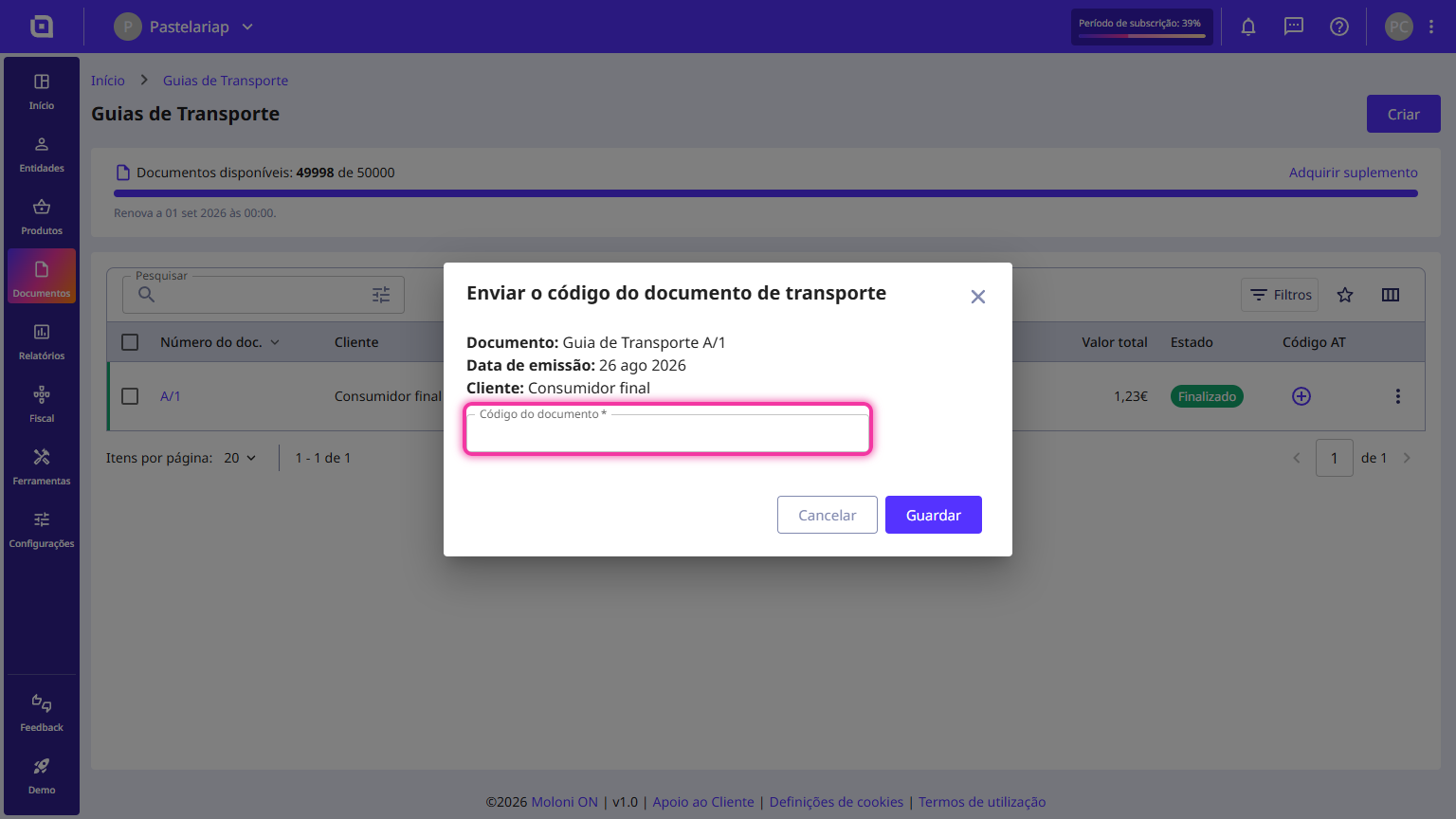
3. Add the code provided by the TA into the Document code field.
4. Click the Save button.
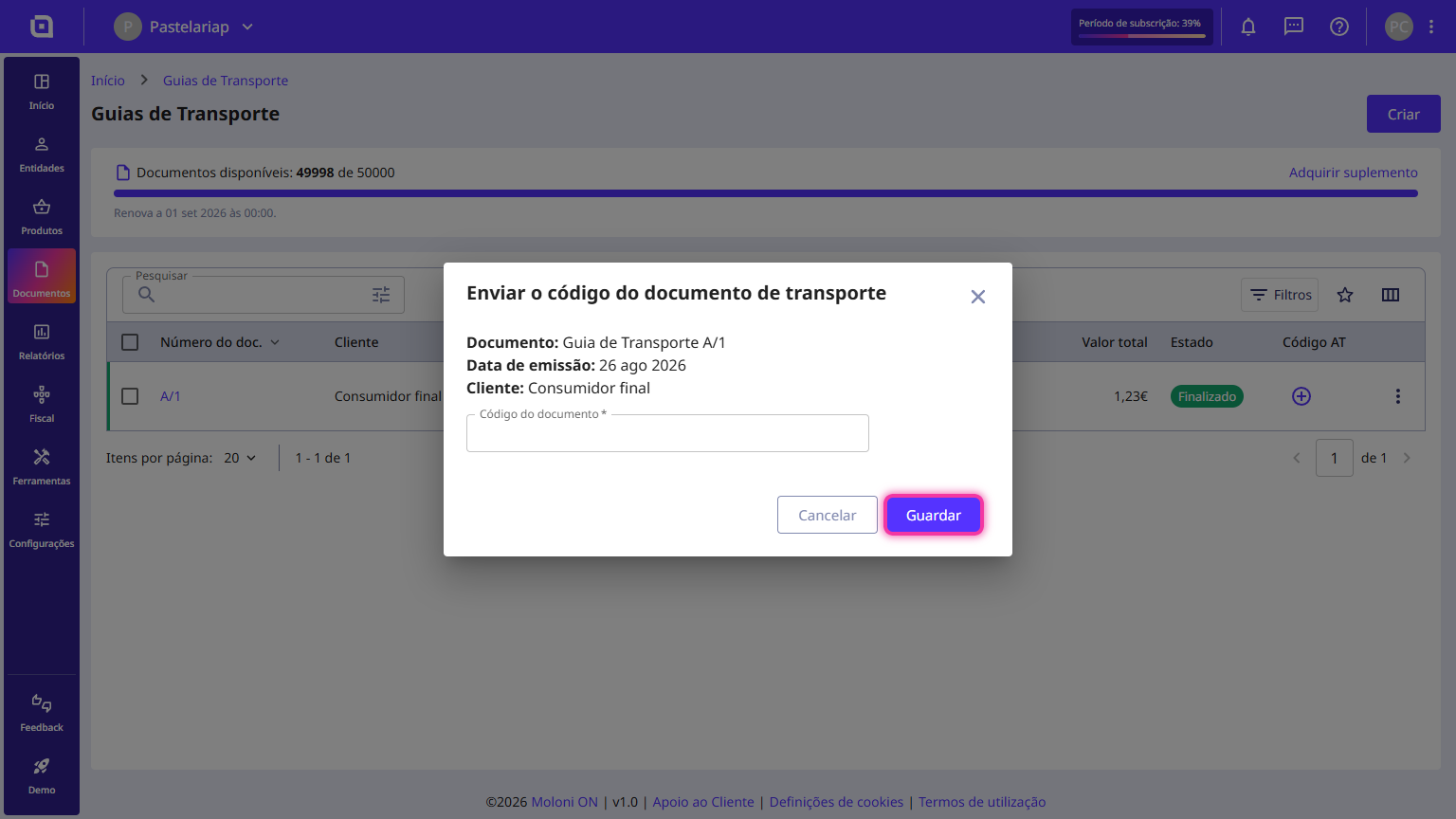
The code has been added to the transport document and will be included in the printed document, and it can be changed.